

Managing contacts for your services
1354 Views
 11.02.2026
  Account Information
Objective
Most services created with OVHcloud are managed by several contacts. Each of these contacts is linked to a unique customer account.
Find out how to manage contacts for your OVHcloud services.
OVHcloud offers an IAM policy system allowing to delegate access to other customer accounts.
IAM policies enable precise access control while keeping tracability of the actions.
Definition
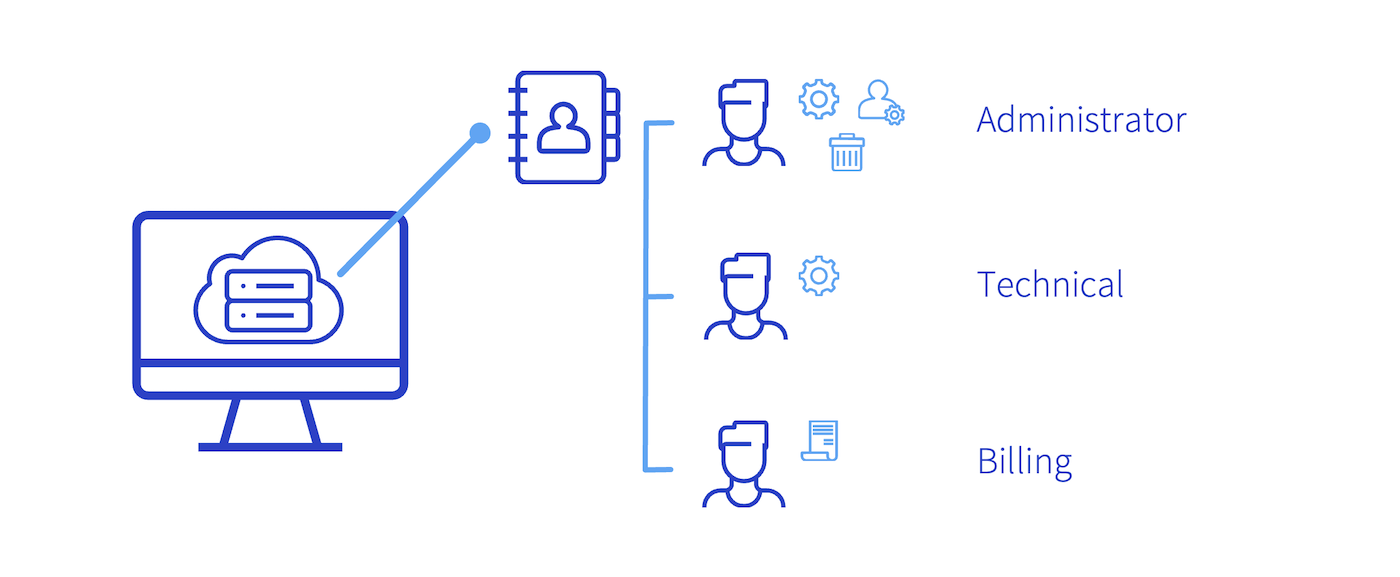
There are three different contact types:
- The administrative contact manages a service’s administrative and technical aspects. They have rights to modify all contacts, and can make changes to information belonging to the holder of a service, such as domain names, for example.
- The technical contact only manages the technical aspects of a service.
- The billing contact only manages the billing aspects of a service. Notably, this contact receives renewal notifications for services.
Requirements
- Access to the email address linked to any relevant customer account.
- Appropriate rights for the service concerned.
- The new contact’s email address.
- No outstanding payments on billing contacts.
- The new billing contact must have a valid payment method in their OVHcloud account.
OVHcloud Control Panel Access
- Direct link: Contact management
- Navigation path: Click your name in the top right >
My contacts
Instructions
Contact management is only possible between two OVHcloud accounts located in the same geographical zone. For example, it is impossible to manage contacts between an account in Europe and an account in Canada.
Access contact management
Open the My contacts page.
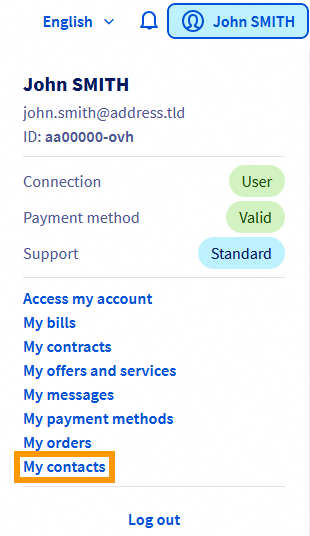
The table that appears will show all of the services your account is registered with as a contact.

Change the contacts for a service.
Once you are on the Contacts page, click ... to the right of the service you want to modify, then Modify contacts. Enter the new contact(s) you want (enter the primary email address for the account concerned), then click Confirm.

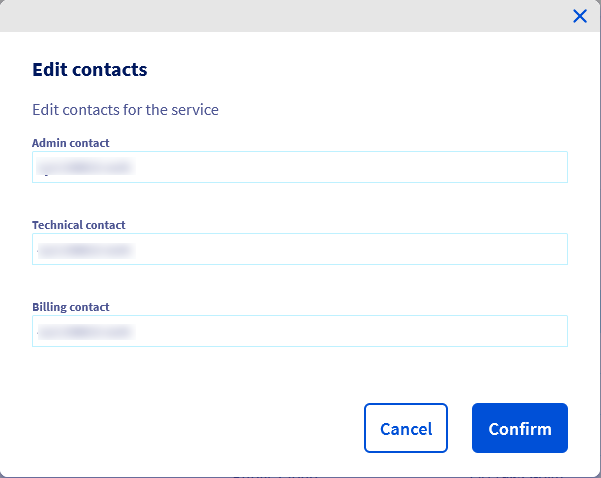
An email will be sent to the contacts you have added once you confirm this change.
Administrative contact
As an administrator, you can make several changes to contacts for a service. This includes:
-
Naming a new technical and/or billing contact. Validation is required from both you and the new contact. The previous contact will receive an email informing them of this change, if it is successful.
-
Managing technical and/or billing aspects. You need to confirm this request. The previous contact will receive an email informing them of this change.
-
Naming a new administrative contact to replace you. Confirmation is required from both you and the new contact.
Technical contact
You can only add another technical contact to replace you. Confirmation is required from both you and the new contact.
Billing contact
You can only add another billing contact to replace you. Confirmation is required from both you and the new contact.
The old and new billing contacts must be up-to-date with their payments.
Confirm, decline or track a contact change.
To track and manage ongoing requests, click on the My requests tab. Here, you can accept or decline a request.
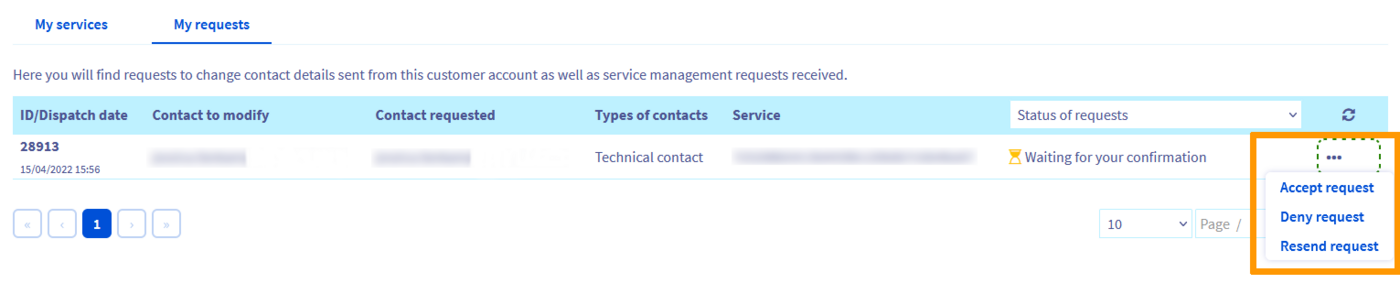
To do this, you must have a validation code (also called a token) contained in the email to confirm or decline the request.
This code is personal, can only be used once, and it will be different for the other two contacts.
The email you receive will also contain a link directing you to the page where you can validate or decline the request. If you click the link in the email, the validation code (token) will be inserted automatically.
If one of the contacts has not received this email, the contact email address linked to the profile may not be up-to-date. You can check this in your profile, change it if required, and request for the email to be sent again by clicking Resend request.
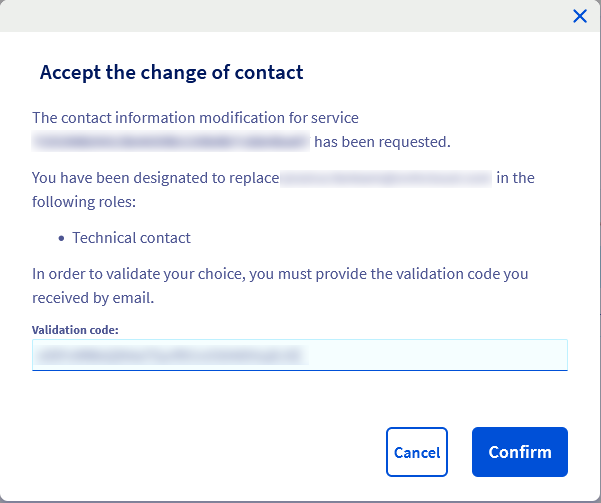
If only one contact has confirmed the change, a message will appear confirming that the request is still pending validation from the other contact. If one of the contacts has just confirmed the request, it will take a few minutes for the information to be updated and appear correctly in the OVHcloud Control Panel.
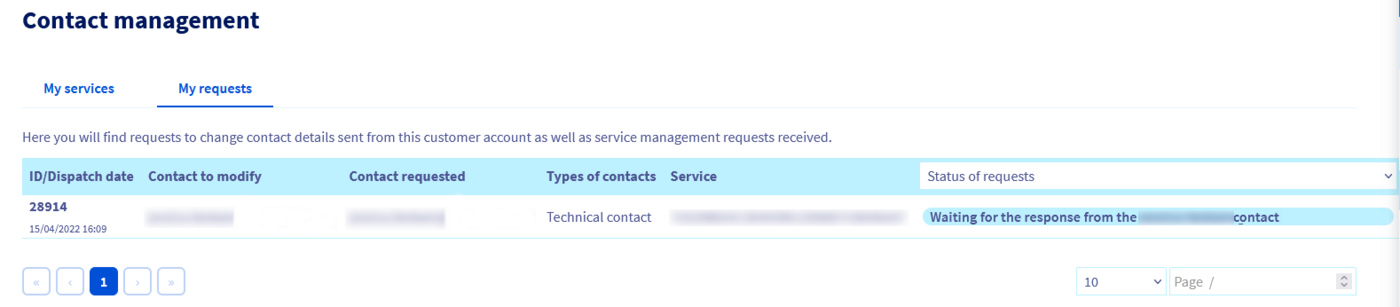
Once both contacts have confirmed the request, the change will be successful within a few minutes. The two contacts will receive an email confirming that the request has been successfully processed.
Go further
For specialised services (SEO, development, etc.), contact OVHcloud partners.
If you would like assistance using and configuring your OVHcloud solutions, please refer to our support offers.
Join our community of users.


 Managing contacts for your services
 13203
13203