

Improving your website's security with the MainWP plugin for WordPress
75 visualizações
 25.01.2024
  Web / Alojamento web
Informações sobre a tradução
Esta tradução foi automaticamente gerada pelo nosso parceiro SYSTRAN. Em certos casos, poderão ocorrer formulações imprecisas, como por exemplo nomes de botões ou detalhes técnicos. Recomendamos que consulte a versão inglesa ou francesa do manual, caso tenha alguma dúvida. Se nos quiser ajudar a melhorar esta tradução, clique em "Contribuir" nesta página.
Objective
Maintaining the security of your websites is crucial for the development of your brand. Optimum security for your websites can protect your company's data, as well as your customers' data, thereby preserving your company's image and trust. With extensions to the WordPress MainWP plugin, you can control the security of your websites from a single interface.
This guide will show you how to improve website security via the MainWP dashboard
Requirements
- A Web Cloud hosting plan.
- Access to your MainWP dashboard.
OVHcloud provides services that you are responsible for with regard to their configuration and management. It is therefore your responsibility to ensure that they function properly.
This tutorial is designed to help you with common tasks. However, we recommend contacting a specialist provider or the publisher of the MainWP plugin if you experience any difficulties. We will not be able to assist you. More information in the "Go further" section of this tutorial.
Instructions
Install the Sucuri extension
If you have never installed a MainWP extension, you can find out how to install one in this guide.
To find all the security-related extensions, go to the security section of MainWP. You can also search for an extension by clicking Extensions in the MainWP main menu, then Install Extensions.
Click on the Security tab to view the list of security-related extensions. In this example, we choose the free Sucuri extension, but you are free to choose the extension of your choice. Once you have selected the extension, click Install Selected Extensions.
In the MainWP main menu, click Extensions then Manage Extensions. The previously installed Sucuri extension appears.
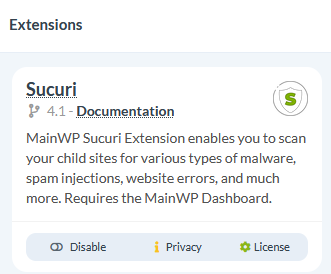
If you have not already done so, click Enable, then License to use the extension.
Perform a security scan
In the main menu of MainWP, click Sites then select the child site of your choice. At the top of the screen, click on the Security tab.
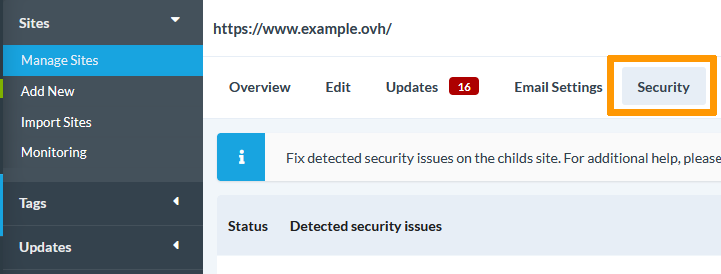
To perform a security scan on your website, click Scan Website.

Once the security scan is complete, a new line will appear, corresponding to the security scan report.

Click Show Report to view the security report.
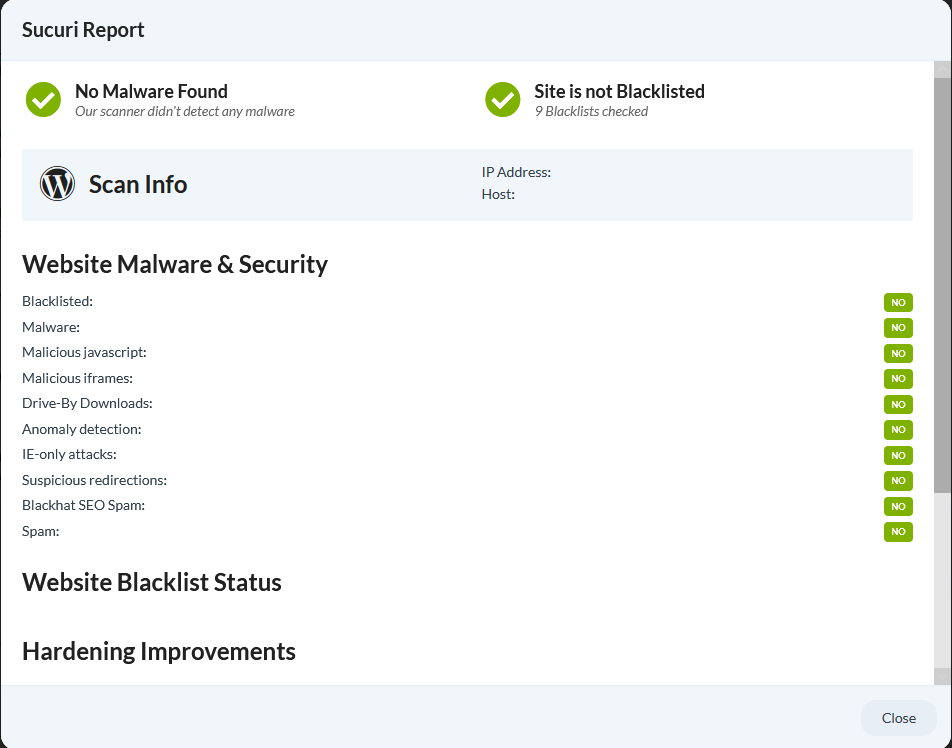
The security scan report provides a lot of important information about the security of your website:
- presence of viruses and malicious software
- anomaly detection
- dangerous links
- SPAM attempts
- etc.
Remember to carry out regular security scans. With Sucuri, you can enable a reminder. At the bottom of the list of your security reports, click on the dropdown list to the right of Remind me if I don't scan my child site for. For example, if you choose 1 week, Sucuri will remind you every week to carry out a security scan.
Identify and resolve security issues
In the main menu of MainWP, click Sites then select the child site of your choice. At the top of the screen, click the Security tab. On the dashboard that pops up, you can see if any security issues have been identified by Sucuri.
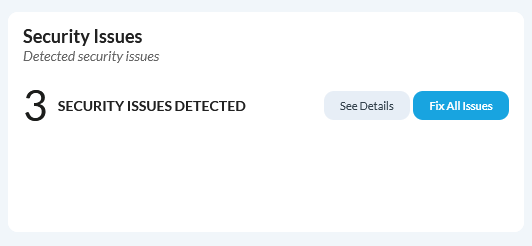
In our example, Sucuri tells us that three security issues have been identified. Click Fix all issues to resolve all security issues. If you would like to find out more about the issues identified, click the Security tab at the top of the interface. A list of security issues is displayed.

To resolve an issue, identify the corresponding line and click the Fix button to the right of the line.

Once the problem has been resolved, you can cancel the changes made by clicking the Unfix button.
Go further
Manage multiple WordPress websites with the MainWP plugin
Manage customers for your websites with MainWP
Backing up your websites with MainWP
For specialised services (SEO, development, etc.), contact OVHcloud partners.
Join our community of users.


 Tutorial - Primeiros passos no WordPress
 613
613