

How to install CloudPanel on a VPS or a Dedicated Server
46 visualizações
 03.12.2025
  Cloud / Servidor dedicado (bare metal)
Objective
CloudPanel is a modern, lightweight, and high-performance hosting control panel, offering a web interface to deploy and manage:
- websites using PHP or Node.js;
- databases;
- SSL/TLS certificates (Let’s Encrypt);
- users;
- a firewall.
This guide explains how to install CloudPanel on a VPS or a Dedicated Server and how to connect to it to perform the initial configuration.
OVHcloud provides services for which you are responsible for the configuration, management, and operation. It is therefore your responsibility to ensure their proper functioning.
We provide this tutorial to assist you with common tasks. However, we recommend that you contact a specialist service provider and/or the service publisher if you encounter difficulties. Indeed, we will not be able to provide you with support. More information is available in the "Go further" section of this tutorial.
Requirements
- A VPS or a Dedicated Server with a recommended configuration in your OVHcloud Control Panel.
- An administrative access (sudo) via SSH to your server.
Instructions
Step 1 — Connect and update the system
Connect to the server
Open a terminal and connect to your VPS (or Dedicated Server) using the following command:
Replace:
userwith your username.IP_VPSwith your VPS's IP address.
Update the system
Update your operating system. This operation may take several minutes.
Step 2 — Open required ports (firewall)
To allow incoming and outgoing connections, refer to the Port Firewall section of the official CloudPanel documentation to find out which ports to open based on your needs.
Example of port opening for Debian and Ubuntu
1. Install UFW:
2. Open the necessary ports (examples: SSH, CloudPanel panel, HTTP/HTTPS):
3. Enable UFW and check its status (the value "ALLOW" is expected):
Example of port opening for AlmaLinux 9 and Rocky Linux 8
1. Install firewalld:
2. Enable and start the service:
3. Open the necessary ports (examples: SSH, CloudPanel panel, HTTP/HTTPS):
4. Apply the configuration:
Step 3 — Install CloudPanel
1. Install wget:
2. Download the CloudPanel installation script:
3. Run the installer with the desired database engine:
Run the script specifying the database you want to install (MySQL or MariaDB).
- Example with MySQL 8.4:
- Example with MariaDB 11.4:
The installation may take several minutes, as the script automatically installs the necessary dependencies.
Step 4 — First connection
Once the installation is complete, enter the URL https://<IP_VPS>:8443 in your browser, replacing <IP_VPS> with your VPS's IP address.
On the first access, a self-signed certificate is used. Accept the browser warning to continue.
The following interface appears:
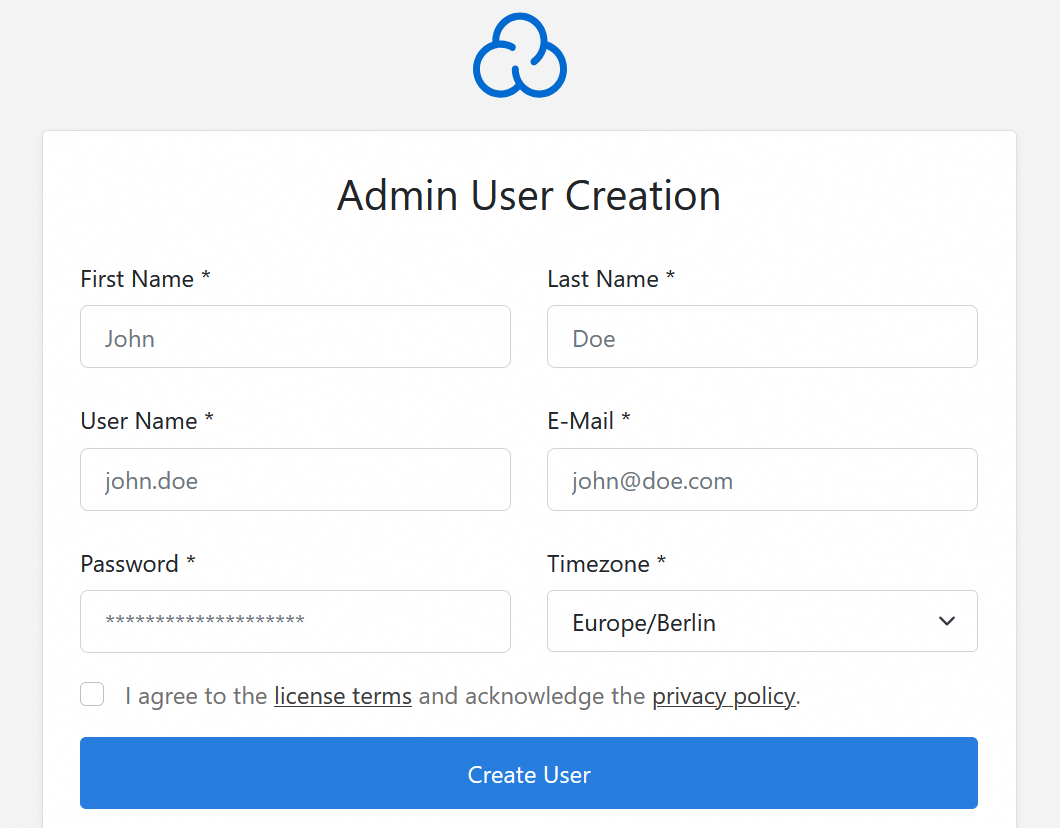
On the first launch, CloudPanel asks you to create the administrator account by providing a username, an email address, and a password. After completing this step, enter the username and password you just set to log in. You then arrive at the CloudPanel administration interface.
Go further
How to secure a Dedicated Server
For specialized services (SEO, development, etc.), contact OVHcloud partners
Join our community of users.


 Como criar um servidor Minecraft num VPS ou num servidor dedicado
 2289
2289