

Using the weight feature on a Load Balancer member
39 visualizações
 01.10.2025
  Cloud / Network Gateway for Public Cloud
Objective
This guide explains how to use the weight feature to temporarily remove a Load Balancer member from receiving traffic for maintenance purposes.
Using the weight feature
Octavia supports setting the weight of members from 0 to 256.
The weight of a member determines the portion of requests or connections it services compared to the other members of the pool. A higher weight means it will receive more traffic.
For example, a member with a weight of 10 receives five times as much traffic as a member with a weight of 2.
The weight must be a number from 1 to 256. A value of 0 means the member does not receive new connections but continues to service existing connections.
By setting the weight to 0, the member is effectively removed from the traffic pool, allowing you to perform upgrades or maintenance without service disruption.
Prerequisites
- An active OVHcloud account.
- An active Public Cloud project.
- A Load Balancer set up with multiple members.
- OpenStack CLI installed and configured.
Instructions
OVHcloud Control Panel Access
- Direct link: Public Cloud Projects
- Navigation path:
Public Cloud> Select your project
Step 1 - Create a Load Balancer with two members
Use the following repository to create a Load Balancer with two members:
Verify that both members are receiving traffic by running this script:
You should see alternating responses from the two members:
Step 2 - Set the Weight of a member to 0
Log in to the OVHcloud APIv6 interface according to the relevant guide (First steps with the OVHcloud API).
In case the project ID is unknown, the API calls below allow you to retrieve it:
This call retrieves the list of projects:
This call identifies the project via the "description" field:
This call retrieves the pool id. Fill in the fields with the previously obtained information:
- serviceName: The Public Cloud project ID in the form of a 32-character string.
- regionName: The name of your region.
You can leave the loadbalancerId field blank in order to obtain all the pools created in the region specified/
This call retrieves the member id. Fill in the fields with the previously obtained information:
- serviceName: The Public Cloud project ID in the form of a 32-character string.
- regionName: The name of your region.
- poolId: The Pool ID in the form of a 32-character string.
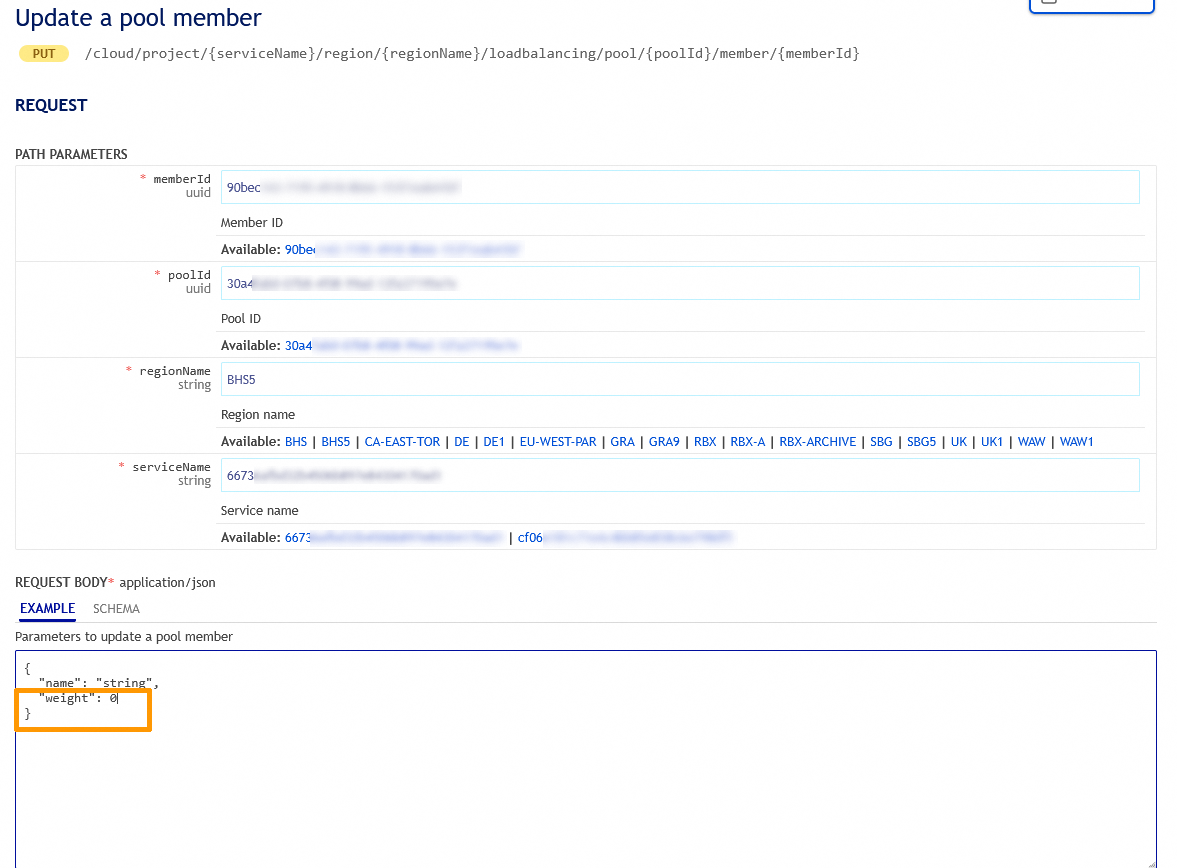
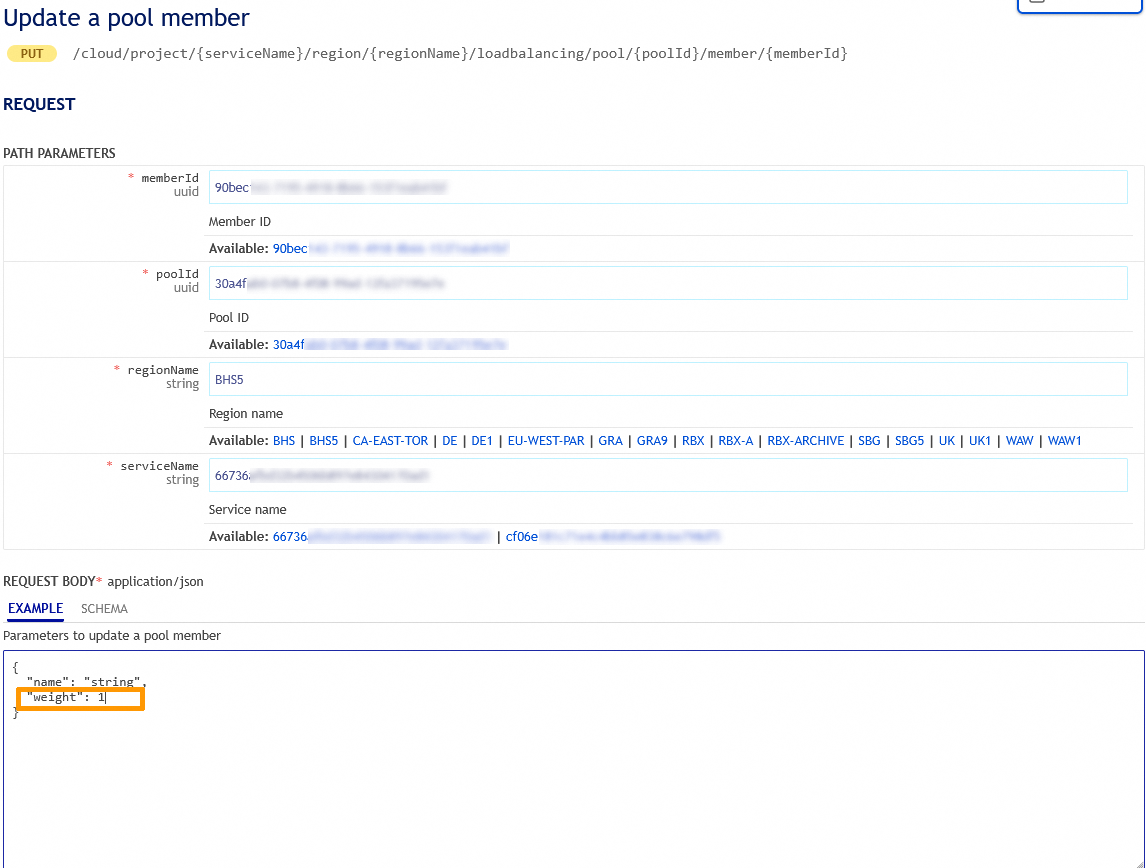
You can update a pool member with the following API call:
Fill in the fields with the previously obtained information:
- serviceName: The Public Cloud project ID in the form of a 32-character string.
- regionName: The name of your region.
- poolId: The Pool ID in the form of a 32-character string.
- memberId: The Member ID in the form of a 32-character string.
- weight: Set the weight to 0.
Click on Execute.
There are two ways to access the Horizon interface:
- Log in with OVHcloud Single Sign-On: use the
Horizonlink in the left-hand menu under "Management Interfaces" in yourPublic Cloudproject. - To log in with a specific OpenStack user: Open the Horizon login page and enter the OpenStack user credentials previously created, then click on
Connect.
Select the appropriate region from the top left drop-down menu.
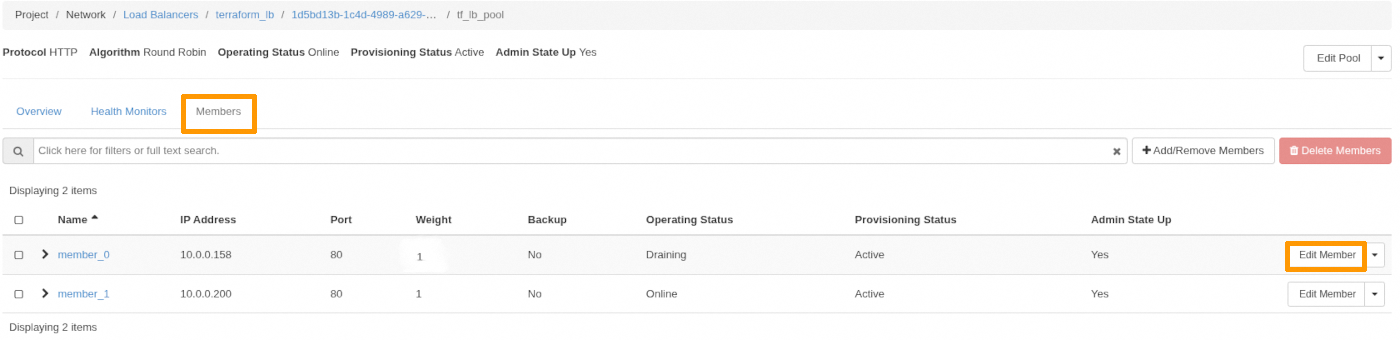
In the left tab, click the Network tab then on Load Balancers.
Click the load balancer concerned.
In the tab, click on Pools and then on the pool in which the member is.

In the tab, click on Members and then on Edit Member.
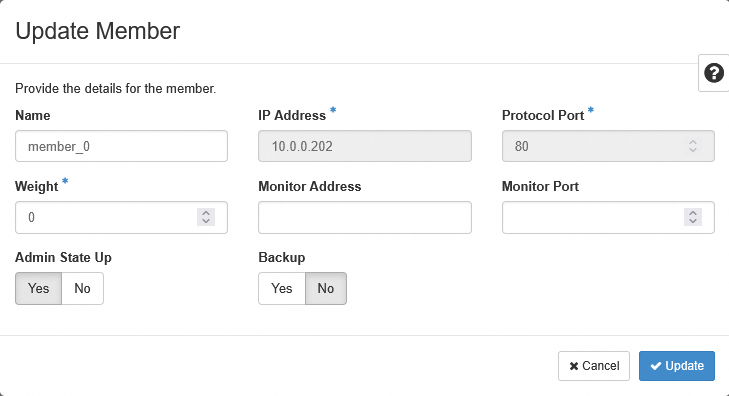
Edit the Weight to 0, then click on Update.
To set the weight of a member to 0, run the following commmand:
Step 3 - Verify Member Status
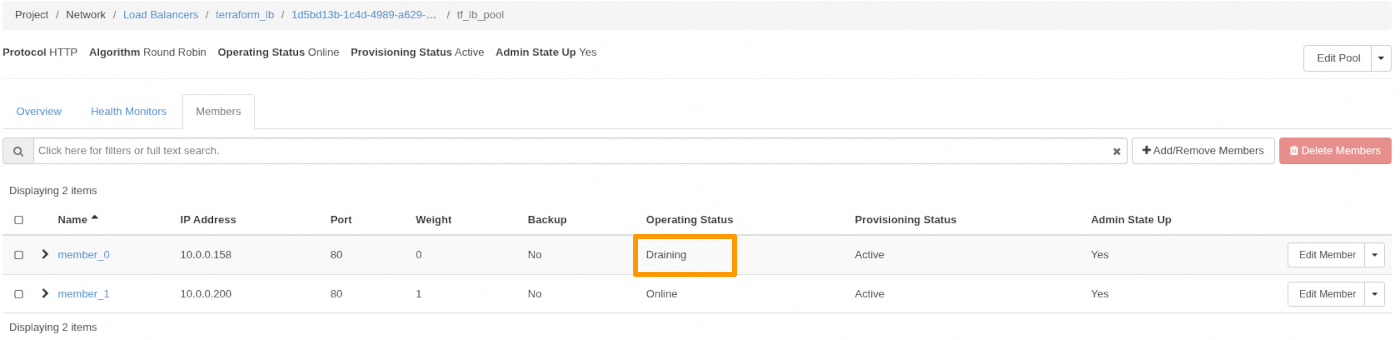
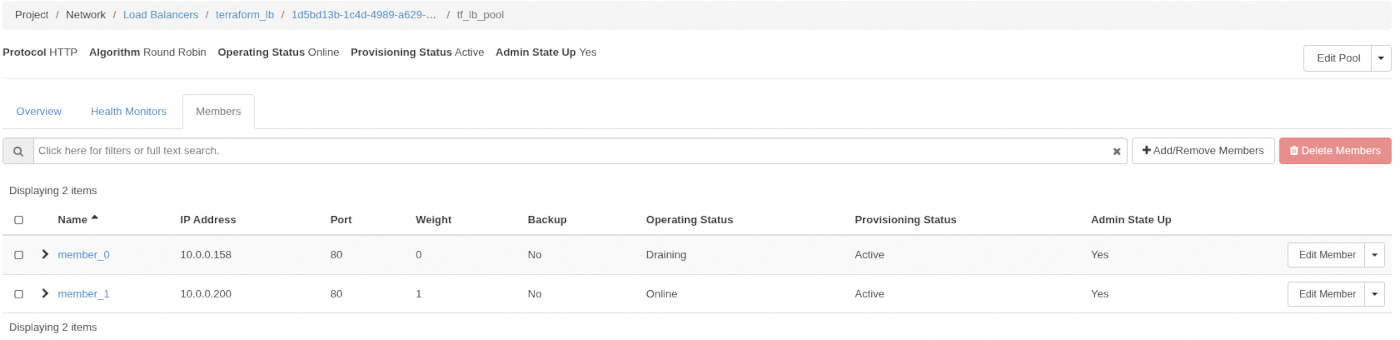
After setting the member’s weight to 0, its status will change from ONLINE to DRAINING.
It is important to note that in the current system, the member will remain in the DRAINING state even after all traffic has been drained.
This can be confusing because some users expect a final status of DRAINED once all traffic has been redirected. However, the system does not automatically transition to DRAINED.
- DRAINING simply means that the member is no longer receiving traffic, not that it is still actively draining traffic.
- The DRAINED status is not yet supported in the current OpenStack API.
If having a final DRAINED status is critical for your operations, it is recommended to submit a feature request to OVHcloud for this functionality in a future update. However, this will only be possible once this feature is supported by OpenStack.
Use the following API call:
To check the member's status, click on Network in the left tab then on Load Balancers.
Click on the load balancer concerned.
In the tab, click on Pools and then on the pool in which the member is.
Click the Members tab:
You can check the member’s status using the following command:
You should see:
Create a .tf file to manage a V2 members resource within OpenStack. For example:
Replace <POOL_ID> with the ID of your Pool. For more details on the available options for this resource, refer to the official documentation for the openstack_lb_monitor_v2 resource on the Terraform Registry.
Applying the Configuration
To apply your Terraform configuration:
- Run
terraform initto initialize the Terraform working directory. - Run
terraform applyto apply the changes defined in your configuration.
Verification
After running terraform apply, Terraform will provide you with a summary of the resources created, modified, or deleted. This confirms the creation or update of your Health Monitor.
Step 4 - Confirm Traffic is directed to the active member
The member whose weight is 0 will have an Operating Status Draining. Run the test script again:
You should now only see responses from member_1:
Step 5 - Perform maintenance
Now that member_0 is no longer receiving traffic, you can safely perform maintenance or upgrade tasks.
Step 6 - Restore traffic to the member
Once the maintenance is complete, set the weight of member_0 back to its original value (e.g., 1):
To update the weight, use the following API call:
Fill in the fields with the previously obtained information:
- serviceName: The Public Cloud project ID in the form of a 32-character string.
- regionName: The name of your region.
- poolId: The Pool ID in the form of a 32-character string.
- memberId: The Member ID in the form of a 32-character string.
- weight: Set the weight to 1.
Click on Execute.
Log in to the Horizon interface.
Select the appropriate region from the top left drop-down menu.
In the left tab, click on Network then on click Load Balancers.
Click the load balancer concerned.
In the tab, click on Pools and then on the pool in which the member is.
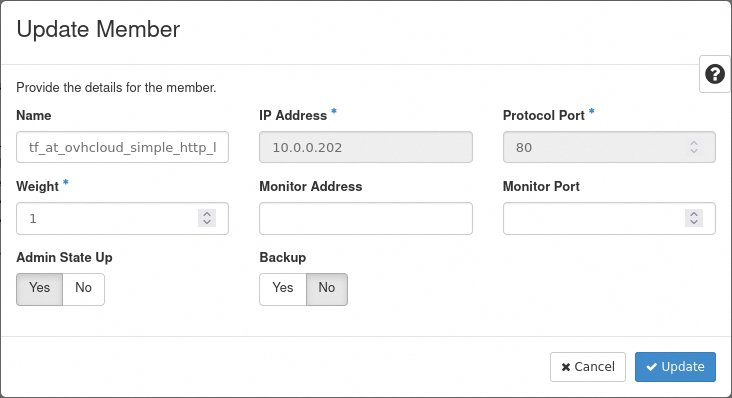
Click on the Members tab, and then on Edit Member next to the corresponding member.
You can edit the Weight to 1 then click on Update
To restore traffic from being routed to a specific member, set its weight to 1:
Create a .tf file to manage a V2 members resource within OpenStack. For example:
Replace <POOL_ID> with the ID of your Pool. For more details on the available options for this resource, refer to the official documentation for the openstack_lb_monitor_v2 resource on the Terraform Registry.
Applying the Configuration
To apply your Terraform configuration:
- Run
terraform initto initialize the Terraform working directory. - Run
terraform applyto apply the changes defined in your configuration.
Verification
After running terraform apply, Terraform will provide you with a summary of the resources created, modified, or deleted. This confirms the creation or update of your Health Monitor.
Step 7 - Verify that both members are now receiving traffic
Re-use the script:
You should see alternating responses from the two members:
Go further
Join our community of users.


 Deploying a Public Cloud Load Balancer (EN)
 358
358