

Installing WordPress on OVHcloud Managed Kubernetes
276 visualizações
 17.12.2021
  Cloud / Managed Kubernetes Service
In this tutorial, we will guide you through the installation of WordPress on your OVHcloud Managed Kubernetes Service.
Before you begin
This tutorial presupposes that you already have a working OVHcloud Managed Kubernetes cluster, and some basic knowledge of how to operate it. If you want to know more on those topics, please look at the OVHcloud Managed Kubernetes Service Quickstart.
You also need to have Helm installed on your workstation and your cluster, please refer to the How to install Helm on OVHcloud Managed Kubernetes Service tutorial.
Pre-requisites
We (the OVHcloud Managed Kubernetes Service team) are working on a patch to be released in early 2022. In the meantime, please remove the default storage class and install the new one.
- Delete the concerned
StorageClassthat you are using by default
It will delete the existing StorageClass:
- Create a new
StorageClasswith the required fix
It will apply the correct StorageClass YAML manifest:
If you have already installed a previous version of Bitnami's WordPress Helm chart, please follow the following step by step guide.
- Delete the concerned Helm Chart
For example with the Helm Chart bitnami/wordpress which is concerned by this behavior:
And don't forget to verify if concerned PersistentVolumeClaim (PVC) and PersistentVolume (PV) have been deleted before reinstalling the Helm Chart:
If a PersistentVolumeClaim is listed, please delete it (the PersistentVolume will be deleted automatically).
The command will delete the remaining PersistentVolumeClaim:
Installing the WordPress Helm chart
For this tutorial we are using the WordPress Helm chart found on Bitnami repository. The chart is fully configurable, but here we are using the default configuration, with only the minimal set of customization to make it work well on OVHcloud Managed Kubernetes Service.
Customizing your install
Maybe you would like your username to be different, or be able to set your password, or choose an external database instead of deploying the MariaDB container...
In order to customize your install, without having to leave the simplicity of using Helm and the WordPress Helm chart, you can simply set some of the configurable parameters of the WordPress chart. Then you can add it to your helm install with the --set option (--set param1=value1,param2=value2)
helm install my-first-k8s-wordpress bitnami/wordpress --set allowOverrideNone=trueThis will install the needed elements:
- a MariaDB
Podfor the database - a WordPress
Podfor the webserver with the WordPress PHP code - allocate the persistent volumes (
PersistentVolumeClaimandPersistentVolume) - and initialize the
Services.
And at the end, it will give you the connection parameters for your new WordPress:
As the instructions say, you will need to wait a few moments to get the LoadBalancer URL.
You can test if the LoadBalancer is ready using:
kubectl get svc --namespace default -w my-first-k8s-wordpressAfter some minutes, you will get the LoadBalancer URL:
Then you can follow the instructions to get the Admin URL:
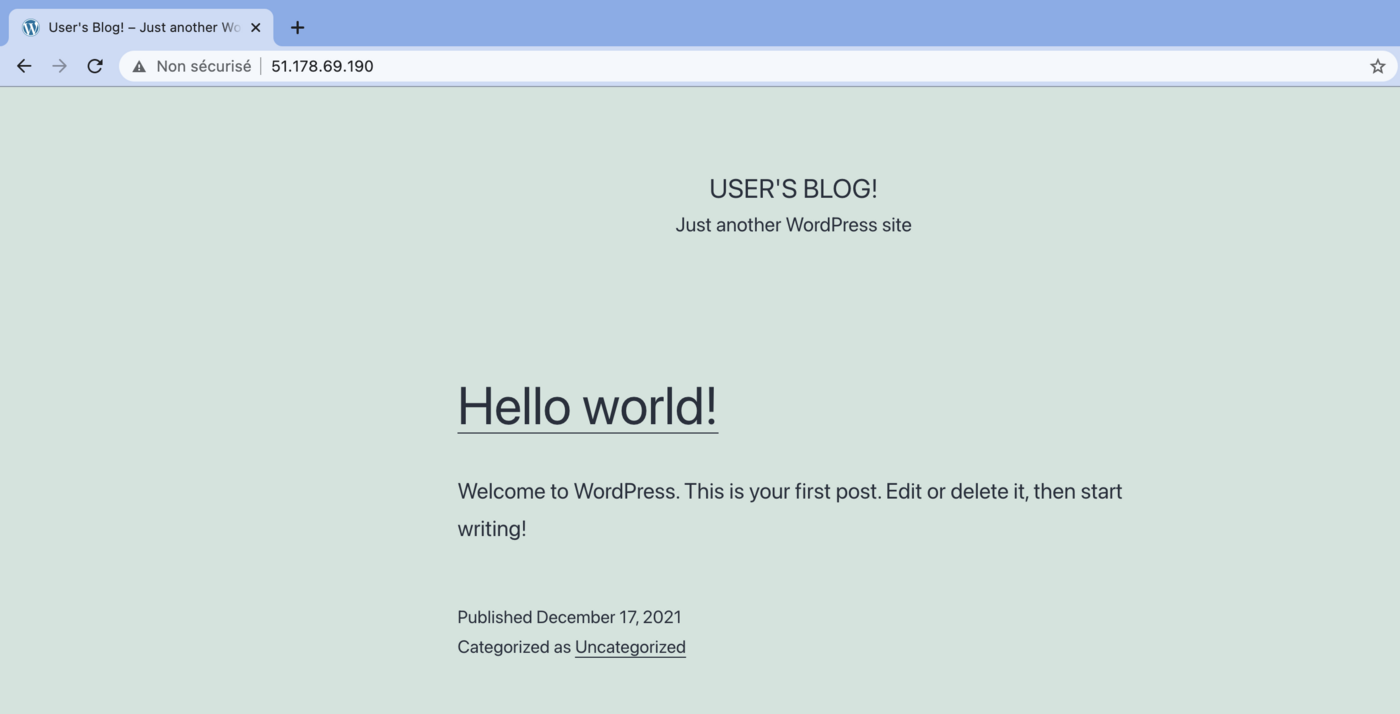
Copy/paste the WordPress URL in your browser to see your new running blog:
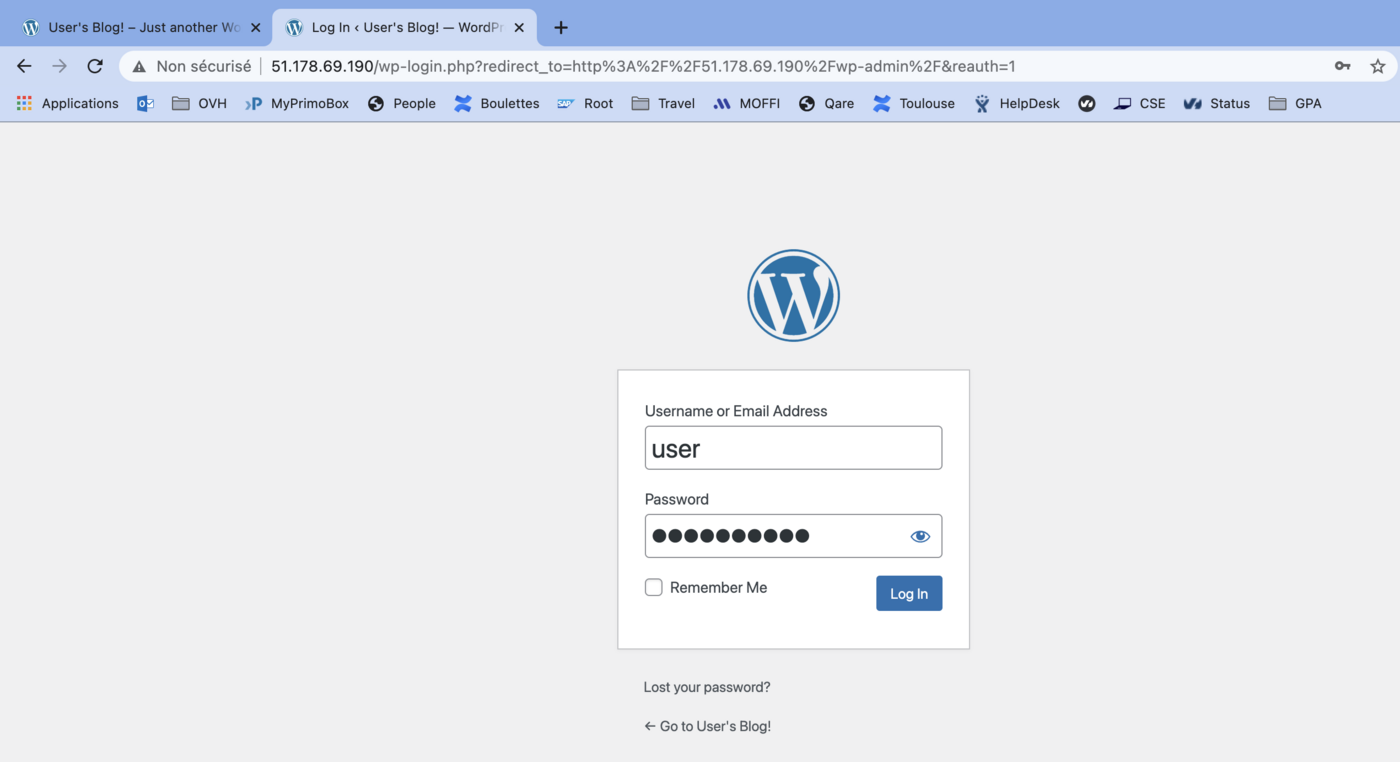
In order to log in on the Admin interface, you need to use the instructions given by the Helm install to get the default username and password for your blog.
In my case:
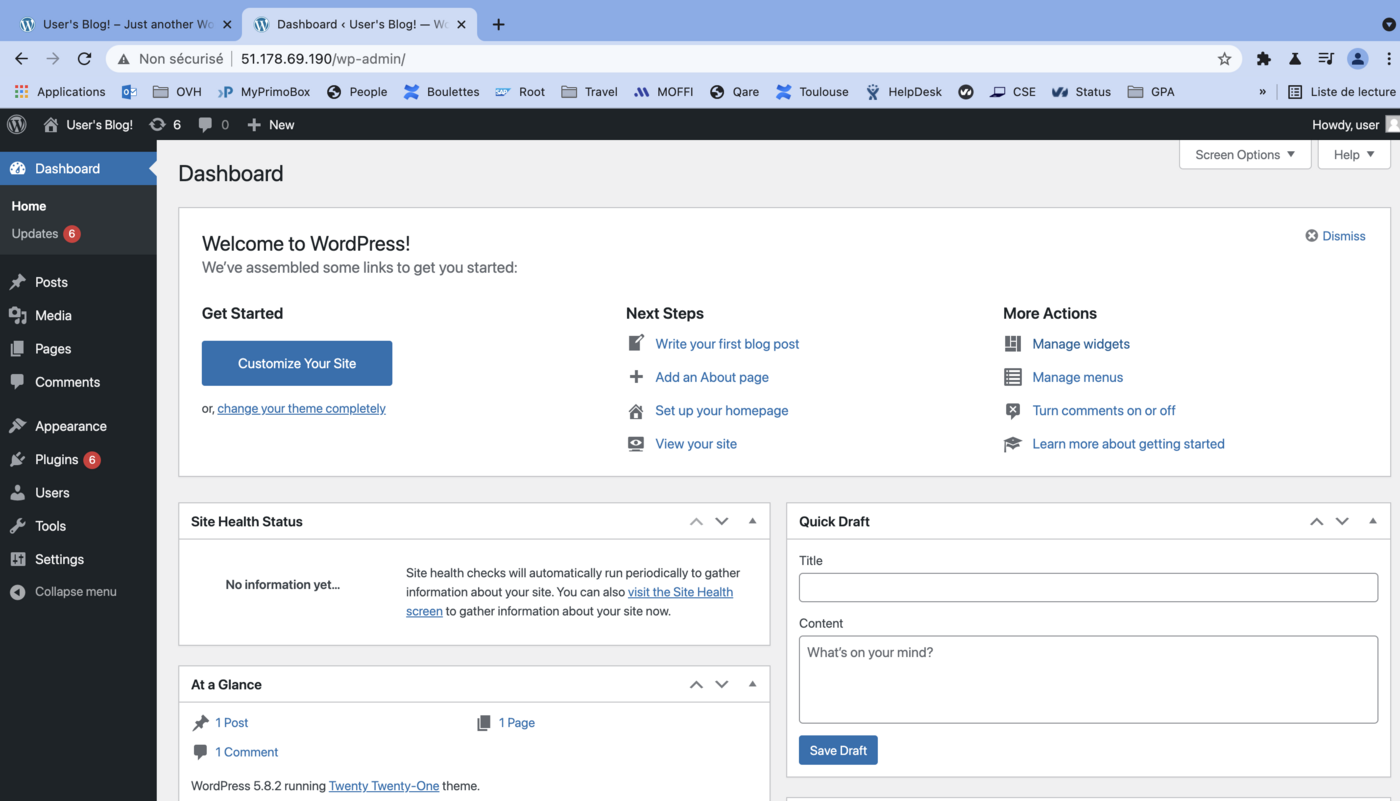
You have a working WordPress on your OVHcloud Managed Kubernetes Service, congratulations!
Cleaning up
To clean up your cluster, simply use Helm to delete your WordPress blog.
It will delete your WordPress and its associated resources from your cluster:
You also need to remove remaining PersistentVolumeClaim manually, for the moment:
It will delete the PersistentVolumeClaim installed by Bitnami WordPress helm chart:
Where do we go from here?
So now you have a working WordPress on your OVHcloud Managed Kubernetes cluster.
Don't hesitate to go to our Managed Kubernetes guides and tutorials.
Go further
-
If you need training or technical assistance to implement our solutions, contact your sales representative or click on this link to get a quote and ask our Professional Services experts for assisting you on your specific use case of your project.
-
Join our community of users.


 Creating a cluster
 354
354