

AI Endpoints - Getting started
163 visualizações
 19.03.2026
  Cloud / AI Deploy
AI Endpoints is covered by the OVHcloud AI Endpoints Conditions and the OVHcloud Public Cloud Special Conditions.
Introduction
AI Endpoints is a serverless platform provided by OVHcloud that offers easy access to a selection of world-renowned, pre-trained AI models. The platform is designed to be simple, secure, and intuitive, with data privacy as a top priority. Indeed, we do not store user data, making it an ideal solution for developers who want to enhance their applications with AI capabilities while keeping data private and secure.
With no extensive AI expertise required, AI Endpoints is an ideal choice for developers seeking a convenient and secure way to integrate AI into their applications.
Objective
The objective of this guide is to help developers interested in AI quickly and easily get started with AI Endpoints.
It explains how to obtain an access key, access AI models, and interact with AI APIs on the AI Endpoints platform. By following this guide, you will learn how to integrate AI capabilities into your applications with ease.
Requirements
- A Public Cloud project in your OVHcloud account
- A payment method defined on your Public Cloud project. Access keys created from Public Cloud projects in Discovery mode (without a payment method) cannot use the service.
Instructions
Generating your first API access key
Getting an API key enables you to use the models available in our catalog and test their integration into your solutions. To obtain an API access key, please follow the steps below:
1. Access the AI Endpoints section
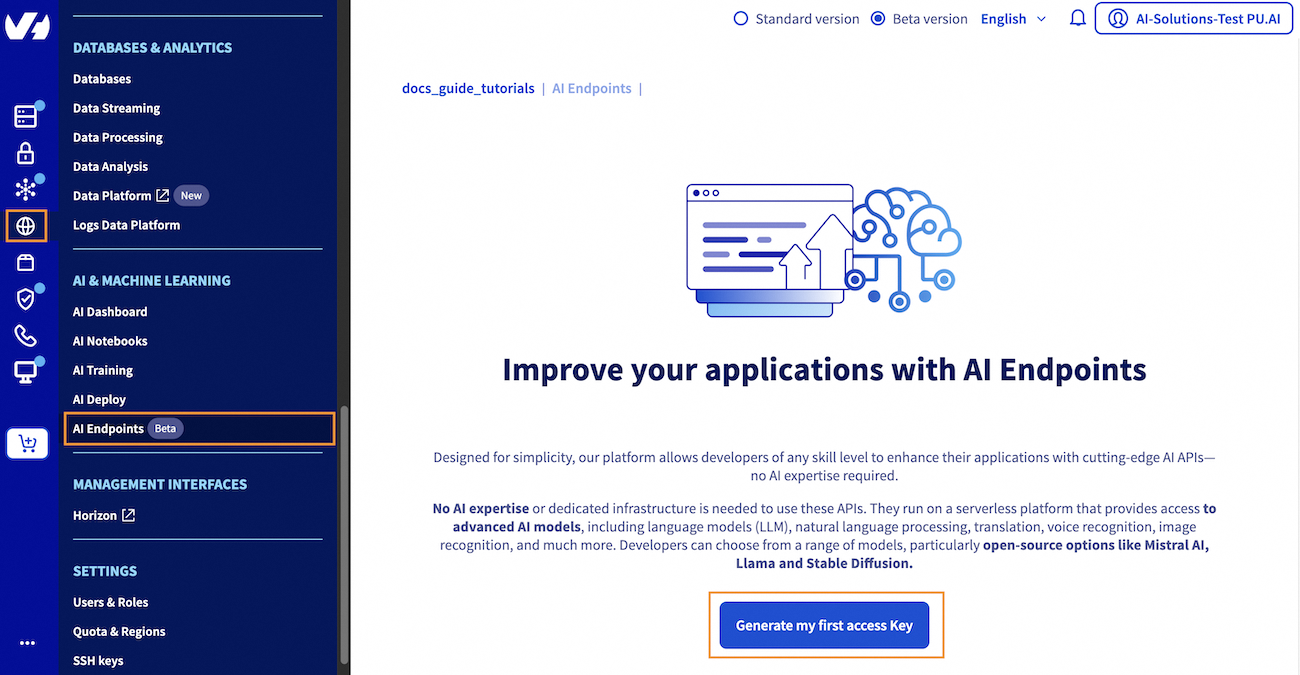
Click this link to access your Public Cloud project, then go to the AI & Machine Learning category in the left menu and choose AI Endpoints.
2. Generate an API access key
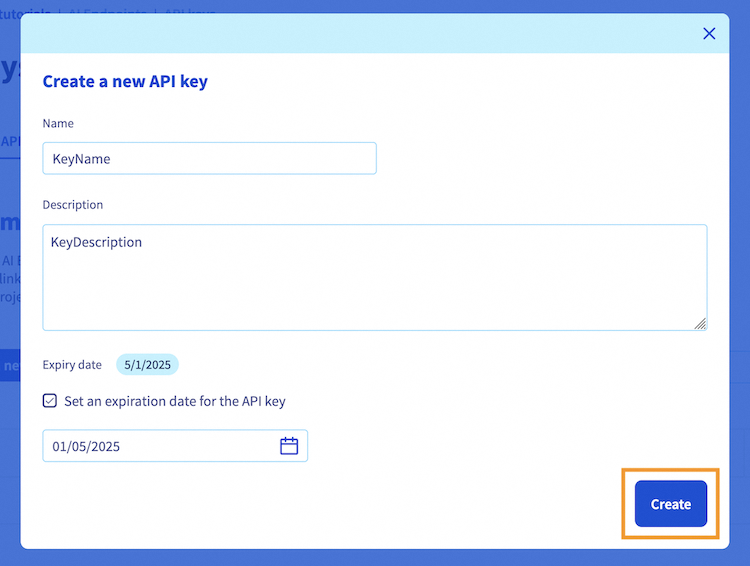
From there, click the Generate my first access Key blue button to create your API access key. Next, click the + Create a new API key button. You will be asked to provide a name for the key and an optional description. You can also set an expiration date for the key if desired.
Once you have filled in the required information, click the Create button to confirm the creation of your API key.
Note that this access key can be revoked at any time.
Regarding shared projects
Due to current IAM (Identity and Access Management) limitations, the ability to create and manage API keys for AI Endpoints varies depending on how your project is shared.
- If your project is shared with an existing OVHcloud NIC (with Read & Write permissions):
- Added team members can create API keys for AI Endpoints.
- However, project administrators cannot see or manage keys created by these users.
-
As a result, admins cannot revoke or audit tokens created by team members. The only way to revoke such tokens is to remove the NIC’s access to the project.
-
If your project is accessed via IAM-based sharing (
NIC/newuser): - Added team members cannot create new API keys unless they are granted admin-level IAM permissions.
The platform is continuously being improved to provide a smoother and more consistent experience across all services. In the meantime, please contact your project administrator to create the key for you.
3. Store the created API access key
Once created, the key will be displayed in the API keys table. You will see your new access key in this table, with its information (name, description, expiry date).
Your key value will be displayed and you can copy it by clicking the copy icon.
It is essential that you keep your API key private and confidential.
Moreover, the API key displayed will not be stored in the website's memory, so please make sure to store it securely on your side for future usage.
With your access API key in hand, you are now ready to access the AI models and their easy-to-use APIs.
Accessing AI models
Once your API key has been generated, you can navigate to the Catalog page to choose the AI model you want to interact with.
AI Endpoints offers a variety of world-renowned AI models to choose from, including:
- Large Language Models (LLM): Use models like LLaMa 3, Mistral and more, for conversations and RAG use cases.
- Reasoning LLM: Use reasoning models like GPT-OSS for maths, coding or complex tasks.
- Code LLM: Code generation and code completion from an IDE with models like Qwen Coder.
- Visual LLM: Multimodal models such as Qwen VL, that are able to process images and text inputs, for image understanding or OCR use cases.
- Embeddings: Generate embeddings for use in machine learning applications, such as BGE.
- Image Generation: Generate images using Stable Diffusion XL.
- Audio Analysis: Automatic Speech Recognition with models like Whisper.
Once you have selected the category of model you want to use, you will be presented with a list of models to choose from.
For example, if you select the Code LLM category, you will see a list of available code assistant models.
To access one of them, simply click the name of the model you want to use. Let's take the gpt-oss-120b code assistant as our example.
This will take you to a dedicated page with several options for interacting with the chosen model, including the ability to view its specifications. Here is an overview of the available options:
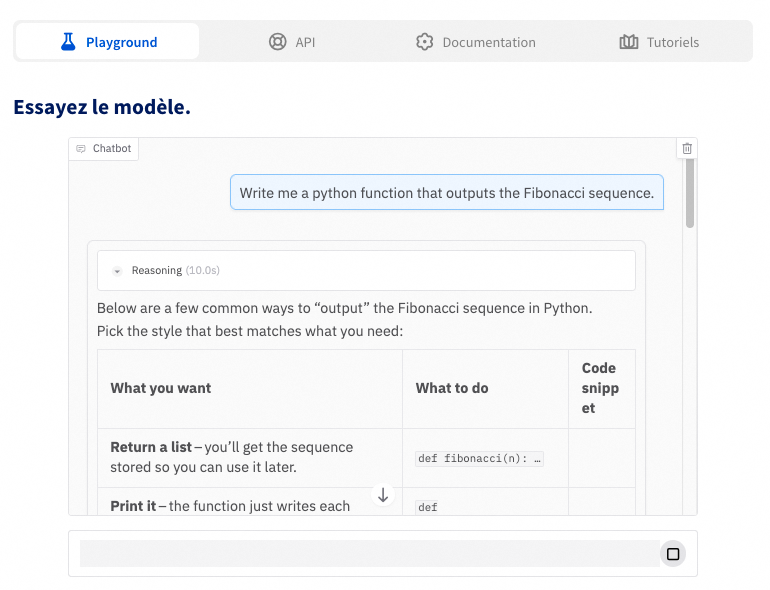
This option provides a user-friendly interface to test and explore the model's capabilities, giving you a chance to see how it works before making an API call. Please note that Large Language Models (LLMs) in the playground are currently limited to 1024 output tokens for testing purposes. This means that LLMs will not generate responses longer than 1024 tokens in the playground, allowing you to test and validate their behavior.
The API section provides access to POST routes that you can use to send a request to the model and receive an output.
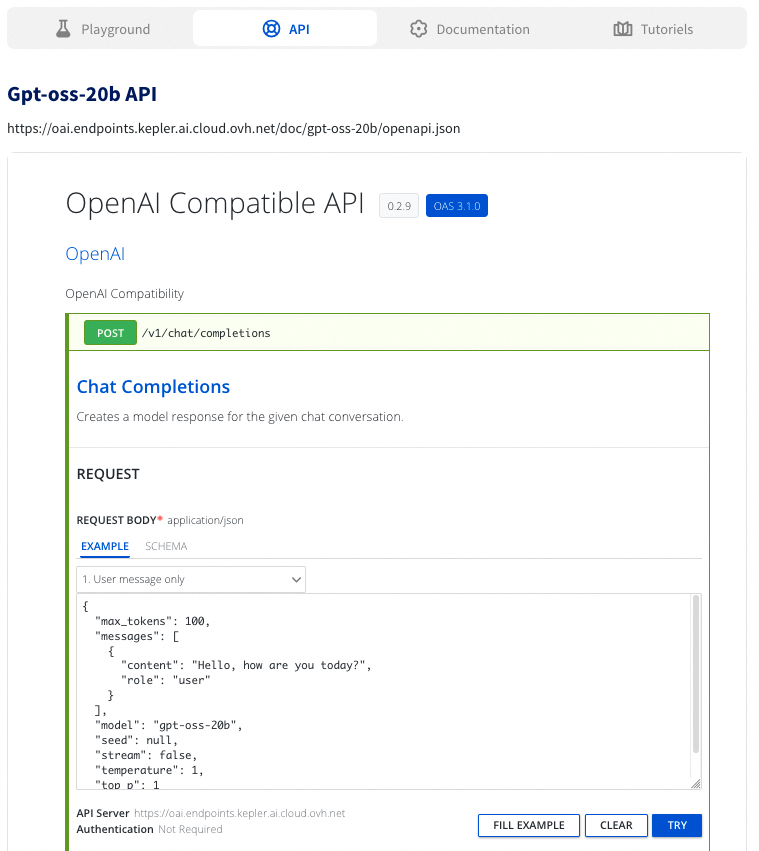
For LLMs, two POST routes are available: Chat Completions and Completions. Here's an example of how to use the Chat Completions API:
Click the Chat Completions endpoint in the API section. Once there, select one of the available input schemas.
Here you can also find information on how to send a correct request to the model (existing parameters). Examples of usage are provided. You will also find there the output schema example. You can modify the input schema if needed to customize the request you are sending. When you are ready, click TRY to send your request.
Upon executing the request, a cURL command will be displayed, representing the request you just sent. This can be useful for re-sending the command using a terminal. Additionally, the server's response body will also be provided, displaying the output of the model.
You can follow similar steps for using the Completions API.
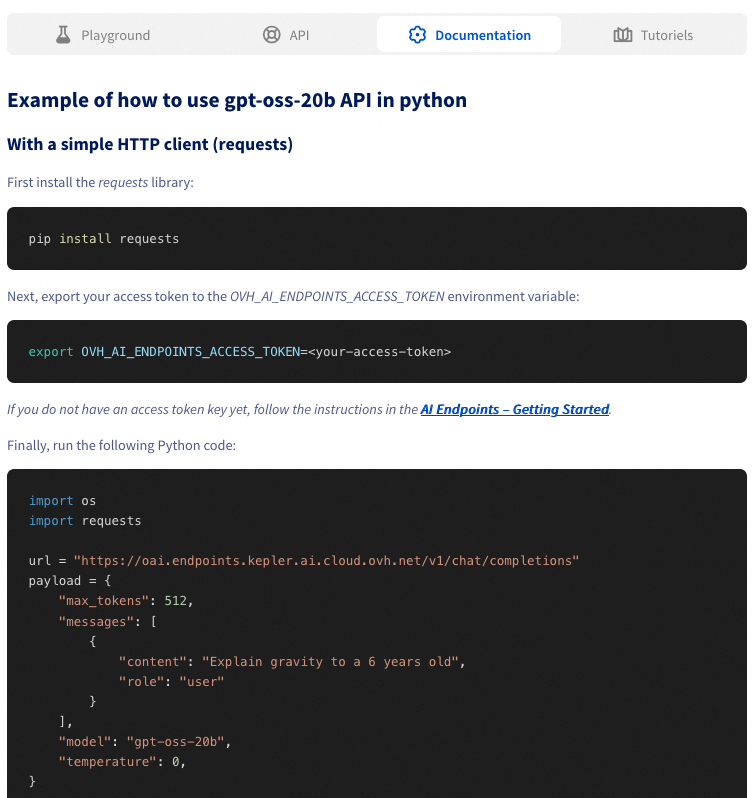
The section provides detailed documentation for the model, including example Python code that demonstrates how to interact with the model using its API. The documentation also includes the OpenAI specification codes, as our LLM APIs are compatible with the OpenAI specifications.
To ensure that these code examples work as intended, you should replace the placeholder value (os.getenv('OVH_AI_ENDPOINTS_ACCESS_TOKEN')) with your own API key and set it as an environment variable.
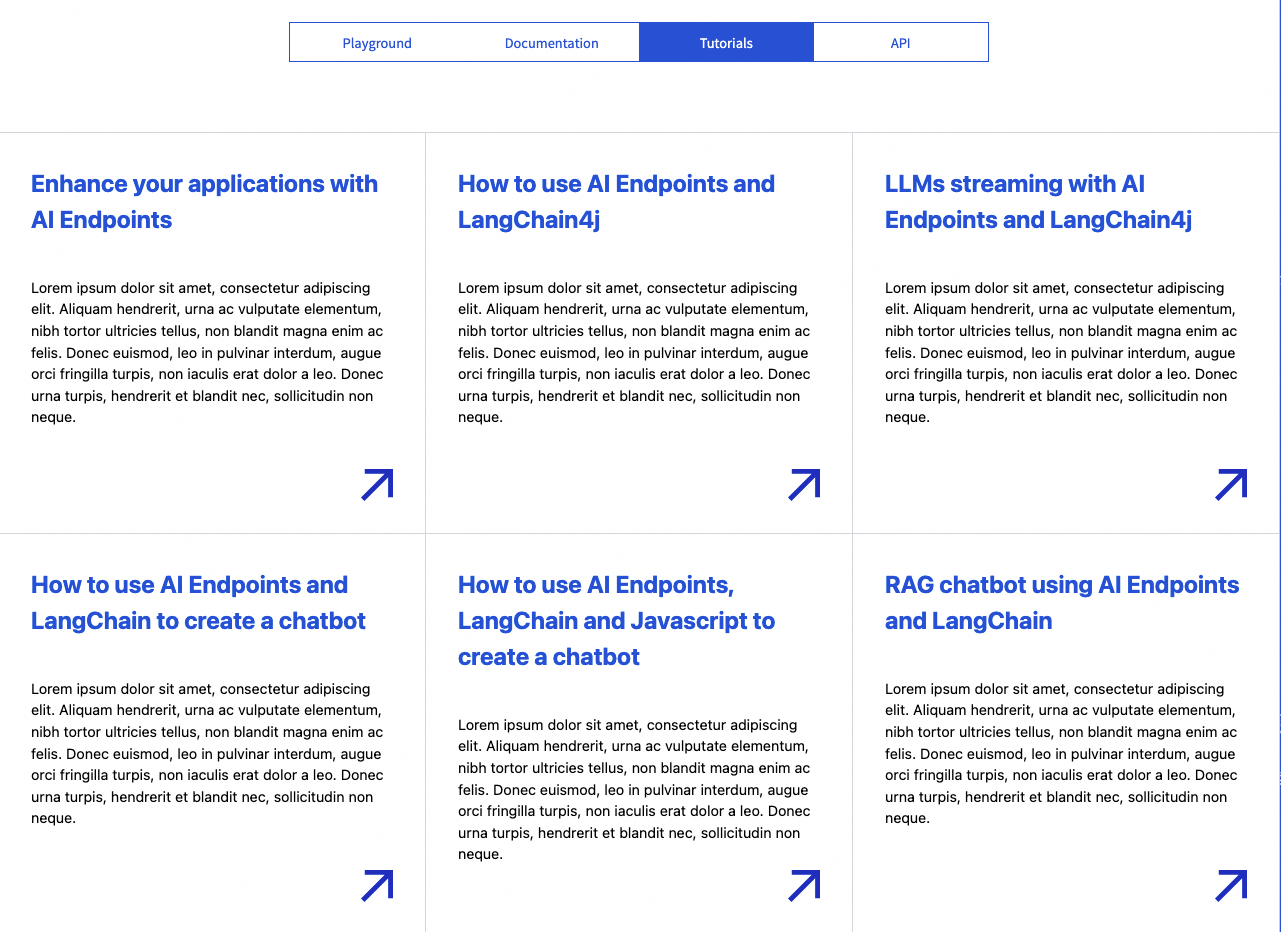
There, you will find guides related to AI Endpoints that you may find helpful in learning how to use the model more effectively. Whether you're building a chatbot with Langchain and JavaScript or creating a video translator app, we provide step-by-step guidance to support your AI projects.
Revoke your API access key
To maintain security and control over your API access, it is essential to revoke keys that are no longer needed.
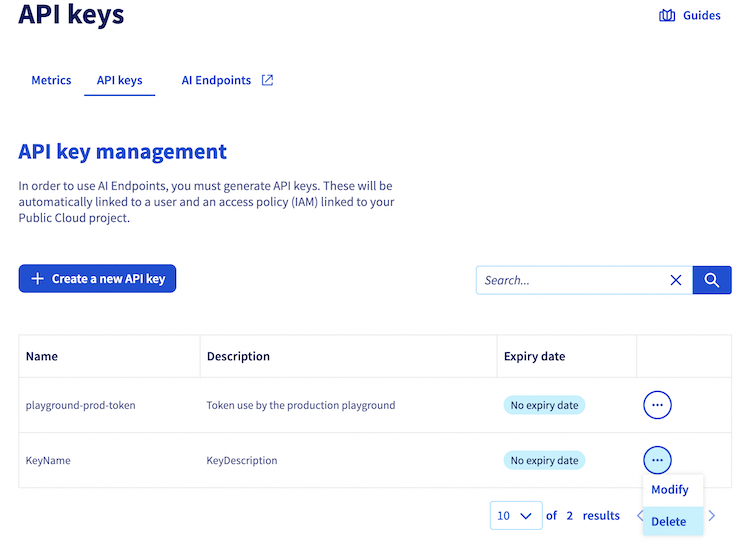
To revoke one of your API access keys, click this link to access your Public Cloud project, then click on AI Endpoints underneath AI & Machine Learning in the left-hand menu, then on the API key management section.
On the AI key management page, you will see a table listing all your generated API access keys, including their name, description, and expiry date. Find the key you want to revoke and click the three dots ... button next to its details. This will open a menu where you can select Delete. Confirm this action to complete the revocation.
Verification
After revoking an API key, you can verify that it is no longer valid by attempting to use it for an API request. The API should return an error message indicating that the credentials are invalid, such as 403 Forbidden: Authentication Failed.
Model rate limit
When using AI Endpoints, the following rate limits apply:
- Anonymous: 2 requests per minute, per IP and per model.
- Authenticated with an API access key: 400 requests per minute, per PCI project and per model.
If you exceed this limit, a 429 error code will be returned.
If you require higher usage, please get in touch with us to discuss increasing your rate limits.
Billing and usage
For information on pricing and the models lifecycle of the platform, please refer to the AI Endpoints - Billing and lifecycle documentation.
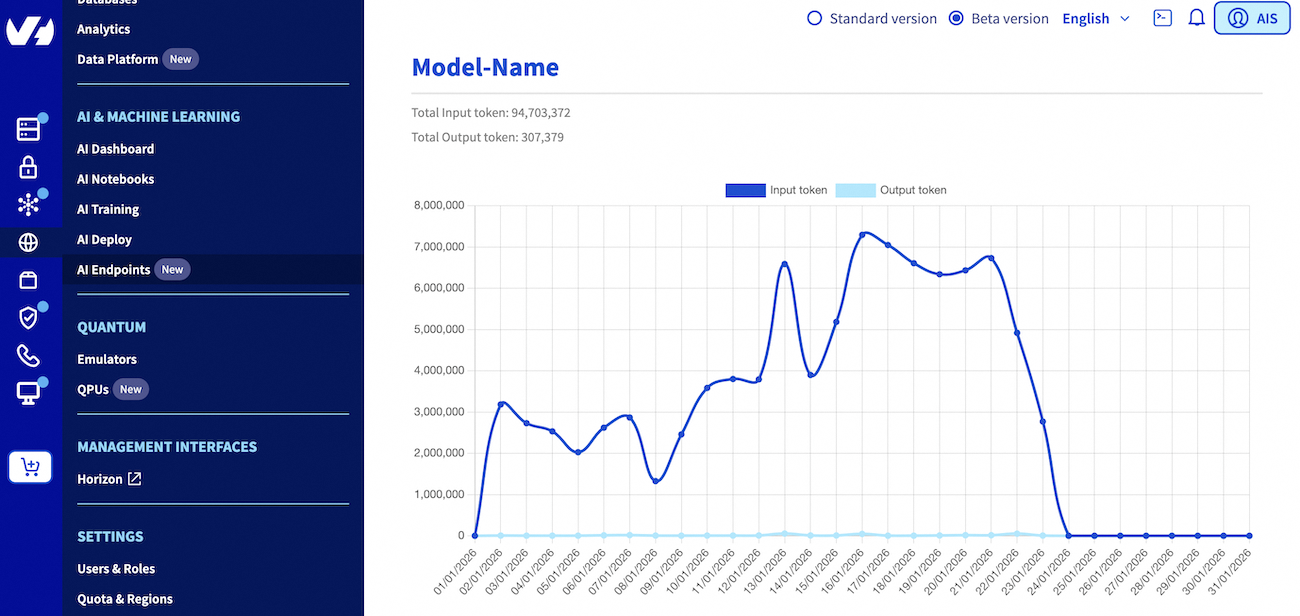
For your convenience, you can monitor your estimated consumption and model usage in the AI Endpoints section of the AI & Machine Learning category in your Public Cloud project left-hand vertical menu.
Going further
To discover how to build complete and powerful applications using AI Endpoints, explore our dedicated AI Endpoints guides which offer a wealth of knowledge and inspiration, including the following subjects:
- Create your own Audio Summarizer assistant with AI Endpoints
- Implement chatbot memory management with LangChain and AI Endpoints
- Discover how to create a Retrieval Augmented Generation (RAG) system
- Discover more about AI Endpoints features and limitations
If you need training or technical assistance to implement our solutions, contact your sales representative or click on this link to get a quote and ask our Professional Services experts for a custom analysis of your project.
Feedback
Please feel free to send us your questions, feedback, and suggestions regarding AI Endpoints and its features:
- In the #ai-endpoints channel of the OVHcloud Discord server, where you can engage with the community and OVHcloud team members.

