

BGP Service configuration
63 visualizações
 03.04.2026
  BGP Service
Objective
BGP Service allows you to build highly available infrastructures by running standard BGP (Border Gateway Protocol) straight from your OVHcloud hosts. It can be used with OVHcloud Additional IP or with your own IP addresses, by using Bring Your Own IP (BYOIP).
Important: BGP Service is currently in alpha phase. This product is not intended to be used in a production environment.
Requirements
- At least one Bare Metal dedicated server from the following ranges: High Grade, Scale, Advance Gen3. All servers that will participate in the BGP peering must be in the same 1-AZ Region.
- Access to the OVHcloud Control Panel
- If you use Bring Your Own IP (BYOIP): IP prefixes that you own and can announce
- A vRack private network
- Knowledge in IP networks and BGP routing protocol
- Knowledge in Linux networking
Service capabilities and limits
Before setting up BGP Service, be aware of the following capabilities and constraints:
- One BGP Service per region: You can deploy one BGP Service per available region (excluding 3-AZ regions, APAC and US regions for now).
- Multiple IP blocks: You can use multiple IPv4 and IPv6 blocks per region.
- Usable block sizes: /24 to /30 for IPv4, /56 for IPv6.
- IP stack support: IPv4-only or IPv4+IPv6 configurations are supported. IPv6-only is not supported at this time.
- Dedicated IP blocks: Additional IP blocks used by a BGP Service cannot be shared with other OVHcloud services, such as Dedicated Servers, Public Cloud instances, etc.
- Maximum announcements per BGP peer: Up to 32 IPv4 prefixes and 32 IPv6 prefixes per client.
- Announcement sizes: For IPv4, any prefix between /24 and /32 can be announced. For IPv6, only /56 and /64 prefixes can be announced.
- BFD support: Bidirectional Forwarding Detection (BFD) is enabled by default on the OVHcloud side, with fixed settings (500ms interval, 8x multiplier). To use the BFD protocol, configure your BGP Service to match these values.
- BGP sessions: 4 BGP sessions per client (4 IPv4 + 4 IPv6). If you need more than 4 BGP peering hosts, you will need to deploy a Route Server (see the Advanced BGP configuration use case).
- Hosts: Up to 10 hosts per client.
Potential use cases
The BGP Service supports a wide range of custom networking architectures; the following examples highlight some of the most frequent implementations:
- Run your own routing stack (FRR/Bird/VMware NSX, etc.) on Bare Metal or virtual routers and establish standard BGP sessions directly with OVHcloud Edges.
- Build high‑availability frontends: use BGP to move IPs between multiple servers (active/active or active/passive) by changing BGP announcements, enabling fast failover actions.
- Set up ECMP / multi-path routing between your hosts and the OVHcloud backbone to increase resilience across multiple servers or VMs.
- Design multi-tenant service nodes by replacing L2 proxy-ARP with native L3 routing, where customer IP prefixes are routed through your infrastructure as the next hop.
Instructions
Step 1: Join the Alpha
First, you need to request to join the alpha on the following page. After we receive your application, we will contact you by email.
Step 2: Prepare your IP addresses
You need to either buy Additional IP from OVHcloud or use your own IPs with BYOIP.
If you buy Additional IPs from us, you MUST NOT associate them to any service (e.g. Bare Metal).
If you need to import your IPs, you need to use our BYOIP service. Please follow this documentation to import your IPs to OVHcloud.
Step 3: Configure your vRack
You need to have created a vRack, which is the private network where the peering between your servers and the BGP Service will take place.
The vRack must contain the servers that will participate in the BGP peering.
Important: - During the alpha period, the BGP Service is only available within 1-AZ regions. - The IP block used with BGP Service must NOT be attached or associated to the vRack. The IP block is announced via the BGP sessions, not through vRack association.
If you plan to use BGP Service in multiple locations, use a separate vRack for each location. This avoids potential routing conflicts and simplifies your network management.
Step 4: Provide configuration parameters of your BGP Service
You need to provide us with the following parameters so that we can configure the BGP Service on the OVHcloud side:
| Parameter | Value (example) | Description | Comment |
|---|---|---|---|
| Location | RBX | The location on which to deliver the service | |
| vRack ID | 937 | vRack ID on which the BGP sessions will run | |
| BYOIP | Y | IP prefix coming from the customer | |
| IP prefix | 198.51.100.0/24 | The public IP prefix to be used. Subsets of this prefix may be announced: • For IPv4, any subset up to /32 • For IPv6, any subset up to /64 | Allowed prefix size: • OVHcloud IP (/24 to /30) • BYOIP imported prefix (/24 to /30) • IPv6 (/56) |
| Private prefix | 10.0.0.0 | Reserved prefix for BGP peer IPs The 4 last addresses will be used by OVHcloud for OVHcloud side BGP peers. | IPv4: Netmask /28 IPv6: Netmask /124 |
| Peering IP 1 | 10.0.0.1 | Customer IP should be explicitly specified by customer (for OVHcloud-side monitoring) | |
| Peering IP 2 | 10.0.0.2 | Customer IP should be explicitly specified by customer (for OVHcloud-side monitoring) | |
| Peering IP 3 | 10.0.0.3 | Customer IP should be explicitly specified by customer (for OVHcloud-side monitoring) | |
| Peering IP 4 | 10.0.0.4 | Customer IP should be explicitly specified by customer (for OVHcloud-side monitoring) |
Step 5: BGP Service delivery
We will then contact you back to notify you that the service is ready to use, and give you the following parameters that are needed on your side:
- OVHcloud Edges IPs (4 IPs)
- Customer AS and OVHcloud AS to use for the BGP peering sessions
- BFD parameters
Important: during the alpha phase, we cannot commit on a specific delivery time. Delivery can take up to several weeks.
Step 6: Customer-side setup
You can now set up the BGP sessions on your side. Below is a guide that walks you through a typical setup for simple load balancing using BGP ECMP.
Important: OVHcloud is not responsible for the configuration of the BGP daemon on the customer's hosts. It is the responsibility of the customer to configure the BGP daemon on their hosts. We provide example configurations for your consideration.
Use case: Basic BGP configuration - load balancing using BGP ECMP
This design is suitable for setups with up to 4 BGP peering hosts, as the number of BGP sessions on the OVHcloud side is limited to 4. If you need more than 4 hosts, use the Advanced BGP configuration using Route Servers use case described below.
Below is a simple architecture that allows you to perform load balancing of your traffic on 3 hosts:
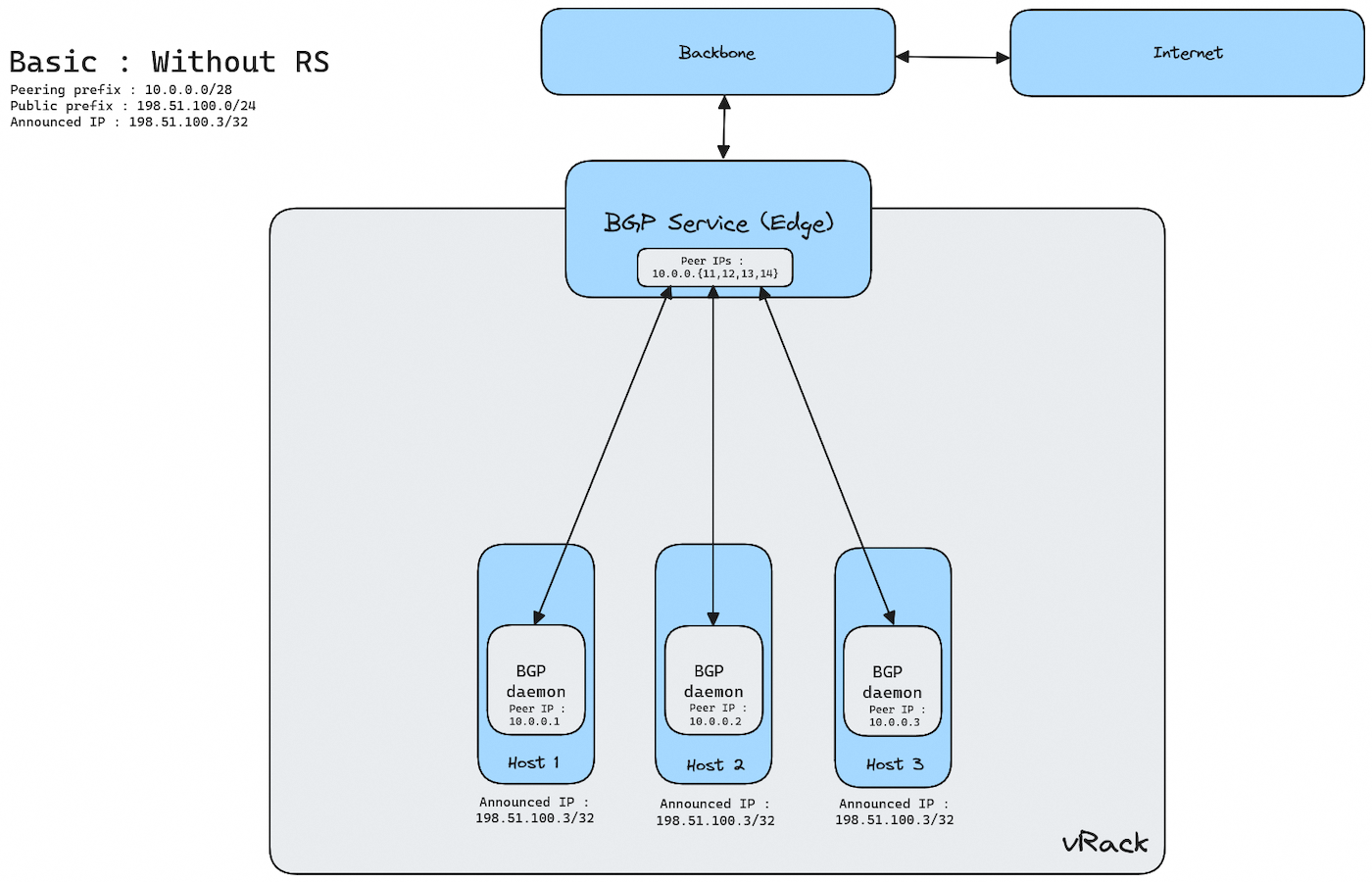
To achieve this setup, you need to install a BGP daemon, like FRR, on each host, and configure it.
Configuration parameters
The following parameters are to be substituted in your router configuration files with those agreed on with OVHcloud during the configuration and delivery steps.
| Parameter | Description |
|---|---|
| OVHcloud_ASN | Private ASN used on OVHcloud Edges |
| CUSTOMER_ASN | Private ASN given by OVHcloud. |
| CUSTOMER_PREFIX_V4 CUSTOMER_PREFIX_V6 | Public prefixes allocated for IPv4 and IPv6 usages |
| RS_IPV4 RS_IPV6 | Customer RS IP addresses in private/ULA range used for BGP peering and connectivity inside the vRack. |
| EDGE_IPV4 EDGE_IPV6 | OVHcloud Edges IP addresses in private/ULA range used for BGP peering and connectivity inside the customer vRack. |
| HOST_IPV4 HOST_IPV6 | Other Customer Hosts IP addresses in private/ULA range used as BGP Next Hop and peer inside the vRack |
Configuring a BGP daemon (FRR)
To configure the BGP sessions using FRR, follow these next steps.
Step 1: Install FRR
On a Debian-based system, install FRR with:
Step 2: Configure FRR
All of the following parameters should be present in the /etc/frr/frr.conf configuration file of the hosts.
Prefix list and route map configuration
The configuration below is a suggested setup to prevent any unexpected announcement between BGP peers.
In the following example:
- Hosts only accept default routes from OVHcloud Edges.
- Hosts advertise customer's prefixes to OVHcloud Edges.
Related prefix lists and route maps to filter routes:
BFD configuration
The configuration below is a suggested setup to improve BGP convergence time between Host and Edges over vRack.
BGP configuration
Global configuration:
BGP peering with OVHcloud Edge:
Step 3: Restart FRR
After editing the configuration, restart FRR to apply changes:
Step 4: Verify BGP session
Check the status of your BGP session with:
Step 5: Verify ingress and egress connectivity
To ensure your BGP session is functioning correctly, test both inbound and outbound traffic:
- Check ingress traffic
Use a remote server to ping or traceroute to your advertised IP prefix:
Verify that traffic reaches your network via the expected BGP paths.
- Check egress traffic
From your server, check the routing table and ensure your BGP routes are in use:
Confirm that outbound traffic is following the correct BGP paths.
Step 6: Verify connectivity with the OVHcloud team
When your setup is done and after conducting basic tests, you should notify us via email at this address: bgp_alpha@ovh.net.
We'll make sure the BGP connectivity and IP announcements are OK from our side.
Use case: Advanced BGP configuration using Route Servers (RS)
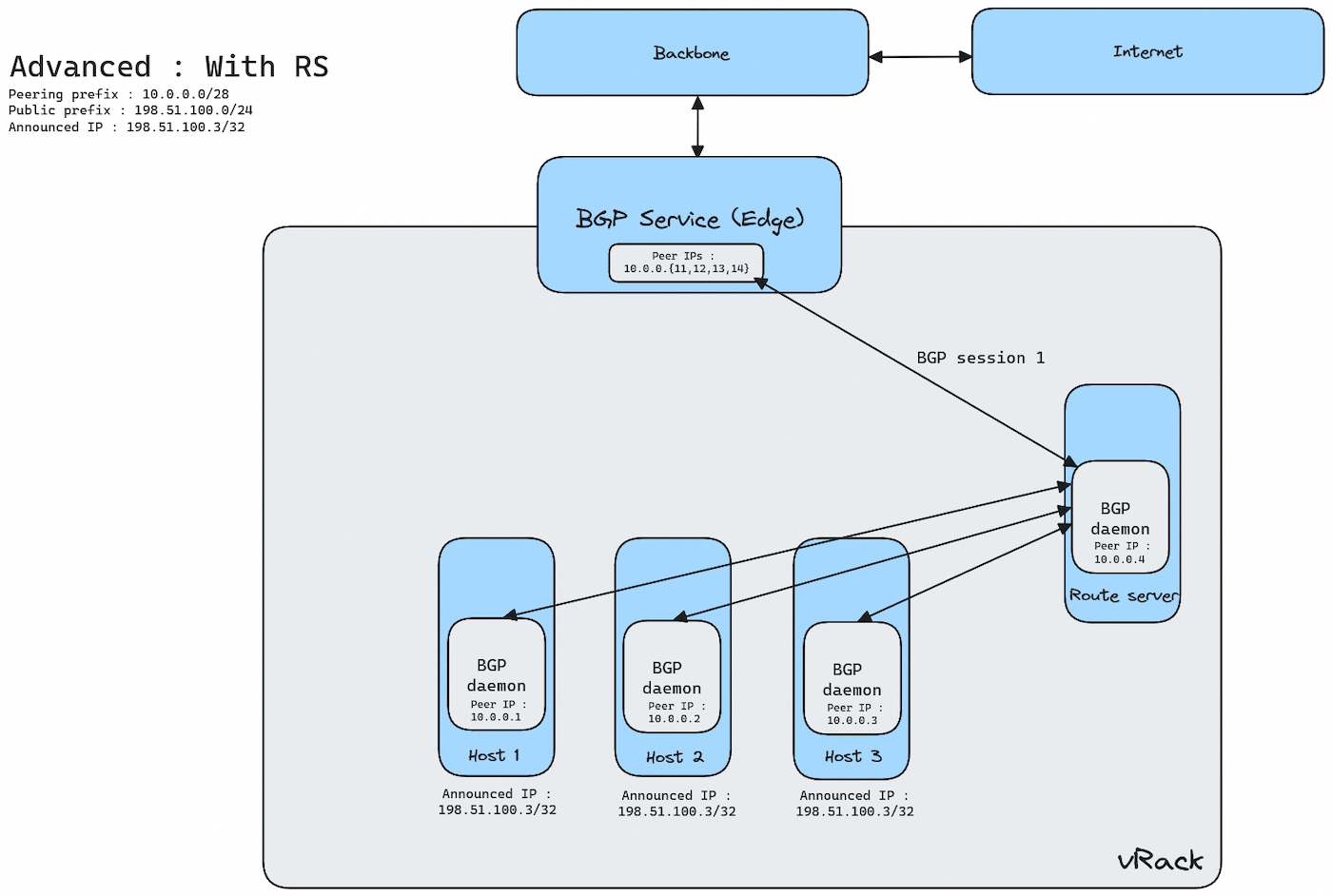
If you want to use more than 4 hosts with BGP Service, you need to deploy and manage a Route Server (RS). This design allows you to scale up to 10 hosts/nexthops. The Route Server can be deployed either in-path or out-of-path, depending on your architecture requirements.
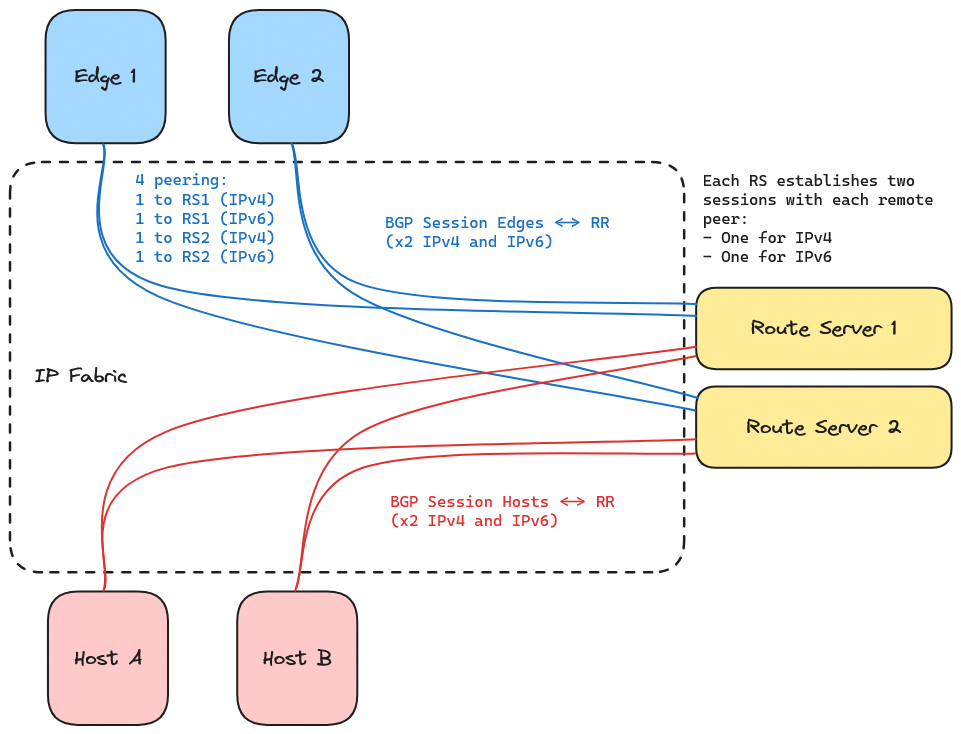
An RS peers with Edges and Hosts, establishing two sessions per peer (one for IPv4 and one for IPv6).
Here is an overview of the system:
And here is a detailed view of the BGP sessions between Edges, RS and Hosts:
To achieve this setup, you need to install a BGP daemon, like FRR, on each host, and configure it.
Configuration parameters
The following parameters are to be substituted in your router configuration files with those agreed on with OVHcloud during the configuration and delivery steps.
| Parameter | Description |
|---|---|
| OVHcloud_ASN | Private ASN used on OVHcloud Edges |
| CUSTOMER_ASN | Private ASN given by OVHcloud |
| CUSTOMER_PREFIX_V4 CUSTOMER_PREFIX_V6 | Public prefixes allocated for IPv4 and IPv6 usages |
| RS_IPV4 RS_IPV6 | Customer RS IP addresses in private/ULA range used for BGP peering and connectivity inside the vRack |
| EDGE_IPV4 EDGE_IPV6 | OVHcloud Edges IP addresses in private/ULA range used for BGP peering and connectivity inside the customer vRack |
| HOST_IPV4 HOST_IPV6 | Other Customer Hosts IP addresses in private/ULA range used as BGP Next Hop and peer inside the vRack |
Configuring a BGP daemon (FRR)
To configure the BGP sessions using FRR, follow the steps below.
Step 1: Install FRR
On a Debian-based system, install FRR with:
Step 2: Configure FRR
FRR configuration for Route Servers
All of the following parameters should be present in the /etc/frr/frr.conf configuration file of the route server(s).
Prefix list and route map configuration
The configuration below is a suggested setup to prevent any unexpected announcement between BGP peers.
Route Servers accept default routes from LBEdges and all routes from Hosts if they match the defined prefix length (cf. OVHcloud rules for IPv4 and IPv6 prefix length). Route Servers advertise Hosts routes to LBEdges and Default routes to Hosts.
Related prefix lists and route maps to filter routes:
BFD configuration
The configuration below is a suggested setup to improve BGP convergence time between RS and edges over vRack.
BGP peering with OVHcloud Edges:
BGP peering with Hosts:
FRR configuration for Hosts
All of the following parameters should be present in the /etc/frr/frr.conf configuration file of the hosts.
Prefix list and route map configuration
The configuration below is a suggested setup to prevent any unexpected announcement between BGP peers.
In the following example:
- Hosts only accept default routes from RS.
- Hosts only advertise customer's prefixes to RS.
Related prefix lists and route maps to filter routes:
BFD configuration
The configuration below is a suggested setup to improve BGP convergence time between RS and edges over vRack.
The values below are just an example, and you may choose other values for your RS and Hosts.
BGP configuration
Global configuration:
BGP peering with RS:
Step 3: Restart FRR
On each host/RS, after editing the configuration, restart FRR to apply changes:
Step 4: Verify BGP session
Check the status of your BGP sessions on your different hosts/RS with:
Step 5: Verify ingress and egress connectivity
To ensure your BGP session is functioning correctly, test both inbound and outbound traffic:
- Check ingress traffic
Use a remote server to ping or traceroute to your advertised IP prefix:
Verify that traffic reaches your network via the expected BGP paths.
- Check egress traffic
From your server, check the routing table and ensure your BGP routes are in use:
Confirm that outbound traffic is following the correct BGP paths.
Step 6: Verify connectivity with the OVHcloud team
When your setup is done and after conducting basic tests, you should notify us via email at this address: bgp_alpha@ovh.net.
We'll make sure the BGP connectivity and IP announcements are OK from our side.
Best practices for production
Maintenance of a host without traffic interruption
To offload a server for maintenance (e.g. OS update, hardware intervention) without traffic interruption, you can use BGP graceful shutdown (RFC 8326). This mechanism signals peers to deprioritize routes toward the host before the session goes down, allowing traffic to drain to the remaining hosts without packet loss. This does not mean that sessions (such as TCP) are maintained if they are not synchronized between hosts announcing the route.
With FRR, you can initiate a graceful shutdown on the host to be maintained:
This causes FRR to tag all advertised routes with the GRACEFUL_SHUTDOWN community, signalling peers to prefer alternative paths. Once traffic has drained (verify by checking route tables on the other hosts or the Route Server), you can safely proceed with maintenance.
To restore the host after maintenance, disable graceful shutdown:
The host will resume advertising routes normally and start receiving traffic again.
Available regions
The product is available in the following regions:
| Region Location | Region Name | Region Type |
|---|---|---|
| Europe (France - Gravelines) | eu-west-gra | 1-AZ |
| Europe (France - Roubaix) | eu-west-rbx | 1-AZ |
| Europe (France - Strasbourg) | eu-west-sbg | 1-AZ |
| Europe (Germany - Limburg) | eu-west-lim | 1-AZ |
| Europe (Poland - Warsaw) | eu-central-waw | 1-AZ |
| Europe (UK - Erith) | eu-west-eri | 1-AZ |
| North America (Canada - East - Beauharnois) | ca-east-bhs | 1-AZ |
| North America (Canada - East - Toronto) | ca-east-tor | 1-AZ |
3-AZ regions and regions located in the US or APAC will be available at a later date. Thank you for your patience.
Troubleshooting
If you encounter issues with your BGP session:
- Verify that your ASN and IP prefixes are correctly configured.
- Check for any conflicting announcements.
- Ensure your firewall and network policies allow BGP traffic.
- Contact our team for further assistance by email: bgp_alpha@ovh.net
Go further
Join our community of users.

