

Dodanie nowej bramki Tier-1 Gateway w NSX (EN)
236 wyśw.
 27.02.2023
  Cloud / VMware
Objective
OVHcloud provides you with NSX with two gateways, a north-south gateway (ovh-T0-gw) and an east-west gateway (ovh-T1-gw). You can create additional east-west gateways.
Learn how to add an east-west (Tier-1 Gateway) gateway to your NSX configuration.
OVHcloud provides services for which you are responsible, with regard to their configuration and management. It is therefore your responsibility to ensure that they work properly.
This guide is designed to assist you as much as possible with common tasks. However, we recommend contacting a specialist provider if you experience any difficulties or doubts when it comes to managing, using or setting up a service on a server.
Requirements
- Being an administrative contact of your Hosted Private Cloud infrastructure to receive login credentials
- A user account with access to the OVHcloud Control Panel
- Having NSX deployed.
Through your NSX interface, you can create north-south gateways. We strongly advise you not to do it because some options are not available and you will not be able to make such a gateway work correctly.
For more information on NSX at OVHcloud, please refer to our Getting started with NSX guide.
Instructions
We will add a new east-west gateway (Tier-1-Gateways) and link it to the north-south gateway provided by OVHcloud (ovh-T0-gw).
Next, we will create a segment and attach a virtual machine to it.
Creation of the new east-west gateway
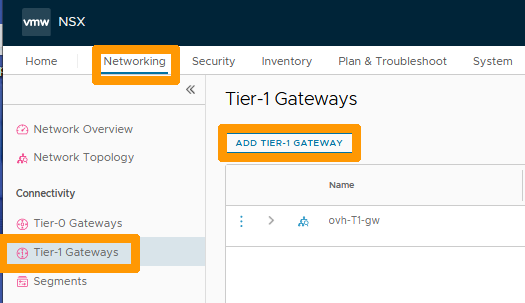
In the NSX interface, go to the Networking tab and click on Tier-1 Gateway on the left.
Then click on ADD TIER-1 GATEWAY.
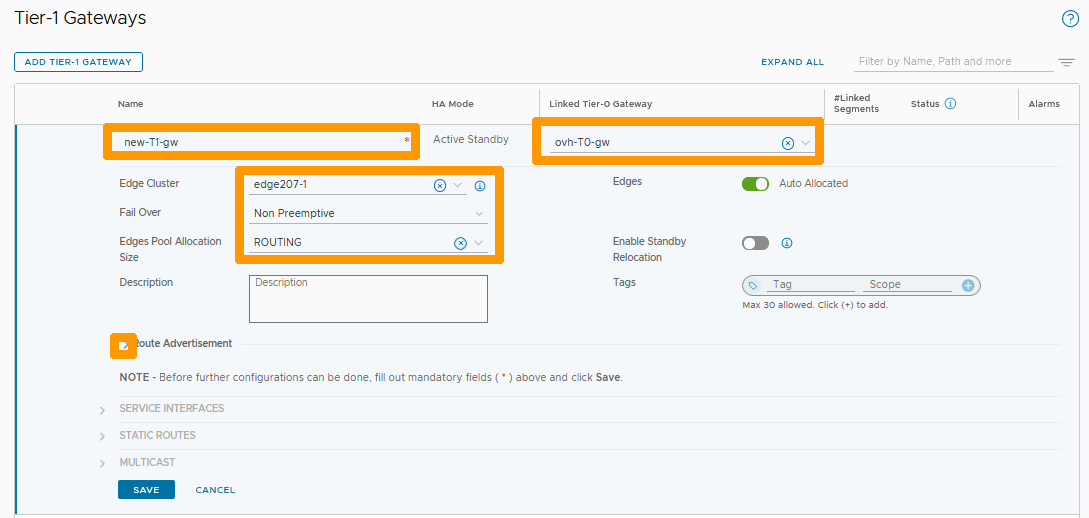
Enter the name of your new gateway as new-T1-gw below Name and fill in these parameters:
- Linked Tier-0-Gateway : Your north-south gateway
ovh-T0-gw. - Edge Cluster : Your
edgeXXX-X. - Fail Over :
Non Preemptive. - Edge Pool Allocation Size :
Routing.
Then click the Down Arrow to the left of Route Advertisement.
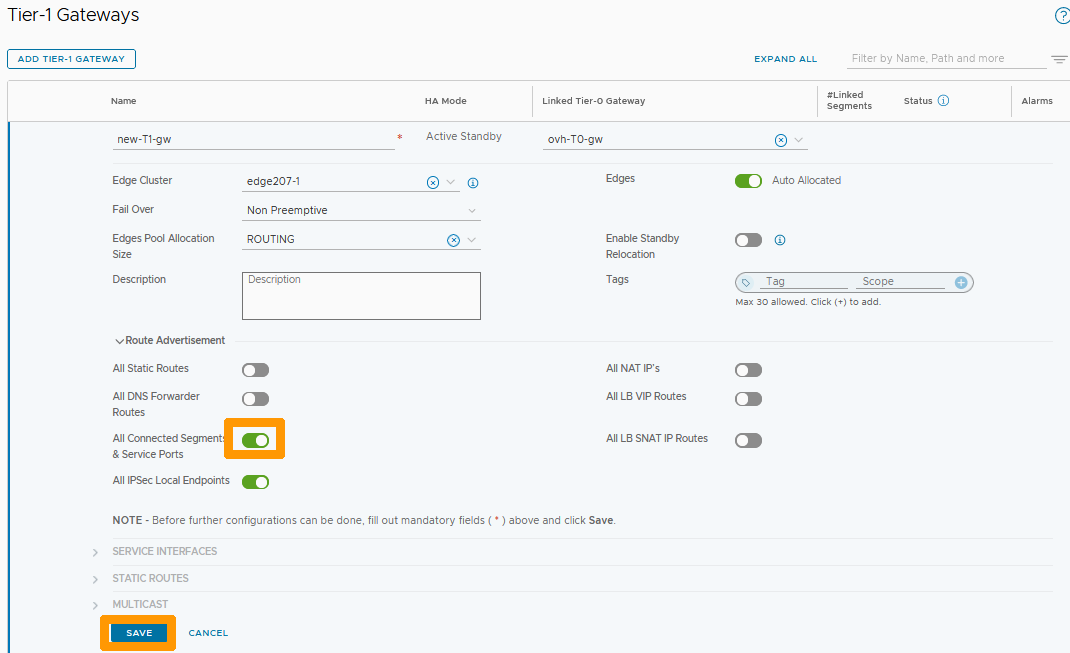
Select the button to the right of All Connected Segment & Service Ports if you want to connect outside this gateway, then click SAVE.
Click NO.
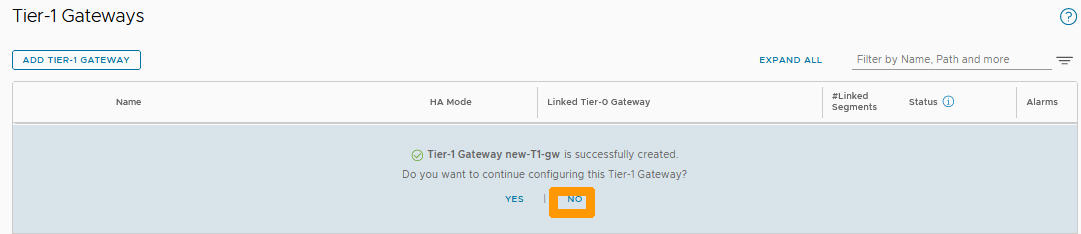
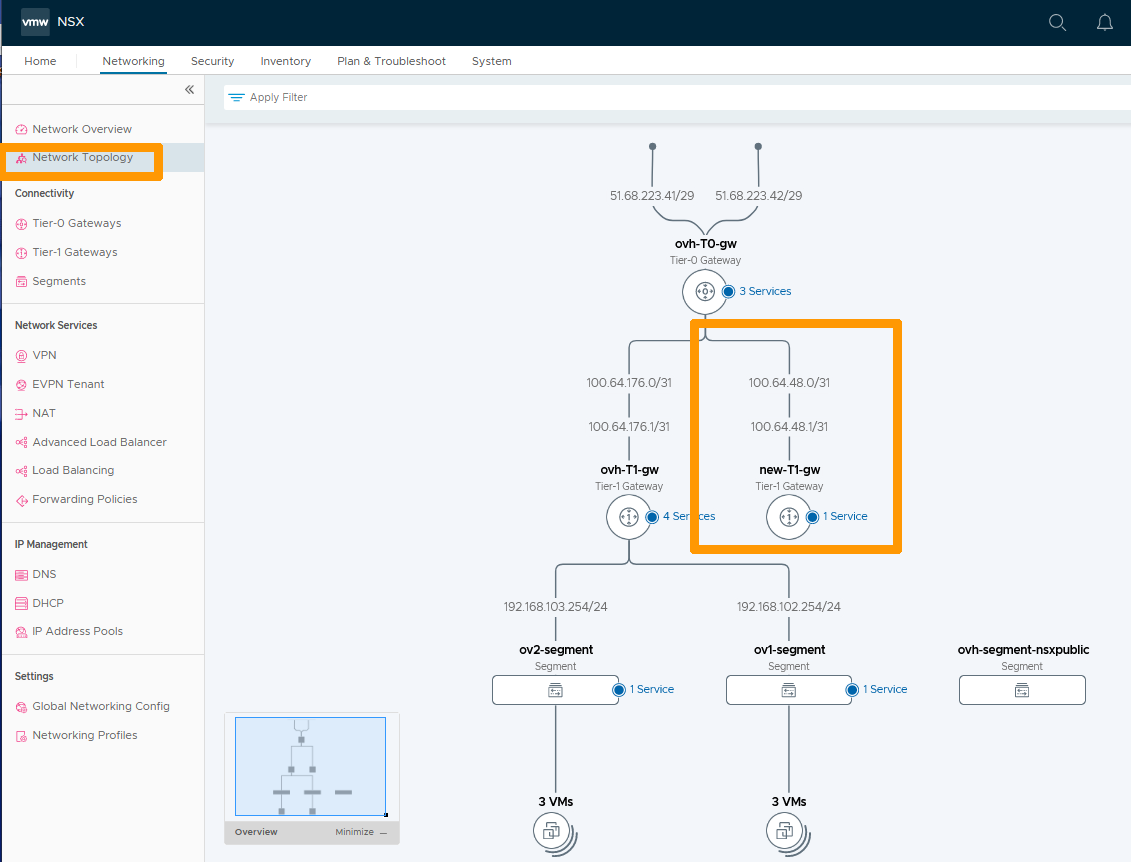
Your new gateway is displayed and we can see it connected to your north-south gateway (ovh-T0-gw).

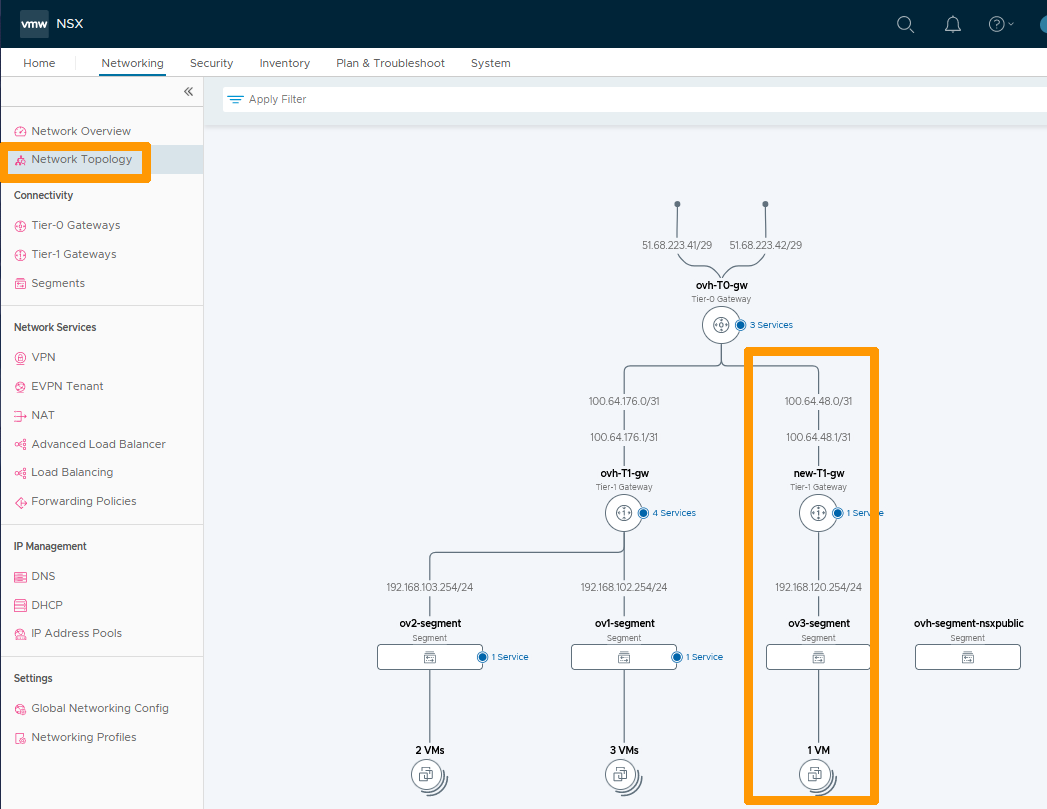
Click Network Topology in the vertical menu bar to the left to view your network topology and to display your new new-T1-gw gateway connected to ovh-T0-gw.
Adding a segment on your new gateway
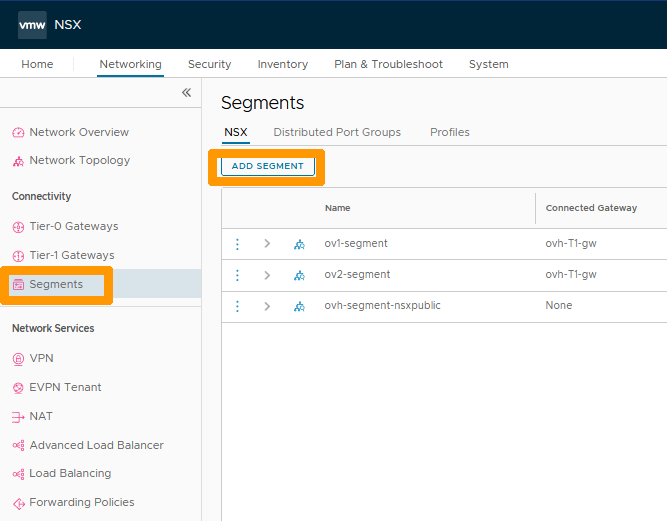
Go to Segments on the left and click ADD SEGMENT.
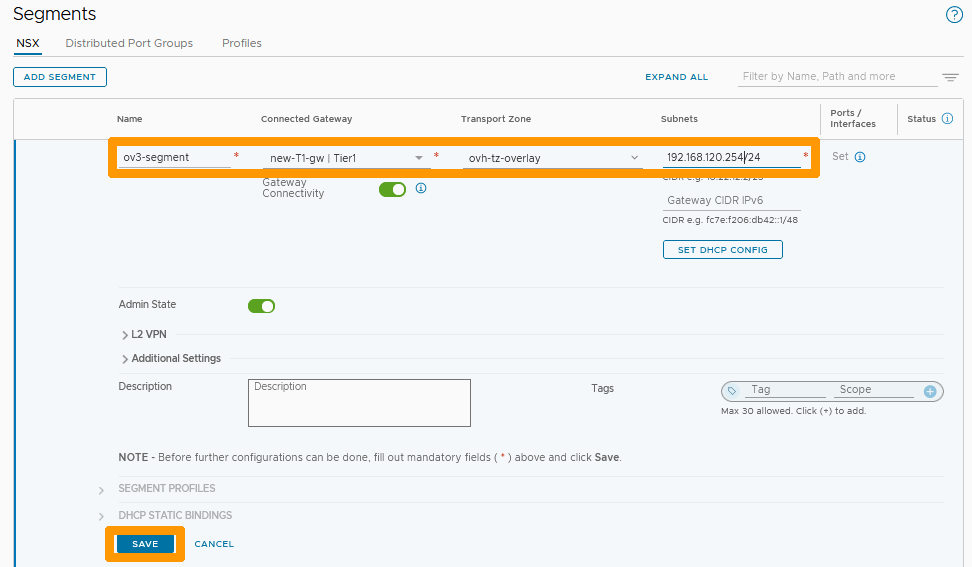
Fill in this information :
- Name : Name of your segment
ov3-segment. - Connected Gateway : Your new gateway
new-T1-gw. - Transport Zone : Your subnet
192.168.120.254/24.
Click SAVE.
Click NO.
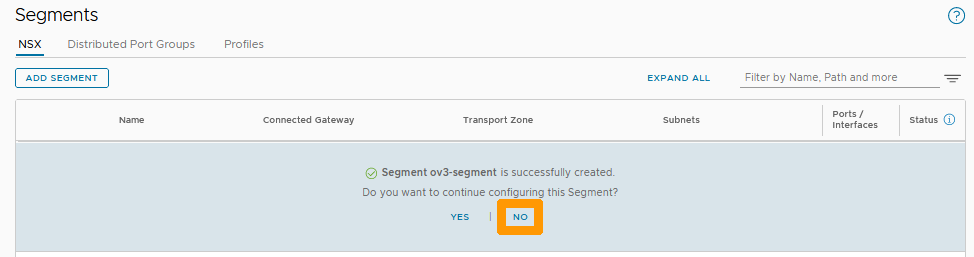
Your new segment is created and connected to your new new-T1-gw gateway.
Displaying a complete configuration with a virtual machine on your segment.
The segment created is of type Overlay but it is possible to add a segment of type VLAN and connect it to your new gateway.
Use our guide on segment management in NSX to add a new virtual machine to your new segment.
Then click Network Topology.
Go further
VMware documentation for adding a Tier-1 Gateway
If you need training or technical assistance to implement our solutions, contact your sales representative or click on this link to get a quote and ask our Professional Services experts for a custom analysis of your project.
Join our community of users on https://community.ovh.com/en/.


 Konfigurowanie usługi DNS Forwarder w NSX (EN)
 291
291