

Logowanie do interfejsu vSphere
782 wyśw.
 05.11.2024
  Cloud / VMware
Objective
This guide will show you how to log in to your managed vSphere Web interface from the HPC VMware on OVHcloud control panel.
Requirements
- You must be the administrator of the Hosted Private Cloud - managed vSphere infrastructure.
- IP addresses added in the
Securitysection of your OVHcloud Control Panel. For more information, please read our guide on Authorizing IPs to connect to vCenter.
To use IAM, you must enable the feature in order to delegate rights management with a role. Please read the guides:
- Guide 1: IAM for VMware on OVHcloud - Introduction and FAQ
- Guide 2: IAM for VMware on OVHcloud - How to enable IAM
- Guide 3: IAM for VMware on OVHcloud - How to create an IAM vSphere role
Instructions
To log in to the managed vSphere Web interface, you need OVHcloud login credentials. It can be either a vSphere user (with a local user), or a vSphere rôle (with IAM).
Step 1 - Users management with vSphere and OVHcloud
From the OVHcloud Control Panel
You can manage your login credentials via the OVHcloud Control Panel for your VMware product managed on OVHcloud.
Log in to the OVHcloud Control Panel and click the Hosted Private Cloud tab.
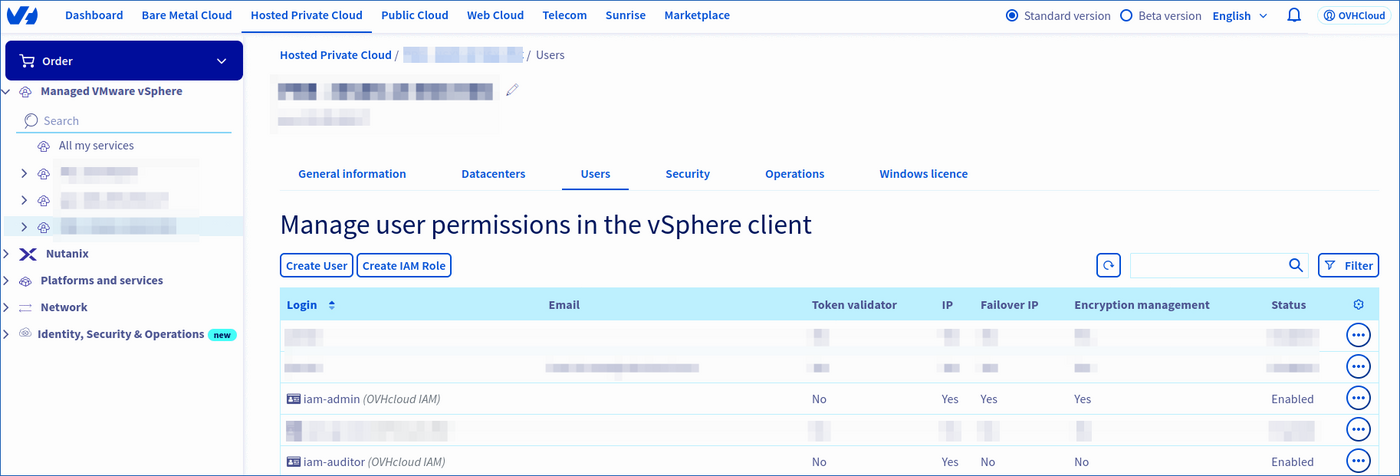
Click on the Managed VMware vSphere section, select your infrastructure, then go to the Users tab.
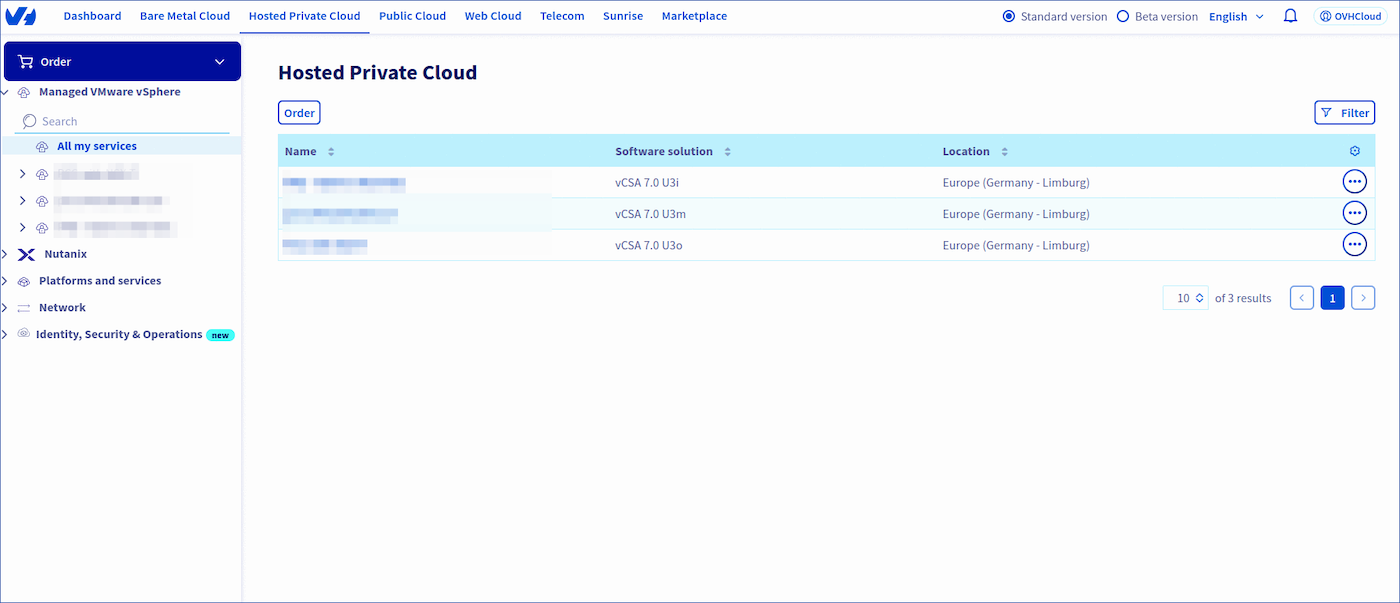
To list your VMware environments, click All my services.
To access the Manage user permissions in the vSphere client, click the Users section.
To create or modify a user click Create User or Modify a user.
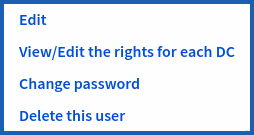
When clicking the ... button to the right of a user, you can modify the users or the IAM roles, modify the permissions per DC, change the password or delete a user.
From the OVHcloud API
You can manage users via the OVHcloud API.
If you are not familiar with using the OVHcloud API, please refer to our guide on Getting started with the OVHcloud API.
Here are some examples of API calls:
- Creating a user:
Parameters:
serviceName: your service in the form of pcc-XX-XX-XX-XX.name: the name of your user in the form below.
Example:
- Changing a user password:
Parameters:
serviceName: your service in the form of pcc-XX-XX-XX-XX.userId: the ID of your user in the form XXXXX.
Example:
Step 2 - Log in to the managed vSphere Web interface
Using the HTML5 Web Client
The HTML5 web client link is available on your Hosted Private Cloud VMware on OVHcloud control panel at this url: https://pcc-xxx-xxx-xxx-xxx.ovh.xxx/ui (replace pcc-xxx-xx-xx-xxx.ovh.xxx) with your IP and region.
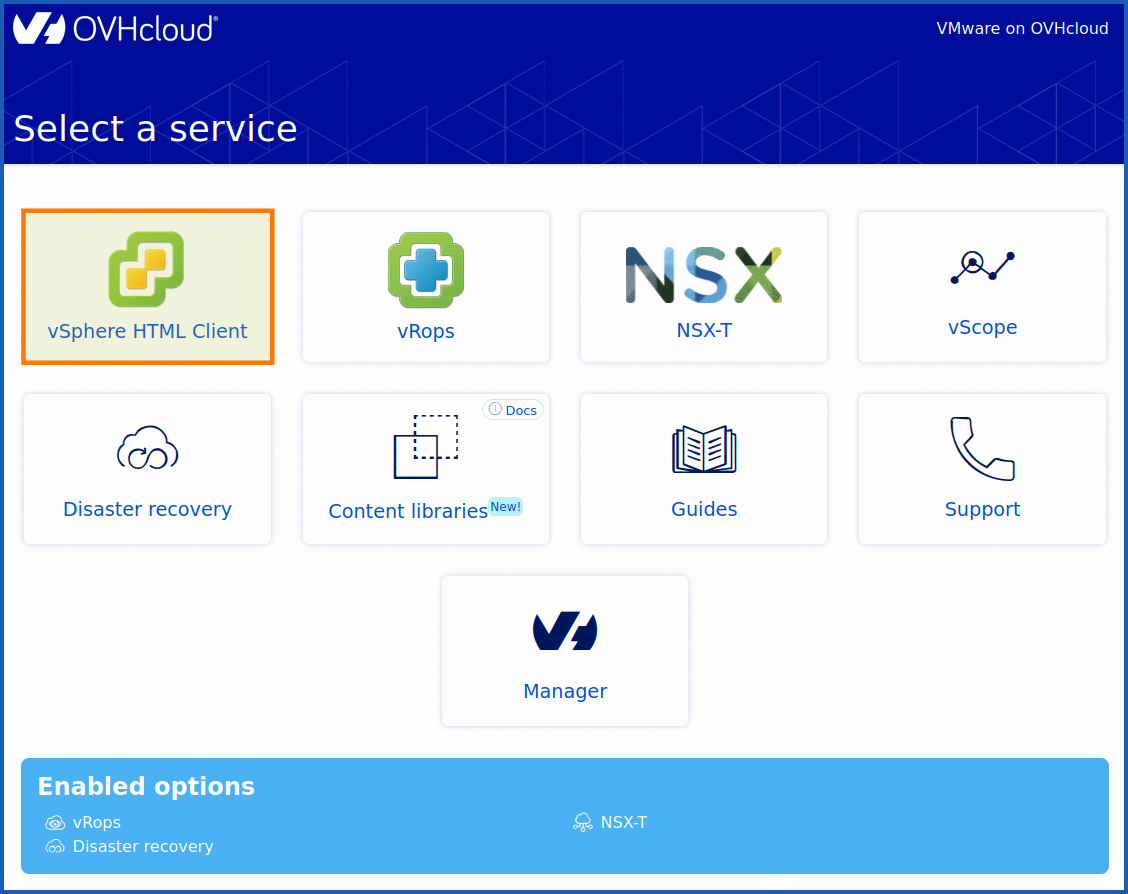
You will then access this Web interface:
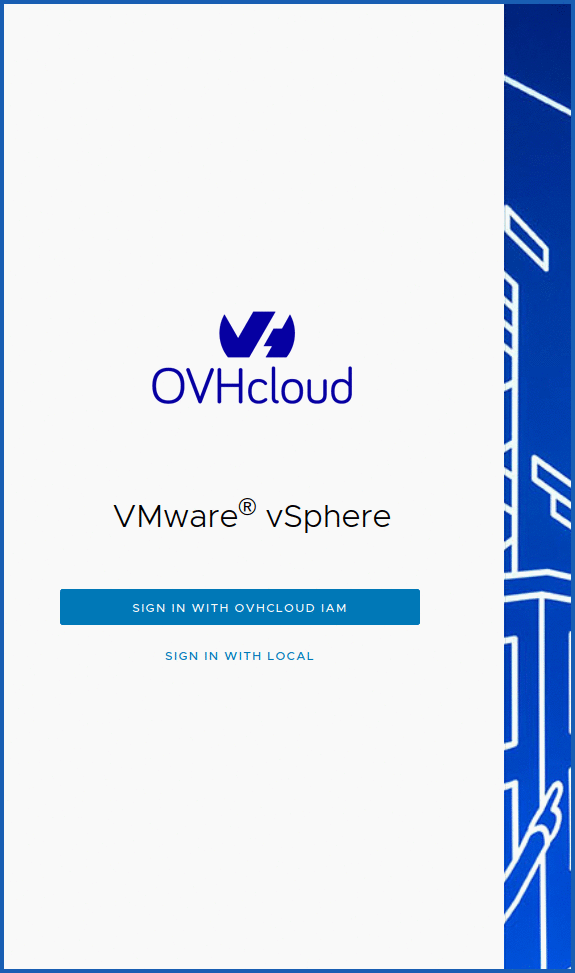
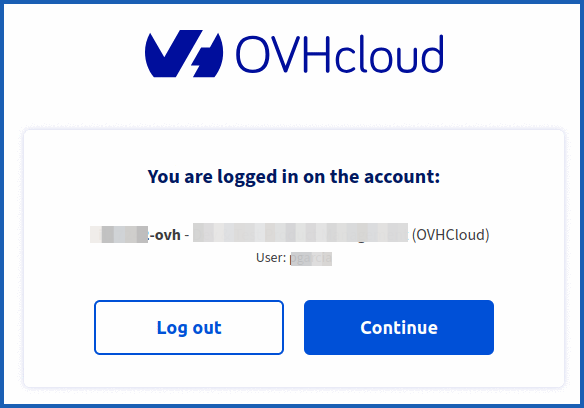
With an IAM user:
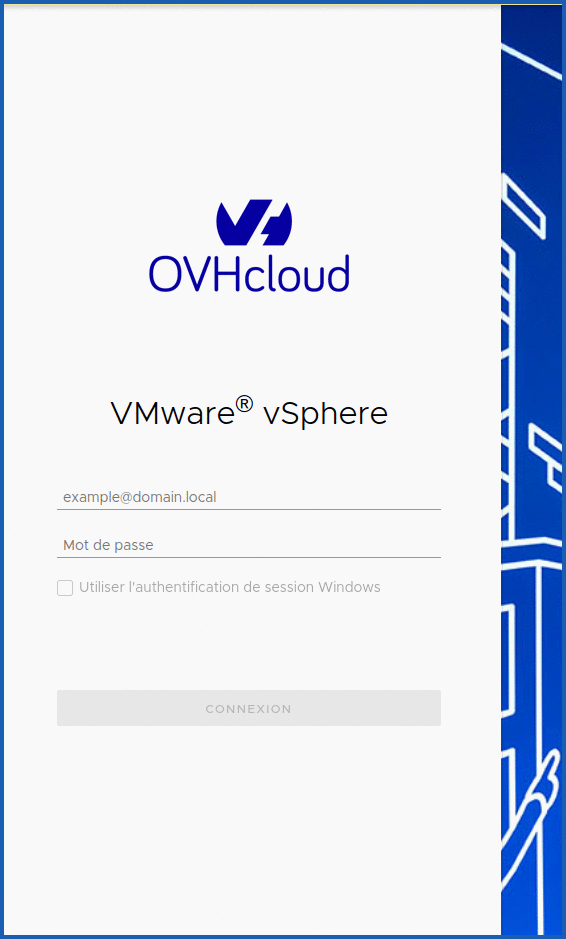
With a local user:
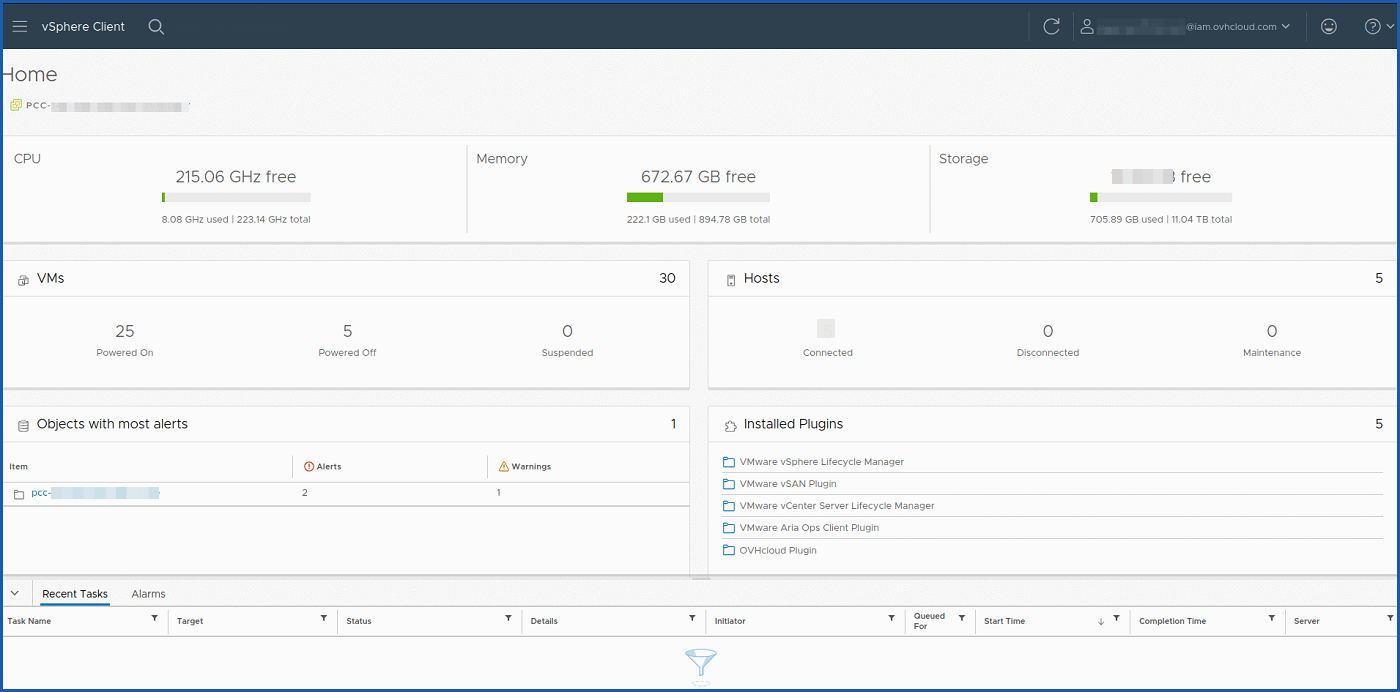
On the Home page, you can view your managed vSphere's main menus.
Glossary
- HPC : Hosted Private Cloud
Go further
To ensure access, please refer to the VMware documentation, in which the different ports to be opened in your firewall are listed: Client access.
If you require training or technical support to implement our solutions, please contact your Technical Account Manager or visit this page to get a quote and request a custom analysis of your project from our Professional Services team experts.
Join our community of users.


 Prezentacja Panelu klienta Private Cloud OVHcloud
 943
943