

Tworzenie klastra i aktywacja usługi EVC (EN)
266 wyśw.
 08.02.2022
  Cloud / VMware
Objective
You can set up multiple clusters in your environment to segment your activities.
Learn how to create them and configure their functionalities (DRS, HA & EVC).
This guide offers a step by step study case to achieve the objective.
Requirements
- Being an administrative contact of your Hosted Private Cloud infrastructure to receive login credentials
- A user account with access to vSphere (created in the OVHcloud Control Panel)
Instructions
Cluster creation
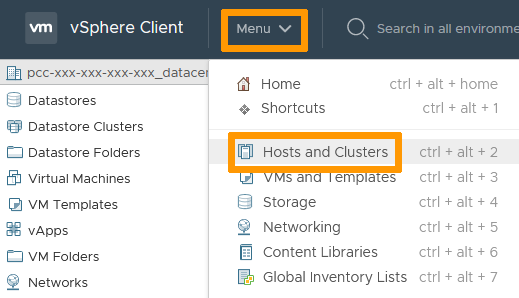
In the vSphere interface menu, go to the Hosts and Clusters dashboard.
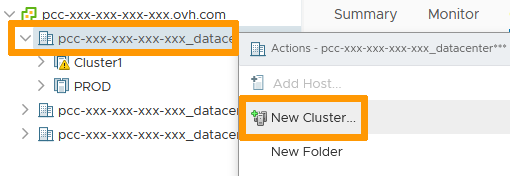
Right click your Datacenter.
Select New Cluster.
In the pop-up window, name your cluster and select the relevant options you want set.
Click OK when done.
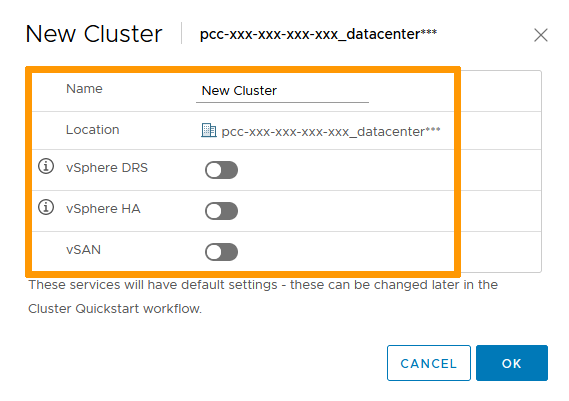
vSAN requires vSAN compatible hosts. Find more details here on how to order them if needed.
DRS
DRS spreads the compute load accross your hosts.
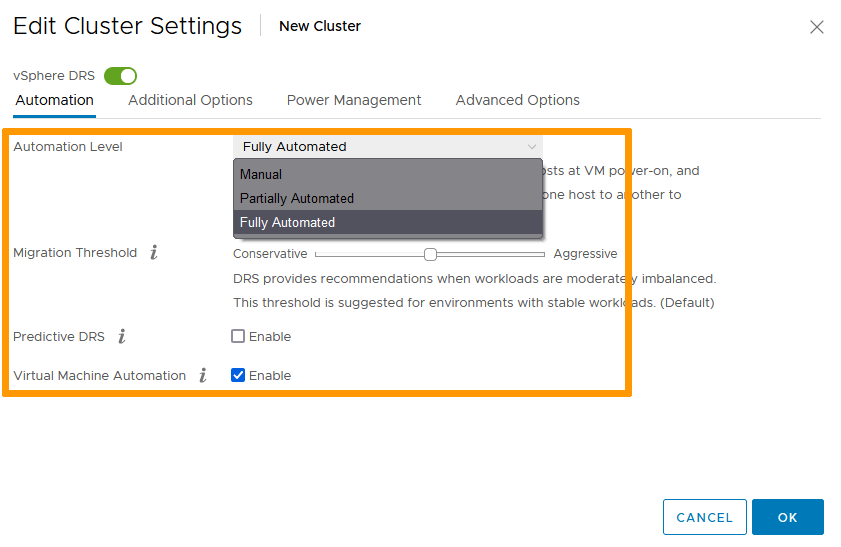
If you activated the option, it is set on "Fully Automated" by default.
Select your cluster. In the Configure tab, select vSphere DRS and click Edit.
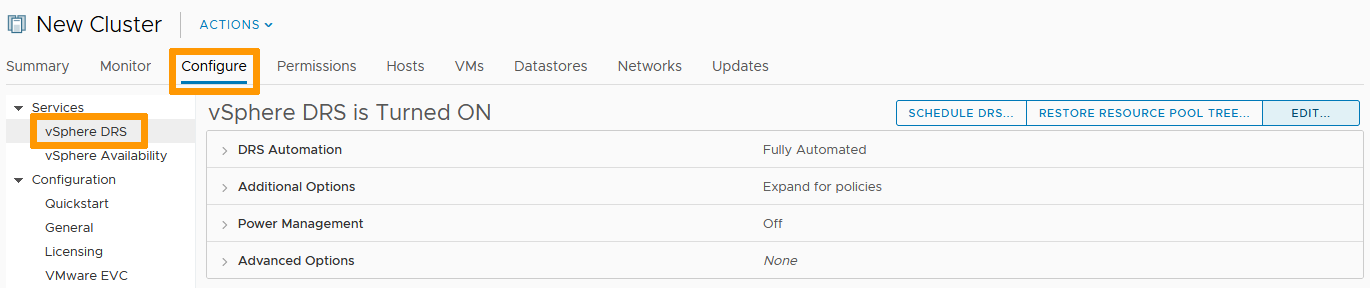
Three options are available to you:
- Manual Mode. DRS generates both power-on placement recommendations, and migration recommendations for virtual machines. Recommendations need to be manually applied or ignored.
- Partially Automated. DRS automatically places virtual machines onto hosts at VM power-on. Migration recommendations need to be manually applied or ignored.
- Fully Automated. DRS automatically places virtual machines onto hosts at VM power-on, and virtual machines are automatically migrated from one host to another to optimize resource utilization.
Automated modes also allow to set the sensitivity of the service, from the most conservative to the most aggressive threshold.
Click OK when done.
HA
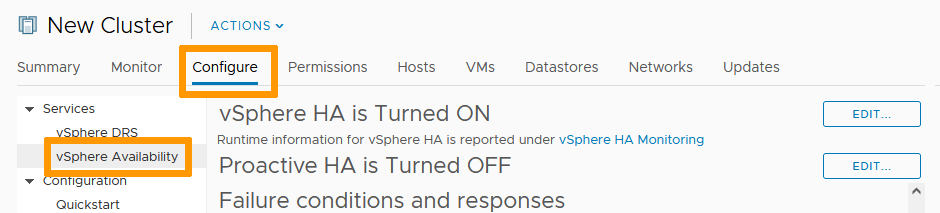
High Availability allows for redundancy so a failing host will not impact the services running in your VMs.
If you activated the option, it is set on its default settings.
To modify them, select your cluster. In the Configure tab, select vSphere HA and click Edit.
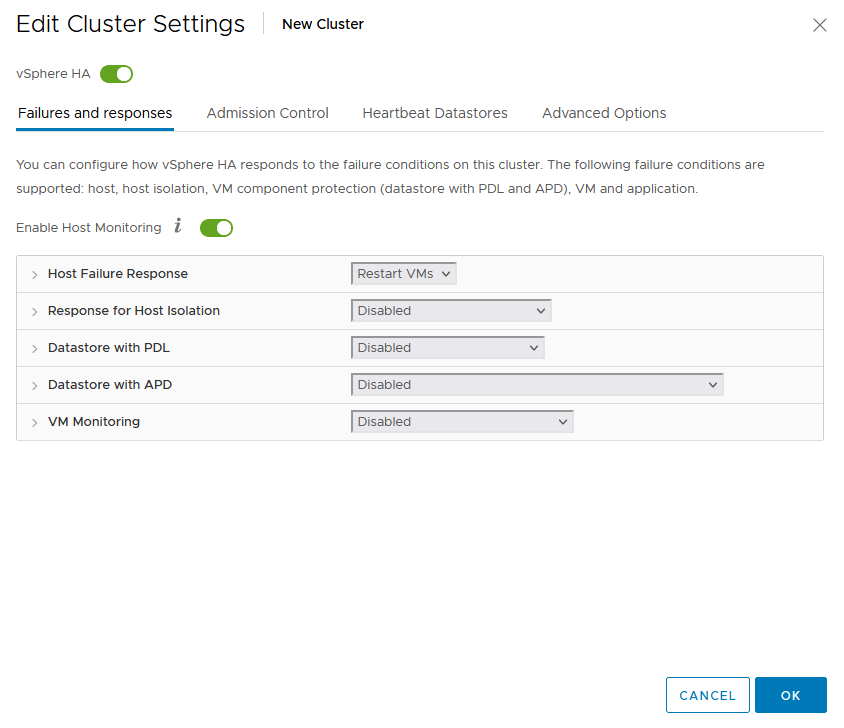
The response types for the different host failures can be custom set to your needs.
Click OK when done.
EVC
EVC (Enhanced vMotion Compatibility) allows for migration of live VMs between hosts.
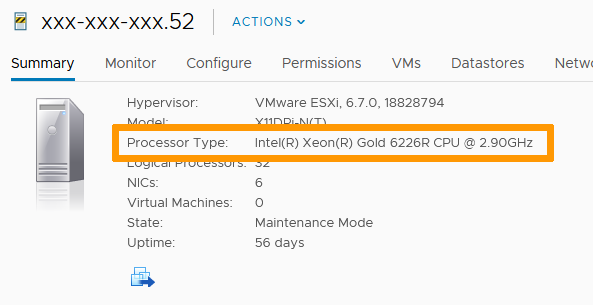
Prior to activating the functionality, check your hosts summary pages to determine their types.
Select your cluster. In the Configure tab, select VMware EVC and click Edit.
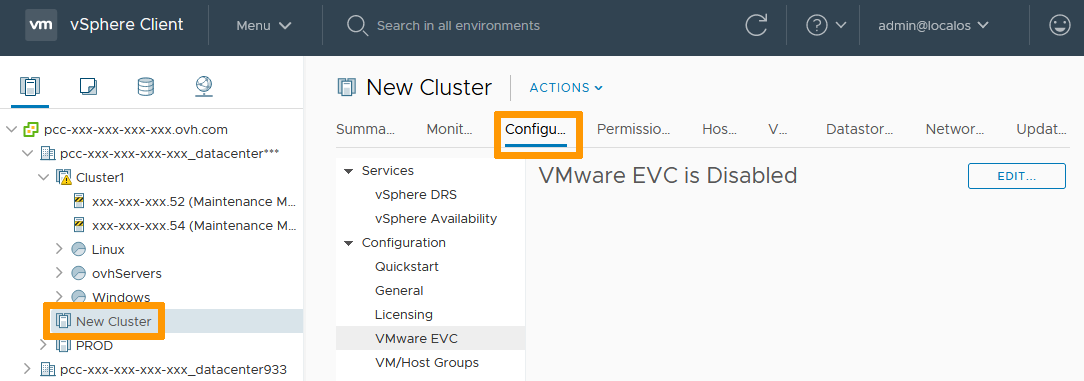
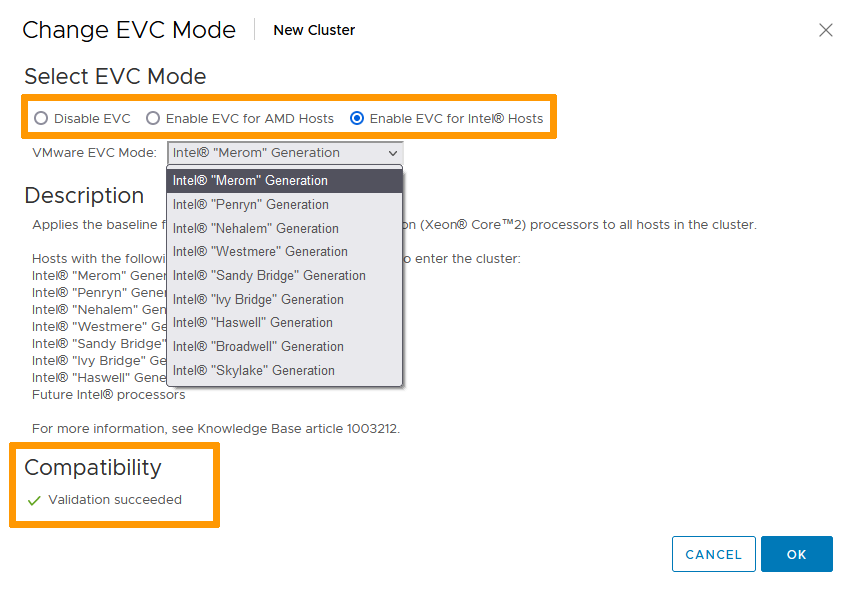
Enable EVC for the type of CPUs your hosts hold.
Downward compatibility is assured. To help you verify the settings are working, you will see a compatibility validation at the bottom of the window.
Click OK when done.
EVC activation can only happen on a cluster with no active VM running. Make sure to turn off or evacuate all VMs before doing it.
Go further
Join our community of users on https://community.ovh.com/en/.


 Korzystanie z SDK vSphere
 344
344