

Połącz obraz ISO z VM (EN)
474 wyśw.
 05.11.2024
  Cloud / VMware
You can refer to the guide Upload an ISO to a datastore for more information on uploading elements (ISO, files, etc.) to your VMware on OVHcloud environment.
Objective
You can set up an ISO library in your infrastructure to be used for OS and software deployment.
This guide will run you through the process of connecting an ISO image to a VM.
Requirements
- Being an administrative contact of your Hosted Private Cloud infrastructure to receive login credentials
- A user account with access to vSphere (created in the OVHcloud Control Panel)
Instructions
Library Creation
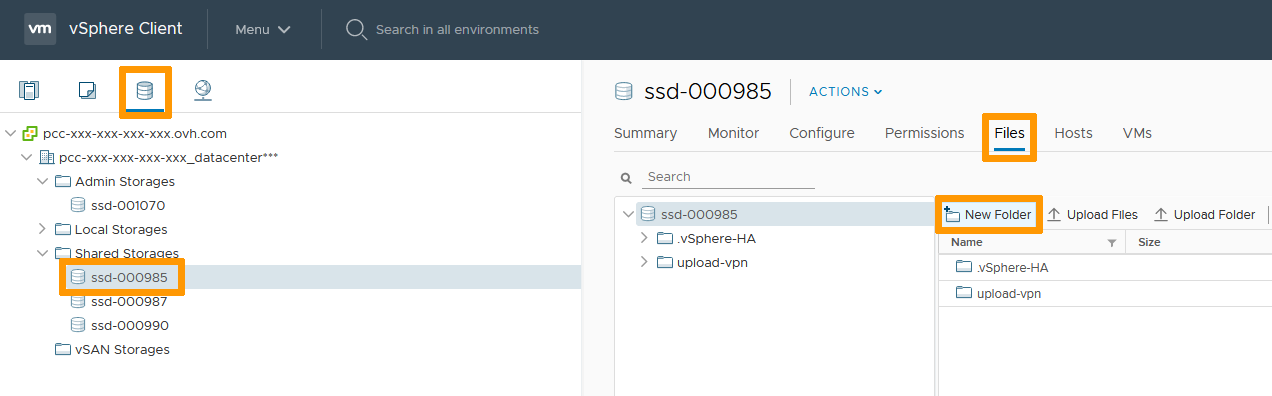
In the vSphere interface menu, go to the Storage section.
Choose the Datastore you will be building the library in (prefer Shared Storage over Local to avoid file access issues).
In the Files tab, Click on New Folder.
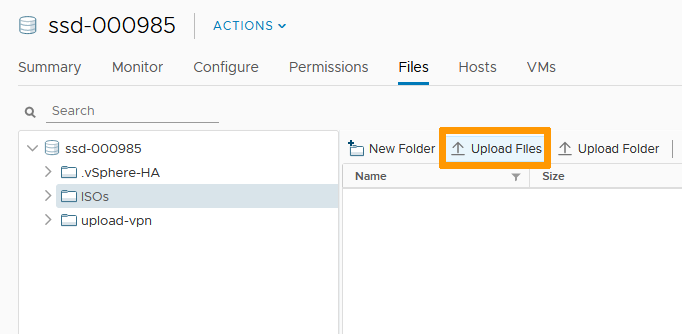
After naming your folder (ISOs in our study case), select it and click Upload Files.
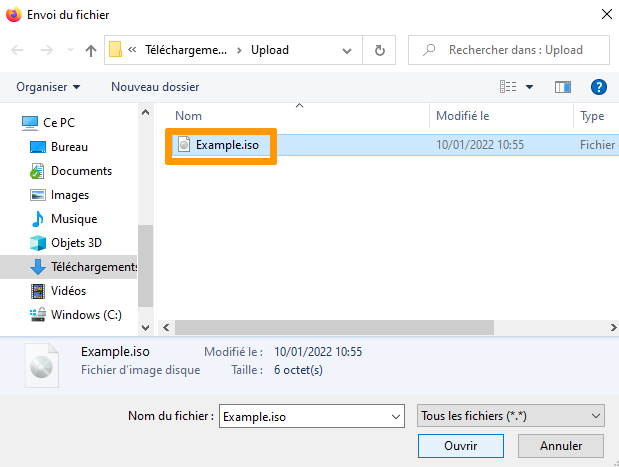
Browse to the ISO file(s) you wish to upload and click Open.
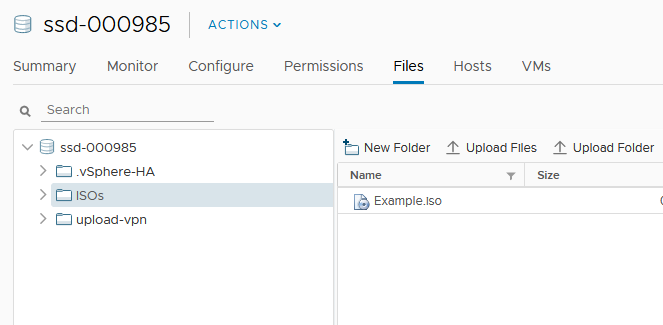
Your library is set. You can add more ISO images as you need and as storage space allows.
Connect Image to VM
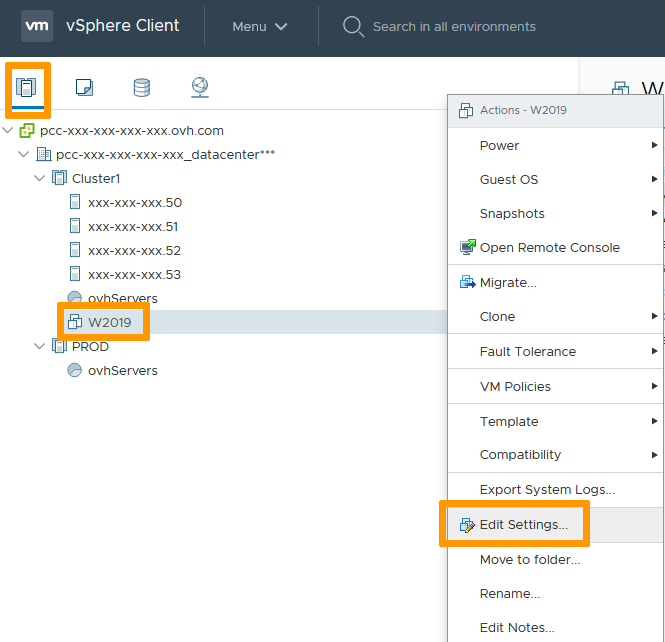
In the vSphere interface menu, go to the Hosts & Clusters section.
Right click the VM you need the ISO image attached to and click on Edit Settings.
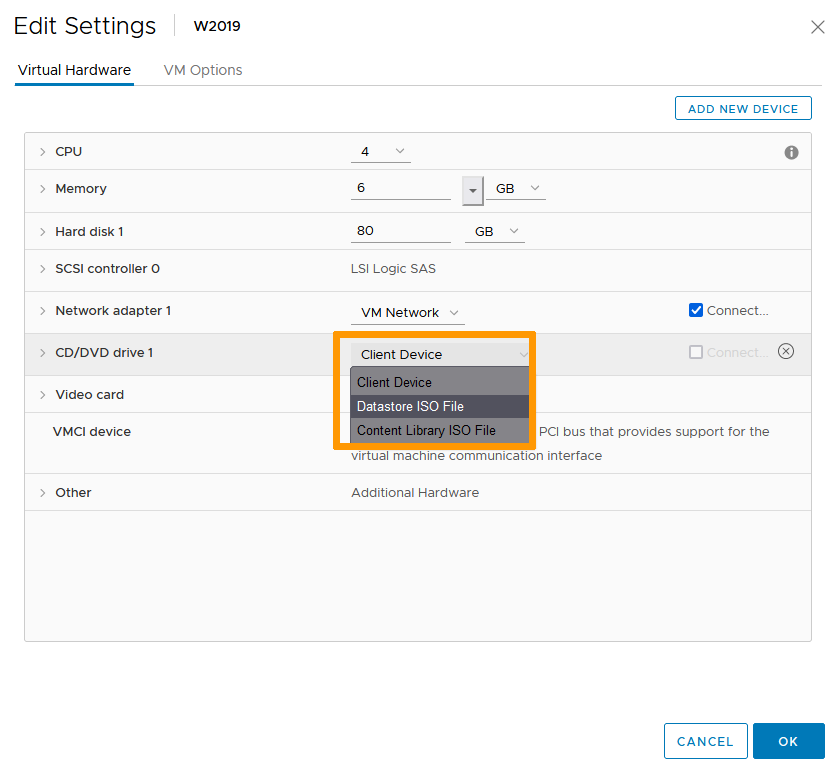
Change the CD/DVD drive setting to Datastore ISO File.
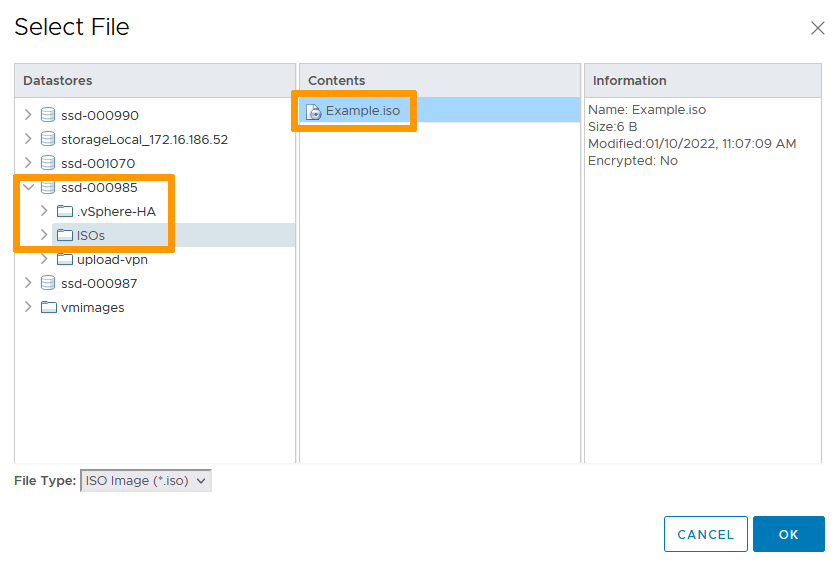
In the browsing window that pops up, navigate to the library previously created and select the image you wish to use.
Click on OK.
Back in the "Edit Settings" menu, make sure the "Connect" box is checked and click OK.
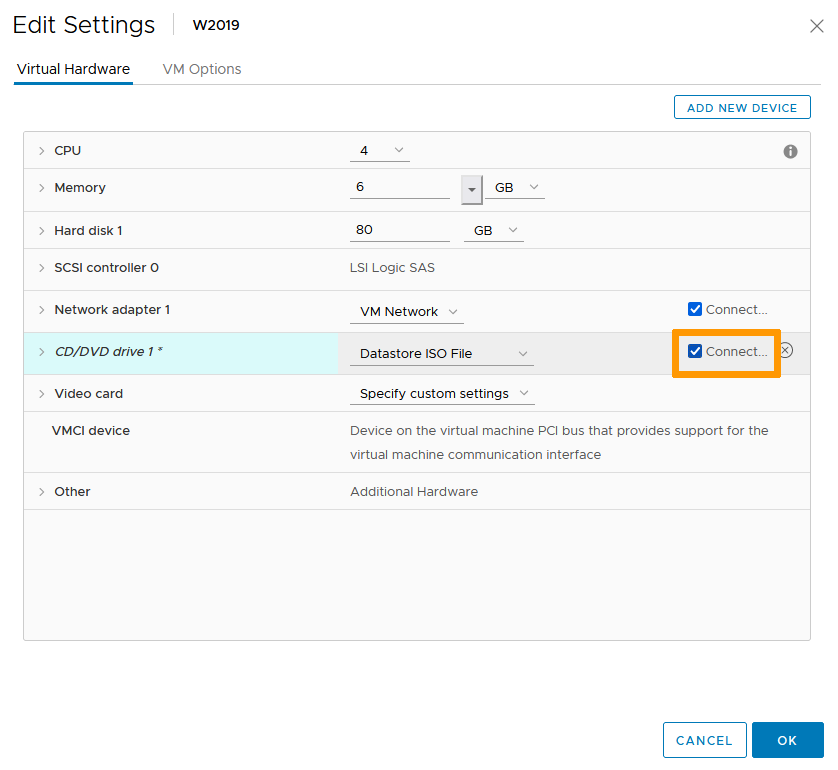
The ISO image is now connected to your VM and can be accessed as if it were an attached physical media.
Go further
To go further with uploads within your Hosted Private Cloud - VMware on OVHcloud environment, please refer to the guide Uploading an ISO into a datastore.
You can use your vCenter on OVHcloud secure HTML web client, as well as govc (see the procedure in the guide).
Join our community of users.


 Konfiguracja adresu IP na maszynie wirtualnej (EN)
 4083
4083