

Encrypting backup jobs with Veeam and OKMS
83 wyśw.
 22.04.2025
  Cloud / VMware
Objective
This guide explains how to configure encrypted backup jobs using the Veeam backup solution and the OVHcloud Key Management Service (OKMS).
Requirements
- A VMware on OVHcloud offer.
- Read the following guides:
Instructions
Step 1: Create a certificate in OKMS
You can create your access certificate in OKMS using either the OVHcloud API or the OVHcloud Control Panel.
Option 1: Using the API
-
Generate the private key using the API (no CSR):
-
Retrieve the certificate using a GET request:
This method is equivalent to selecting
I don't have a private keyin the OVHcloud Control Panel interface. You may also submit a CSR if you already have your own private key. -
Download the private key.
-
Download the certificate.
The downloaded private key is used to generate the
.pfxfile in the next step. You don't need to import it manually into Veeam, but it is required to convert the certificate into a compatible format. Make sure to store it securely.
Option 2: Using the OVHcloud Control Panel
-
In the OVHcloud Control Panel, click
Hosted Private CloudthenIdentity, Security & Operationsand finallyKey Management Service. Select your KMS.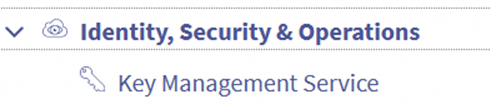
-
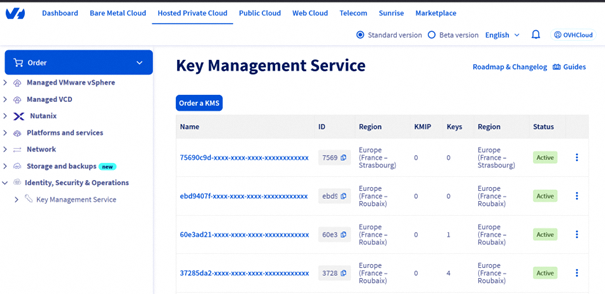
Select your KMS.
-
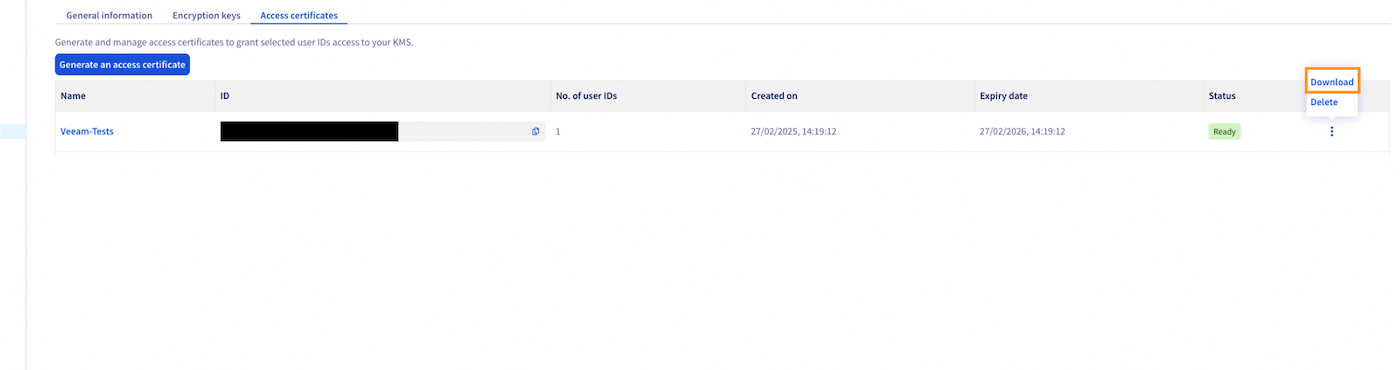
Open the
Access certificatestab.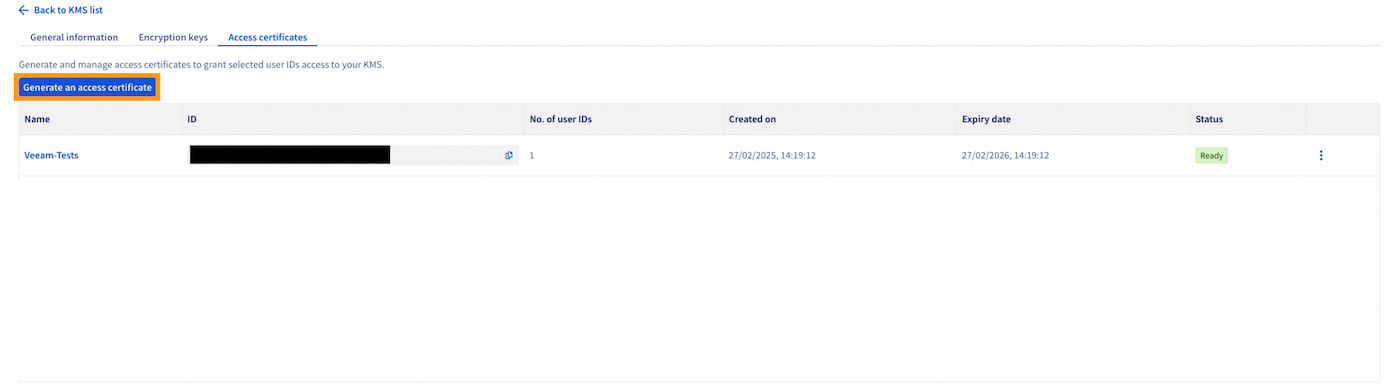
-
Click
Generate an access certificate. -
Fill in the required fields, then select
I don’t have a private key.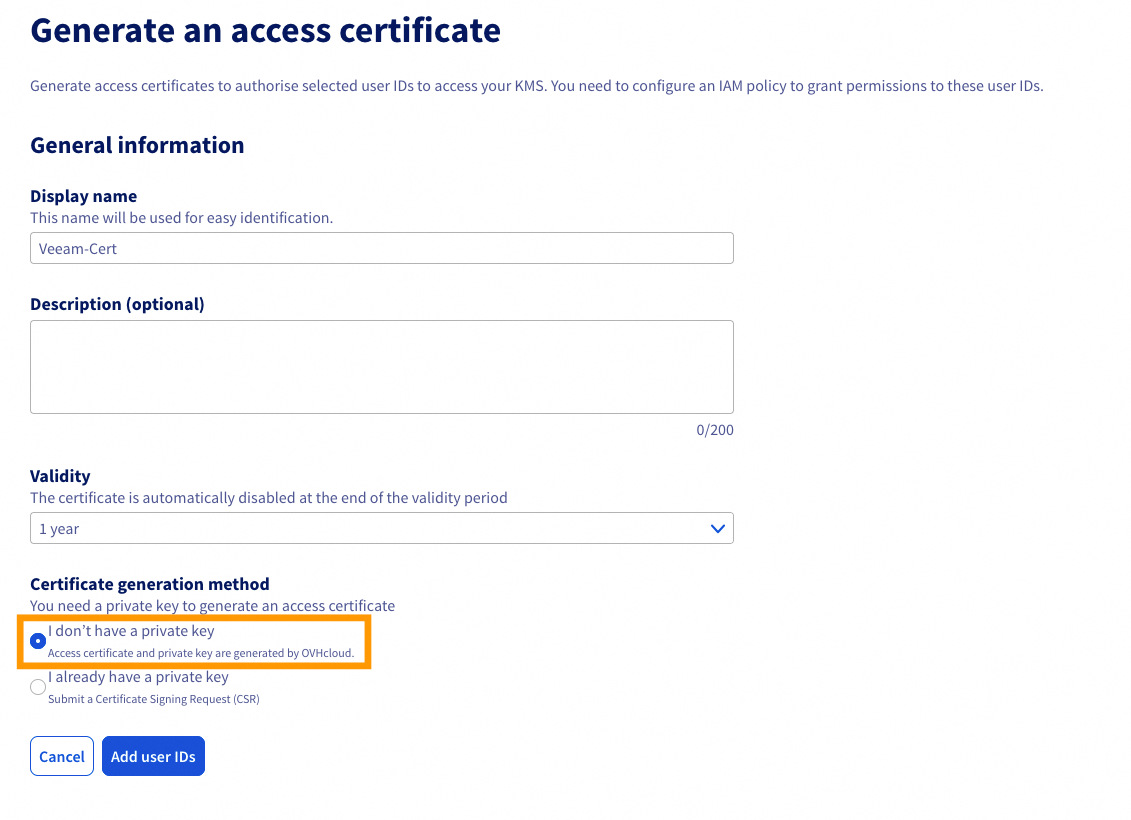
This is the same as generating a certificate without a CSR, like with the API. You can also choose
I already have a private keyto generate a certificate using your own CSR. -
Add user IDs to the certificate:
- Click
Add user IDs - Select the authorized users
- Confirm to associate the certificate
This step is required for the certificate to work with Veeam.
- Click
-
Download the private key and the certificate.
Step 2: Convert the PEM certificate to PFX format
To import the certificate into Veeam, convert it to .pfx format using the command below:
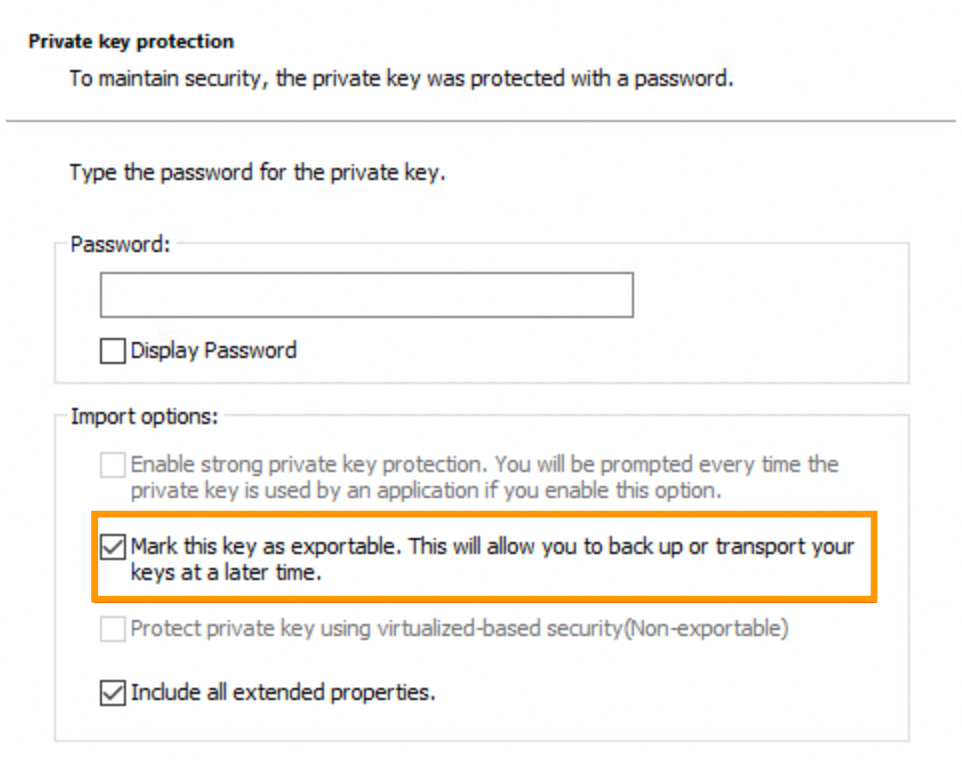
Step 3: Import the certificate into the Veeam Windows Certificate Store
- Open the Windows Certificate Store on your Veeam server.
- Import the
.pfxfile generated in the previous step. - Check the option to make the certificate exportable.
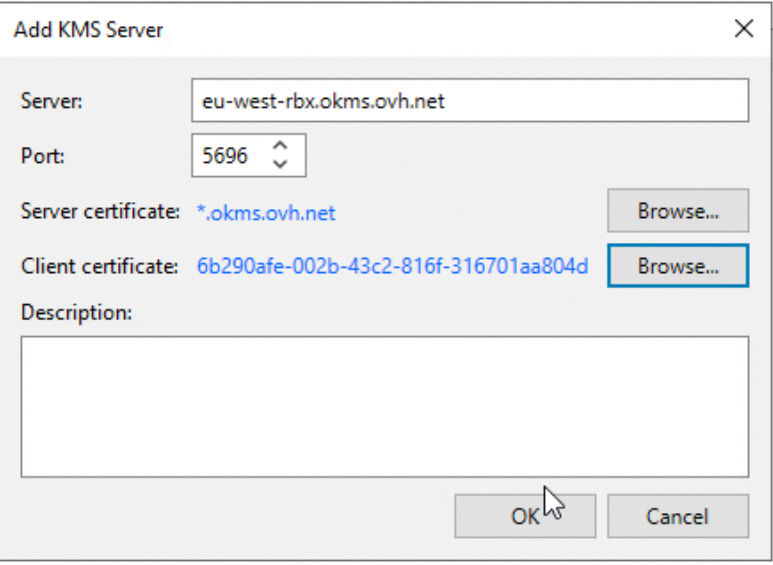
Step 4: Register the KMS in Veeam
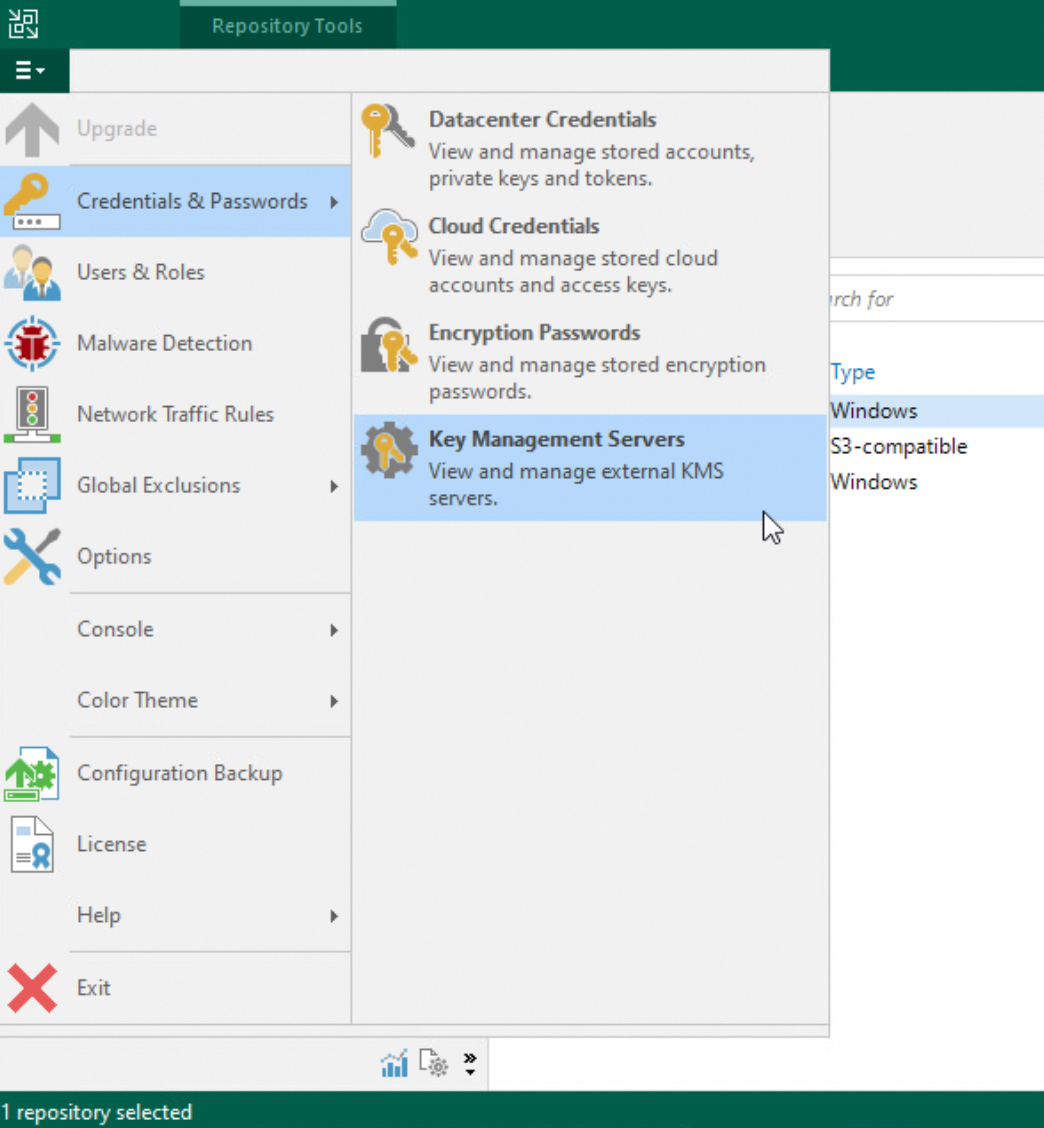
- Open Veeam Backup & Replication and go to
Credentials & Passwords, then clickKey Management Servers.
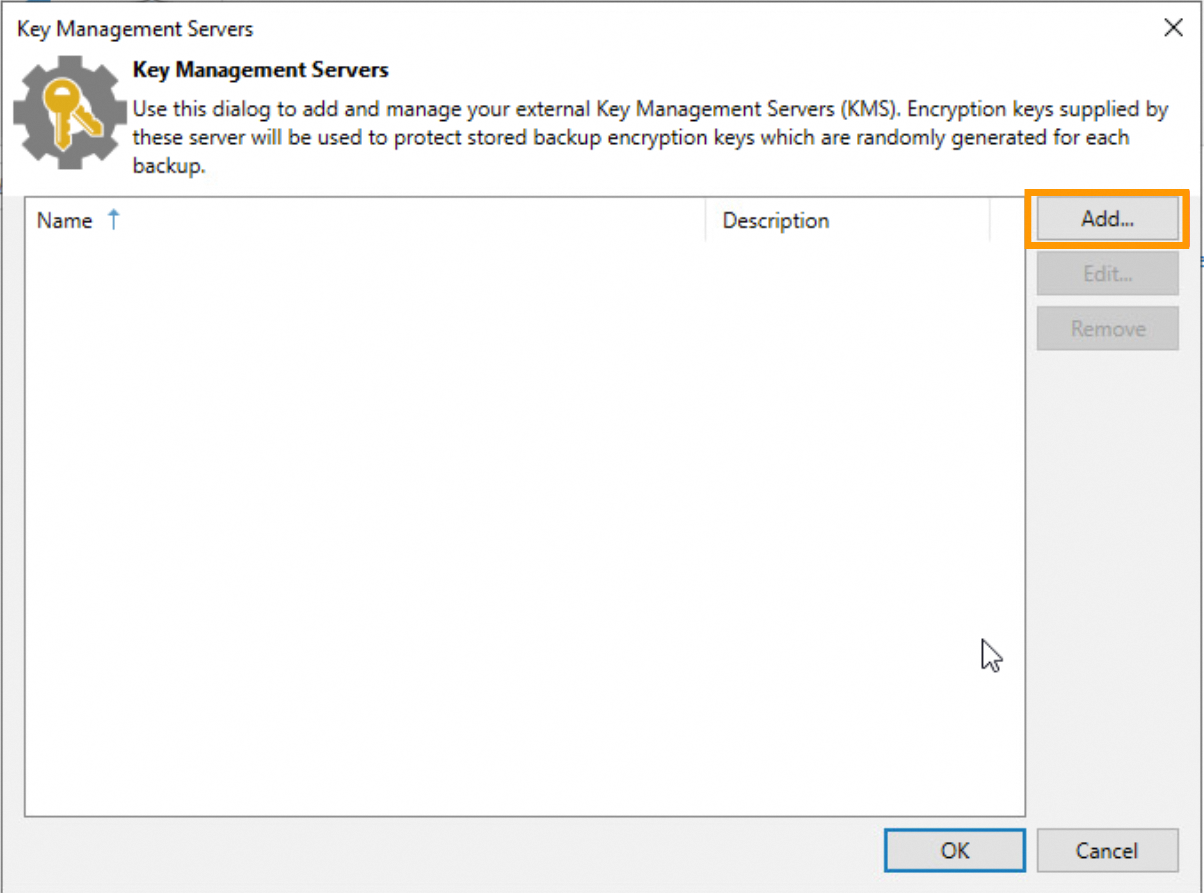
- Click
Addto add a new KMS server.
- Enter the following details:
- Server address:
eu-west-rbx.okms.ovh.net - Port:
5696 - Server certificate:
*.okms.ovh.net - Client certificate: the
.pfxfile you just imported
- Server address:
Step 5: Retrieve the server certificate
To retrieve the server certificate from OKMS, run the following command:
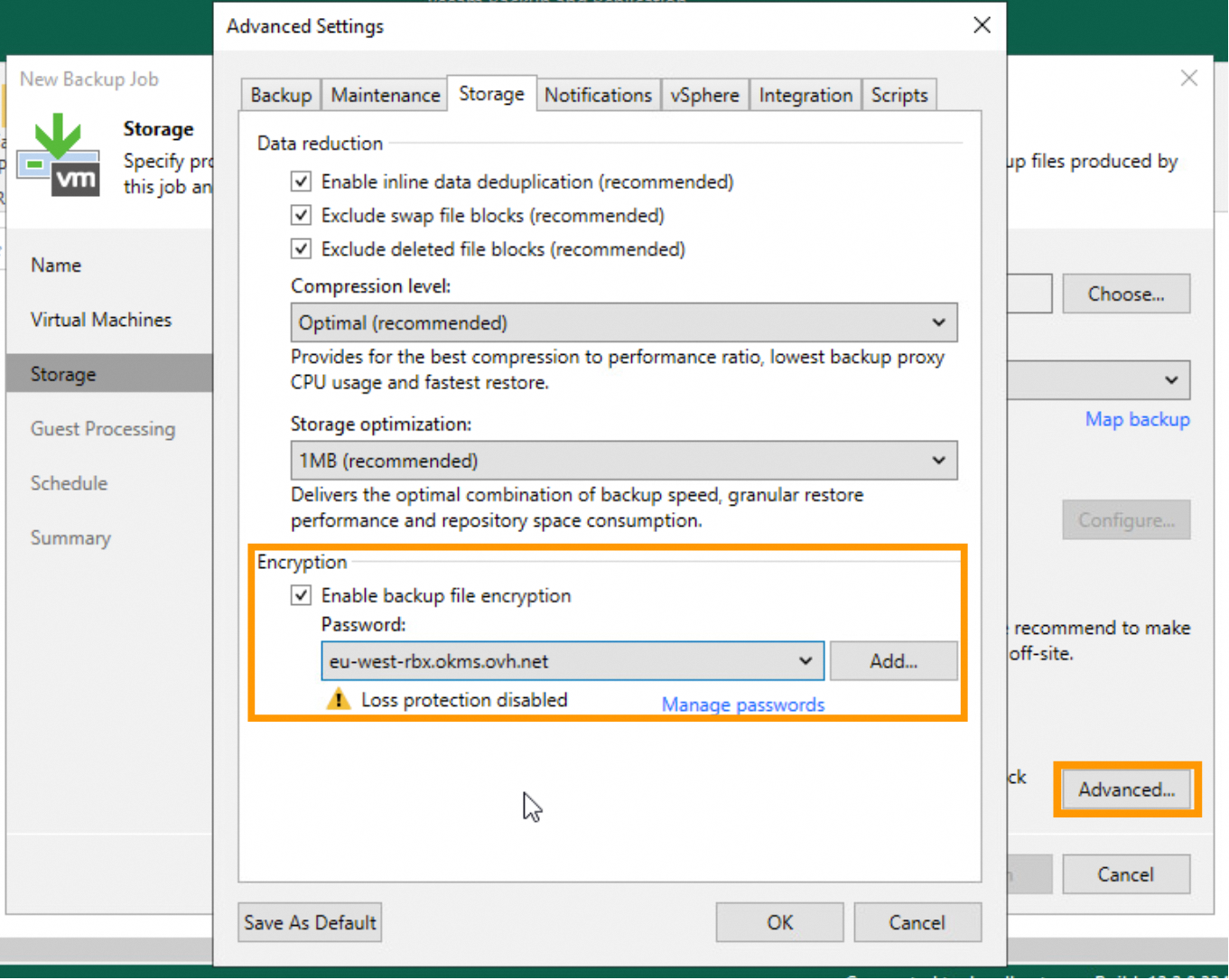
Step 6: Configure backup job encryption
- Register the KMS server in your Veeam Backup & Replication console.
- Select the desired backup job and enable encryption using the registered KMS.
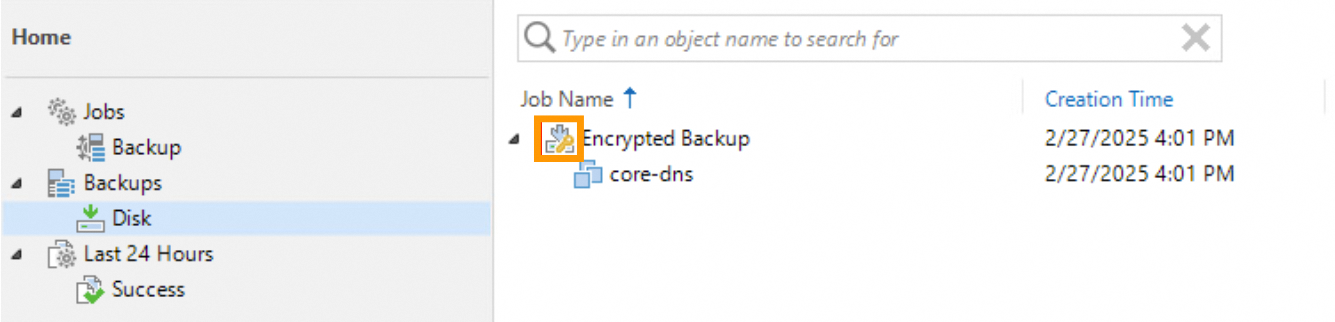
- Once the backup has run, a padlock icon appears next to its name.
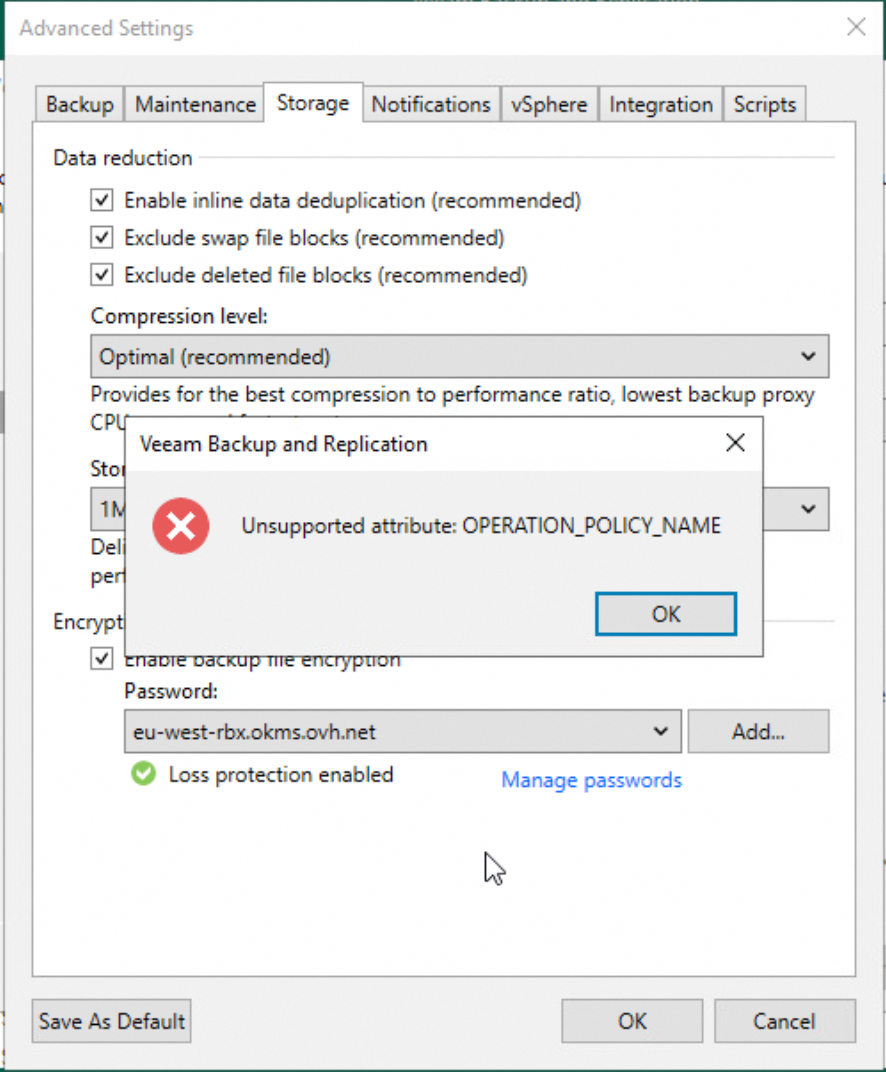
- If you encounter the error
Unsupported attribute: OPERATION_POLICY_NAME, check the documentation or contact support.
Go further
If you need training or technical assistance to implement our solutions, contact your Technical Account Manager or click this link to request a quote and get personalized support from our Professional Services team.
Ask questions, share feedback, and interact directly with the Hosted Private Cloud team on our Discord channel.
Join our community of users.

