

Aktywuj maszyny wirtualne Windows zainstalowane na Nutanix przez OVHcloud (EN)
341 wyśw.
 21.12.2022
  Cloud / Nutanix on OVHcloud
Objective
This tutorial describes how to activate Windows licences provided by OVHcloud on a Nutanix by OVHcloud solution.
This tutorial will show you how to use one or more OVHcloud solutions with external tools, and will describe the actions to be carried out in a specific context. You may need to adapt the instructions according to your situation.
If you encounter any difficulties performing these actions, please contact a specialist service provider and/or discuss the issue with our community. You can find more information in the Go further section of this tutorial.
Requirements
- A Nutanix cluster in your OVHcloud account
- You must be connected to the cluster via Prism Central
- A Windows licence provided by OVHcloud
- A virtual machine running Windows Server. You can use this guide to install a virtual machine on Windows: Virtual Machine Management
- The virtual machine connects to the Internet through the rtvRack (e.g. via the default gateway)
Instructions
Uninstall the default product key
When your operating system is in trial mode, a default product key is installed. To modify it, open the Run dialogue box by pressing the Windows key on your keyboard + R.
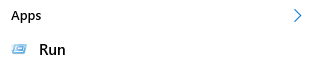
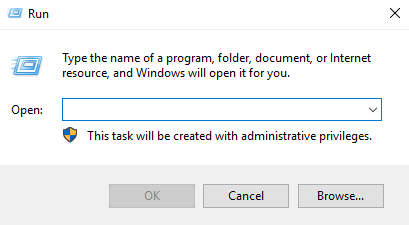
In this box, enter the following command:
Install the new product key
You can now install the new product key. To do so, go back to the Run box, and enter the following command:
You can find the product keys for supported versions of Windows Server in the table available on the official Microsoft web page.
Core versions use the same product keys as non-core versions.
Associate your product key
To associate your key with our automated activation system, enter the command below in the Run dialogue box:
Activate the system
Lastly, to activate your Windows operating system, simply enter the command below:
Go further
If you need training or technical assistance to implement our solutions, contact your sales representative or click on this link to get a quote and ask our Professional Services experts for assisting you on your specific use case of your project.
Join our community of users on https://community.ovh.com/en/.


 Zaawansowane narzędzia (EN)
 289
289