

IAM for VMware on OVHcloud - How to activate IAM
148 viste
 23.05.2024
  Cloud / VMware
Objective
This guide details how to activate IAM with Hosted Private Cloud - VMware on OVHcloud via the OVHcloud Control Panel or with the OVHcloud API.
Requirements
- An OVHcloud account
- One or more Hosted Private Cloud - VMware on OVHcloud products linked to this account (Hosted Private Cloud powered by VMware, VMware Service Pack).
Instructions
Enabling IAM
This may take up to 30 minutes.
Via the OVHcloud Control Panel
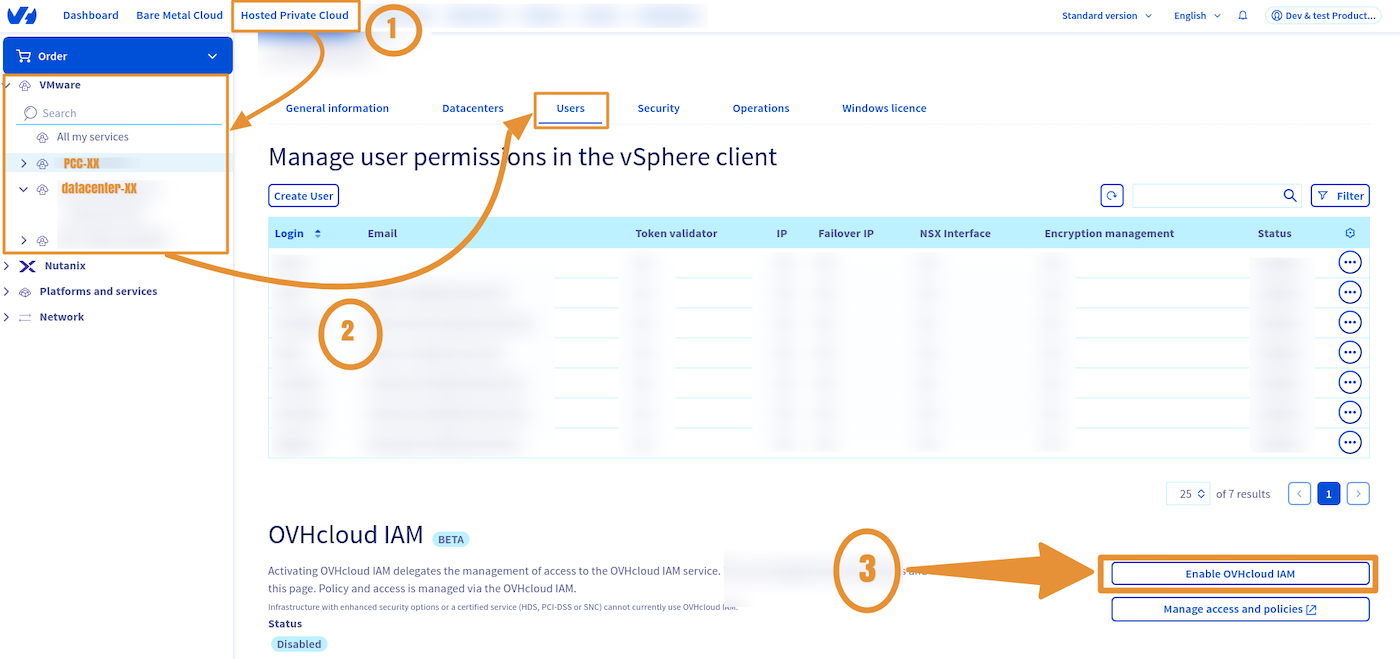
Log in to your OVHcloud Control Panel and click on the Hosted Private Cloud tab.
Click on the VMware section, select your infrastructure, then go to the Users tab.
Under the OVHcloud IAM section, click Enable OVHcloud IAM.
Once IAM is enabled, its status will be Enabled and green.

Via the OVHcloud API
Read the guide Getting started with OVHcloud APIs to get familiar with using OVHcloud APIv6.
Make sure to replace the serviceName with the reference of your Hosted Private Cloud service, in the form pcc-XXX-XXX-XXX-XXX.
To enable the IAM option, execute the following API call:
Checking that IAM is enabled
To control IAM activation, execute the following API call:
API return:
Go further
You can now follow the guide IAM for VMware on OVHcloud - How to create an IAM vSphere role.
IAM for VMware on OVHcloud - Guide index:
- Guide 1: IAM for VMware on OVHcloud - Overview and FAQ
- Guide 2: IAM for VMware on OVHcloud - How to enable IAM
- Guide 3: IAM for VMware on OVHcloud - How to create an IAM vSphere role
- Guide 4: IAM for VMware on OVHcloud - How to associate a vSphere role with an IAM policy
- Guide 5: IAM for VMware on OVHcloud - How to associate a user with a global IAM policy
If you need training or technical assistance to implement our solutions, contact your sales representative or click on this link to get a quote and ask our Professional Services experts for a custom analysis of your project.
Join our community of users.


 Modificare la password utente
 862
862