

AI Endpoints - Create a code assistant with Continue
134 viste
 19.12.2025
  AI Endpoints
AI Endpoints is covered by the OVHcloud AI Endpoints Conditions and the OVHcloud Public Cloud Special Conditions.
Introduction
What is Continue?
Continue is an IDE‑agnostic AI assistant that brings chat, code generation, and autocomplete capabilities directly into your editor. Compatible with VS Code and JetBrains IDEs (e.g., IntelliJ, PyCharm), Continue empowers you to plug in any compatible LLM hosted on AI Endpoints.
Continue enables you to configure and use your own LLMs, giving you full control over the models you use and how they interact with your code.
This tutorial describes how to configure Continue to connect to AI Endpoints LLMs, allowing these models to integrate with your editor to enhance coding efficiency, accuracy, and productivity.
Requirements
- A Public Cloud project in your OVHcloud account
- An access token for OVHcloud AI Endpoints. To create an API token, follow the instructions in the AI Endpoints - Getting Started guide.
Instructions
Install Continue
Follow the official Continue installation instructions for your IDE.
Once installed, Continue will share the same configuration across your IDEs.
Configure Continue with AI Endpoints
Continue uses a YAML-based configuration file to manage:
- Chatbot tool models
- Tab autocomplete models
You can customize this configuration file to connect the plugin to AI Endpoints:
Continue configuration for OVHcloud AI Endpoints
When you have modified your config file, make sure to reload it before trying to interact with your configured models!
Try out different LLMs from our catalog and choose the one that best fits your use case. You can switch between them easily in the IDE UI.
Try It Out
Once Continue is configured with your AI Endpoints, you're ready to test both features:
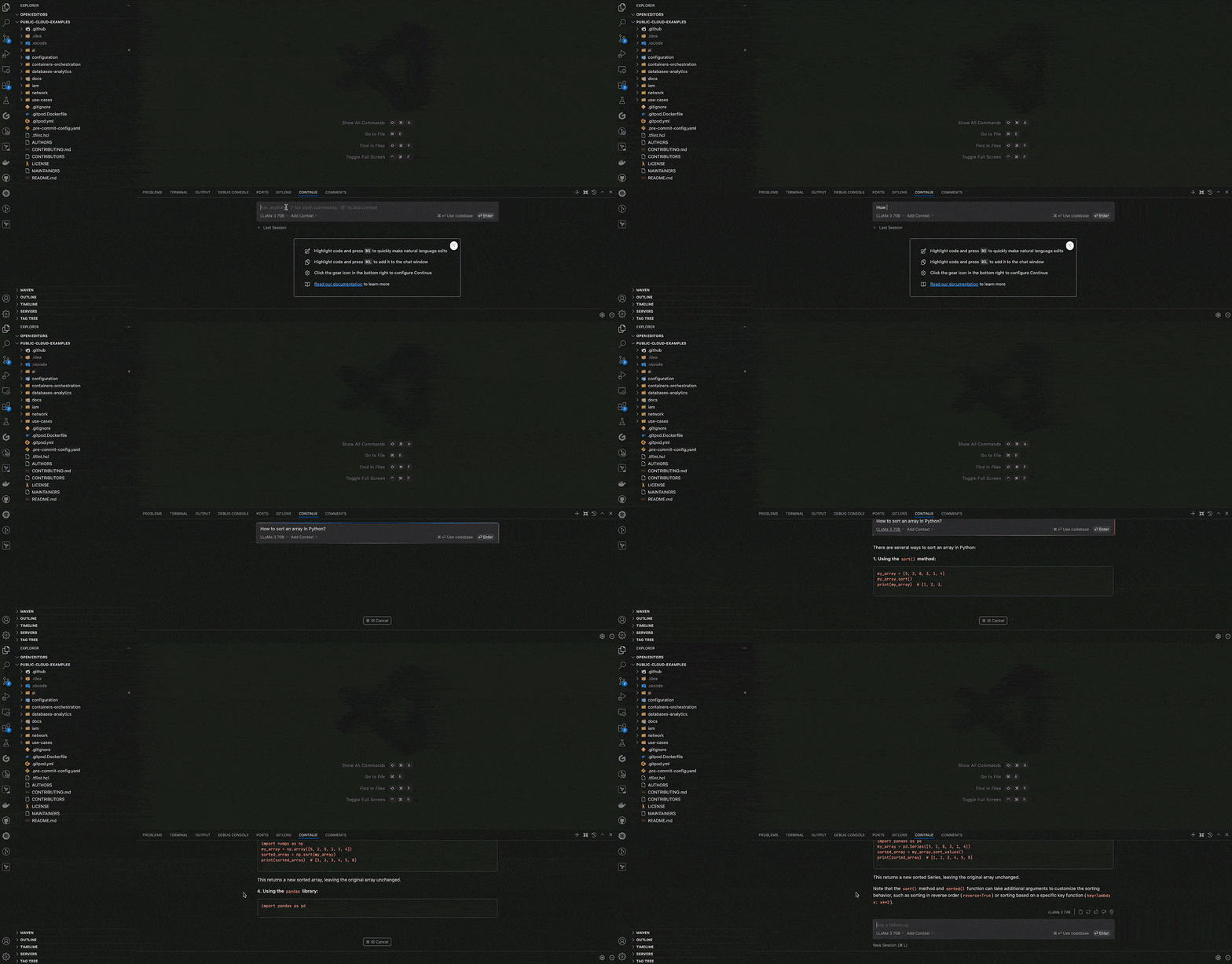
Chatbot Tool
Use the chatbot sidebar to ask for help, generate code, or refactor logic with any of your configured models.
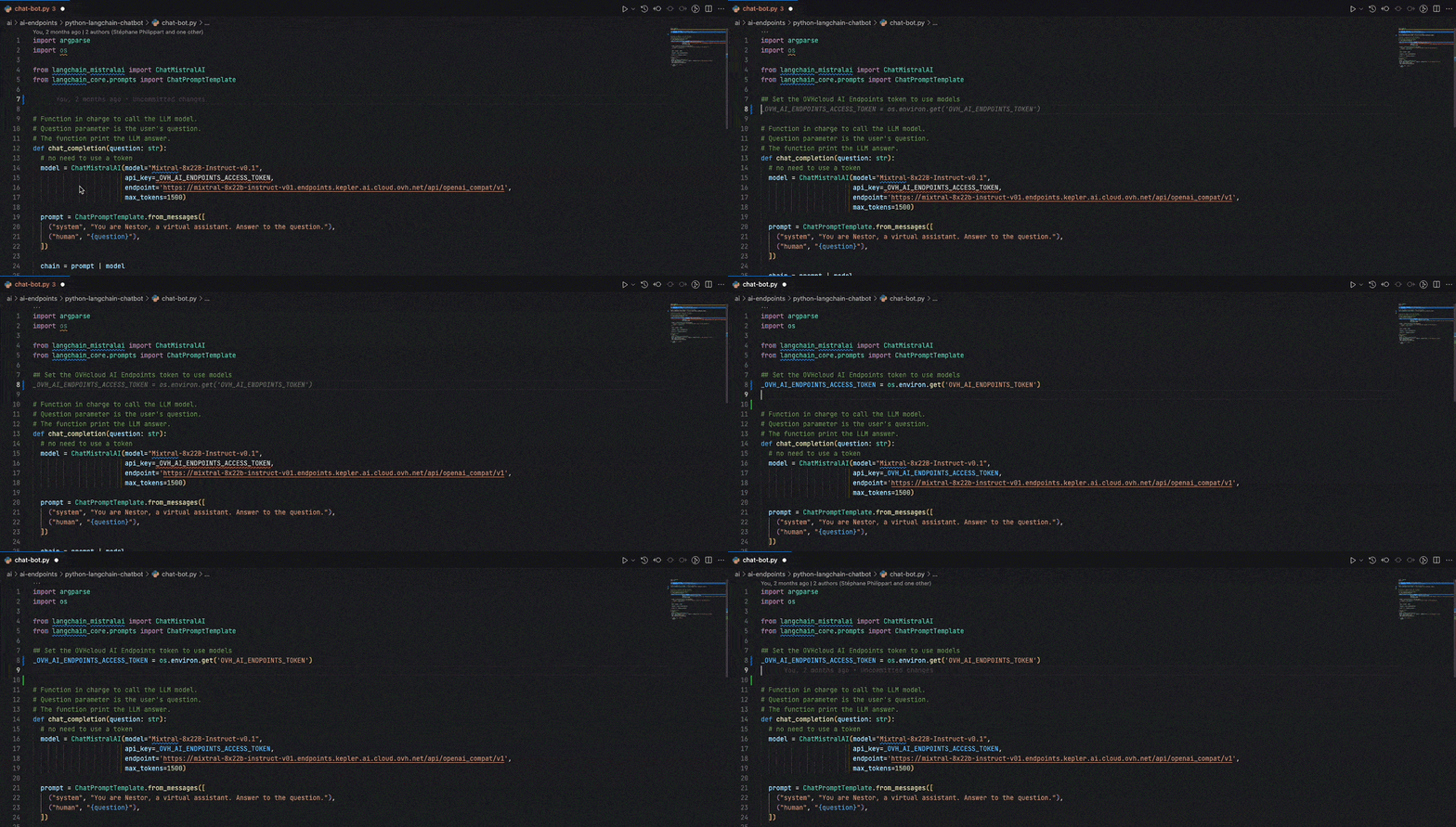
Tab Completion Tool
Just start typing in your editor. The autocomplete model will complete code as you go — powered by your custom-configured model from AI Endpoints.
Troubleshooting
- Model not loading: Verify the
apiBaseURL and ensure theapiKeyvariable is correctly set. - Autocomplete not working: Make sure the model role includes
autocompleteand that the selected model supports this capability. - Connection errors: Check network connectivity and confirm your
apiKeyis valid.
Conclusion
By using Continue and AI Endpoints, you now have access to a fully customizable code assistant, support for cutting-edge open-source large language models such as Qwen, Mixtral, and LLaMA 3, and the ability to manage your own configuration and resources on AI Endpoints.
If you need training or technical assistance to implement our solutions, contact your sales representative or click on this link to get a quote and ask our Professional Services experts for a custom analysis of your project.
Feedback
Please feel free to send us your questions, feedback, and suggestions regarding AI Endpoints and its features:
- In the #ai-endpoints channel of the OVHcloud Discord server, where you can engage with the community and OVHcloud team members.


 AI Endpoints - Enable conversational memory in your chatbot using LangChain
 198
198