

AI Deploy - Tutorial - Deploy an ONNX model using FastAPI
204 viste
 27.06.2025
  AI Deploy
Objective
The purpose of this tutorial is to show you how to deploy an ONNX model for optimized inference thanks to AI Deploy.
In order to do this, you will use a DenseNet model trained on CIFAR-10 dataset to classify images and the FastAPI Python framework to create the API. Developing an API will enable you to use your Machine Learning model for inference. You will also learn how to build and use a custom Docker image for a FastAPI deployment.
For more information on how to train DenseNet on a CIFAR-10 dataset, refer to the following documentation.
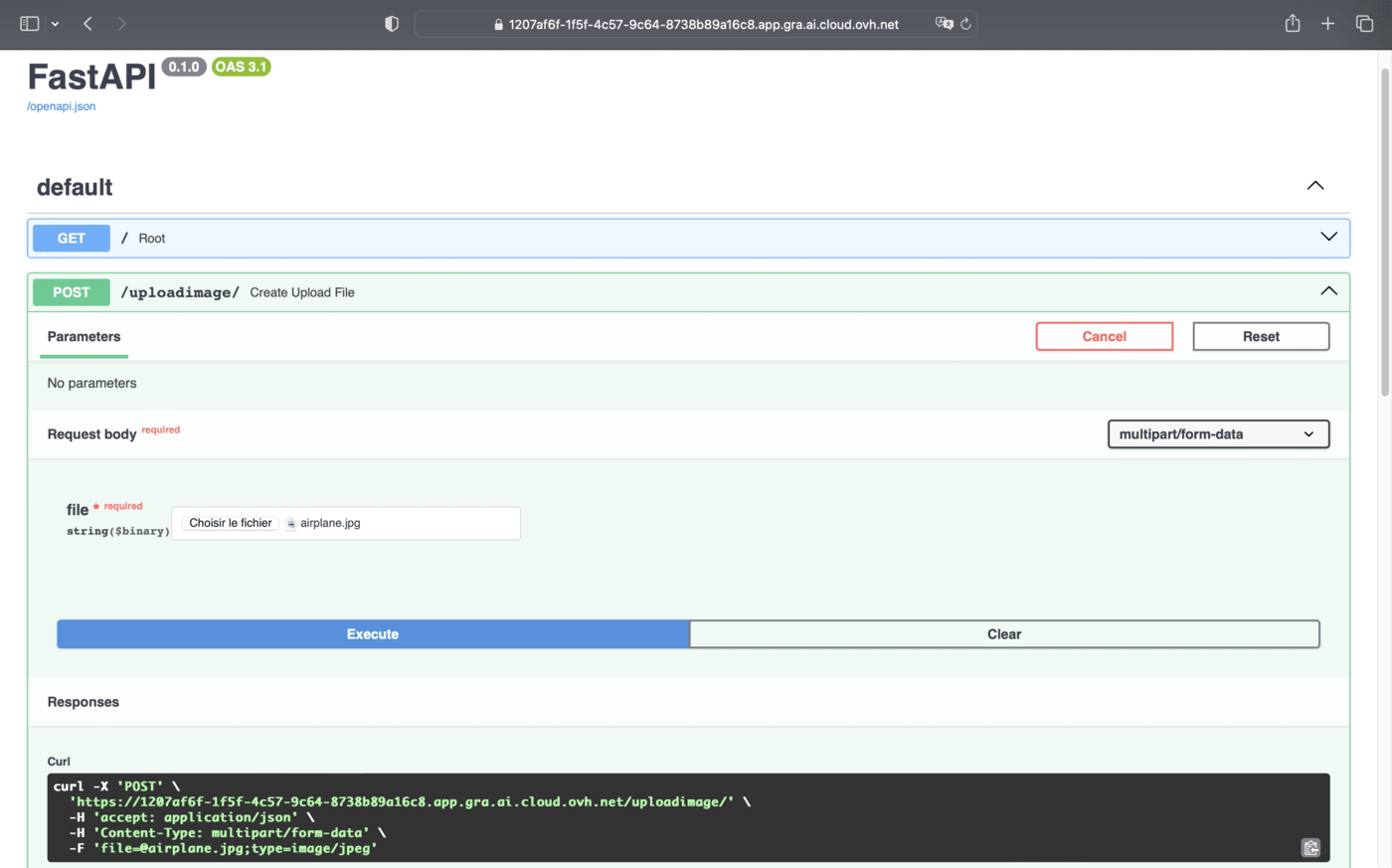
Here is an overview of the image classification API:
Requirements
- Access to the OVHcloud Control Panel
- An AI Deploy project created inside a Public Cloud project
- A user for AI Deploy
- Docker installed on your local computer or a deployed Public Cloud Docker Instance
- Some knowledge about building images and Dockerfile
- Your weights obtained from fine-tuning DenseNet model on the CIFAR-10 dataset (refer to the "Export ONNX model for inference" part of the notebook about DenseNet fine-tuning)
Instructions
You are going to follow different steps to build your FastAPI app.
- More information about FastAPI capabilities can be found here.
- A direct link to the full code can be found here.
Warning
You must have previously created a densenet-cifar10-onnx-model Object Storage bucket when training your model via AI Notebooks.
Check that this container contains your DenseNet weights in ONNX. They will be necessary for the deployment of the API!
Here we will mainly discuss how to write the app.py code, the requirements.txt file and the Dockerfile.
Create the FastAPI app
Create a Python file named app.py.
Inside that file, import your required modules:
Initialize an instance of FastAPI:
Load the DenseNet model in ONNX format:
Create the dictionary with class index and name:
Find more information about these classes ID and name on the notebook tutorial.
Define the Python function that processes the input images:
Create the Python function to get the prediction result:
Define the GET method:
Create the POST method:
Write the requirements.txt file for the application
The requirements.txt file will allow us to write all the modules needed to make our application work. This file will be useful when writing the Dockerfile.
Write the Dockerfile for the application
Your Dockerfile should start with the FROM instruction indicating the parent image to use. In our case we choose to start from a python:3.10 image:
Create the home directory and add your files to it:
Install the requirements.txt file which contains your needed Python modules using a pip install ... command:
Define your default launching command to start the application:
Give correct access rights to the OVHcloud user (42420:42420):
Build the Docker image from the Dockerfile
From the directory containing your Dockerfile, run one of the following commands to build your application image:
-
The first command builds the image using your system’s default architecture. This may work if your machine already uses the
linux/amd64architecture, which is required to run containers with our AI products. However, on systems with a different architecture (e.g.ARM64onApple Silicon), the resulting image will not be compatible and cannot be deployed. -
The second command explicitly targets the
linux/AMD64architecture to ensure compatibility with our AI services. This requiresbuildx, which is not installed by default. If you haven’t usedbuildxbefore, you can install it by running:docker buildx install
The dot . argument indicates that your build context (place of the Dockerfile and other needed files) is the current directory.
The -t argument allows you to choose the identifier to give to your image. Usually image identifiers are composed of a name and a version tag <name>:<version>. For this example we chose densenet-onnx-fastapi:latest.
Push the image into the shared registry
Warning The shared registry of AI Deploy should only be used for testing purposes. Please consider attaching your own Docker registry. More information about this can be found here. The images pushed to this registry are for AI Tools workloads only, and will not be accessible for external uses.
In order to run containers using AI products, please make sure that the docker image you will push respects the linux/AMD64 target architecture. You could, for instance, build your image using buildx as follows:
docker buildx build --platform linux/amd64 ...
Find the address of your shared registry by launching this command:
Log in to the shared registry with your usual AI Platform user credentials:
Push the compiled image into the shared registry:
Launch the AI Deploy app
The following command starts a new app running your FastAPI app:
Notes
-
--gpu 1: The use of the model requires GPU (device="cuda"). Please choose at least 1 GPU. -
Consider adding the
--unsecure-httpattribute if you want your application to be reachable without any authentication.
Interact with the deployed API through the dashboard
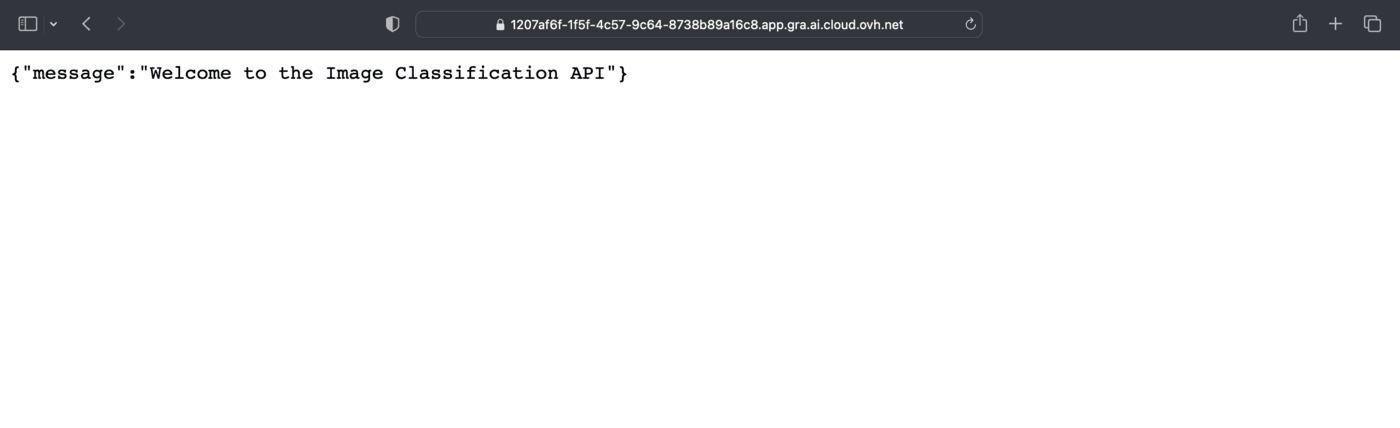
By clicking on the link of your AI Deploy app, you will land on the following page.
How to interact with your API?
You can add /docs at the end of the URL of your app.
In our example, the URL is as follows: https://1207af6f-1f5f-4c57-9c64-8738b89a16c8.app.gra.ai.cloud.ovh.net/docs
It provides a complete dashboard for interacting with the API!
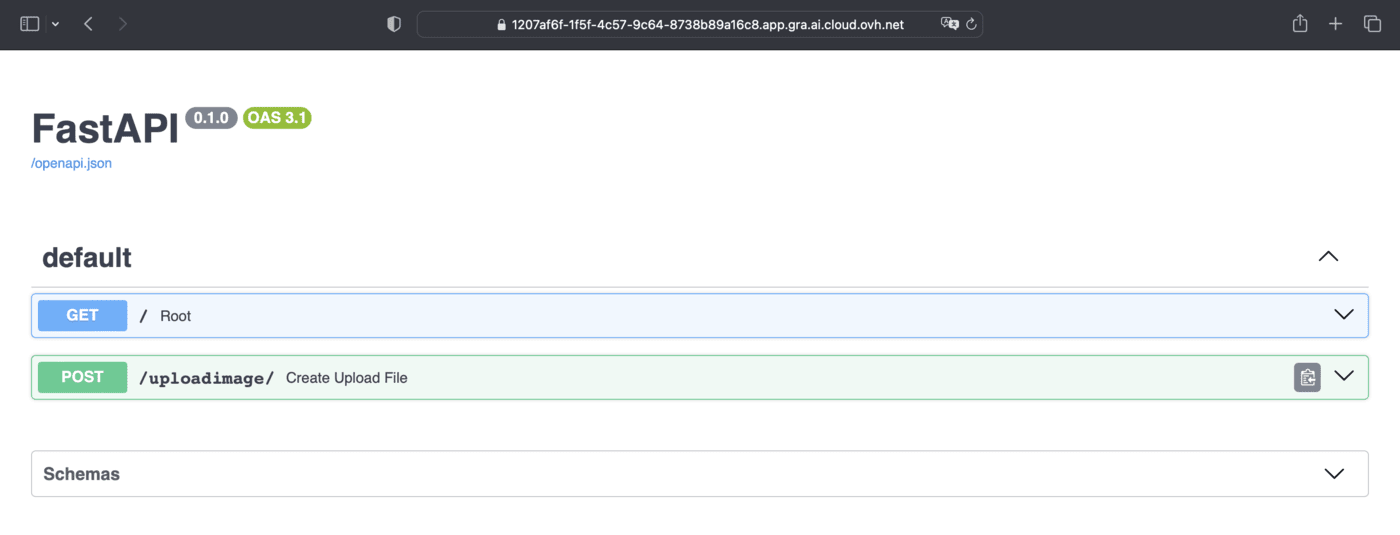
To be able to send an image for classification, select /uploadimage/ in the green box. Click on Try it out and add the image of your choice in the dedicated zone.
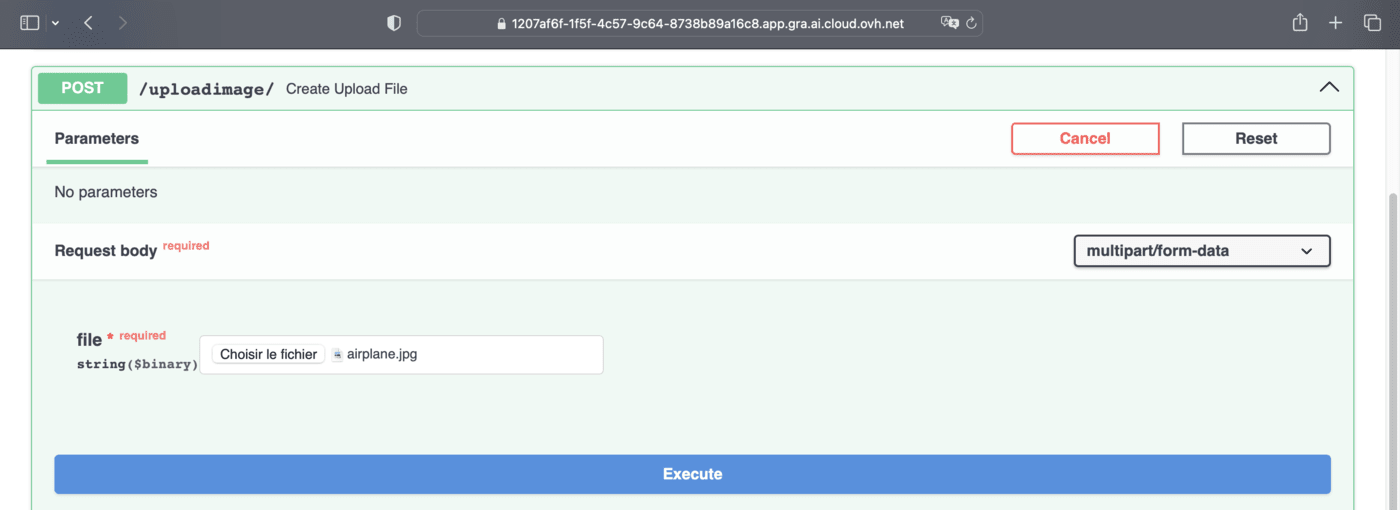
To get the result of the prediction, click on the Execute button.
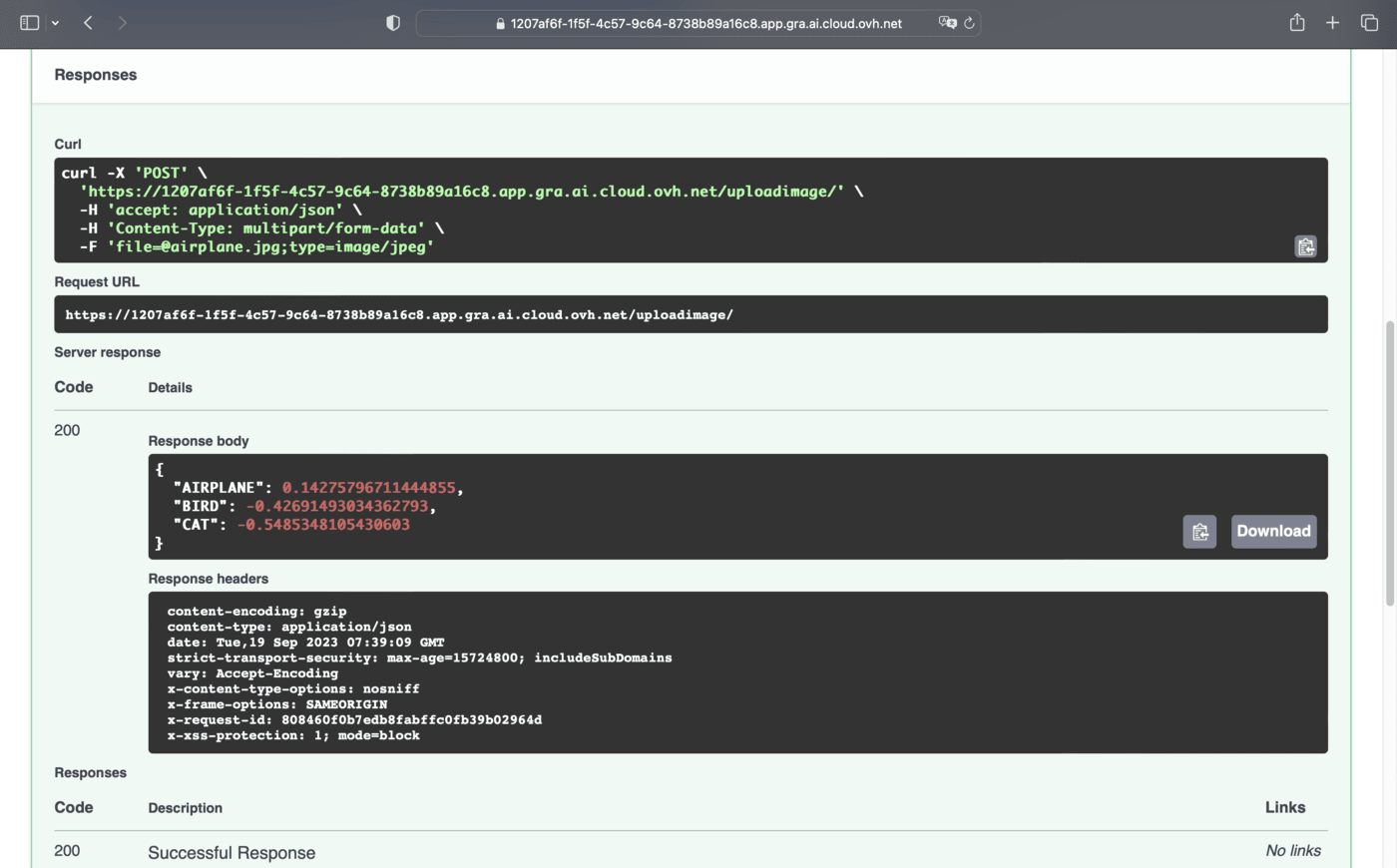
Congratulations! You have obtained the results of the prediction with the labels and the confidence scores.
Go further
- You can imagine deploying an image segmentation app through this tutorial.
- Feel free to use Streamlit to deploy a Speech-to-Text app.
If you need training or technical assistance to implement our solutions, contact your sales representative or click on this link to get a quote and ask our Professional Services experts for a custom analysis of your project.


 AI Deploy - Tutorial - Deploy Whisper Speech Recognition Model
 631
631