

Modifica della vRack di un cluster Nutanix (EN)
223 viste
 11.01.2022
  Cloud / Nutanix on OVHcloud
Objective
A Nutanix cluster is delivered with its own vRack. In order to interconnect with other OVHcloud services, you can attach your cluster to a different vRack.
This guide explains how to add a Nutanix cluster to another vRack.
OVHcloud is providing you with services for which you are responsible, with regard to their configuration and management. You are therefore responsible for ensuring they function correctly.
This guide is designed to assist you in common tasks as much as possible. Nevertheless, we recommend that you contact the OVHcloud Professional Services team or a specialist service provider if you have difficulties or doubts concerning the administration, usage or implementation of services on a server.
Requirements
- A Nutanix cluster in your OVHcloud account
- An additional vRack service activated in your account
OVHcloud Control Panel Access
- Direct link: vRack
- Navigation path:
Network>vRack private network
Instructions
Step 1: Removing services
Open the Nutanix cluster vRack configuration page, select all the services (e.g. dedicated server, IP, load balancer) and click on Remove.
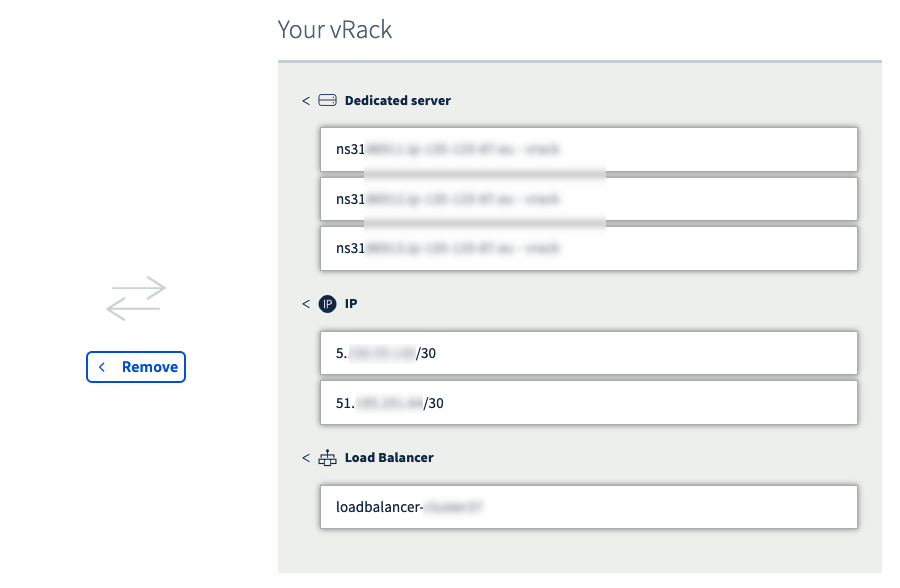
Before removing services, make sure to save their references, especially if you have many servers, IPs, load balancers, etc.
Removing services from the vRack is not immediately effective. Please allow some time for the process to complete.
Step 2: Adding services
Once the process is finished, go to the desired vRack and add all the previously removed services with the Add button.
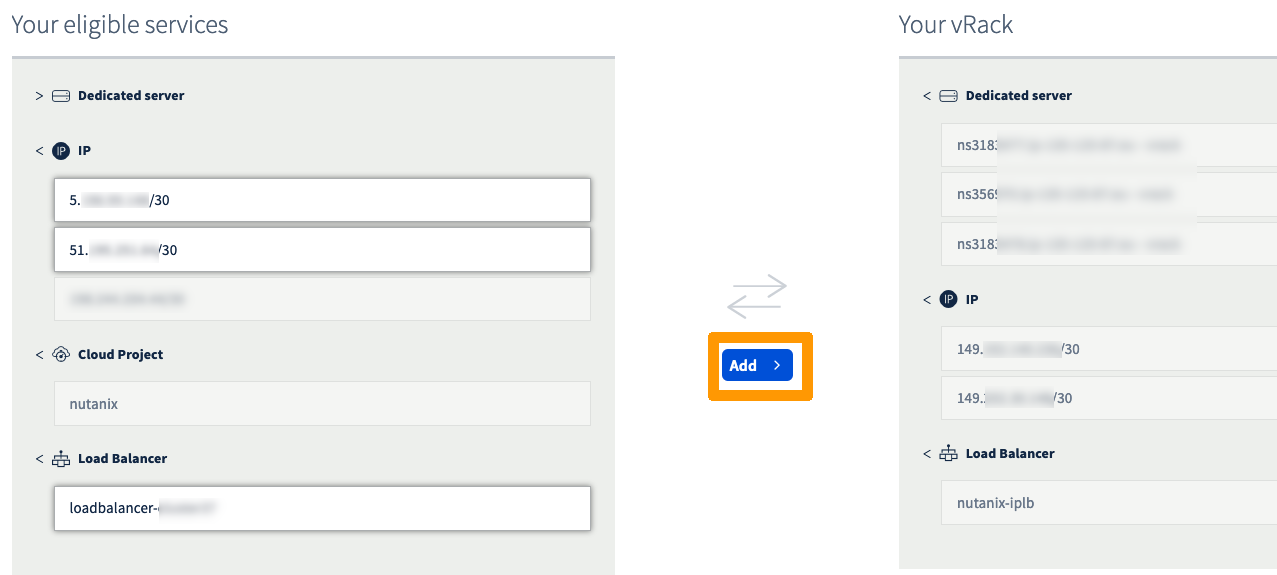
Adding services to the vRack is not immediately effective. Please allow some time for the process to complete.
Accessing Prism Central is not instantaneous: it is necessary that the VM restarts to make the access effective again.
Troubleshooting
If Prism Central stays inaccessible after 30 minutes, create a front-end on the load balancer to reach a CVM with SSH.
When logged in, check if the Prism Central VM is on.
If the answer is state: "kOff" then start the VM:
You can also restart the VM with the following command:
Alternatively, do a hard reboot (if the previous attempts failed):
Go further
If you need training or technical assistance to implement our solutions, contact your sales representative or click on this link to get a quote and ask our Professional Services experts for assisting you on your specific use case of your project.
Join our community of users on https://community.ovh.com/en/.


 Interconnessione di cluster attraverso la vRack (EN)
 258
258