

Collect metrics from Public Cloud instances with Prometheus on an OVHcloud Managed Kubernetes Service
518 vues
 08.07.2024
  Cloud / Managed Kubernetes Service
Objective
This tutorial show you how to configure the Prometheus operator to monitor static exporter, OVHcloud VPS, OVHcloud dedicated servers or Public Cloud OpenStack instances.
Before you begin
This tutorial presupposes the following:
- That you already have a working Prometheus operator running on an OVHcloud Managed Kubernetes cluster. If you want to know more on those topics, take a look at the Monitoring apps with Prometheus and Grafana on an OVHcloud Managed Kubernetes Service tutorial.
- That you have retrieved the
kubeconfig.ymlfile matching your Kubernetes cluster. - That you have exported the KUBECONFIG environment variable to your
kubeconfig.ymlfile. - That a node exporter agent is listening on the instances you want to monitor on public IP and port 9100.
Important information:
- This node exporter process should be secured, this is not the subject of this tutorial.
Important information:
- Use at least the version
0.75.1of the Prometheus operator prometheus-community/kube-prometheus-stack. You can use the option--set prometheusOperator.image.tag="v0.75.1"when installing the chart to set it.
This tutorial uses as an example a node-exporter to scrape but it can be adapted to any exporter, by adjusting the IP and listening port.
In the next step, you need the release name of your chart. To get it, just use the following command:
Here the release name is kube-prometheus-stack-1720169205, referenced in the next steps under the form <release_name>.
Instructions
Generate the configuration for static exporter
Let's assume you want to scrape the following exporter prometheus.demo.do.prometheus.io:9090.
Create a file named static.yaml with the following content:
Apply this custom resource (CR) using the following command:
It could take a couple of minutes before reloading the Prometheus configuration automatically.
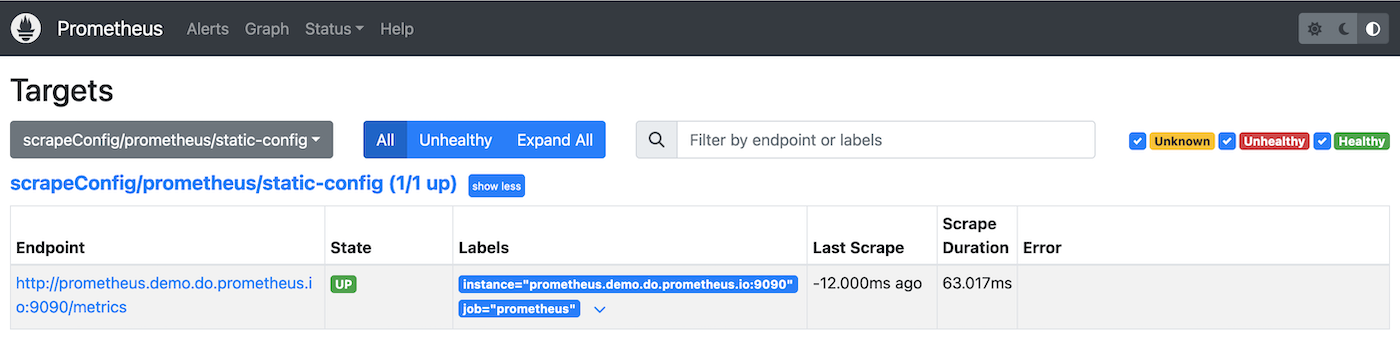
After a few minutes, by checking the Prometheus targets HTTP interface, you should be able to observe something like this inside the Prometheus User Interface (UI):
Generate the configuration for OpenStack
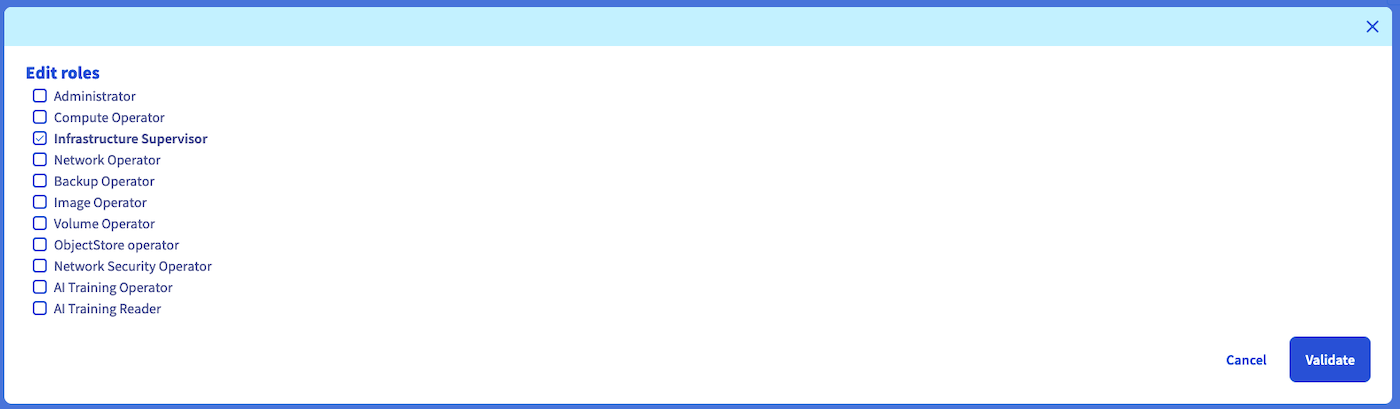
Create a dedicated user inside your Public Cloud project with the Infrastructure Supervisor role.

Create a file openstack_user_password.yaml with the following content:
Apply this secret to your Prometheus namespace inside your Kubernetes cluster with the following command:
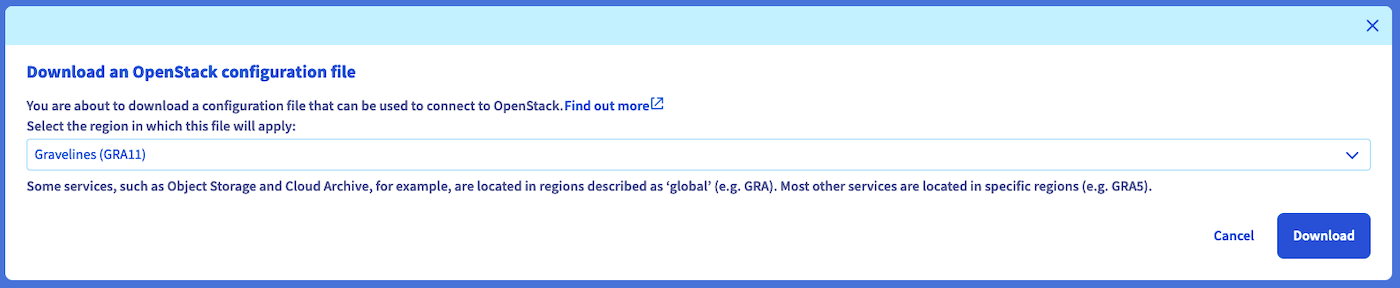
Retrieve your OpenStack user info from the command-line tool (refer to the Setting OpenStack environment variables guide) for the region you want to scrape.
This example uses the GRA11 region.
The id is used as userid in the openstack_sd_config.
Create a file named openstack.yaml with the following content:
For more information, refer to the official Prometheus documentation.
Apply this CR using the following command:
It could take a couple of minutes before reloading the Prometheus configuration automatically.
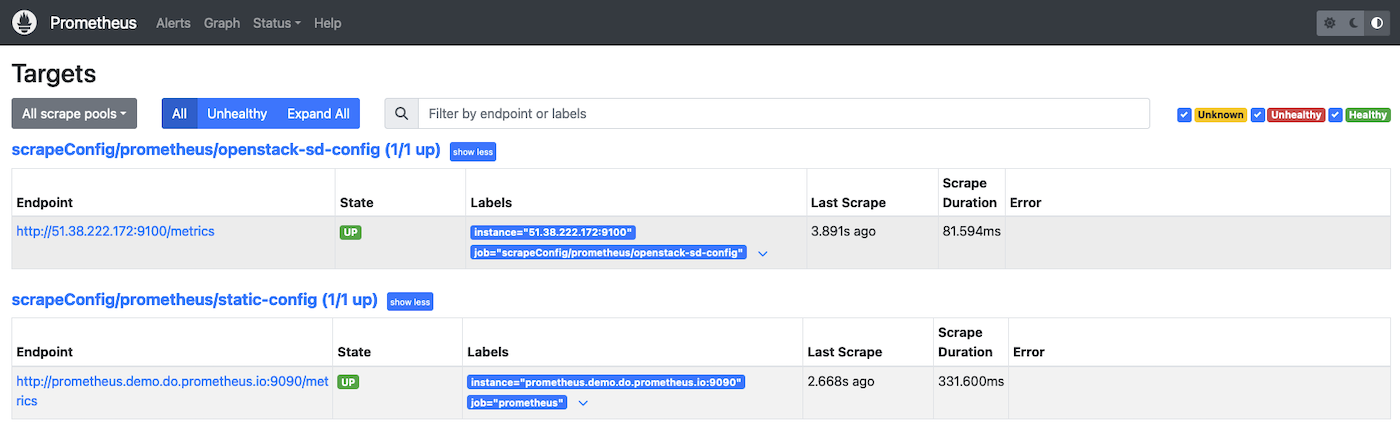
After a few minutes, by checking the Prometheus targets HTTP interface, you should be able to observe something like this inside the Prometheus UI:
Generate the configuration for OVHcloud VPS
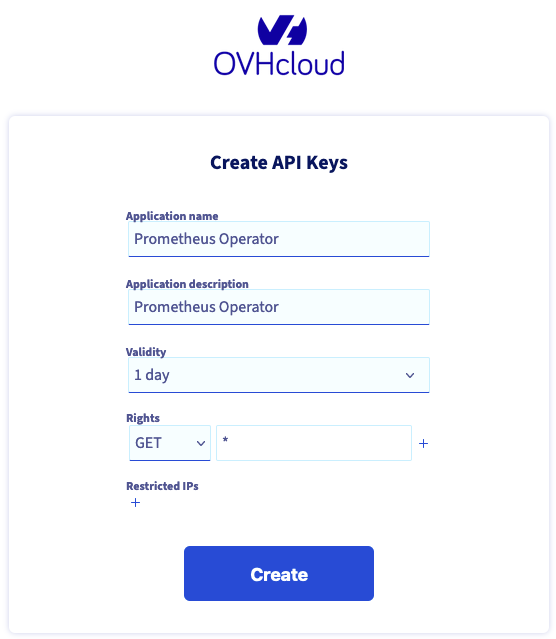
Create a dedicated script credentials (as described here) as follow:
Important information:
This subject is not covered in this tutorial but you should restrict the API routes the token has access to.
Create a file named ovhcloud_api_credentials.yaml containing your API secrets:
Apply this secret to your Prometheus namespace inside your Kubernetes cluster with the following command:
Create a file named ovhcloud.yaml with the following content:
For more information, please refer to the official Prometheus documentation.
Apply this CR using the following command:
It could take a couple of minutes before reloading the Prometheus configuration automatically.
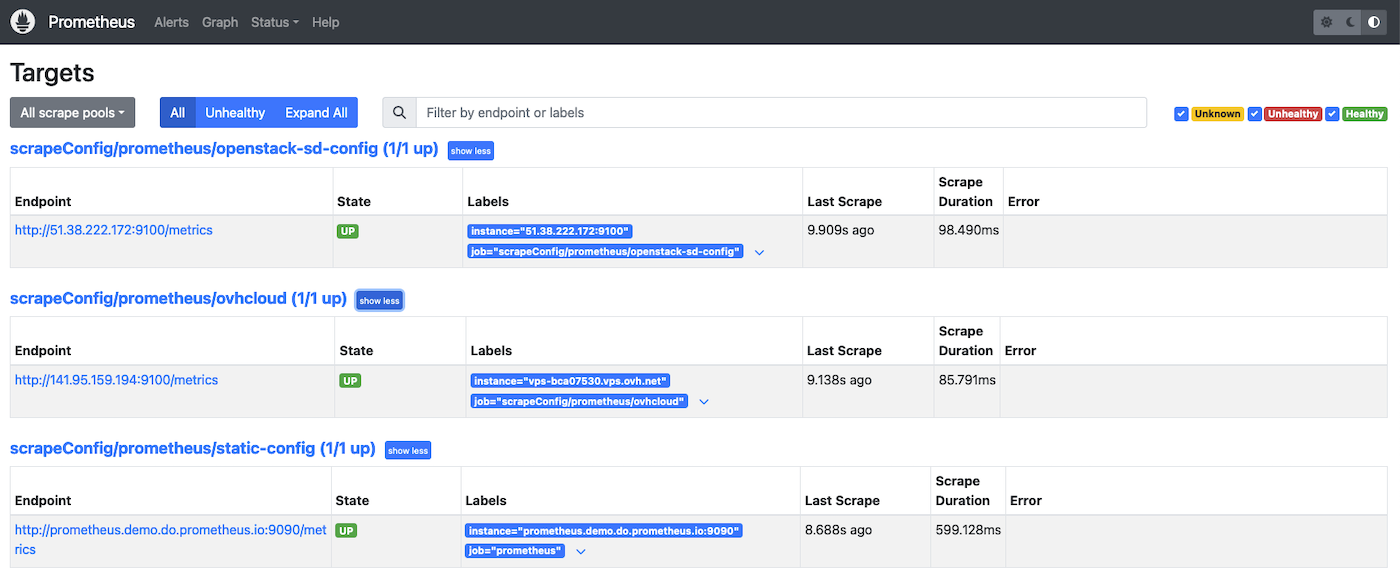
After a few minutes, by checking the Prometheus targets HTTP interface, you should be able to observe something like this inside the Prometheus UI:
Go further
For more information, please read the following links
- Scrape configuration Custom Resource documentation
- Prometheus operator ScrapeConfig API Reference
- Prometheus operator StaticConfig API Reference
- Prometheus operator OpenStackSDConfig API Reference
- Prometheus operator OVHCloudSDConfig API Reference
If you need training or technical assistance to implement our solutions, contact your sales representative or click on this link to get a quote and ask our Professional Services experts for assisting you on your specific use case of your project.
Join our community of users.


 Monitoring apps with Prometheus and Grafana on an OVHcloud Managed Kubernetes Service
 3444
3444