

Backing-up Persistent Volumes using Stash
833 vues
 21.06.2024
  Cloud / Managed Kubernetes Service
In this tutorial, we are using Stash to backup and restore persistent volumes on an OVHcloud Managed Kubernetes cluster.
Stash is an open source tool to safely backup and restore, perform disaster recovery, and migrate Kubernetes persistent volumes.
We are using our Public Cloud's Swift Object Storage with the Swift S3 API as storage backend for Stash. Stash uses the Amazon S3 protocol to store the cluster backups on a S3 * compatible object storage.
Before you begin
This tutorial presupposes that you already have a working OVHcloud Managed Kubernetes cluster, and some basic knowledge of how to operate it. If you want to know more on those topics, please look at the OVHcloud Managed Kubernetes Service Quickstart.
You also need to have Helm installer on your workstation and your cluster, please refer to the How to install Helm on OVHcloud Managed Kubernetes Service tutorial.
Create the Object Storage bucket for Stash
Stash needs an Object Storage bucket as storage backend to store the data from your cluster.
In this section you will create your Object Storage bucket on Swift.
Prepare your working environment
Before creating your Object Storage bucket you need to:
You should now have access to your OpenStack RC file, with a filename like <user_name>-openrc.sh, and the username and password for your OpenStack account.
Set the OpenStack environment variables
Set the environement variables by sourcing the OpenStack RC file:
The shell will ask you for your OpenStack password:
Create EC2 credentials
Object Storage tokens are different, you need 2 parameters (access and secret) to generate an Object Storage token.
These credentials will be safely stored in Keystone. To generate them with python-openstack client:
Please write down the access and secret parameters:
Configure awscli client
Install the awscli client:
Complete and write down the configuration for awscli into ~/aws/config:
Create an Object Storage bucket for Stash
Create a new bucket:
Create a Kubernetes Secret to store Object Storage credentials
To give Stash access to the Object Storage bucket, you need to put the credentials (the access_key and the secret_access_key) into a Kubernetes Secret.
In my case:
Install Stash
The easiest way to install Stash is via Helm, using the chart from AppsCode Charts Repository.
First of all, you need to get a license.
Note: if you want to use an enterprise edition please follow this link instead.
You should receive your license by email. Save it, you'll need it in the helm install command.
Begin by adding the repository:
Then search the latest version of stash:
And install it with the release name stash-operator:
In my case:
Verify installation
As suggested during the chart install, to check if Stash operator pods have started, we can run the suggested command and customize it in order to see only our stash Pod:
If everything is OK, you should get a stash-stash-community pod with a status Running.
Now, to confirm CRD groups have been registered by the operator, run the following command:
You should see a list of the CRD groups:
Install Stash kubectl plugin
Stash provides a CLI using kubectl plugin to work with the stash Objects quickly.
Download pre-build binaries from stashed/cli Githhub release and put the binary to some directory in your PATH.
Volume Snapshot with Stash
A detailed explanation of Volume Snapshot with Stash is available in the official documentation.
In Kubernetes, a VolumeSnapshot represents a snapshot of a volume on a storage system. It was introduced as an Alpha feature in Kubernetes v1.12 and has been promoted to an Beta feature in Kubernetes 1.17.
In order to support VolumeSnapshot, your PersistenVolumes need to use a StorageClass with a CSI driver that supports the feature. Currently OVHcloud Managed Kubernetes cluster propose you two of these StorageClasses: csi-cinder-classic and csi-cinder-high-speed.
You also need a compatible VolumeSnapshotClass, in our case csi-cinder-snapclass.
An example: Nginx server with persistent logs
In this guide we are going to use a simple example: a small Nginx web server with a PersistentVolume to store the access logs.
Copy the following description to a nginx-example.yml file:
And apply it to your cluster:
If you look attentively to the deployment part of this manifest, you will see that we have defined a .spec.strategy.type. It specifies the strategy used to replace old Pods by new ones, and we have set it to Recreate, so all existing Pods are killed before new ones are created.
We do so as the Storage Class we are using, csi-cinder-high-speed, only supports a ReadWriteOnce, so we can only have one pod writing on the Persistent Volume at any given time.
We can check if the Pod is running:
Wait until you get an external IP:
And do some calls to the URL to generate some access logs:
In my case:
Verify the logs
Now we need to connect to the pod to read the log file and verify that our logs are written.
First, get the name of the Nginx running pod:
And then connect to it and see your access logs:
In my case:
Create a Repository
A Repository is a Kubernetes CustomResourceDefinition (CRD) which represents backend information in a Kubernetes native way. You have to create a Repository object for each backup target. A backup target can be a workload, database or a PV/PVC.
To create a Repository CRD, you have to provide the storage secret that we have created earlier in spec.backend.storageSecretName field. You will also need to define spec.backend.s3.prefix, to choose the folder inside the backend where the backed up snapshots will be stored
Create a repository.yaml file, replacing <public cloud region> with the region, without digits and in lowercase (e.g. gra):
And apply it to your Kubernetes cluster:
kubectl apply -f repository.yamlIn my case:
Create a BackupConfiguration
A BackupConfiguration is a Kubernetes CustomResourceDefinition (CRD) which specifies the backup target, parameters(schedule, retention policy etc.) and a Repository object that holds snapshot storage information in a Kubernetes native way.
You have to create a BackupConfiguration object for each backup target. A backup target can be a workload, database or a PV/PVC.
To back up our PV we will need to create a backup-configuration.yaml file, where we describe the Persistent Volumes we want to back up, the repository we intend to use and the backing up schedule (in crontab format):
And apply it to your Kubernetes cluster:
kubectl apply -f backup-configuration.yamlIn my case:
Verify CronJob
If everything goes well, Stash will create a CronJob to take periodic snapshot of nginx-logs volume of the deployment with the schedule specified in spec.schedule field of BackupConfiguration CRD (a backup every 5 minutes).
Check that the CronJob has been created:
In my case
Wait for BackupSession
The stash-backup-nginx-backup CronJob will trigger a backup on each schedule by creating a BackupSession CRD.
Wait for the next schedule for backup. Run the following command to watch BackupSession CRD:
In my case
We can see above that the backup session has succeeded. Now, we are going to verify that the VolumeSnapshot has been created and the snapshots has been stored in the respective backend.
Verifying Volume Snapshots in OVHcloud Cloud Control Panel
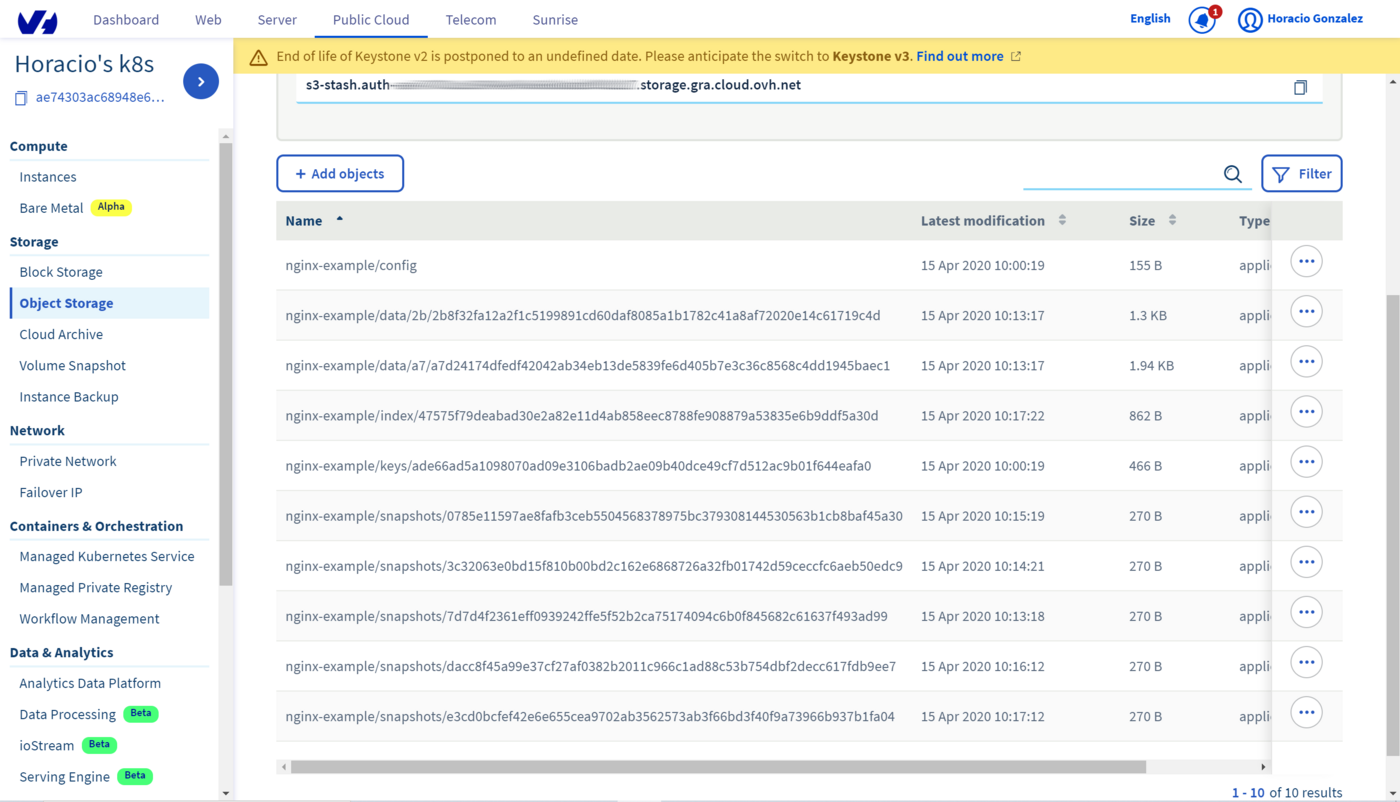
The snapshots are visible on the OVHcloud Control Panel. To see thmn, go to Object Storage section, where you will find the Object Storage bucket you have created. By clicking on the bucket you will see the list of objects, including all the snapshot beginning with the /backup/demo/deployment/stash-demo we had defined in the Repository:
Restore PVC from VolumeSnapshot
This section will show you how to restore the PVCs from the snapshots we have taken in the previous section.
Stop Snapshotting
Before restoring we need to pause the BackupConfiguration to prevent any snapshotting during the restore process. With the BackupConfiguration, Stash will stop taking any further backup for nginx-deployment.
After some moments, you can look at the nginx-backup status to see it paused:
In my case
Simulate Disaster
Let’s simulate a disaster scenario, deleting all the files from the PVC:
And verify that the file is deleted:
In my case:
Create a RestoreSession
Now you need to create a RestoreSession CRD to restore the PVCs from the last snapshot.
A RestoreSession is a Kubernetes CustomResourceDefinition (CRD) which specifies a target to restore and the source of data that will be restored in a Kubernetes native way.
Create a restore-session.yaml file:
And apply it to your cluster:
And wait for the RestoreSession to succeed:
In my case:
Verify the data is restored
Let's begin by getting the pod name:
And then verify that the access.log file has been restored:
In my case:
Cleaning up
To clean up your cluster, begin by deleting the nginx-example namespace:
Then simply use Helm to delete your Stash release.
In my case:
Go further
- If you need training or technical assistance to implement our solutions, contact your sales representative or click on this link to get a quote and ask our Professional Services experts for assisting you on your specific use case of your project.
Join our community of users.
*: S3 is a trademark of Amazon Technologies, Inc. OVHcloud’s service is not sponsored by, endorsed by, or otherwise affiliated with Amazon Technologies, Inc.


 Backing-up an OVHcloud Managed Kubernetes cluster using Velero
 3785
3785