

AI Endpoints - Appel de fonctions
244 vues
 09.02.2026
  AI Endpoints
AI Endpoints is covered by the OVHcloud AI Endpoints Conditions and the OVHcloud Public Cloud Special Conditions.
Introduction
AI Endpoints is a serverless platform provided by OVHcloud that offers easy access to a selection of world-renowned, pre-trained AI models. The platform is designed to be simple, secure, and intuitive, making it an ideal solution for developers who want to enhance their applications with AI capabilities without extensive AI expertise or concerns about data privacy.
Function Calling, also known as tool calling, is a feature that enables a large language model (LLM) to trigger user-defined functions (also named tools). These tools are defined by the developer and implement specific behaviors such as calling an API, fetching data or calculating values, which extends the capabilities of the LLM.
The LLM will identify which tool(s) to call and the arguments to use. This feature can be used to develop assistants or agents, for instance.
Objective
This documentation provides an overview on how to use function calling with the AI models offered on AI Endpoints. The examples provided in this guide will be using the Mistral-Nemo-Instruct-2407 model.
Visit our Catalog to find out which models are compatible with Function Calling.
Requirements
We use Python for the examples provided in this guide.
Make sure you have a Python environment configured, and install the openai client.
Function Calling overview
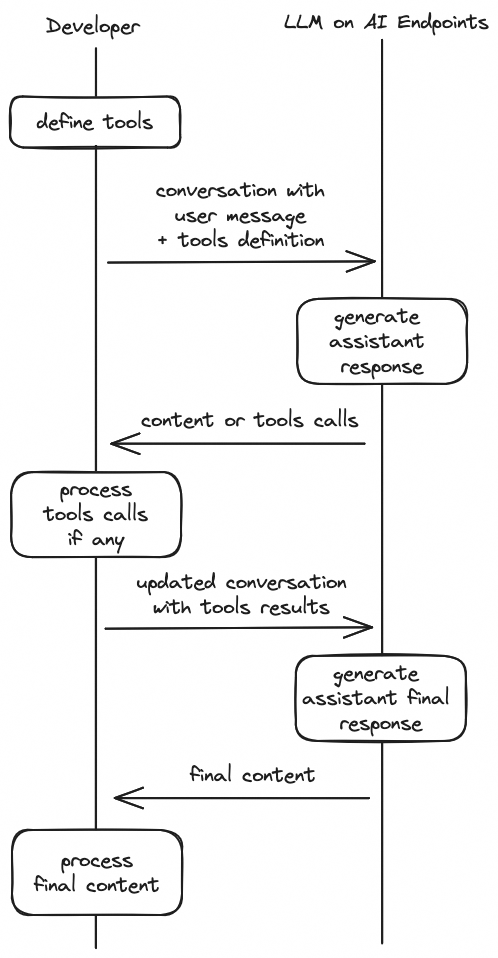
The workflow to use function calling is described below:
- Define tools: tell the model what tools it can use, with a JSON schema for each tool.
- Call the model with tools: pass tools along with your system and user messages to the model, which will eventually generate tool calls.
- Process tools calls: for each tool call returned by the model, execute the actual implementation of the tool in your code.
- Call the model with tools responses: send a new request to the model, with the conversation updated with tool calls results.
- Final response: process the final generated answer, which takes the tools results into account.
This diagram illustrates the workflow:
Example: a time-tracking assistant
To illustrate the use of function calling and progressively introduce the important notions related to this feature, we are going to develop a time-tracking assistant, step-by-step.
The assistant will be able to:
- log time spent on a task
- generate a time report
Each task has a name, category and total duration in minutes. Categories are a fixed list of strings, for example "Code" or "Meetings". A time report can be generated for a category of task.
The user will be able to interact with the assistant to log time and get information about how time was spent.
Define tools
Our time-tracking assistant will use two tools:
-
log_work: log time spent on a task. Take the name of the task, category, duration and unit (minutes or hours). For example, to log 2 hours on documentation writing, you would calllog_work("User guide", "Documentation", 2, "hours") -
time_report: get JSON data about all tasks of a given category, and the total duration in a given time unit (minutes or hours). For example, to get the breakdown on time spent on coding tasks, in hours, you would calltime_report("Code", "hours")
To get the model to use those tools, first we have to declare them with JSON schemas, in a tools list that we will pass to the Chat Completion API.
Here is how the tools can be declared in Python:
Generate tool calls
With our tools ready, we can now try to call the model and see if it understands our tools definition. We use the OpenAI Python SDK to call the /v1/chat/completions route on the endpoint, passing the tools definition in the tools parameter.
Let's send a simple user message: log 1 hour team meeting and see what the model answers.
To obtain an API access key for authenticated access, please follow the instructions given in the AI Endpoints - Getting Started guide. Otherwise, you will be rate limited.
Output:
We see that the model correctly identified that it needed to call the log_work tool, by looking at the assistant message generated.
The tool_calls list contains the tool calls the model generated in response to our user message.
The name and arguments fields specify which tool to call and which parameters to pass to the function.
The id is a unique identifier for this tool call, that we will need later on.
You can have multiple tool calls in this list.
Under the hood, the model has recognized that the user's intent was related to the set of tools provided, and generated a sequence of specific tokens that were post-processed to create a tool call object.
We add this message to the conversation so that the model is aware of this tool call in subsequent rounds of our multi-turn conversation.
Process tools calls
Now that we see that the model is able to generate tool calls, we need to code the Python implementation of the tools, so that we can process the tool calls generated by the LLM and start recording the time!
Each task is stored in a dict, with the name as the key and categories are a fixed list.
We define the two functions, log_work and time_report, in the Python code below:
Now, let's see how we can process tool calls generated by the model:
Output:
< 1 tool(s) to call
> Execute tool log_work with arguments {'task_name': 'team meeting', 'task_category': 'Meetings', 'duration': 1, 'unit': 'hours'}
{'task': 'team meeting', 'task_category': 'Meetings', 'total_duration': 1.0}We see that we successfully created a task called "team meeting", in the "Meetings" category with a total duration of 1 hour.
Send tool calls results and get the final response
Now that we have executed our tool calls, we need to send the result back to the model so that it can generate a new response taking this new information into account, for example to inform the user that the task has been successfully created or to provide the hourly report.
All we have to do, is add the tool results as new tool messages into the conversation, so we'll update our code:
We then call the model with the updated conversation:
Output:
< 1 tool(s) to call
> Execute tool log_work with arguments {'task_name': 'team meeting', 'task_category': 'Meetings', 'duration': 1, 'unit': 'hours'}
> Add tool call result to conversation:
{'role': 'tool', 'name': 'log_work', 'content': '{"task": "team meeting", "task_category": "Meetings", "total_duration": 1.0, "status": "created"}', 'tool_call_id': 'v1X1sJP9b'}
> Call assistant with tool results
< Assistant final answer:
Following is the details of 1 hour team meeting:
- Task: Team Meeting
- Duration: 1.0 hours
- Status: CreatedThe assistant has generated a response acknowledging the creation of the task.
Add a system prompt
To make our assistant more robust and powerful, it can be useful to add a system prompt that:
- explains what is expected from the model.
- provides useful information to the model, such as the current existing tasks and categories.
With this system prompt, the model will be able to use data about existing tasks and categories to generate its responses.
Putting it all together
Now we can combine all notions we've seen so far to create a query method that will:
- call the model with the formatted system prompt and user message
- process tool calls
- call the model a second time with the tool results
- output the final answer
Let's try our assistant on some examples!
Output:
> Querying assistant with user prompt: Spent 2 hours coding on Feature A
< 1 tool(s) to call
> Execute tool log_work with arguments {'duration': 2, 'task_category': 'Code', 'task_name': 'Feature A', 'unit': 'hours'}
> Add tool call result to conversation:
{'role': 'tool', 'name': 'log_work', 'content': '{"task": "Feature A", "task_category": "Code", "total_duration": 2.0, "status": "created"}', 'tool_call_id': 'iGcC6qbte'}
> Call assistant with tool results
< Assistant final answer:
Logged time for Code
Feature A 2 hours, 0 minutes
============================
---
> Querying assistant with user prompt: Feature B: 3h
< 1 tool(s) to call
> Execute tool log_work with arguments {'task_name': 'Feature B', 'task_category': 'Code', 'duration': 3, 'unit': 'hours'}
> Add tool call result to conversation:
{'role': 'tool', 'name': 'log_work', 'content': '{"task": "Feature B", "task_category": "Code", "total_duration": 3.0, "status": "created"}', 'tool_call_id': 'd30xAKNT1'}
> Call assistant with tool results
< Assistant final answer:
- Your work log has been created. Here are the details:
- Task: Feature B
- Category: Code
- Duration: 3 hours
- Status: Created
---
> Querying assistant with user prompt: Team meeting 1h
< 1 tool(s) to call
> Execute tool log_work with arguments {'task_name': 'Team meeting', 'task_category': 'Meetings', 'duration': 60, 'unit': 'minutes'}
> Add tool call result to conversation:
{'role': 'tool', 'name': 'log_work', 'content': '{"task": "Team meeting", "task_category": "Meetings", "total_duration": 60.0, "status": "created"}', 'tool_call_id': 'EV3D7LdPE'}
> Call assistant with tool results
< Assistant final answer:
The task "Team meeting" has been created successfully.
---
> Querying assistant with user prompt: log 2 hours on feat B and 3 hours on feature C
< 2 tool(s) to call
> Execute tool log_work with arguments {'task_name': 'Feature B', 'task_category': 'Code', 'duration': 2, 'unit': 'hours'}
> Add tool call result to conversation:
{'role': 'tool', 'name': 'log_work', 'content': '{"task": "Feature B", "task_category": "Code", "total_duration": 5.0, "status": "updated"}', 'tool_call_id': 'frrThsgJ5'}
> Execute tool log_work with arguments {'task_name': 'Feature C', 'task_category': 'Code', 'duration': 3, 'unit': 'hours'}
> Add tool call result to conversation:
{'role': 'tool', 'name': 'log_work', 'content': '{"task": "Feature C", "task_category": "Code", "total_duration": 3.0, "status": "created"}', 'tool_call_id': 'K4aTPhdBp'}
> Call assistant with tool results
< Assistant final answer:
Great! Feature B's total working hours have been updated to 5 hours. Feature C's working time has been recorded as 3 hours.
---
> Querying assistant with user prompt: time spent in meetings?
< 1 tool(s) to call
> Execute tool time_report with arguments {'category': 'Meetings', 'unit': 'minutes'}
> Add tool call result to conversation:
{'role': 'tool', 'name': 'time_report', 'content': '[{"name": "Team meeting", "total_duration": 60.0}, {"total_duration_for_category": 60.0}]', 'tool_call_id': '1G8uk1bPH'}
> Call assistant with tool results
< Assistant final answer:
Here's the time spent in meetings:
- **Team meeting**: 60 minutes
---
> Querying assistant with user prompt: total time on coding
< 1 tool(s) to call
> Execute tool time_report with arguments {'category': 'Code', 'unit': 'hours'}
> Add tool call result to conversation:
{'role': 'tool', 'name': 'time_report', 'content': '[{"name": "Feature A", "total_duration": 2.0}, {"name": "Feature B", "total_duration": 5.0}, {"name": "Feature C", "total_duration": 3.0}, {"total_duration_for_category": 10.0}]', 'tool_call_id': '50bmrsPII'}
> Call assistant with tool results
< Assistant final answer:
Here's the breakdown of your coding time:
- Feature A: 2 hours
- Feature B: 5 hours
- Feature C: 3 hours
- **Total**: 10 hours
---
> Querying assistant with user prompt: on which task did I spent most hours coding?
< 1 tool(s) to call
> Execute tool time_report with arguments {'category': 'Code', 'unit': 'hours'}
> Add tool call result to conversation:
{'role': 'tool', 'name': 'time_report', 'content': '[{"name": "Feature A", "total_duration": 2.0}, {"name": "Feature B", "total_duration": 5.0}, {"name": "Feature C", "total_duration": 3.0}, {"total_duration_for_category": 10.0}]', 'tool_call_id': 'uFDF7rS0H'}
> Call assistant with tool results
< Assistant final answer:
Based on the tracking data, the task on which you spent the most hours coding is:
- **Feature B**: 5 hours
- The total coding time across all tasks is 10 hours.Mission accomplished!
Tips and best practices
This section contains additional tips that may improve the performance of Function Calling queries.
Tool choice
You've noticed that we used the auto mode in our tutorial.
Here are the available values for this parameter and the impact on the output.
tool_choice value | Effect |
|---|---|
auto | Default mode when tools are defined, the model generates 0 to N tool calls. |
required | Force the model to generate at least 1 tool call, using structured outputs. |
| named function | Force the model to generate at least 1 tool call to the given function. For example, to force the model to call the log_work tool:tool_choice = {"type": "function", "function": {"name": "log_work"}} |
none | No tool calls generated. |
Streaming
It is possible to use Function Calling in streaming mode, by setting stream to true in your request.
Below are two cURL examples showing how to make such a request, using the LLaMa 3.1 8B model:
- One using anonymous access, which is subject to rate limits.
- One using AI Endpoints token authentication, which avoids rate limiting.
To obtain an API access token for authenticated access, please follow the instructions given in the AI Endpoints - Getting Started guide.
First, export your token:
Then, execute the request:
You will get tool call deltas in the server-side events chunks, with this format:
data: {...,"choices":[{"index":0,"delta":{"role":"assistant","content":""}}],...,"object":"chat.completion.chunk"}
data: {...,"choices":[{"index":0,"delta":{"role":"assistant","tool_calls":[{"index":0,"id":"chatcmpl-tool-e41bfee4ae1346bbbb4336061037e2b5","type":"function","function":{"name":"get_current_weather","arguments":""}}]}}],...,"object":"chat.completion.chunk"}
data: {...,"choices":[{"index":0,"delta":{"role":"assistant","tool_calls":[{"index":0,"function":{"arguments":"{\"country\": \""}}]}}],...,"object":"chat.completion.chunk"}
data: {...,"choices":[{"index":0,"delta":{"role":"assistant","tool_calls":[{"index":0,"function":{"arguments":"FR\""}}]}}],...,"object":"chat.completion.chunk"}
data: {...,"choices":[{"index":0,"delta":{"role":"assistant","tool_calls":[{"index":0,"function":{"arguments":", \"location\": \""}}]}}],...,"object":"chat.completion.chunk"}
data: {...,"choices":[{"index":0,"delta":{"role":"assistant","tool_calls":[{"index":0,"function":{"arguments":"Paris\""}}]}}],...,"object":"chat.completion.chunk"}
data: {...,"choices":[{"index":0,"delta":{"role":"assistant","tool_calls":[{"index":0,"function":{"arguments":", \"unit\": \""}}]}}],...,"object":"chat.completion.chunk"}
data: {...,"choices":[{"index":0,"delta":{"role":"assistant","tool_calls":[{"index":0,"function":{"arguments":"c"}}]}}],...,"object":"chat.completion.chunk"}
data: {...,"choices":[{"index":0,"delta":{"role":"assistant","tool_calls":[{"index":0,"function":{"arguments":"elsius\"}"}}]}}],...,"object":"chat.completion.chunk"}
data: {...,"choices":[{"index":0,"delta":{"role":"assistant","tool_calls":[{"index":0,"function":{"arguments":""}}]},"finish_reason":"tool_calls"}],...,"object":"chat.completion.chunk"}
data: [DONE]The first tool call delta contains the tool call unique id, and a function delta with the name of the function to call.
The next function deltas contain a part of the arguments to use.
To parse these chunks with the OpenAI Python SDK, you can use this code snippet:
Parallel tool calls
Some models are able to generate multiple tool calls in one round (see the time-tracking tutorial above for an example). To control this behavior, the OpenAI specification allows to pass a parallel_tool_calls boolean parameter.
If false, the model can only generate one tool call at most. This case is currently not supported by AI Endpoints.
If you need your system to process only one tool call at a time, or if the model you are using doesn't support multiple tool calls, we suggest you pick the first one, process it, and call the model again.
Please note that LLaMa models do not support multiple tool calls between users and assistants messages.
Prompting & additional parameters
Some additional considerations regarding prompts and model parameters:
- Most models tend to perform better when using lower temperature for function calling.
- The use of a system prompt is recommended, to ground the model into using the tools at its disposal. Whether a system prompt is defined or not, a description of the tools will usually be included in the tokens sent to the model (see the model chat template for more details).
- If you know in advance that your model needs to call tools, use the
tool_choice=requiredparameter to make sure it generates at least one tool call. - Some model providers may recommend specific system prompts and parameters to use for structured output and function calling. Don't hesitate to visit the model pages to dive deeper into model specifics (example for Llama 3.3 on HuggingFace).
Conclusion
In this guide, we have explained how to use Function Calling with the AI Endpoints models. We have provided a comprehensive overview of the feature which can help you perfect your integration of LLM for your own application.
Go further
Browse the full AI Endpoints documentation to further understand the main concepts and get started.
If you need training or technical assistance to implement our solutions, contact your sales representative or click on this link to get a quote and ask our Professional Services experts for a custom analysis of your project.
Feedback
Please send us your questions, feedback and suggestions to improve the service:
- On the OVHcloud Discord server


 AI Endpoints - Caractéristiques, capacités et limites (EN)
 5095
5095