

AI Deploy - Tutoriel - Créer et utiliser une image Docker personnalisée (EN)
4190 vues
 27.06.2025
  AI Deploy
AI Deploy is covered by OVHcloud Public Cloud Special Conditions.
Objective
This tutorial covers the process of building your own Docker image for AI Deploy. After detailing major guidelines, we will cover a quick example.
Requirements
- A Public Cloud project
- A user for AI Deploy
- Docker installed on a personal computer or a virtual machine
- Knowledge about building a Docker image (see the official Getting Started guide)
OVHcloud Control Panel Access
- Direct link: Public Cloud Projects
- Navigation path:
Public Cloud> Select your project
Quick overview
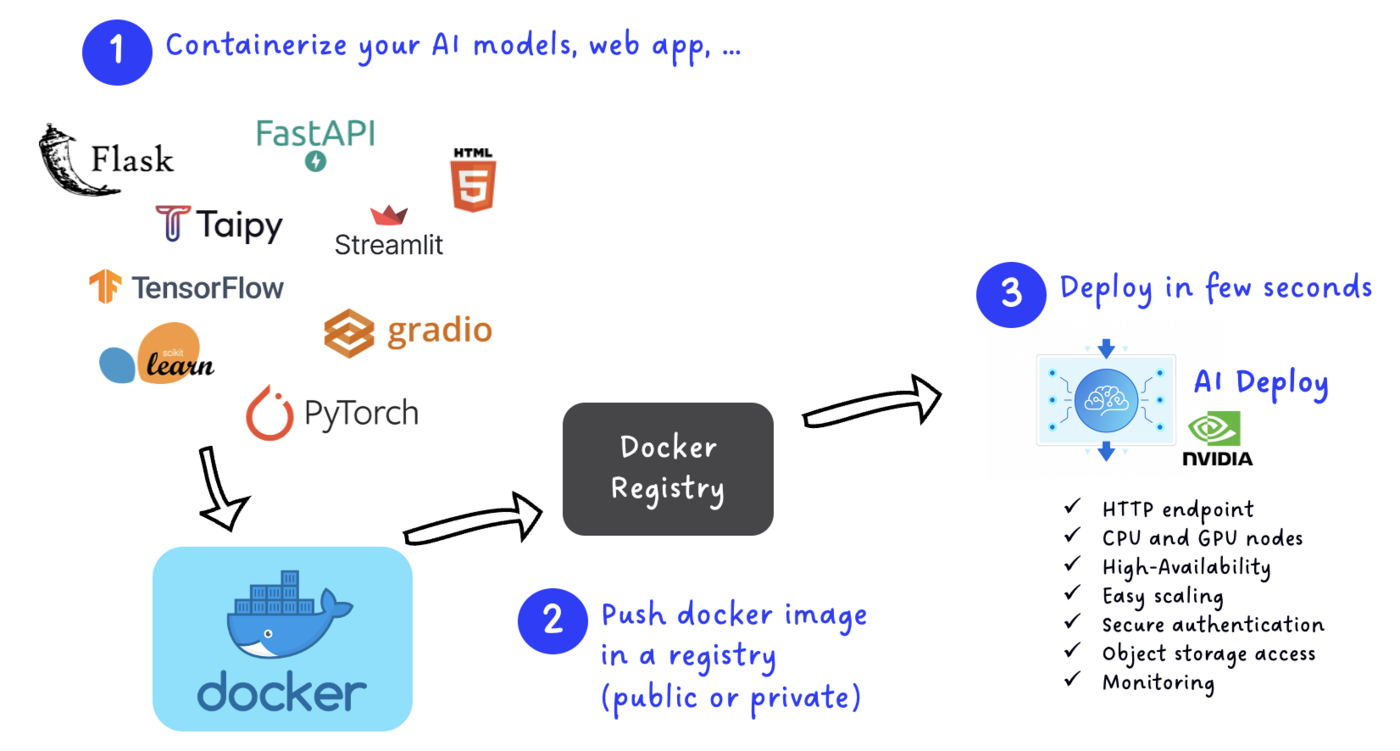
AI Deploy's main goal is to simplify AI models or applications deployment and release them in production, with resiliency and security, in a few seconds. Each application is linked to compute resources such as CPUs or GPUs, and can be accessed through an HTTP Endpoint provided by AI Deploy for each app.
In order to be deployed, your model or application has to be containerised inside a Docker image. Containers provide isolation but also flexibility for your deployments. The Docker images that you build can be deployed locally, with OVHcloud AI Deploy but also with cloud competitors such as AWS or GCP.
Inside your Docker image, you are free to install almost anything and everything as long as you follow the guidelines below.
AI Deploy accepts images from public or private repositories. In short, we can summarize AI deploy with the following schema:
Guidelines to follow
Start from an existing Docker image
Instead of starting from scratch, feel free to start from an existing Docker image, as long as it is compliant with the following guidelines. For example, you can start from 'python', from 'alpine' or equivalent.
If you need to work with GPUs, please read the next paragraph.
Use specific images with CUDA drivers for GPUs
If you want to communicate with our GPU hardware in your AI Deploy apps, the base image should have cuda drivers installed.
Here is a potential list of official base images (featuring cuda drivers) that you can use:
- pytorch/pytorch:latest
- tensorflow/tensorflow:latest-gpu
- huggingface/transformers-pytorch-gpu:latest (docker pull huggingface/transformers-pytorch-gpu:latest)
- mxnet/python
- nvidia/cuda
For example, if you want to start from the base image tensorflow/tensorflow:latest-gpu:
Use the linux/amd64 architecture
Your Docker image has to support at least the linux/amd64 platform to be deployed correctly. Otherwise deployment will fail.
When you invoke a build, you can set the --platform flag to specify the target platform for the build output, linux/amd64.
This is especially relevant if you use newer Apple computers (M1/M2/... chipsets) or ARM-based computers.
More information can be found in the official Docker documentation.
Create an OVHcloud user and a working directory
Deployed containers are not run as root, but by an “OVHcloud” user with UID 42420. It means that if you want to be able to write in a specific directory at runtime, you will have to give it specific rights.
This is the case in the vast majority of use cases.
You can do it with the following instructions:
Install dependencies via apt or pip
Usually, Python or Linux packages will be required for your application. You can follow Docker best practices for that, meaning install dependencies with apt or pip.
Here is a compliant example:
Manage output data effectively (Swift or S3* compatible Object Storage)
Just like AI Notebooks and AI Training, AI Deploy is easily connected to remote storage such as Swift or S3 compatible Object Storage containers at launch. However, unlike AI Notebooks and AI Training, AI Deploy does NOT* synchronise data back to your remote storage.
If you need to write data somewhere, for example output from your AI model (generated images), your code application should include storage connection.
For example, you can use the Python Boto3 library when using Python and S3 compatible Object Storage.
Be careful, if you write data directly in your working directory, it will be lost when you stop your application.
Use environment variables for dynamic values
For sensitive data such as passwords or tokens, consider using Docker Secrets.
Sometimes, instead of hardcoding a variable inside a Dockerfile, it is much more powerful to pass variables during deployment. Docker provides this option natively through the --env argument, and OVHcloud AI tools follow the same logic.
During AI Deploy app creation, you will be able to pass environment variables via CLI, API or UI in the control panel. In your Dockerfile, you can gather these variables with the ENV value.
For example, you can launch a new app with two variables like this:
In your Dockerfile, you can easily reuse the variables:
Exposing your model or application with an API
Inside your Dockerfile, you will need to expose your model or application so anyone can use it. The easiest way is to expose API via REST endpoint. The most popular open source frameworks for exposing APIs are Flask and Fast API.
You can find a basic example in the section below, and more advanced tutorials in our AI Deploy documentation.
Exposing your application with a web frontend
While an API is useful for automation and code, sometimes you will need to expose your application or model through a web interface.
AI Deploy is fully compliant with multiple frontend frameworks, such as Streamlit, Gradio or Taipy. You can of course also build your own frontend with your favourite tools, such as HTML/CSS.
You can find a basic example in the section below, and more advanced tutorials in our AI Deploy documentation.
Basic example: Write your own Dockerfile and build your image
Here we will build a basic Docker image, following the guidelines.
Prepare the Dockerfile
Create a new file and name it Dockerfile, following the guidelines.
- First you need to choose a base image to start from.
- Install what you need as dependencies with
aptorpip. Bash command instructions on your Dockerfile should begin with theRUNprefix. - Copy files from your local directory inside the Docker image with the
COPYprefix. - Allow user "OVHcloud UID 42420" to get specific rights.
- Run your script.
A basic example can be summarised like this:
Build your Docker image
Once your Dockerfile is complete and matches your needs, you have to choose a name and build the image using one of the following commands:
-
The first command builds the image using your system’s default architecture. This may work if your machine already uses the
linux/amd64architecture, which is required to run containers with our AI products. However, on systems with a different architecture (e.g.ARM64onApple Silicon), the resulting image will not be compatible and cannot be deployed. -
The second command explicitly targets the
linux/AMD64architecture to ensure compatibility with our AI services. This requiresbuildx, which is not installed by default. If you haven’t usedbuildxbefore, you can install it by running:docker buildx install
The dot . argument indicates that your build context (place of the Dockerfile and other needed files) is the current directory.
The -t argument allows you to choose the identifier to give to your image. Usually image identifiers are composed of a name and a version tag <name>:<version>. For this example we chose image-identifier.
Test it locally (optional)
If you want to verify that your built image is working properly, run the following command:
Don't forget the --user=42420:42420 argument if you want to simulate the exact same behaviour that will occur on AI Deploy apps. It executes the Docker container as the specific OVHcloud user (user 42420:42420).
Push the image to the registry of your choice
Pushing your image to a registry is needed in order for AI Deploy to pull it.
AI Deploy provides a default registry called Shared registry where users are able to push their custom images. It is linked with every project by default.
The shared registry should only be used for testing purposes. Please consider creating and attaching your own registry. More information about this can be found here. The images pushed to this registry are for AI Tools workloads only, and will not be accessible for external uses.
The basic commands to push a Docker image to a registry is:
Example: If you want to push an image named custom-image inside a registry registry.gra.ai.cloud.ovh.net:
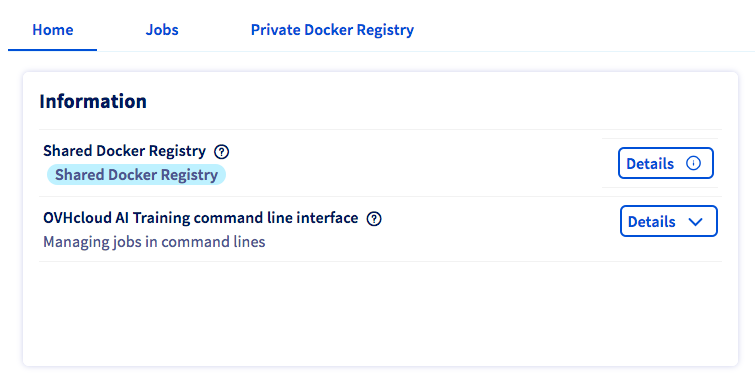
If you want to know the exact commands to push on the shared registry, please consult the Details button of the Shared Docker Registry section in the Home panel of AI Training.
Go further
- Discover some AI Deploy apps we built with API or Web frontend via our Apps portfolio.
If you need training or technical assistance to implement our solutions, contact your sales representative or click on this link to get a quote and ask our Professional Services experts for a custom analysis of your project.
Feedback
Please send us your questions, feedback and suggestions to improve the service:
- On the OVHcloud Discord server
*: S3 is a trademark of Amazon Technologies, Inc. OVHcloud’s service is not sponsored by, endorsed by, or otherwise affiliated with Amazon Technologies, Inc.


 AI Deploy - Tutoriel - Déployer Stable Diffusion WebUI (AUTOMATIC1111) (EN)
 2245
2245