

CLI - Lancer un AI Notebook (EN)
951 vues
 17.11.2025
  Cloud / AI Deploy
Objective
This guide covers the submission of new AI Notebooks through the ovhai CLI.
Requirements
To follow this guide, ensure that you have the ovhai CLI installed and that you are logged in as a user of one of your Public Cloud Projects, with the necessary permissions (at least AI Training Operator and ObjectStore operator), to use OVHcloud AI Products.
For more information on installing and configuring the ovhai CLI, see the guide on Installing the OVHcloud AI CLI.
Instructions
Run a new notebook
To run a new notebook, the basic command is ovhai notebook run. This command needs to be followed by some arguments that will indicate the specifications of your notebook.
You can see the full list of options by running ovhai notebook run --help or ovhai notebook run -h:
As you can see, <FRAMEWORK_ID> and <EDITOR_ID> are two mandatory arguments that will specify which framework and editor you want to use inside your notebook.
You can find a list of available frameworks and editors by running the ovhai capabilities framework list and ovhai capabilities editor list commands:
From there, you can launch a first basic notebook.
Here is an example command for launching a notebook with PyTorch and JupyterLab:
For VSCode, you can run:
By default, this notebook will be ran on a single V100S GPU, in a restricted access, with the latest version available of the framework you have selected.
As we saw with the execution of ovhai notebook run -h, there are many options available for customizing your notebook. One of them (--flavor <FLAVOR_ID>) allows you to specify the flavor you want to use (Type of CPUs/GPUs) by specifying the flavor ID. The flavor list can be accessed by running:
For example, to launch a notebook with the a100-1-gpu flavor, you would use the following command:
Then, you can add to your command the --cpu <NUMBER> or --gpu <NUMBER> flag to specify how many CPUs/GPUs you want. The following example will run the same notebook but on 2 A100 GPUs:
An example of what a slightly more specific notebook launch would look like:
This will launch a new AI Notebook with PyTorch 2.4.0, Jupyterlab, and 6 CPUs, in a restricted access.
Accessing a new notebook
Launching a new notebook using ovhai notebook run will display the following information in the terminal, which are the specifications of your notebook:
The first line in the output shows the new AI Notebook ID: 7600dda5-27f7-4937-9260-e24c987ae3c6.
In the last lines, the Url field corresponds to your JupyterLab server. You will need to wait a few seconds for the notebook to start and reach the RUNNING status. Once it is running, the notebook URL will be accessible.
To follow the notebook state, you can get the notebook information again using its ID.
If you don't have the ID of the notebook you want to access, you can list all your notebooks using:
To get the notebook information again using its ID, run the following command:
Now that the notebook is in the RUNNING state, a https address is defined in the Url field. This URL corresponds to your JupyterLab server. Pasting this URL in your browser displays the following screen:
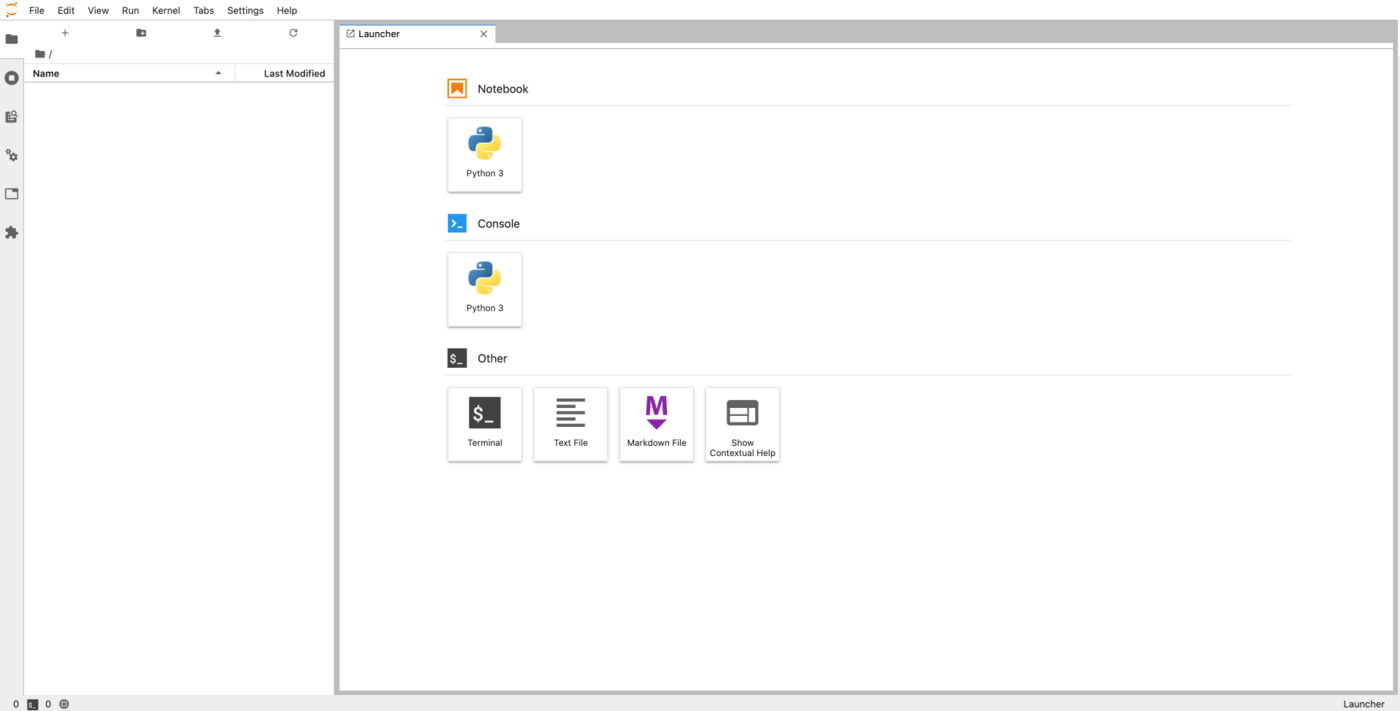
You can now start writing code in your notebook. Since we used the PyTorch framework in our example, we will be able to use it without having to install anything ourselves.
As you explore your notebook, you will find an ai-training-examples folder already included in your /workspace. This repository is automatically cloned for each notebook and includes a variety of examples that you can use with OVHcloud AI products, such as AI Notebooks.
Stopping a notebook
Once you are done with your notebook, you can stop it with the command below:
In our example above, the NOTEBOOKD_ID is 7600dda5-27f7-4937-9260-e24c987ae3c6
When you stop a notebook, it becomes unavailable for a certain period of time, during which your data is synchronized on the Object Storage. This allows you to retrieve your work later.
Once the synchronization is complete, the notebook will reach the STOPPED state. At this point, you can either start the notebook again or delete it.
Restarting a stopped notebook
Being able to restart a notebook is one of the main differences compared to using AI Training jobs. Restarting a notebook will restore your notebook code as it was when you stopped it. However, you will need to re-run your code to reload your variables because the program state is not saved.
To restart a notebook, run this command:
You are billed for RUNNING notebooks but not for STARTING, STOPPING and STOPPED notebooks.
However, to restore your code when you restart a STOPPED notebook, it needs to be stored in your Object Storage, which you are billed for. You can find more information about the AI Notebooks billing in the Billing and Lifecycle guide.
This is useful when you work on a notebook for some time.
Deleting a notebook
If you know you will not use a notebook anymore, you can delete it:
Note that even if a notebook is still running, you can delete it. Of course, a deleted notebook cannot be restarted.
The notebook state stored in the Object Storage (including your notebook files) is not cleaned up automatically after notebook deletion.
You can find it and delete it in the notebooks_workspace container of your Object Storage, under the notebook ID directory.
Going further
Learn how to access your Object Storage data and Git repositories from your notebooks here.
Learn how to share your notebooks with other people here.
If you need training or technical assistance to implement our solutions, contact your sales representative or click on this link to get a quote and ask our Professional Services experts for a custom analysis of your project.
Feedback
Please send us your questions, feedback and suggestions to improve the service:
- On the OVHcloud Discord server


 CLI - Installation (EN)
 4099
4099