

Exposing your logs to third-party tools via the OpenSearch API
592 vues
 17.12.2025
  Cloud / Logs Data Platform
Objective
As explained in our introductory documentation, Logs Data Platform heavily relies on OpenSearch to work. OpenSearch has a rich ecosystem and allows very complex queries.
This documentation explains how to use third‑party softwares that integrate with OpenSearch by using aliases.
Requirements
- Access to the OVHcloud Control Panel
- A Logs Data Platform account
Instructions
What is a Logs Data Platform alias?
As explained in the documentation mentioned above, a Logs Data Platform alias is a virtual OpenSearch index. You can attach multiple indices or multiple log streams to an alias (but not a mix of indices and streams). In both cases, aliases are read‑only.
Alias configuration
When attached to streams or indices, an alias allows you to expose the content of your streams exactly as if they were stored in a single OpenSearch index. This feature can be used only for read/query purposes.
If you want to ingest logs to a stream using the OpenSearch API, we provide a shared input that works as a special index pre‑configured for this purpose and accessible to any Logs Data Platform user. You can follow this documentation to use it.
Creating an alias
To create an alias in the management interface, go to the Alias section of your Logs Data Platform account as shown in this picture:

It should look like this:
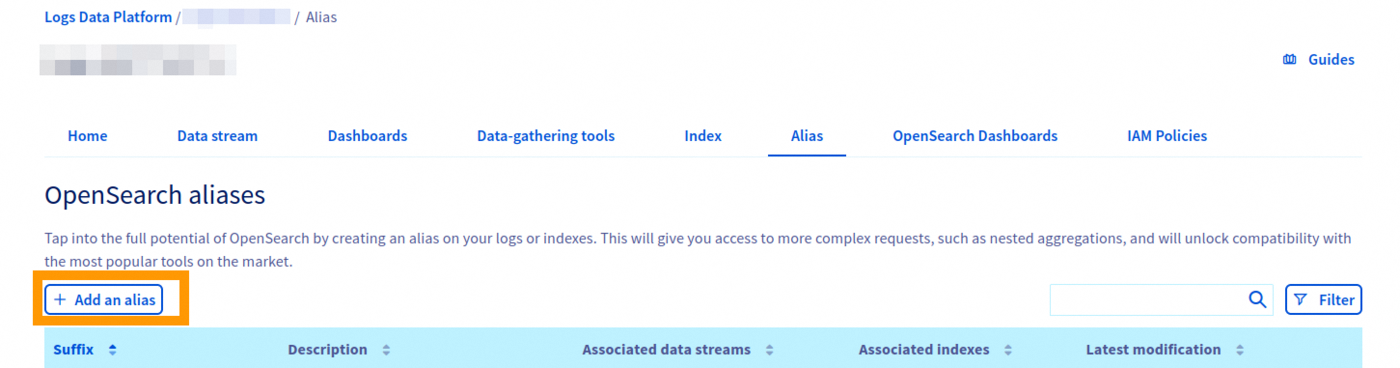
In this section, you can:
- Create a new alias by clicking on the
Add an aliasbutton.
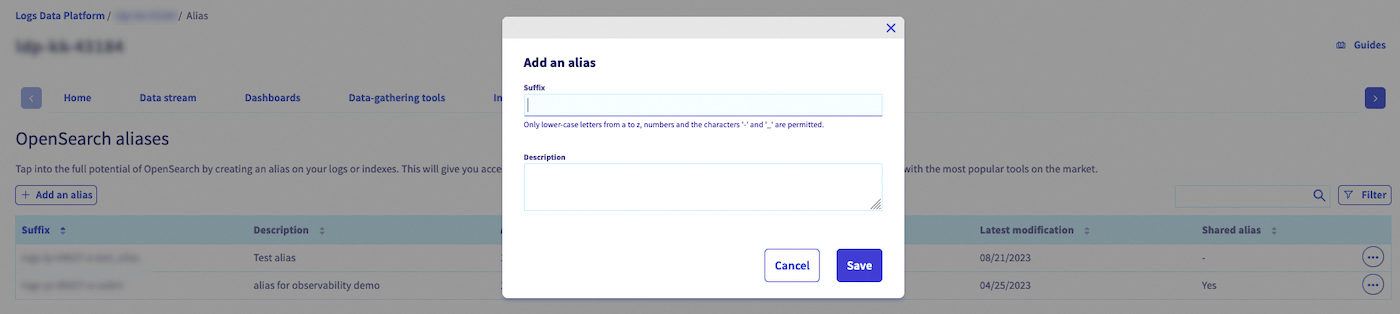
- Once created, you can edit the description, access the alias via the OpenSearch web UI or delete the alias via the
...button.
Attach an alias to a stream
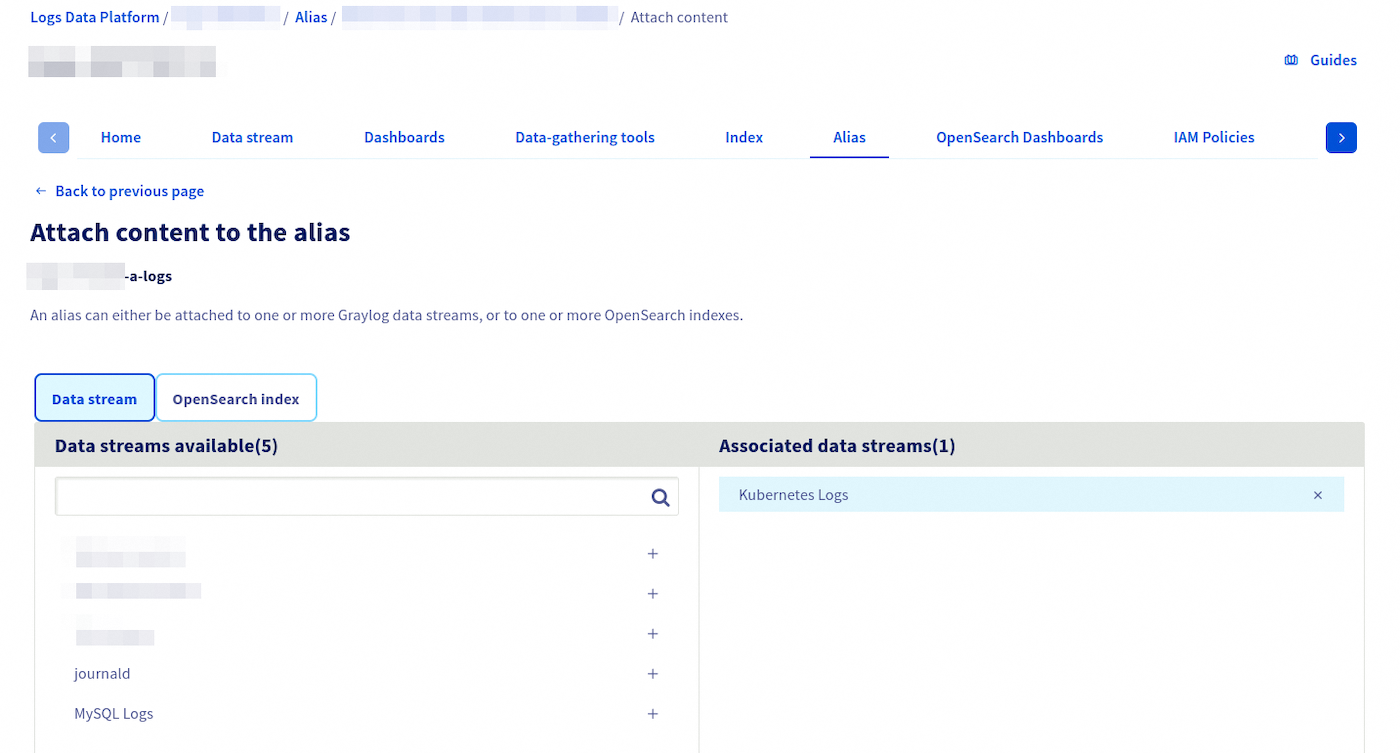
- Attach and detach streams and/or indices to an alias by clicking the
...button and then on theAttach content to the aliasbutton. - Then you choose the stream you want to attach to the alias.
Attach an alias to an index
If you use the managed OpenSearch index as a service feature, you can also attach multiple indices to an alias. In that case, attach the alias and configure it as described below.
- Attach and detach streams and/or indices to an alias by clicking the
...button and then on theAttach content to the aliasbutton. - Then you choose the indices tab you want to attach to the alias.
- Finally you select the indices you want to attach to the alias.
Retrieving credentials
IAM‑enabled accounts
IAM enabled accounts have two ways to obtain credentials for both OVHcloud APIs and Logs Data Platform data planes APIs:
- Personal Access Token (PAT) for a local user: generate a token via the IAM console or API.
- Service account token: obtained by first creating a service account and using the OAuth2 client‑credentials flow.
Both tokens can be used as a bearer token or with a basic authentication scheme by using pat_jwt_<your_suffix> as a username. Replace <your_suffix> with any ASCII string of your choosing.
Legacy (non‑IAM) accounts
- Use the traditional
<username>and<password>or a legacy token generated from the Logs Data Platform UI.
Alias access management
Like all features of Logs Data Platform, with IAM enabled, aliases can be shared with other OVHcloud identities. If you are not familiar with IAM, we encourage you to read the IAM documentation and the specific Logs Data Platform IAM access management.
The rights relative to the management of OpenSearch aliases through the OVHcloud APIs are:
| Rights | LDP product types | Description |
|---|---|---|
| ldp:apiovh:url/get | service | Get Logs Data Platform service useful urls |
| ldp:apiovh:output/opensearch/alias/create | service | Create a new OpenSearch alias over OVHcloud API |
| ldp:apiovh:output/opensearch/alias/url/get | alias | Get urls of an OpenSearch alias over OVHcloud API |
| ldp:apiovh:output/opensearch/alias/get | alias | Get OpenSearch aliases over OVHcloud API |
| ldp:apiovh:output/opensearch/alias/edit | alias | Update an OpenSearch alias over OVHcloud API |
| ldp:apiovh:output/opensearch/alias/index/get | alias | Get OpenSearch indexes attached to an OpenSearch alias over OVHcloud API |
| ldp:apiovh:output/opensearch/alias/index/attach | alias | Attach an OpenSearch index to an OpenSearch alias over OVHcloud API |
| ldp:apiovh:output/opensearch/alias/index/detach | alias | Detach an OpenSearch index from an OpenSearch alias over OVHcloud API |
| ldp:apiovh:output/opensearch/alias/stream/get | alias | Get streams attached to an OpenSearch alias over OVHcloud API |
| ldp:apiovh:output/opensearch/alias/stream/attach | alias | Attach a stream to an OpenSearch alias over OVHcloud API |
| ldp:apiovh:output/opensearch/alias/stream/detach | alias | Detach a stream from an OpenSearch alias over OVHcloud API |
| ldp:apiovh:output/opensearch/alias/delete | alias | Delete an OpenSearch alias over OVHcloud API |
The rights relative to the management of OpenSearch aliases through the OpenSearch API are:
| Rights | LDP product types | Description |
|---|---|---|
| ldp:opensearch:alias/delete | alias | Delete an alias over OpenSearch API |
| ldp:opensearch:alias/create | alias | Create an alias over OpenSearch API |
| ldp:opensearch:alias/read | alias | Read an alias's contents over OpenSearch API |
There is no write related right because aliases are read-only.
Legacy users can use this documentation.
Quick recap guide to configure alias access
1. Create a local user
To create a local user, go to the Identities page. Complete the required fields and click Confirm to create the user.
Navigate to the dedicated documentation for more information about users.
2. Generate a PAT
A Personal Access Token is needed to interact with the Logs Data Platform or OVHcloud API when using a local user. As said in the corresponding guide, you can create one by using the API:
The response contains an access_token field which is your PAT.
3. Create the IAM Policy
IAM policies allow an identity to interact with Logs Data Platform resources. Create or modify an existing policy and add the corresponding rights for your local user.
Read the guide or the IAM documentation for detailed information on this feature. Don't forget to add your new alias as a resource managed by this IAM policy.
Make sure to separate service rights and specific aliases rights in different policies if needed since all aliases inherit the rights put on a Logs Data Service (ie: putting ldp:opensearch:alias/read on a service policy gives read rights to all aliases of this service).
4. Query the alias using the bearer token:
Or alternatively use the hybrid authentication mechanism:
Legacy user example (for reference only)
Third-party tool configuration
To connect to your alias as if it were an OpenSearch index, third-party tools usually require some information:
- A URL/Port: this is your cluster's URL, found on your Logs Data Platform account homepage under the "Access point" name in the "Configuration" section. The port is 9200 for OpenSearch. The resulting URL should be
https://<your_cluster>.logs.ovh.com:9200. - An index name. This is your alias name, found on the left column of your alias homepage like in the following picture. It should look like this:
<ldp_service_name>-a-<alias_name>.

- A user:
pat_jwt_<your_suffix>a string starting withpat_jwt_as the username. - A password: the
access_tokenobtained via local users or via OAuth2 flow.
Use cases
We currently have specific documentation illustrating the usage of aliases in three cases:
- Using our managed OpenSearch Dashboards instances to visualize logs: here.
- Using Grafana to visualize logs: here.
- Using ElastAlert to set up alerting on logs: here.
Go further
- Introduction to Logs Data Platform
- Getting Started with Logs Data Platform
- Our documentation
- Community hub: https://community.ovh.com
- Create an account: Try it!


 Alerting - Using ElastAlert 2 with Logs Data Platform
 5803
5803