

Gérer les ACL via l'API pour Public Cloud Databases pour Valkey (EN)
250 vues
 12.06.2024
  Valkey
Objective
This page shows you how to update your Valkey service user ACLs with the OVHcloud API.
Users and roles
As explained on this page: Valkey Capabilities, Users & roles, the users' ACLs cannot be updated via the OVHcloud Control Panel.
You must therefore use the OVHcloud API.
Requirements
- A Public Cloud project in your OVHcloud account.
- An up and running Public Cloud Database for Valkey.
If you have never used the OVHcloud API before, then follow this tutorial: First Steps with the OVHcloud APIs.
For this tutorial, we consider that you are logged on the relevant API (Europe: https://api.ovh.com, Canada/Asia: https://ca.api.ovh.com). We will use Europe API for this tutorial.
Instructions
Get your service, Valkey cluster and user IDs
You first need to identify the service, the Valkey cluster and the user you want to apply the changes to.
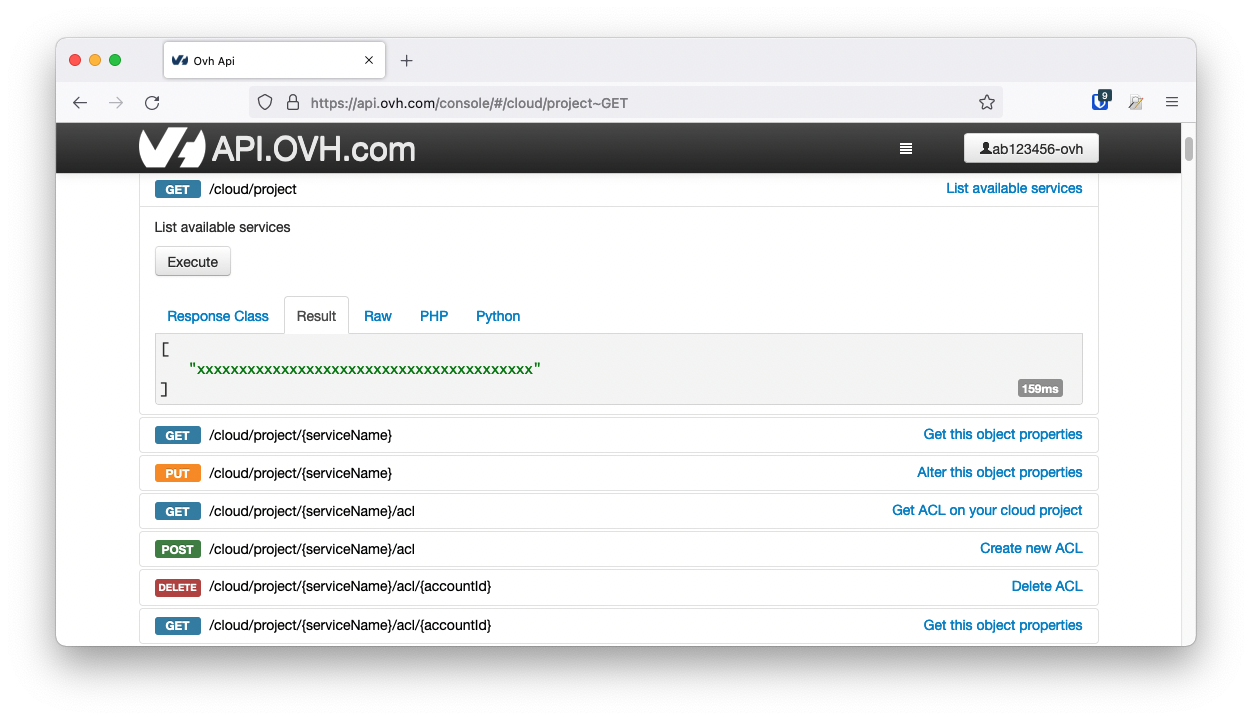
Get the desired service ID
Execute the following API call:
From the resulting list, select and copy the service identifier corresponding to the desired service, also known as serviceName.
Get the cluster ID
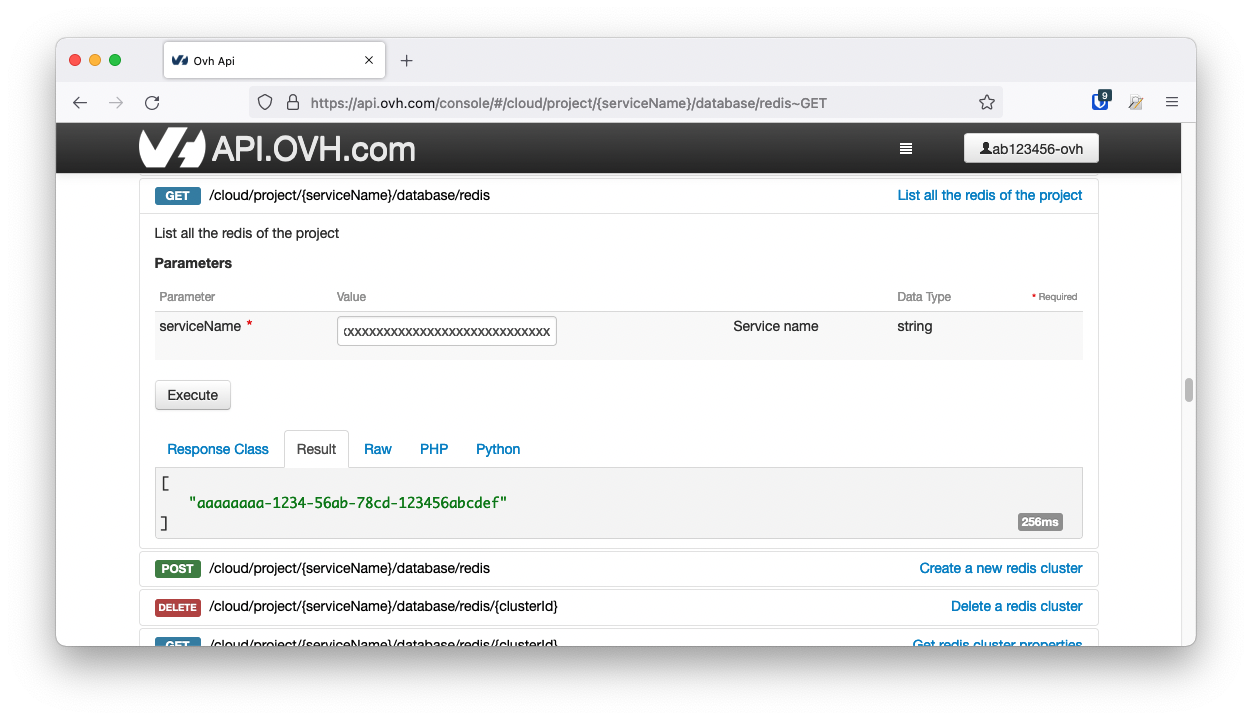
Open the following API call, paste your service ID into the serviceName input field and click Execute:
From the resulting list, select and copy the cluster ID, also known as clusterId.
Get the desired user ID
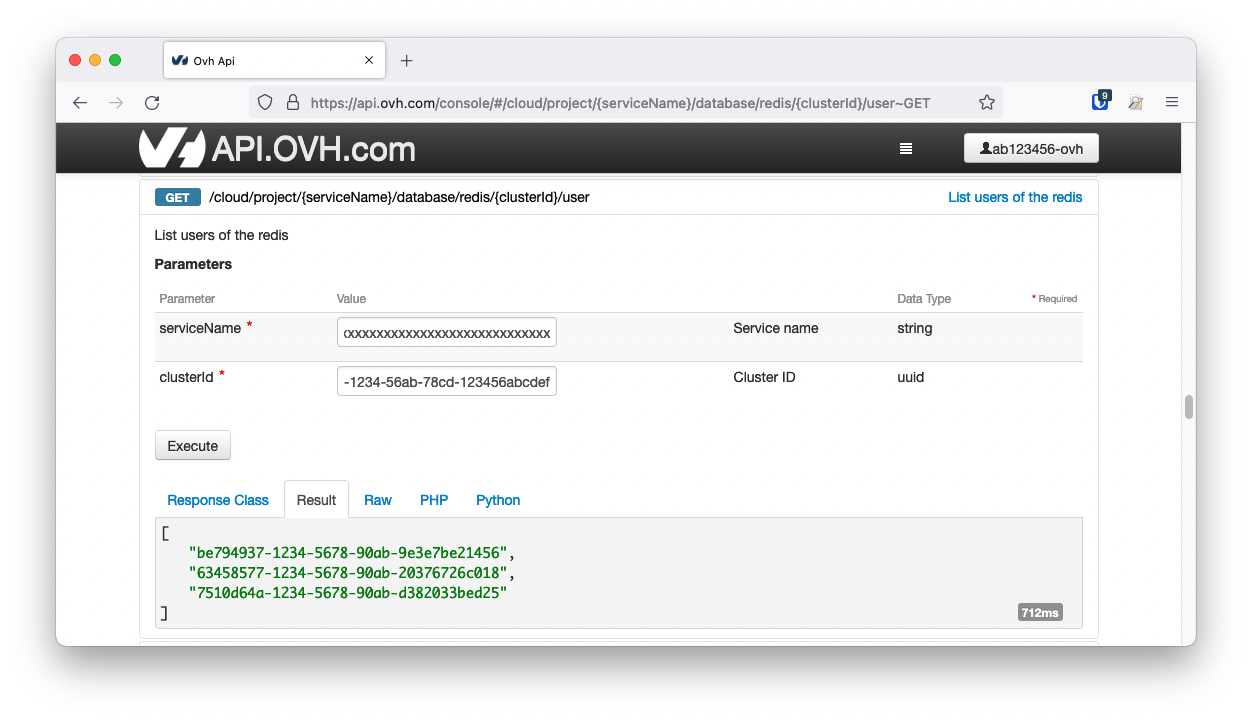
Open the following API call and do the following steps:
- paste your service ID into the serviceName input field
- paste the cluster ID into the clusterId input field
- click
Execute
From the resulting list, find and select the desired user.
To get more details on a user, open the following API call and do the following steps:
- paste your service ID into the serviceName input field
- the user ID into the userId input field
- the cluster ID into the clusterId input field
- click
Execute
Example:
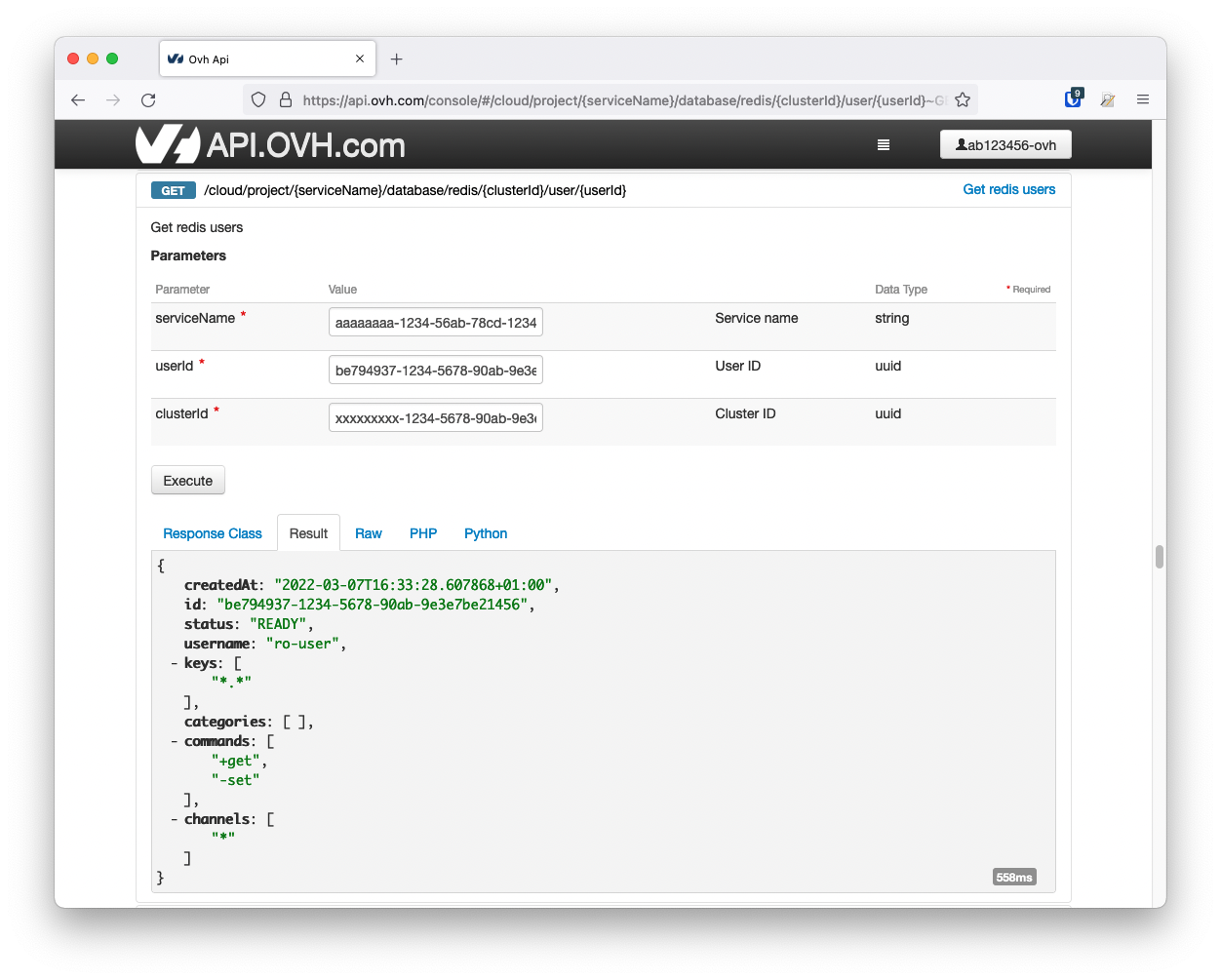
The result shows four string arrays, which represent the ACLs defined for the given user.
- Keys: Allow and disallow certain keys and key permissions.
- Categories: Add all the commands in such category to be called by the user, with valid categories being like @admin, @set, @sortedset,...
- Commands: Add or remove the command to the list of commands the user can call.
- Channels: Allow and disallow Pub/Sub channels.
You can follow the official Redis® documentation about users and ACL: https://redis.io/topics/acl.
Update an ACL with the API
Open the following API call and paste the corresponding inputs (serviceName, clusterId, user).
Now, according to the strategy you chose, set the different values into the string arrays, such as in the example below:
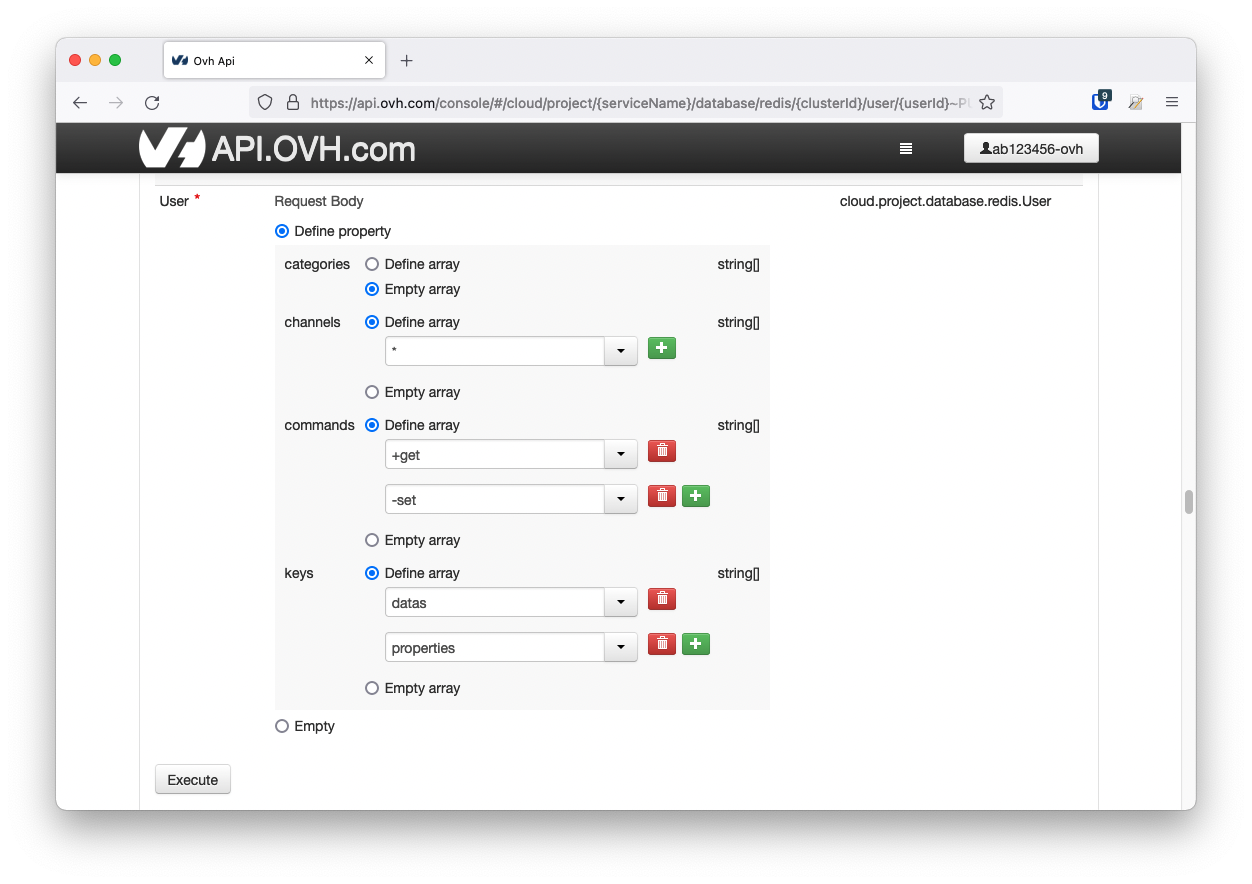
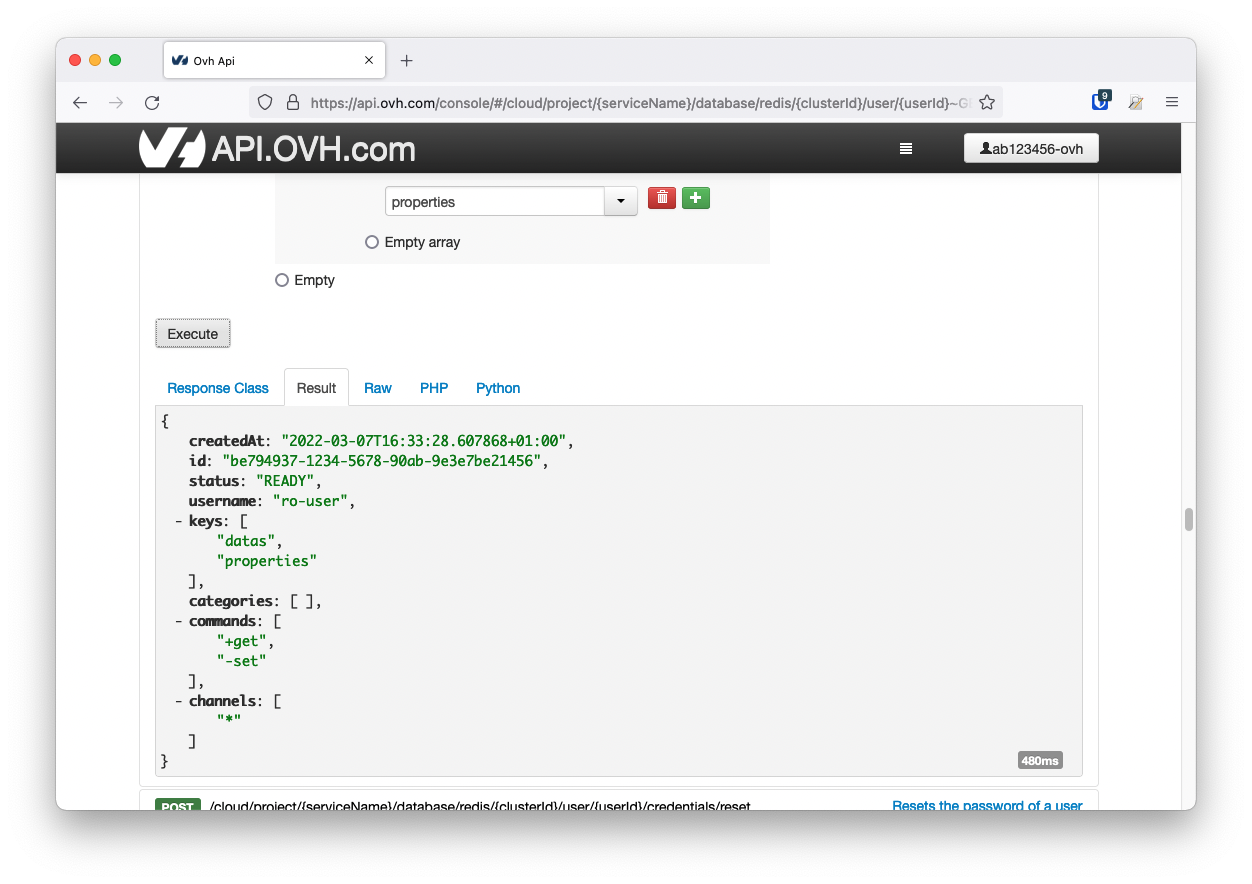
When ready, click Execute to update the ACL.
The result should be displayed similarly to the example below.
We want your feedback!
We would love to help answer questions and appreciate any feedback you may have.
If you need training or technical assistance to implement our solutions, contact your sales representative or click on this link to get a quote and ask our Professional Services experts for a custom analysis of your project.
Are you on Discord? Connect to our channel at https://discord.gg/ovhcloud and interact directly with the team that builds our databases service!


 Paramètres avancés de Public Cloud Databases pour Valkey (EN)
 264
264