

PostgreSQL - Détecter et terminer les requêtes de longue durée (EN)
257 vues
 15.02.2023
  PostgreSQL
Objective
Queries on a PostgreSQL instance can run indefinitely, and OVHcloud will not stop them automatically. Such queries can lock resources inappropriatly and cause wrong behaviors in your system.
This guide explains how to detect and terminate specific sessions via the OVHcloud Control Panel and Command Line Interface (CLI).
Requirements
- A Public Cloud project in your OVHcloud account
- A PostgreSQL database running on your OVHcloud Public Cloud Databases (this guide can help you to meet this requirement)
OVHcloud Control Panel Access
- Direct link: Public Cloud Projects
- Navigation path:
Public Cloud> Select your project
Instructions
Terminate long-running queries with OVHcloud Control Panel
Click on Databases in the left-hand navigation bar and select your PostgreSQL instance.
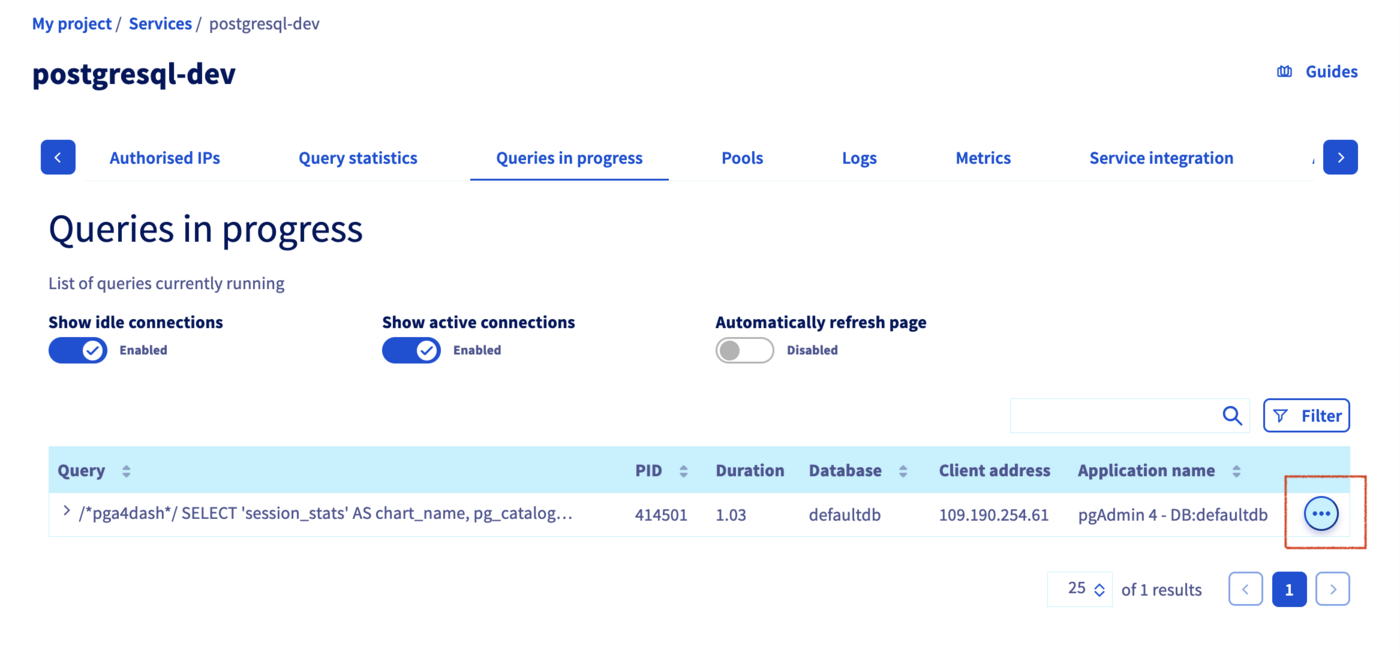
Click the Queries in progress tab.
This table is regrouping ongoing queries with some filtering options, such as showing idle or active connections.
The query table shows the exact query, among with detailed information: PID (Process ID), Duration, Database, Client address and Application name.
In the table list, find the session you want to terminate then click the ... button at the end of the line. You will be able to terminate the session and related backend process directly.
The query will disappear but if your client application is coded to redo the query after a failure, another query and PID will reappear.
Terminate long-running queries with CLI (psql)
PostgreSQL CLI, called psql, provides native administration functions such as pg_terminate_backend().
For more information, please refer to their official documentation.
Connect to your database using psql
Please refer to this guide to find out how to connect to your database using psql.
Make sure to get enough access privileges first
You can terminate a session only when you are the owner of the database.
To verify your roles and grants, run the following command in psql:
It will return the list of databases and access privileges. As an example:
If you don't see your user, you will have to grant him with required access privileges on the appropriate database. Otherwise, instructions below will return an error.
Find long-running queries
Once you are connected to your database, type for example:
It will show you a list of queries, and PIDs.
For more information about statistics, please follow the official documentation.
Terminate a specific query
Now that you get the PID, you can terminate a specific query with the following command:
Where pid is the unique identifier found during the previous step.
This command does not return any result when successful.
As explained here, the query will disappear if you check again the statistics, but if your client application is coded to launch again the query after a failure, another query and PID will reappear.
Go further
Visit our dedicated Discord channel: https://discord.gg/ovhcloud. Ask questions, provide feedback and interact directly with the team that builds our databases services.
If you need training or technical assistance to implement our solutions, contact your sales representative or click on this link to get a quote and ask our Professional Services experts for a custom analysis of your project.
Join our community of users on https://community.ovh.com/en/.


 Paramètres avancés des Public Cloud Databases pour PostgreSQL (EN)
 300
300