

How to install ISPmanager on a VPS or Dedicated Server
46 visualizaciones
 27.10.2025
  Cloud / Servidor dedicado (bare metal)
Objective
ISPmanager is an all-in-one web hosting panel that simplifies the management of websites, databases, accounts, TLS/Let’s Encrypt certificates, and associated services via a web interface. This guide explains how to install ISPmanager on a clean VPS or Dedicated Server and access the interface for initial configuration.
Discover how to install ISPmanager on an OVHcloud VPS or Dedicated Server.
OVHcloud provides services whose configuration, management, and responsibility fall to you. It is your responsibility to ensure their proper operation.
We provide this tutorial to assist you with common tasks. However, we recommend contacting a specialized provider and/or the service publisher if you encounter difficulties. Indeed, we will not be able to provide assistance. For more information, see the Go further section of this tutorial.
Requirements
- A VPS or a Dedicated Server in your OVHcloud Control Panel with a recommended configuration for ISPmanager.
- Administrator access (sudo) via SSH to your server.
Instructions
Step 1 — Connect and update the system
Connect to the server
Open a terminal and connect to your VPS (or Dedicated Server) using the following command:
Replace:
userwith your username.IP_VPSwith your VPS's IP address.
Update the system
Update your operating system. This process may take several minutes.
Step 2 — Open required ports on the firewall
To allow incoming and outgoing connections, consult the official ISPmanager documentation to determine which ports to open based on your needs.
Example of opening ports for Debian / Ubuntu
1. Install UFW:
2. Open the necessary ports (examples: SSH, ISPmanager panel, HTTP/HTTPS):
3. Enable UFW and check its status (the value "ALLOW" is expected):
Example of opening ports for AlmaLinux
1. Install firewalld:
2. Enable and start the service:
3. Open the necessary ports (examples: SSH, ISPmanager panel, HTTP/HTTPS):
4. Apply the configuration:
Step 3 — Install ISPmanager
1. Install wget:
2. Download the ISPmanager installation script:
3. Run the installer:
During installation:
- Choose the stable branch.
- Select the edition (Lite/Pro/Host) with recommended components.
- Choose your preferred web server and database.
- The installer installs necessary dependencies (this may take several minutes).
"Incorrect hostname" message during installation
If the following message appears during installation:
This means your server's hostname is not a fully qualified domain name (FQDN). To proceed, enter a valid domain name pointing to your server, for example:
If you do not yet have a domain name linked to your VPS, consult our guide "Edit an OVHcloud DNS zone" to point your domain name to your VPS's IP address.
Step 4 — First connection
Once installation is complete, enter the URL https://<IP_VPS>:1500/ispmgr in your browser, replacing <IP_VPS> with your VPS's IP address.
On first access, a self-signed certificate is used. Accept the browser warning to continue.
The following interface appears:
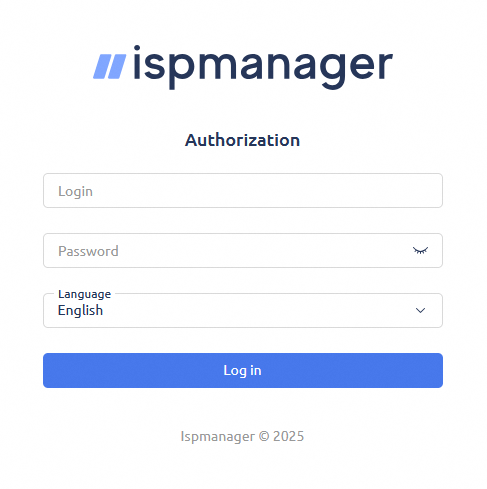
By default, the first connection to the ISPmanager interface uses the server's root system account. If you connect via SSH with a non-root user (e.g., almalinux, debian, ubuntu) and root has no password, run the following commands:
Switch to root:
Set a password for the root user:
On the ISPmanager login interface, enter the following:
- Username: root.
- Password: the password for the root account you just set.
Accept the license agreement that appears to continue. Installation is complete, and the ISPmanager administration interface is accessible at https://<IP_VPS>:1500/ispmgr.
Go further
For specialized services (SEO, development, etc.), contact OVHcloud partners
Join our community of users.


 Cómo crear un servidor Minecraft en un VPS o un servidor dedicado
 4231
4231