

Configuring a vROps alert via the SMTP protocol
217 visualizaciones
 11.03.2025
  Cloud / VMware
Objective
This guide shows you how to configure your SMTP server to automate the sending of alerts and reports by email to vROps.
Requirements
- A working SMTP server
- SMTP flows allowed between your SMTP server and your vROps instance
Instructions
Open the flow
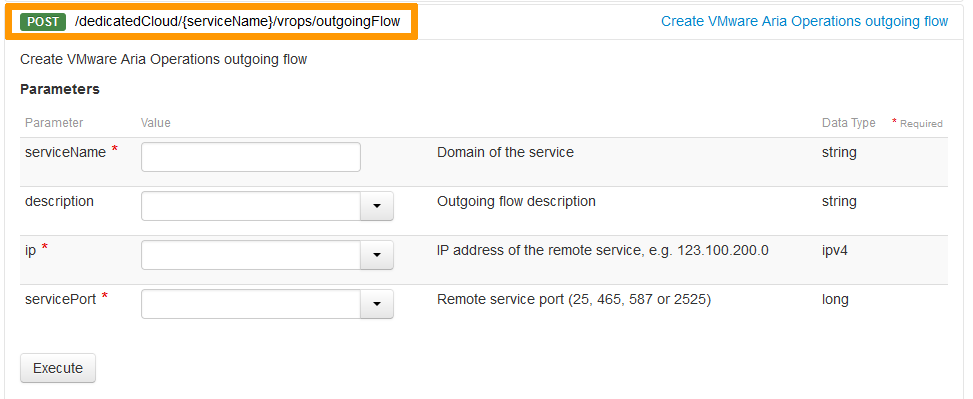
The first step is to open a flow on the OVHcloud API to enable vROps to communicate with your SMTP server.
You can check that the flow has been opened using this endpoint.
To do this, use the following API call:
Fill in the API call fields. If the results are not as expected, check your server port openings.
| PARAMETER | DESCRIPTION |
|---|---|
| serviceName | Domain of the service |
| description | Outgoing flow description (for example, here connect to SMTP) |
| ip | IP address of the remote service, e.g., 123.100.200.0 |
| servicePort | Remote service port (587) |
Configuring vROps alerting
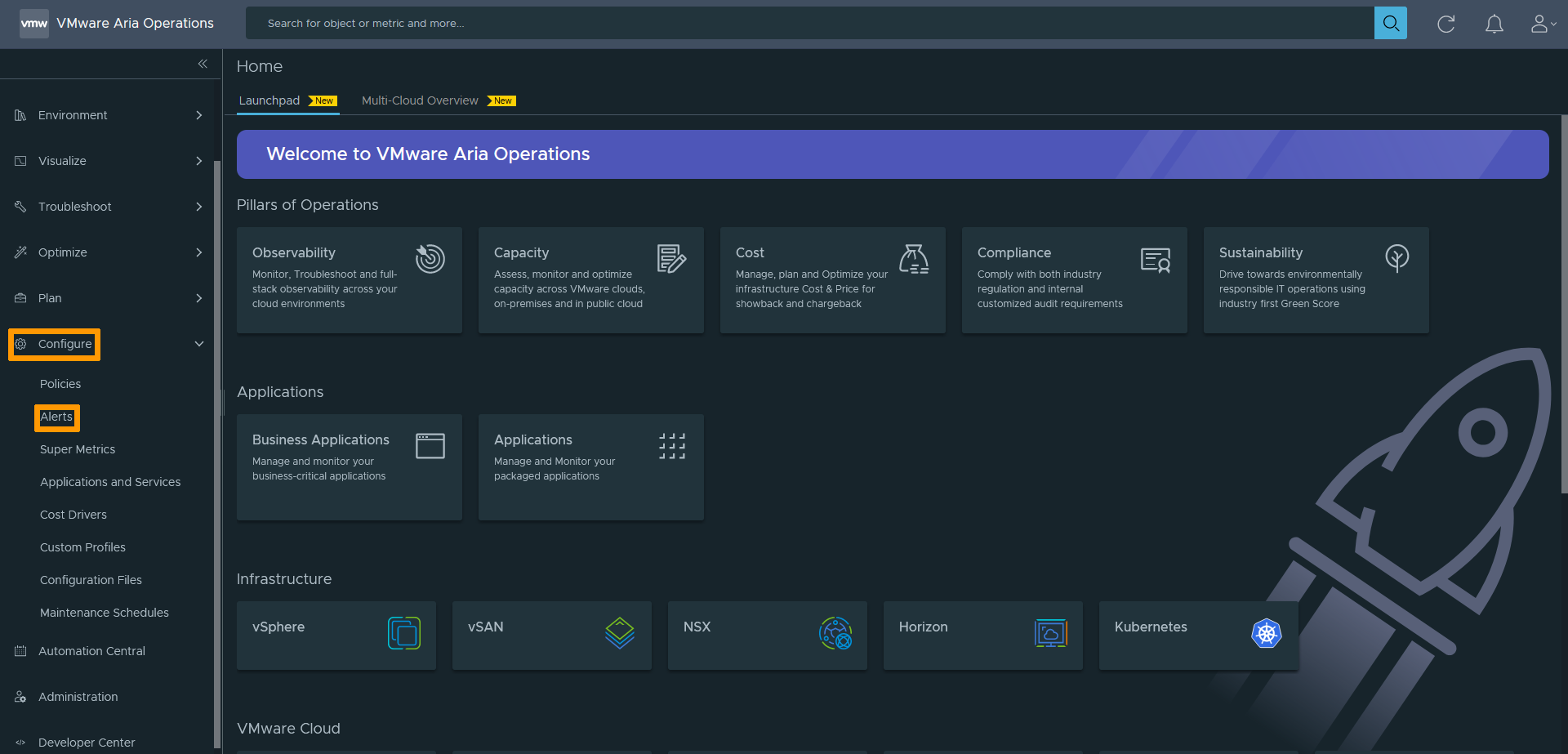
Once the flow has been opened, you need to configure the email alert on your vROps.
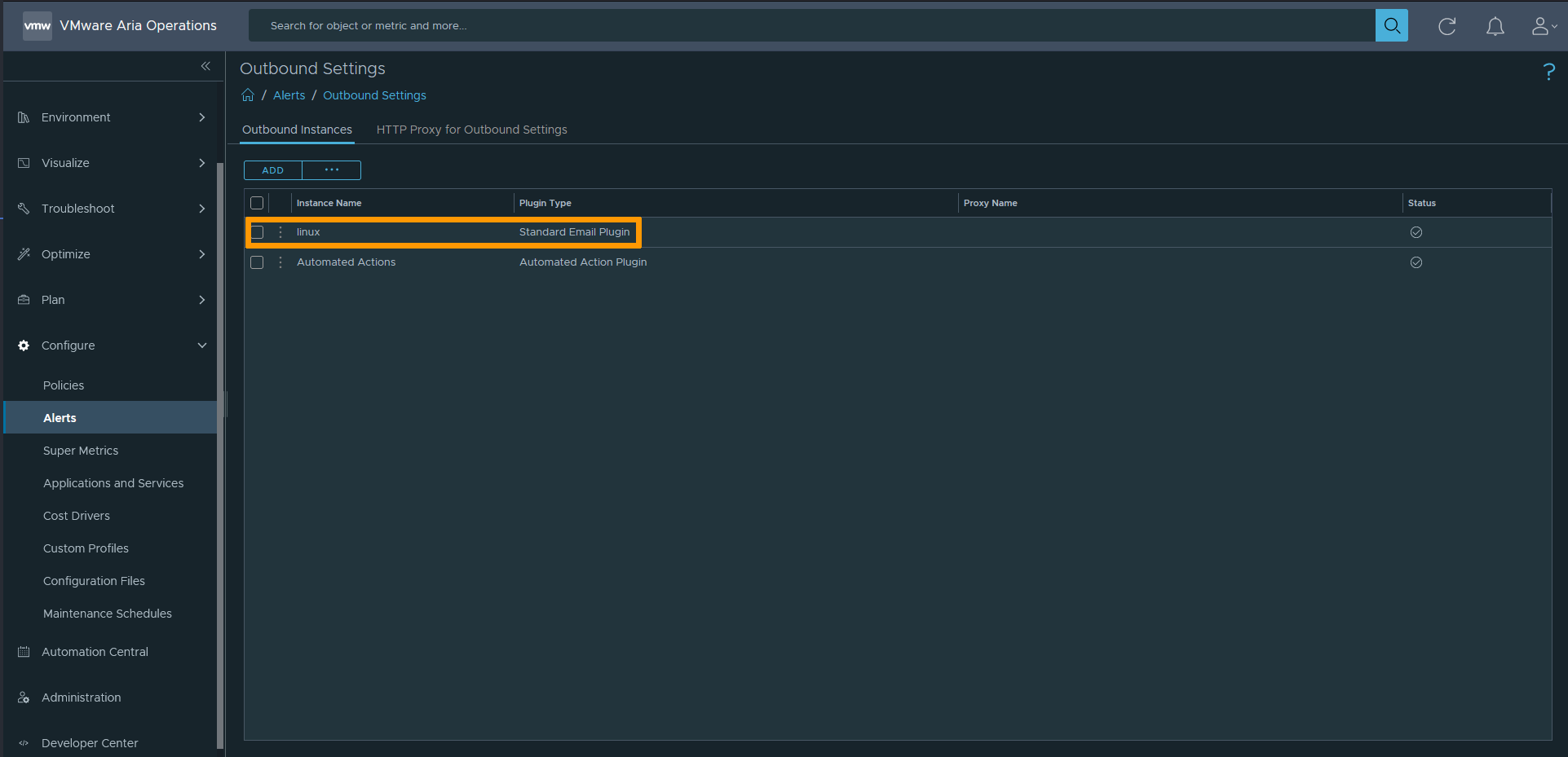
To do this, go to the Configure section, then the Alerts section.
Several types of alerts are available, just select Outbound Settings.
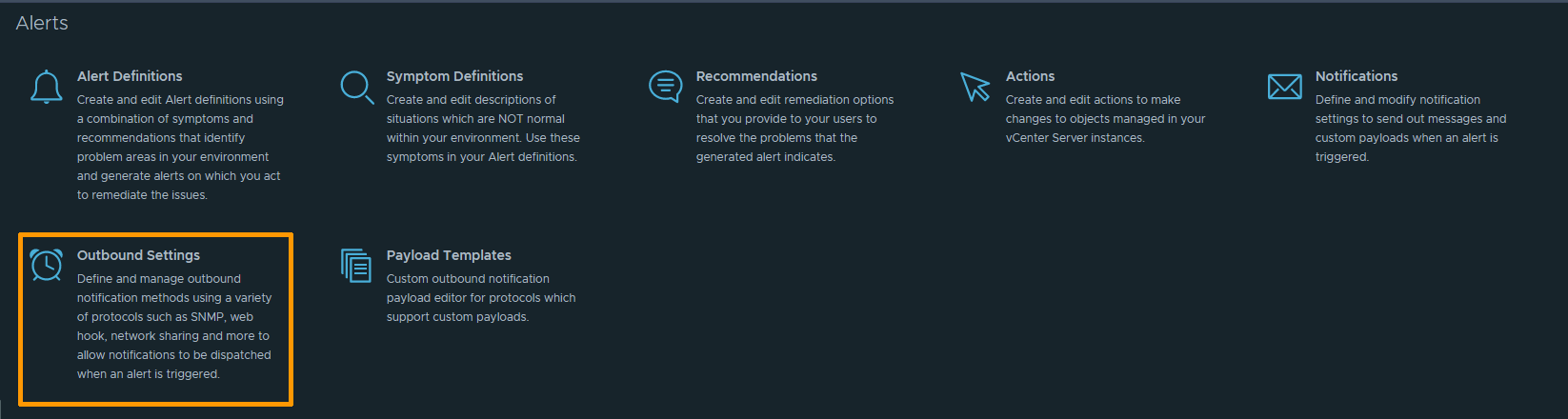
The page shows a summary of all your Outbound Settings. Click on the ADD button.

In the Plugin type option, select Standard Email Plugin.
A series of options will appear, just fill in the fields.
| OPTION | DESCRIPTION |
|---|---|
| Use Secure Connection | Activates secure communication encryption using SSL/TLS. If you select this option, you must select a method in the Secure Connection Type drop-down menu. |
| Requires Authentication | Activates authentication on the email user account that you use to configure this SMTP instance. If you select this option, you must provide a password for the user account. |
| SMTP Host | URL or IP address of your email host server. |
| SMTP Port | Default port SMTP uses to connect with the server. |
| Secure Connection Type | Select either SSL/TLS as the communication encryption method used in your environment from the drop-down menu. You must select a connection type if you select Use Secure Connection. |
| User Name | Email user account that is used to connect to the email server. |
| Password | Password for the connection user account. A password is required if you select Requires Authentication. |
| Sender Email Address | Email address that appears on the notification message. |
| Sender Name | Displayed name for the sender email address. |
| Receiver Email Address | Receiver's email address. |
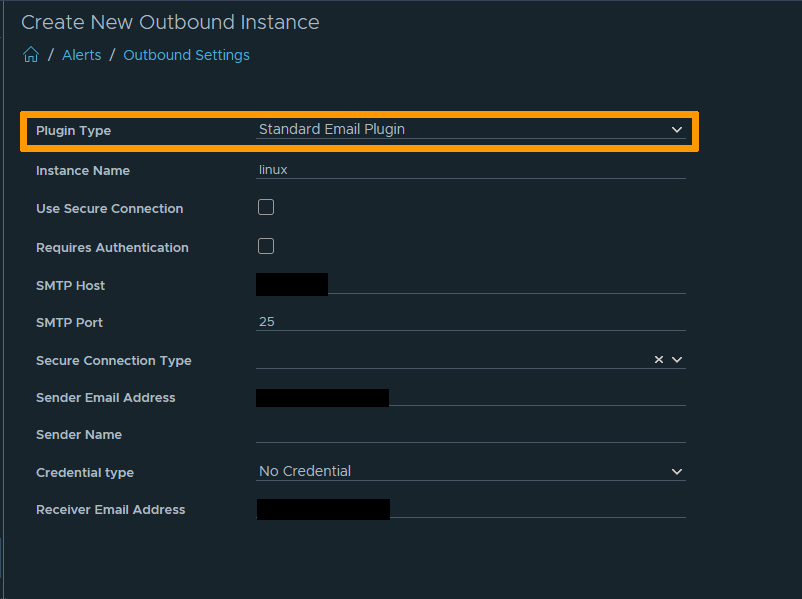
For demonstration purposes, authentication has not been configured on the SMTP server. However, for obvious security reasons, we strongly advise you to do so!
You can test your configuration using the Test button at the bottom of the page.
Once these operations are complete, you will find the details of your alert configuration in the previous summary.
Finally, check that your alert is working properly by verifying that the emails are being received correctly.
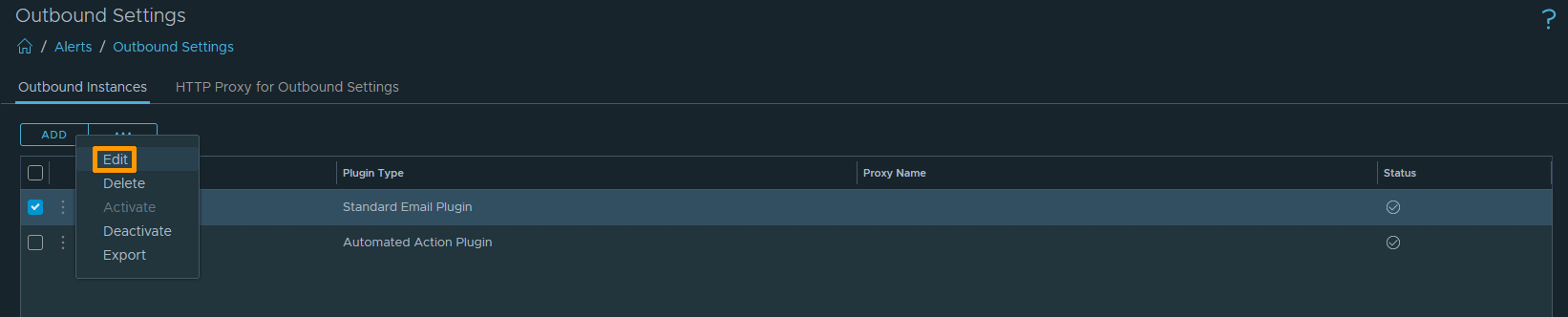
Modification of an existing alert
You can modify an existing alert by clicking on it from the menu.
Go further
If you need training or technical assistance to implement our solutions, contact your sales representative or click on this link to get a quote and ask our Professional Services experts for a custom analysis of your project.
Join our community of users.


 NSX-T: retrieving logs
 189
189