

How to initiate a diagnostic for OVHcloud Connect from the OVHcloud Control Panel
71 visualizaciones
 28.04.2025
  Cloud / OVHcloud Connect
Objective
With OVHcloud Connect, you can link your company network to your private OVHcloud vRack network, without creating a VPN tunnel through the internet. This will give you a quicker, more stable connection with guaranteed bandwidth.
This guide will show you how to get a status report of your OVHcloud Connect services via the OVHcloud Control Panel.
Requirements
- An OVHcloud Connect solution with a valid POP configuration.
- Access to the OVHcloud Control Panel.
List of available diagnostics
Layer 3 mode
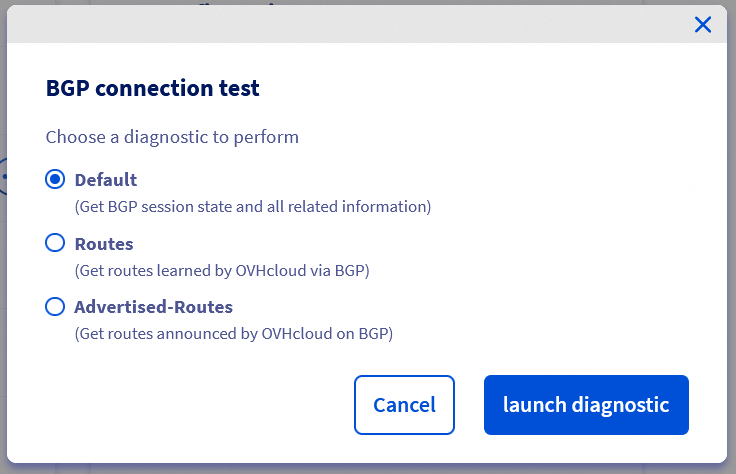
- Default: Fetches the BGP session states and all related information.
- Routes: Fetches the routing table learned by OVHcloud via BGP.
- Advertised-Routes: Fetches the routing table advertised by OVHcloud via BGP.
Layer 2 mode
- MAC Address: Fetches the list of MAC addresses of network devices and vRack.
Instructions
Layer 3 mode
You can find the list of your OVHcloud Connect services in the Network section of your OVHcloud Control Panel.
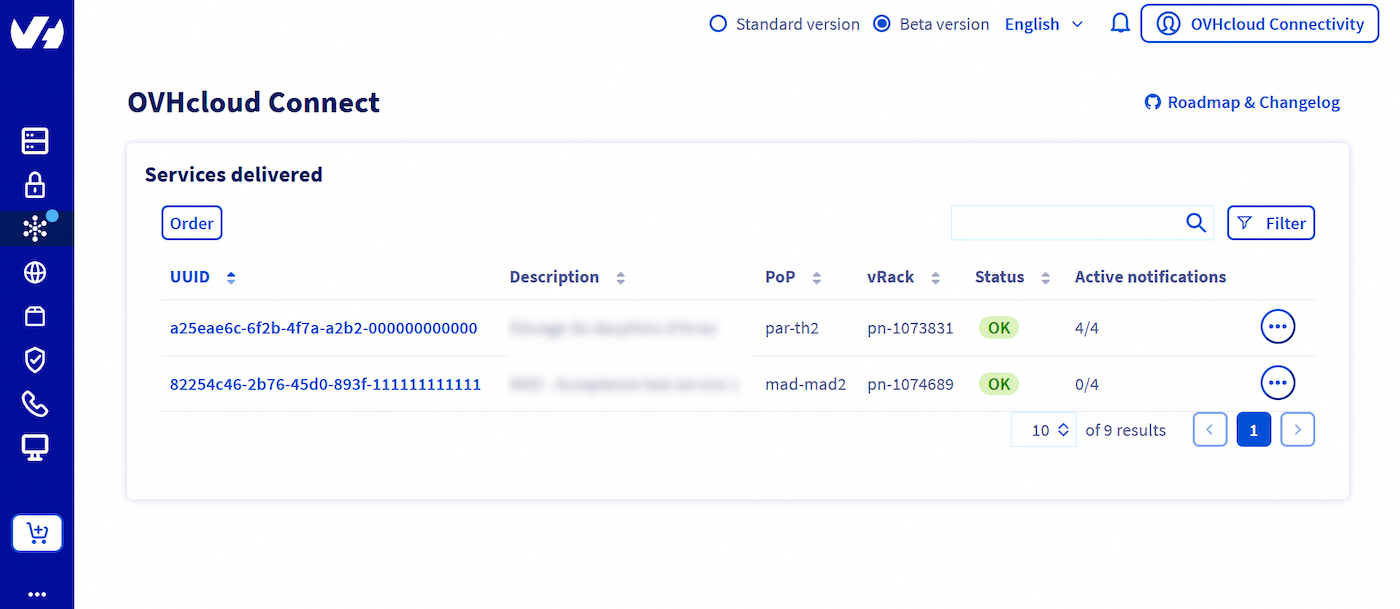
Open the service for which you want to get a diagnosis:
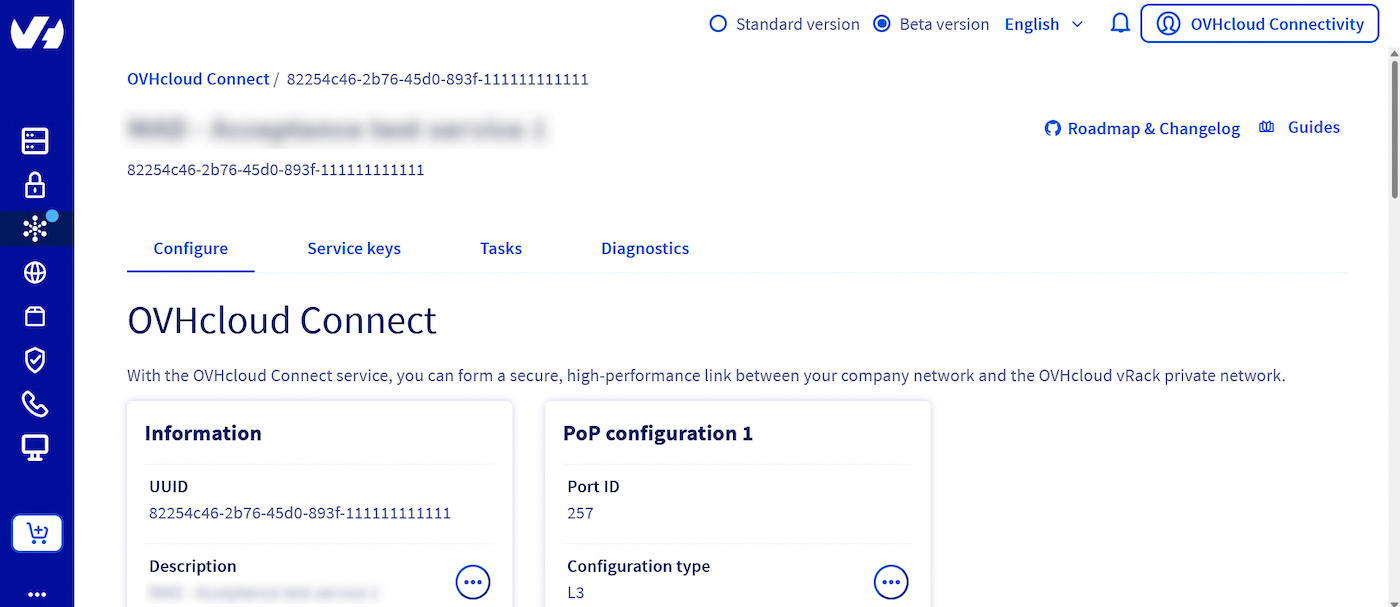
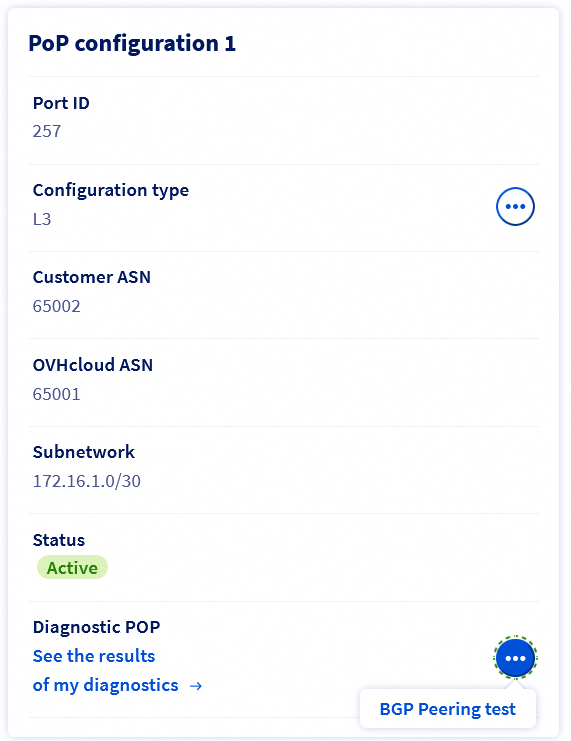
At the bottom of the "POP Configuration" panel, you will find a segment named "Diagnostic POP", and an ellipsis button .... Click it, and then select "BGP Peering Test":
A window will open. Select the type of diagnostics you wish to use, and click "launch diagnostic":
You can now access the list of your diagnostics by opening the "Diagnostics" tab.
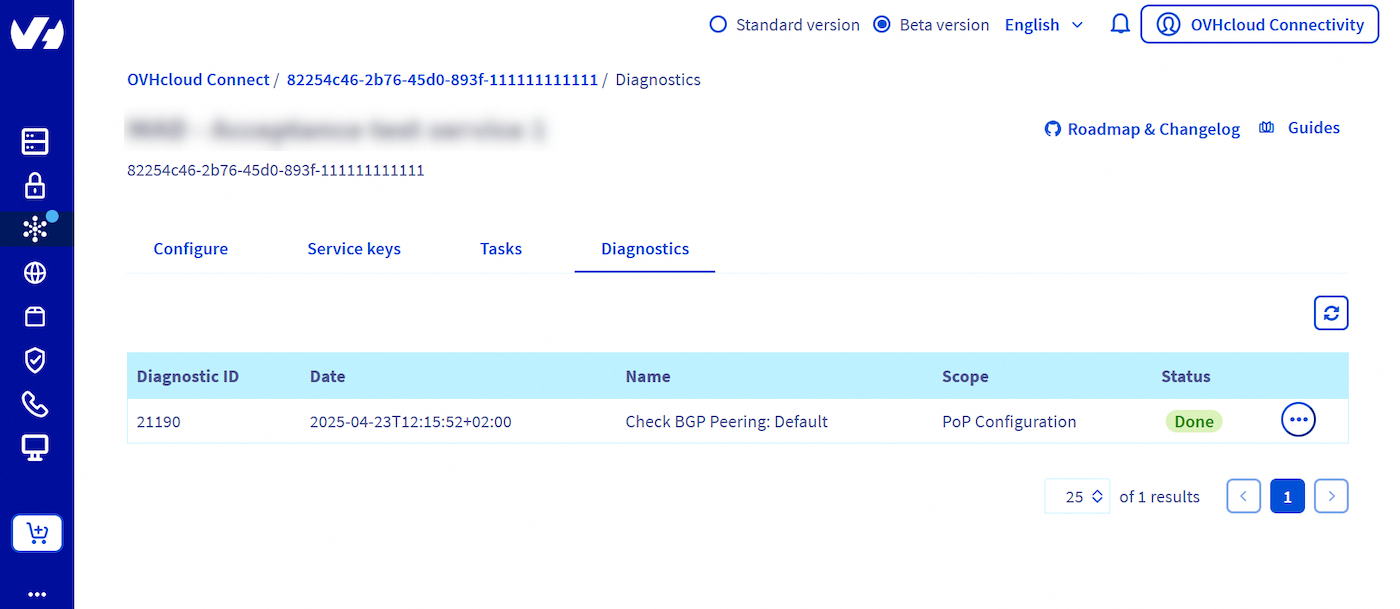
Each diagnostic is referred to using an ID and a timestamp.
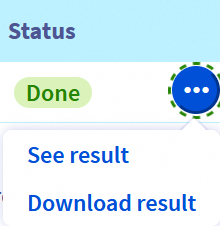
To access the diagnostics content, click the ellipsis button ... located to the right of each one listed. You can select either "See result" to have a window open with the content of the desired diagnostic, or "Download result" to get a .txt file with the same content.
Layer 2 mode
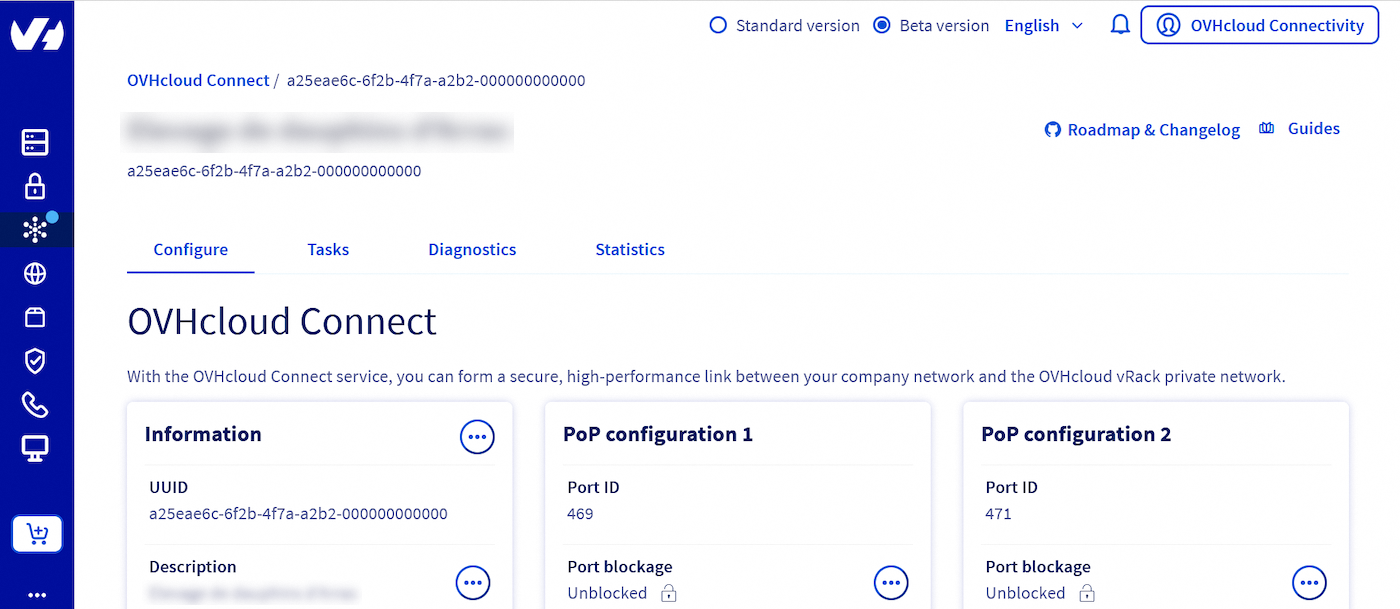
You can find the list of your OVHcloud Connect services in the Network section of your OVHcloud Control Panel.
Open the service for which you want to get a diagnosis:
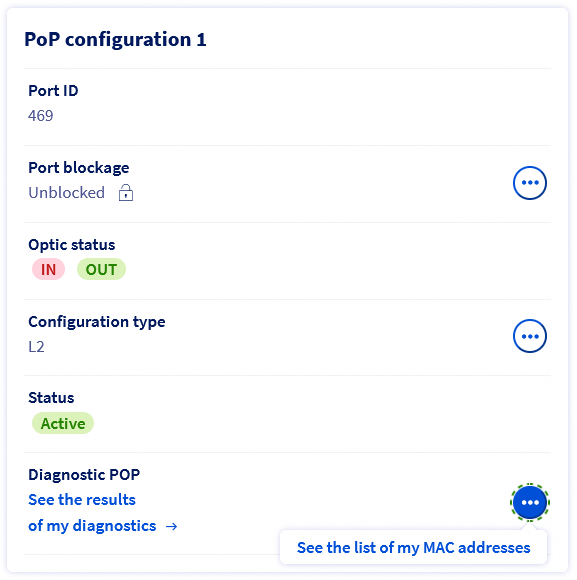
At the bottom of the "POP Configuration" panel, you will find a segment named "Diagnostic POP", and an ellipsis button .... Click it, and then select "Get the list of my MAC addresses":
You can now access the list of your diagnostics by opening the "Diagnostics" tab.
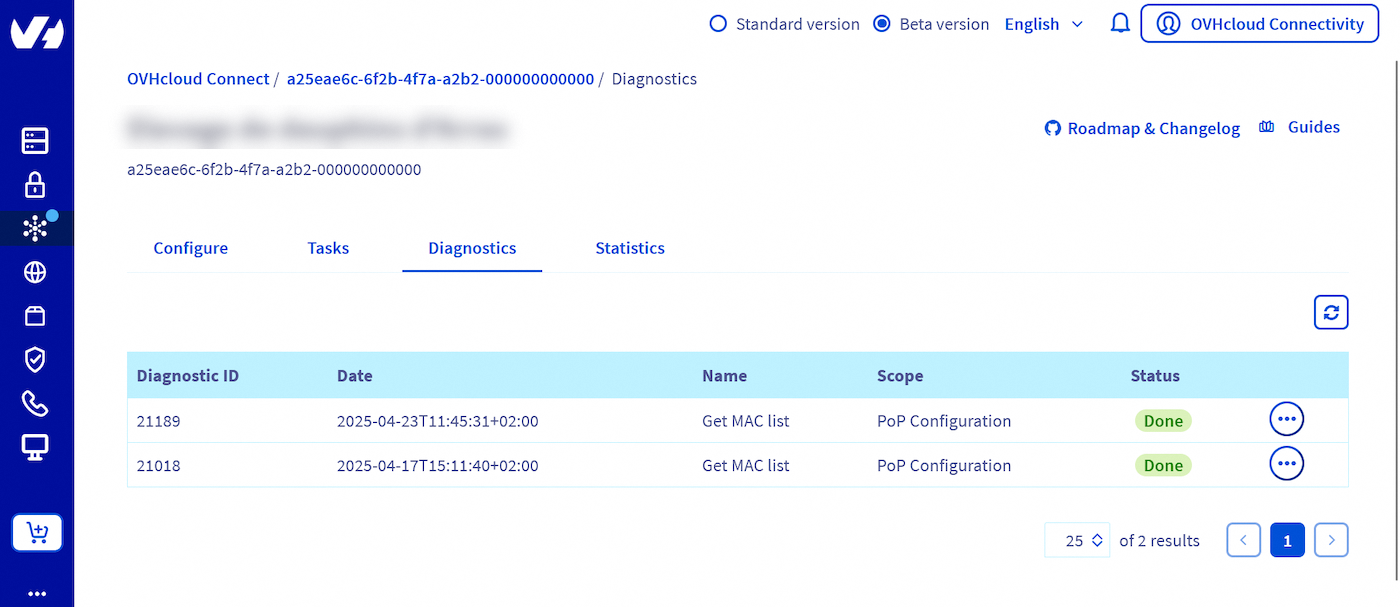
Each diagnostic is referred to using an ID and a timestamp.
To access the diagnostics content, click the ellipsis button ... located to the right of each one listed. You can select either "See result" to have a window open with the content of the desired diagnostic, or "Download result" to get a .txt file with the same content.
Limits
-
Retention time of diagnostics: Only diagnostics initiated within the last seven days are accessible. We recommend you download them and properly archive them, in case you need future access.
-
Maximum number of diagnostics: On a 24 hour period, you can initiate a maximum of 10 diagnostics per type of diagnostic, and per service. For example, if you have two OVHcloud Connect services configured on your OVHcloud Control Panel, both configured in Layer 3 mode, you can theoretically launch 10 of each diagnostic type per service, for a total of 60.
This limit has been set in order to restrict the amount of resources used by the OVHcloud infrastructures, as the diagnostics are launched in real-time.
Go further
If you need training or technical assistance to implement our solutions, contact your sales representative or click on this link to get a quote and ask our Professional Services experts for assisting you on your specific use case of your project.
Join our community of users.


 Installation of OVHcloud Connect Direct from the OVHcloud Control Panel
 311
311