

Securing Logs Data Platform's APIs with tokens
236 visualizaciones
 17.12.2025
  Cloud / Logs Data Platform
Objective
With Logs Data Platform, there are 3 ways to query your logs:
- The Graylog Web Interface
- The Graylog API
- The OpenSearch API located on port 9200 of your cluster (find its address in the Home Page) against your alias.
So you open a Grafana or even a terminal Dashboard for Graylog.
All these accesses are secured by your username and password. But what if you don't want to put your Logs Data Platform credentials everywhere? You can just use tokens to access all these endpoints and revoke them anytime you want. This tutorial is here to tell you how.
Requirements
- A service with IAM enabled to use IAM tokens or without IAM to use legacy tokens
Instructions
Generating tokens with IAM
Before generating tokens with IAM you will need to create a local user or a service account. Both have specificities detailed in the IAM documentation. Don't forget to attach these new identities to your IAM Policies.
Local Users
Create a local user by following the dedicated documentation and create the right IAM policies. Once created, you can use the OVHcloud API to create a token for this user:
This call will return a bearer access token for your local user.
You can then use this token on Logs Data Platform backend APIs:
Or with the Bearer header:
These tokens do not expire but can be deleted whenever needed with this call:
Service accounts
Create a service account and tokens by following the documentation. Service accounts are an identifier/token pair following the OAuth2 client- credentials authentication mechanism. If you are familiar with OAuth2 clients, here are the API calls to create them. We still recommend you to read the dedicated guide to understand its specificities. We encourage you to use local users if you can since they are easier to set up.
To create a service account, use the following API call:
With this API call, you can create OAuth2 credentials for several authentication mechanisms. The one we are interested in here is CLIENT_CREDENTIALS. This mechanism does not require a callback URL.
You must supply the following values:
- callbackUrls: An empty array of callback URLs
[]. - flow:
CLIENT_CREDENTIALS. - name: The name you would like to provide to your identifier.
- description: A description of your identifier. We recommend describing how you will use this identifier. If you audit your access in the future, it is easier to link it to your application name, so that you can easily find out where the identifier is deployed (and what the impact will be if you change your access).
In response, the API will provide you with two pieces of information:
- clientId: Your service account ID.
- clientSecret: A token allowing you to authenticate yourself on our APIs. This information must be stored securely. With these two credentials, you can log in to this service account and get the rights associated with it. Save this value. It will not be possible to retrieve it at a later stage.
In order to retrieve an API token, you can use the following HTTP call with these two pieces of information:
Depending on the location of your API, you will need to use the following URL:
- EU API:
https://www.ovh.com/auth/oauth2/token. - CA API:
https://ca.ovh.com/auth/oauth2/token.
Following this API call, you will receive a response in the following format:
Save the token in the access_token field. You will need it to authenticate your API calls.
This access token can then be used to interact with Logs Data Platform backend APIs. Don't forget to manage access rights of your service account with the IAM policies.
Or with the Bearer header:
Note that access tokens created through a service account expire after some time. You must regenerate a new one after it has expired.
Hybrid authentication
For software that does not support the Bearer authentication scheme, we provide a hybrid authentication mode based on the Basic authentication scheme. Use a username that starts with pat_jwt_ and supply the token value as the password.
Legacy tokens
Legacy tokens are still working and maintained for users without IAM. They are not available to IAM-enabled users. We strongly encourage you to migrate to IAM now and use the more flexible tokens described above.
Once you have logged into Logs Data Platform you will have access to the token generation function from the Configuration panel.
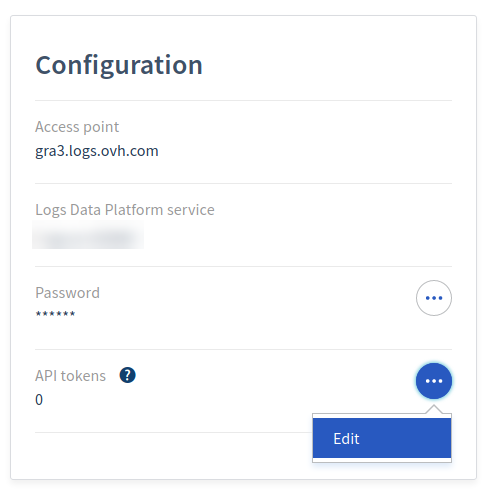
On this page you will have the possibility to create a token and to remove them. Note that you cannot modify a token.
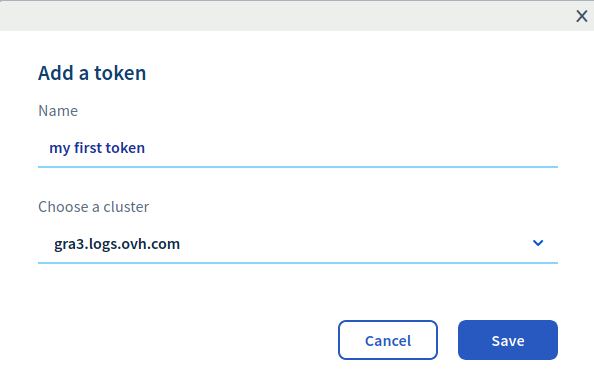
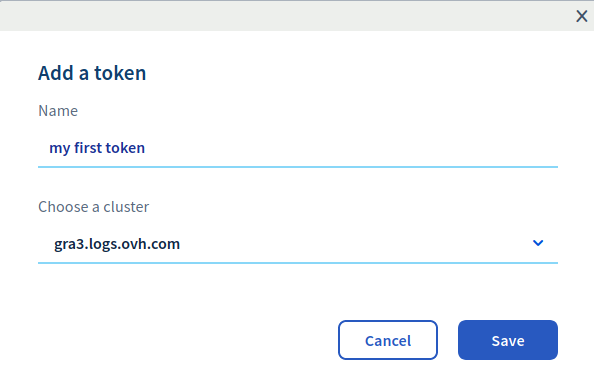
Once the token is created, you can use its value or remove it:
Using your legacy tokens
Using your legacy token is not different than using your credentials. You just have to replace your username with the word token and your password with the legacy token (the opposite works too). For example, to issue a search against the Graylog API with the legacy token obtained above, you can do the following:
Note that you have to replace the stream value in the filter parameter by the Graylog Id of your stream. The Graylog id can be found in the URL of your stream search page in Graylog. This URL has this form:
https://gra2.logs.ovh.com/streams/5ab52dc43ce3010451deacd1/searchThe value 5ab52dc43ce3010451deacd1 is the Graylog Id of your stream.
To issue a search against the OpenSearch API, you also use the same credentials.
This call will launch a quick search (to retrieve the count and a sample of your documents) against the alias your_alias. Replace the alias by the one you have set up in your Logs Data Platform console. Note that these credentials are usable in place of your account credentials in Grafana (or any tool that supports Basic Authentication with OpenSearch).
The Graylog Web Interface does not support legacy token authentication.
Go further
- Getting Started: Quick Start
- Documentation: Guides
- Community hub: https://community.ovh.com
- Create an account: Try it!


 Archiving your logs - Cold-storage
 243
243