

How to manage Windows licences for virtual machines on your Hosted Private Cloud infrastructure
216 visualizaciones
 06.01.2026
  Cloud / VMware
Objective
This guide explains how to manage Windows licences for your virtual machines hosted on your Hosted Private Cloud infrastructure.
The OVHcloud Control Panel now includes a new feature, which allows you to:
- View the number of Windows virtual machines requiring a licence.
- Instantly activate a licence on eligible VMs from the interface.
This gives you better visibility, reduces the need for API calls and helps ensure compliance with Microsoft licensing requirements.
OVHcloud simplifies the management and billing of your Windows licences by allowing you to tell us which virtual machines require the use of a licence.
However, you remain responsible for the accuracy of the data you provide to us, and OVHcloud cannot be held liable for any unauthorized use of a Windows system on your part.
Requirements
- A Hosted Private Cloud service powered by VMware.
- At least one virtual machine running a Windows operating system.
- You must have activated the Windows licences in your OVHcloud Control Panel. See the "Windows Licence" section of our guide "Introduction to the Hosted Private Cloud Control Panel" for more information.
- Allow outgoing TCP connections on port 1688 from licensed VMs to kms.ovh.net in your firewall settings.
Instructions
Activate and monitor Windows licences directly from the OVHcloud Control Panel
This feature only applies if you want OVHcloud to licence your Windows VMs via SPLA. If you bring your own licence (BYOL), you do not need to activate anything in the OVHcloud Control Panel.
Check your Windows licence usage in the Control Panel
-
Go to the
Hosted Private Cloudsection of your OVHcloud Control Panel and clickManaged VMware vSphere. -
Select your service, then open the
Datacentertab.
Here, you will find:
- The total number of VMs running in your datacenter.
- The number of Windows VMs (requiring a licence).
- The number of declared Windows VMs (licenced by OVHcloud).
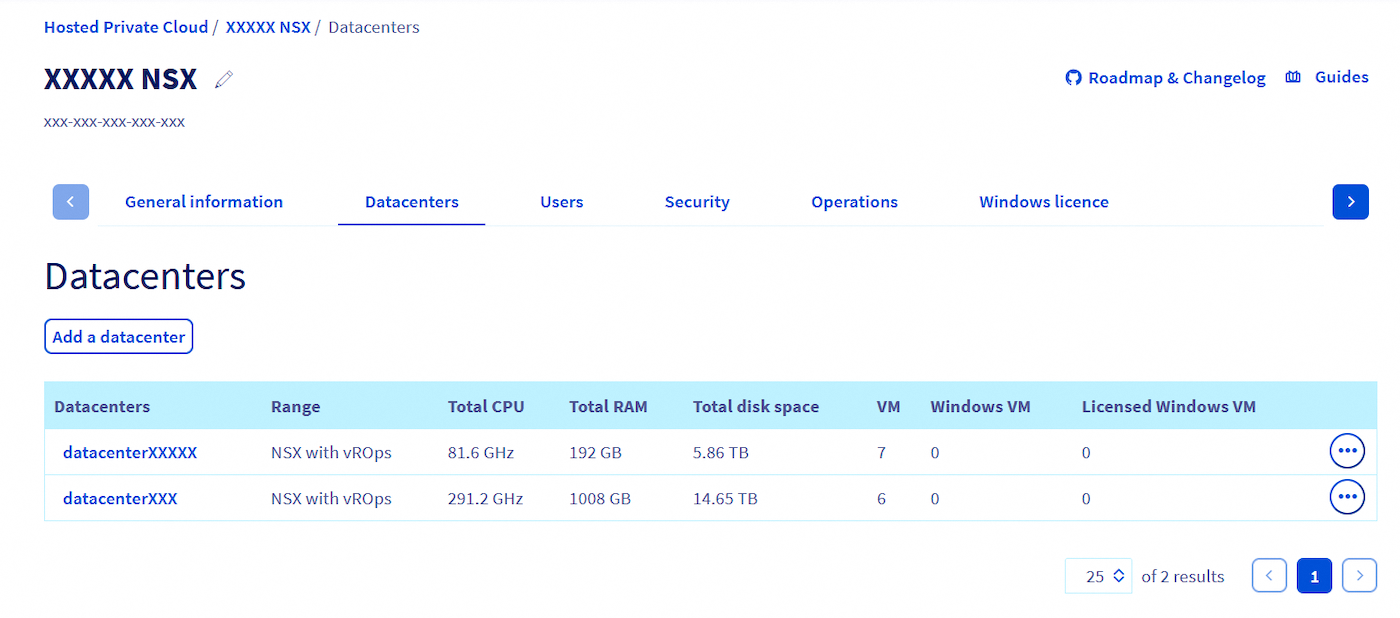
Activating the licence in the OVHcloud Control Panel is only required if you want OVHcloud to provide a Windows SPLA licence for the VM.
Understand the two Windows licence management modes
There are two scenarios:
-
Case 1: You bring your own Microsoft licence (BYOL):
- No action required in the interface.
-
Case 2: You want OVHcloud to licence the VM:
- The VM licence must be activated in the OVHcloud Control Panel for it to be billed properly.
Activate a Windows licence from the OVHcloud Control Panel
- In your
Datacenter, go to theVirtual Machinestab. - Locate the VM that needs to be licenced.
-
Click
...on the right, then clickActivate licence.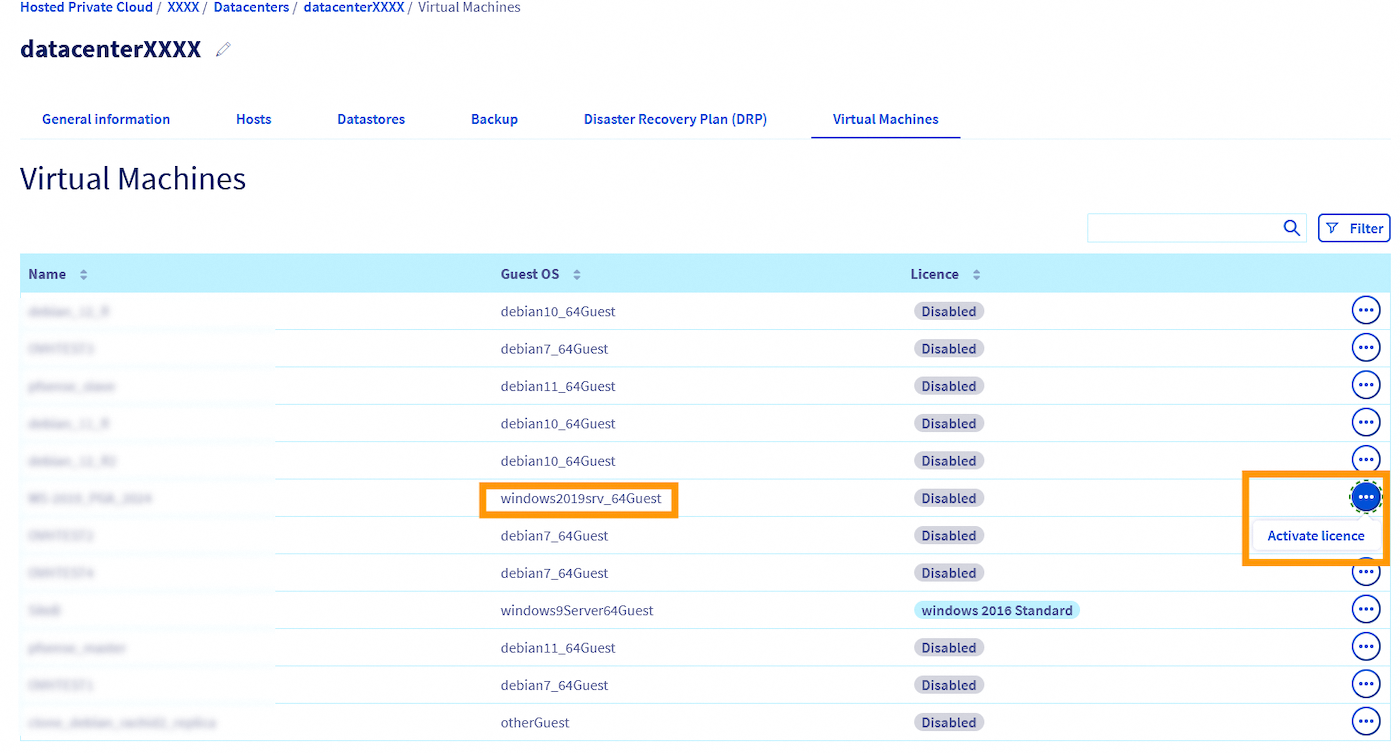
-
Choose the appropriate licence from the dropdown menu.
-
Click
Activateto confirm the action.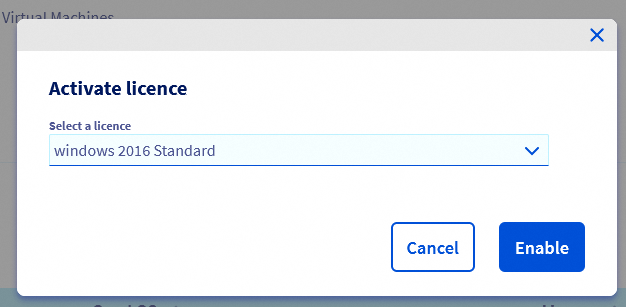
The VM is now declared and licenced by OVHcloud. It will appear in your billing and compliance tracking.
When you install a Windows Server operating system, the product key – also known as a KMS (Key Management Service) key – may not be installed correctly. In such cases, the operating system has been installed with a 120-day trial key. Once this time period elapses, the operating system can no longer be used.
This guide will show you how to change the product key for your Windows Server environment.
Manage licences using the OVHcloud API
If you prefer to automate or integrate Windows licence management into your workflows, you can use the OVHcloud API to list, assign, update or remove licences on your virtual machines.
List virtual machines with a licence
You can quickly check which virtual machines in your infrastructure are licenced via the OVHcloud API:
Return example:
Verify the licence of a virtual machine
You can check the licence currently associated with one of your virtual machines via the OVHcloud API:
If no licence is attached to it, the license field value will be null.
Return example:
Update the licence of a virtual machine
You can update the licence associated with one of your virtual machines via the OVHcloud API:
Virtual machines deployed from VMware content libraries are automatically attached to a corresponding Windows licence.
In order to avoid the incorrect allocation of a Windows licence on a virtual machine, the API call above will return an error in the case where the virtual machine has been configured for a different operating system from your vSphere interface.
You can resolve this by changing the VM settings or you can choose to ignore this error by passing the option bypassGuestOsFamilyCheck.
Unlicence a virtual machine
You can delete the licence associated with one of your virtual machines via the OVHcloud API:
Go further
For specialised services (SEO, development, etc.), contact OVHcloud partners.
If you would like assistance using and configuring your OVHcloud solutions, please refer to our support offers.
Join our community of users.


 Activar la certificación PCI DSS en el Private Cloud de OVH
 323
323