

Activar el modo promiscuo en una máquina virtual (EN)
601 visualizaciones
 25.05.2023
  Cloud / VMware
Objective
Promiscuous mode removes any inbound filtering that the virtual machine network card can perform, so that the guest operating system receives all observed traffic on the network. By default, the virtual machine network card cannot operate in promiscuous mode.
It may be necessary in some cases to enable promiscuous mode for the proper operation of certain HA protocols such as Common Address Redundancy Protocol (CARP).
Requirements
- a Hosted Private Cloud infrastructure
- a user account with access to vSphere (created in the OVHcloud Control Panel)
Instructions
A distinction should be made between two situations. Depending on the Distributed Virtual Switch (DVS) involved, the solutions will be different:
- dvs public (name: pcc-xxx-xx-xxx-xx_DCxxx-dvs, vmnetwork or vxlan)
- dvs vrack (name: pcc-xxx-xx-xxx-xx_DCxxx-vrack, vlan vrack)
Public DVS
Retrieving information
Customers are now autonomous to perform this action through our API. The following API calls can be used.
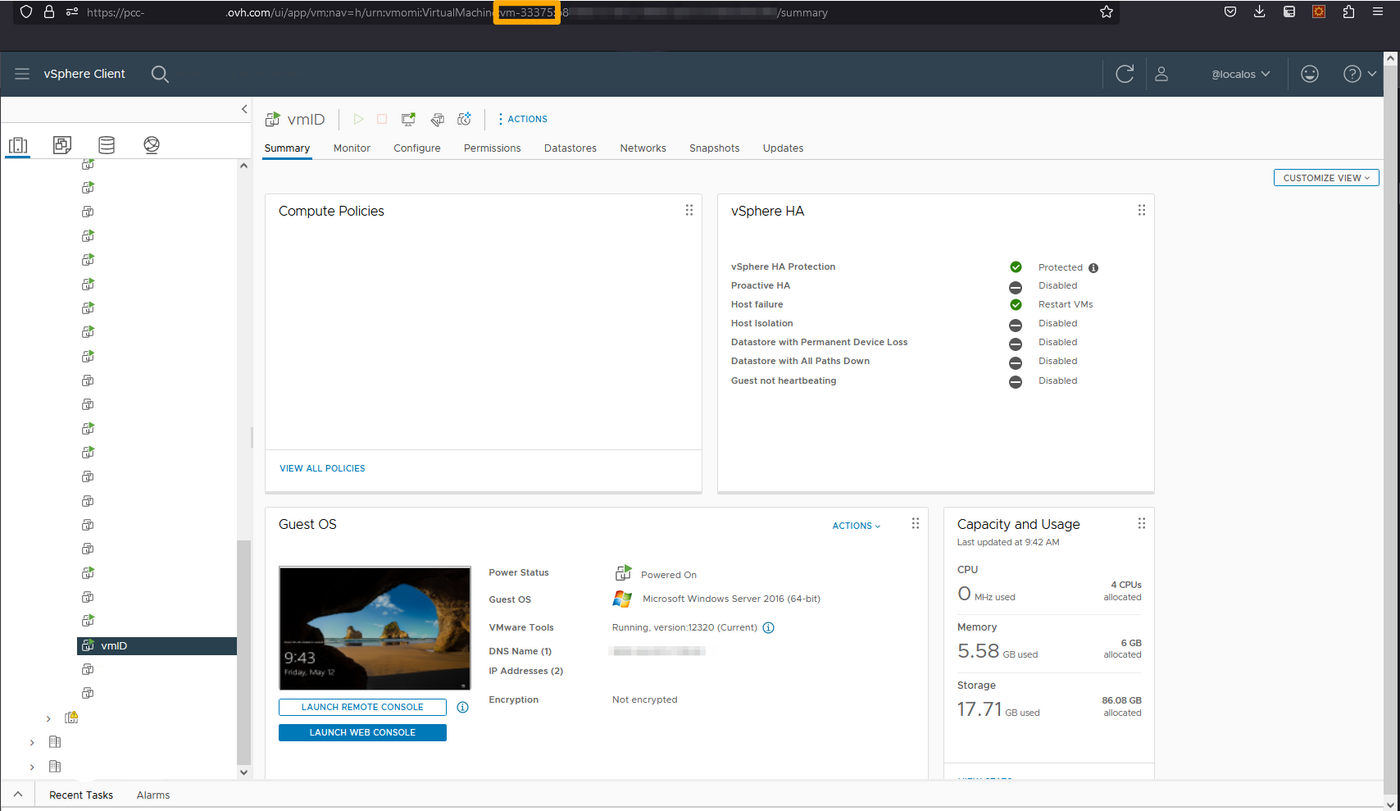
First, retrieve the vmId and datacenterId. This information can also be obtained from vSphere.
From the OVHcloud API:
From vSphere:
First, connect to your vsphere and select the VM from the list of VMs in the left tab:
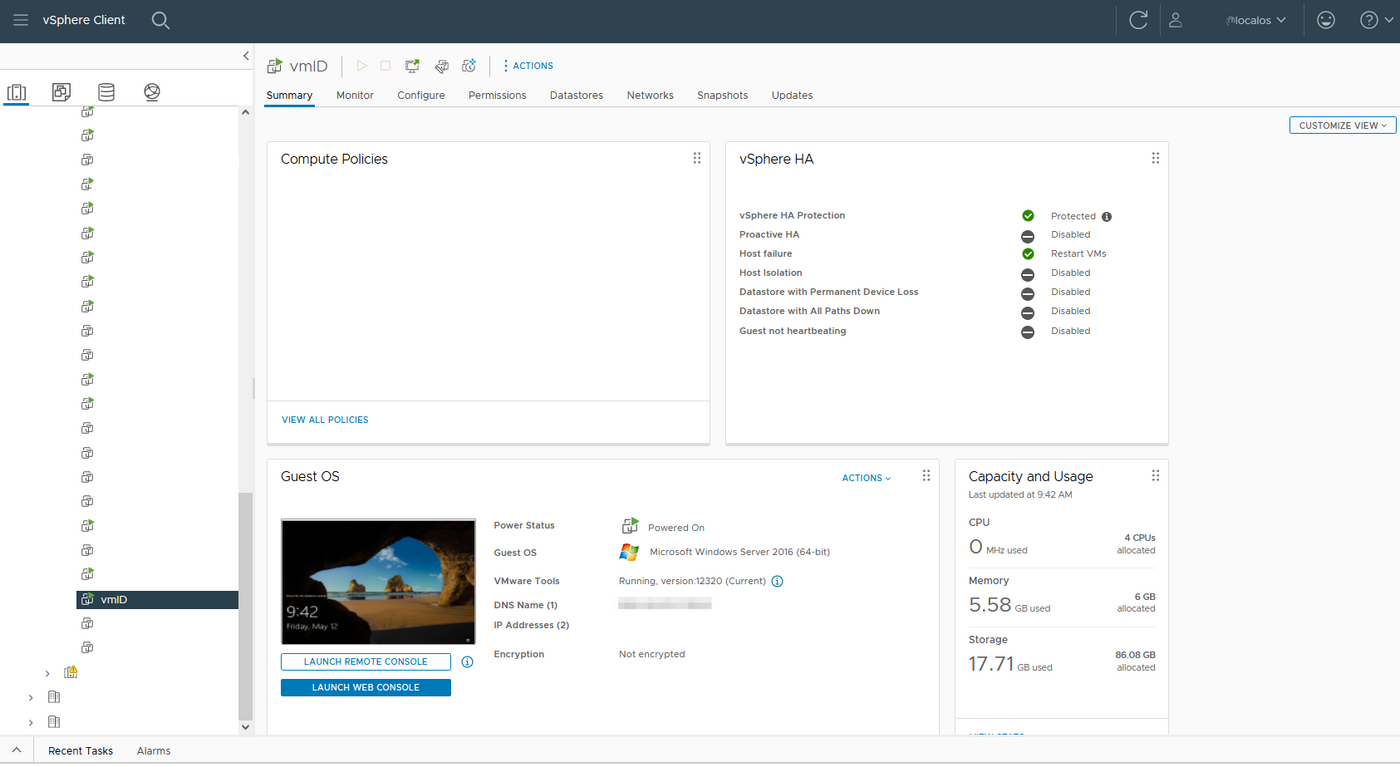
Once done, you can retrieve the vmId from the URL:
Enabling promiscuous mode on a Virtual Machine
Use the following API call:
Enter the following information:
serviceName: name of your PCCvmId: vmID previously retrieved from vSphere or from the APIdatacenterId: previously retrieved from the APImacAddress: the macAddress of the network interface of the VM where CARP needs to be enabled
Disabling promiscuous mode on a Virtual Machine
Use the following API call:
Verifying if promiscuous mode has been activated on the Virtual Machine
Use the following API call:
vRack DVS
In this case, you can perform the manipulation directly from vSphere by following the procedure below.
Enabling promiscuous mode on a port in vSphere
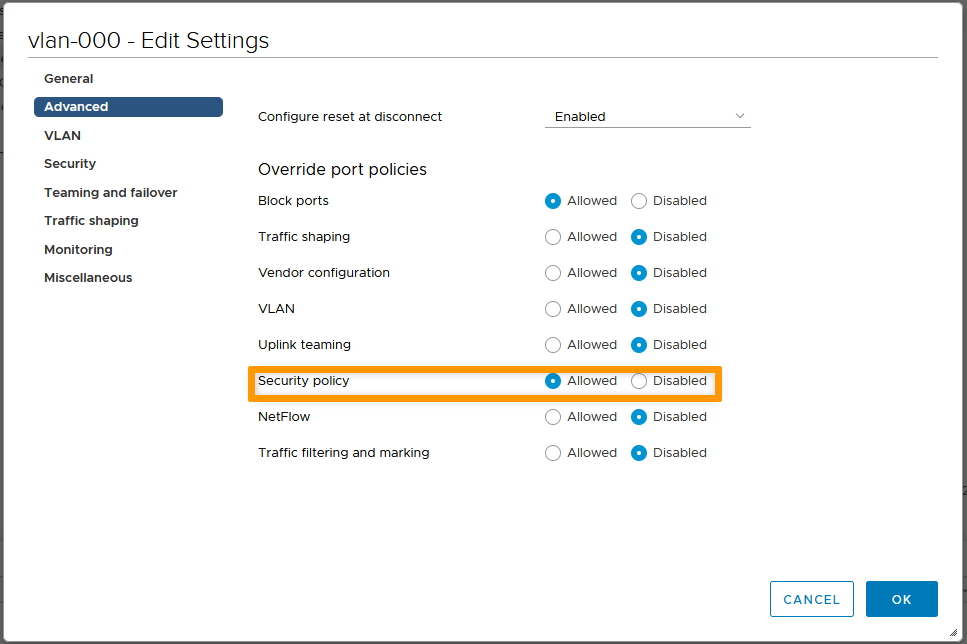
To begin, you need to check that the DVS allows the possibility of having a different configuration on the port (by default the DVS one is applied).
To do this, right-click on the portgroup, click Edit Settings, then on Advanced and check that the Security Policy line is set to Allowed.
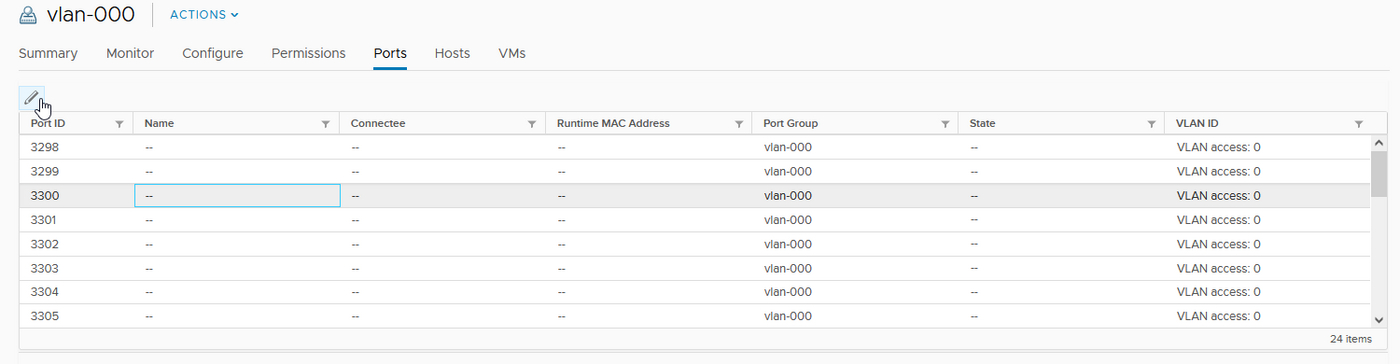
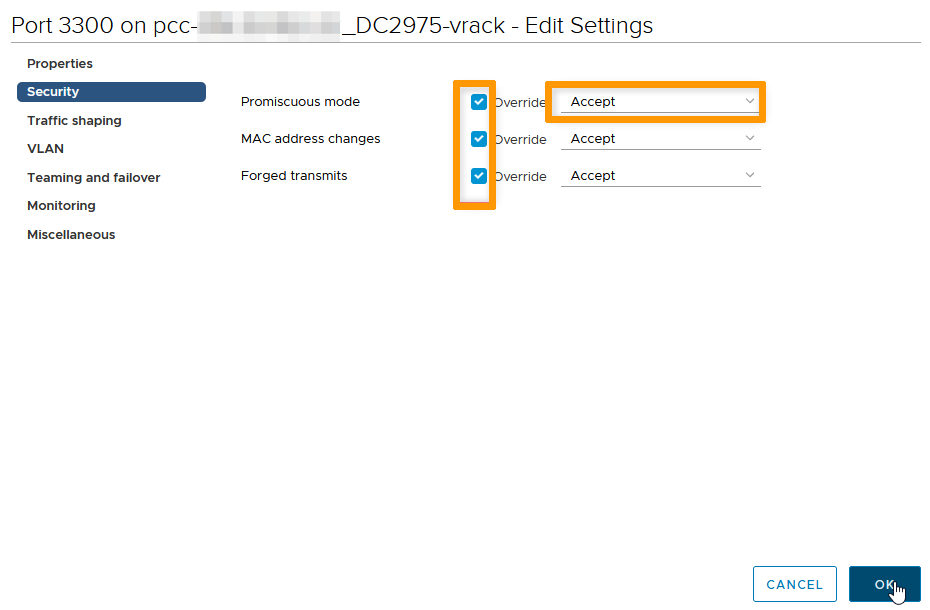
You can then select the port where the VM is connected and click on the pencil icon at the top left.
In the Security section, check Replace and change the security policy to Accept for all three options, if it is not already the case.
Enabling promiscuous mode on an entire portgroup in vSphere
This manipulation should never be done on a public DVS, it is only possible on the vRack DVS.
It is possible to do the modification directly on the portgroup, this will have the advantage of applying the configuration to all ports (and thus avoid having to do it at VM creation/restoration).
However, this can be a security risk, as promiscuous adapters have access to packets, even if some of those packets are only received by a specific network adapter. This means that an administrator or root user in a virtual machine can potentially see traffic destined for other hosts or guest operating systems.
It is therefore important to do so with full knowledge of the circumstances.
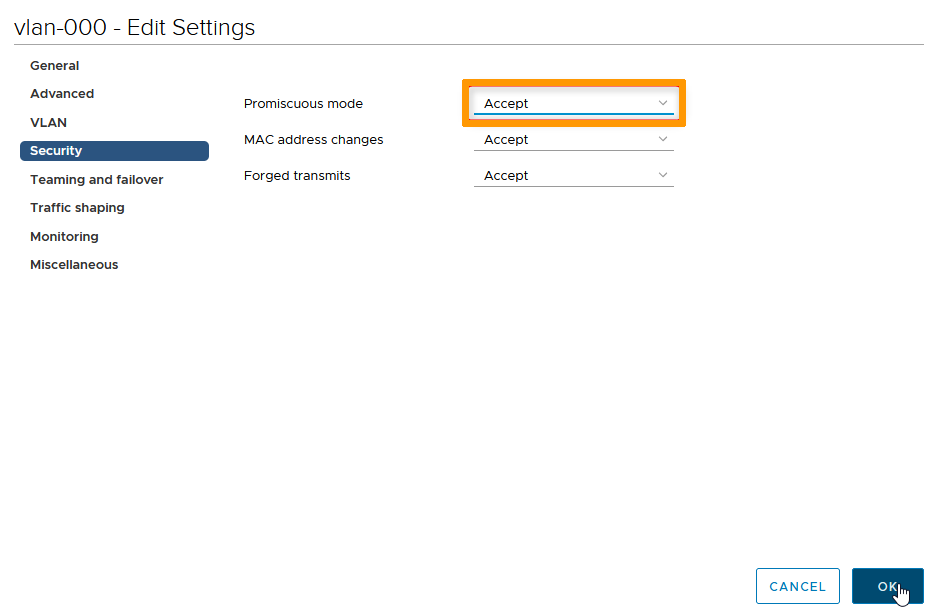
In this case, simply right-click on the portgroup in question, then click on Change settings. Next, go to the Security section and change the security policy to Accept for all three options, if it is not already the case.
Go further
Join our community of users on https://community.ovh.com/en/.


 Evitar el modo de solo lectura del disco de las MV en Linux
 1186
1186