

Object Storage Swift - Configurar ownCloud con el Object Storage (EN)
334 visualizaciones
 20.05.2022
  Cloud / Object Storage S3
Last updated 20th May 2022*
Objective
ownCloud is an online storage and file management application. This solution offers several features, including synchronisation between multiple devices. You can also add external storage such as OpenStack Object Storage.
This guide explains how to configure your ownCloud with Object Storage.
Requirements
- The OpenRC file, obtained from the OVHcloud Control Panel or Horizon
- Storage space dedicated to ownCloud
Instructions
Installation
Firstly you have to install ownCloud:
Make sure that the repository you use contains the latest version of ownCloud.
To function, OwnCloud must have a MySQL database. If you do not already have one, install it by running this command:
Configuration
To configure the database that will be used by ownCloud, log in to your MySQL server with the root password defined when the server was installed:
At this point, you can create a new user and a database dedicated to ownCloud:
Log in to ownCloud on your browser by entering: http://serverIP/owncloud:
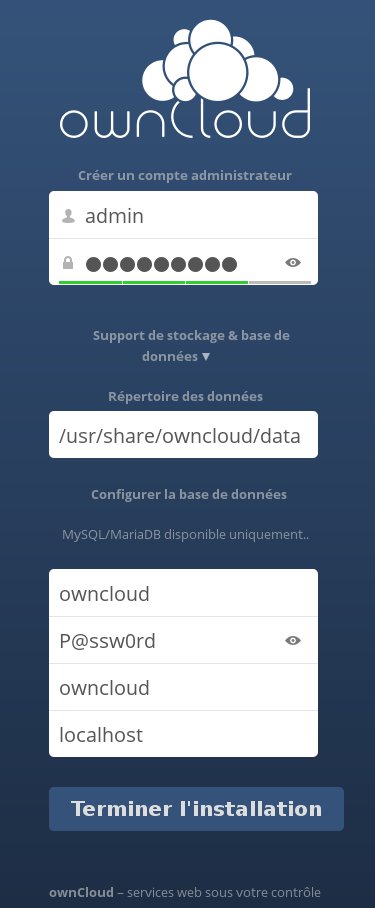
In this interface:
- Create an administrator account.
- Enter the data directory (optional, if you just want to use the Object Storage, you can leave the default one).
- Enter your database credentials.
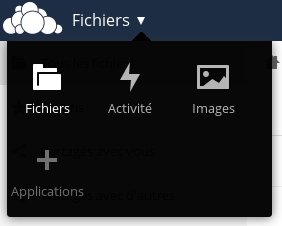
After confirming the operation, you can access your OwnCloud interface and activate the application that allows you to add an external storage support.
To do so, click on File on the top left and select Applications:
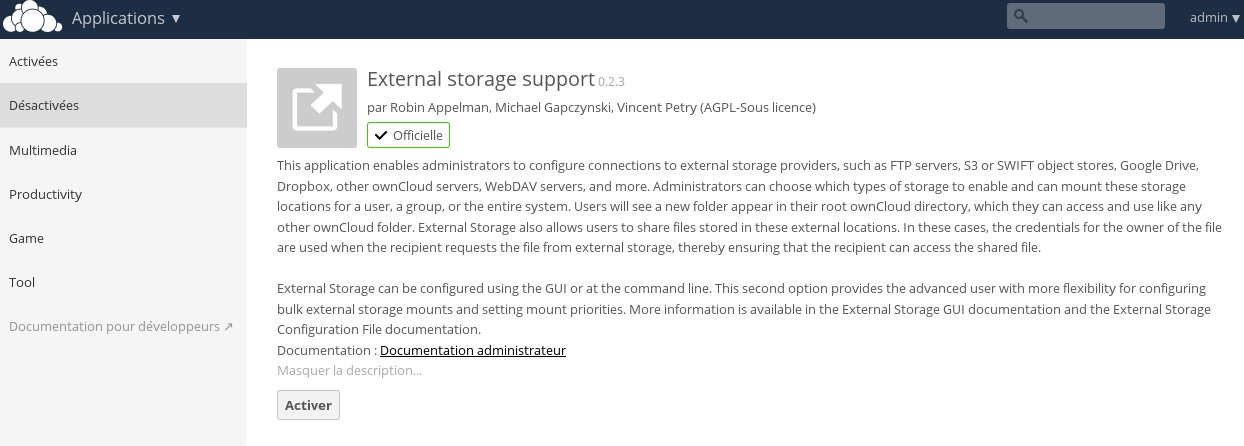
Then enable the External storage support application from the Disabled applications menu.
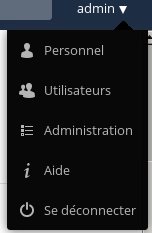
Having done so, configure this application by clicking on your username at the top right and selecting Admin:
In the External storage menu, select Add storage and OpenStack Object Storage:
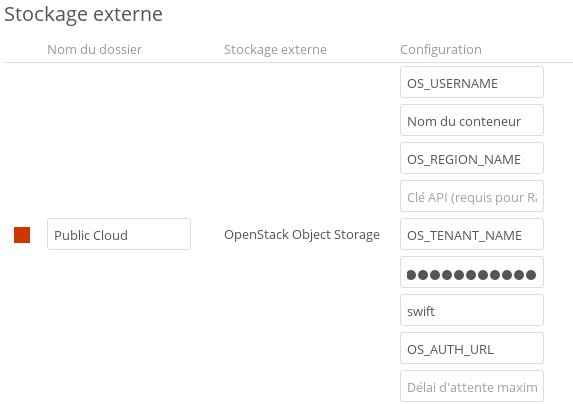
Enter the details from your OpenRC file:
- Your Horizon username which corresponds to the "OS_USERNAME" field in the OpenRC file
- The name of your container which you previously created for ownCloud
- The region that your container is in: "OS_REGION_NAME"
- The tenant name, corresponding to the "OS_TENANT_NAME" field
- Your Horizon password
- The service name corresponding to "Swift"
- The endpoint address, corresponding to the "OS_AUTH_URL" field or "https://auth.cloud.ovh.net/v3"
The "API key" and the "Maximum waiting time" are optional.
The container that you have created must be entirely dedicated to ownCloud because the application will use metadata.
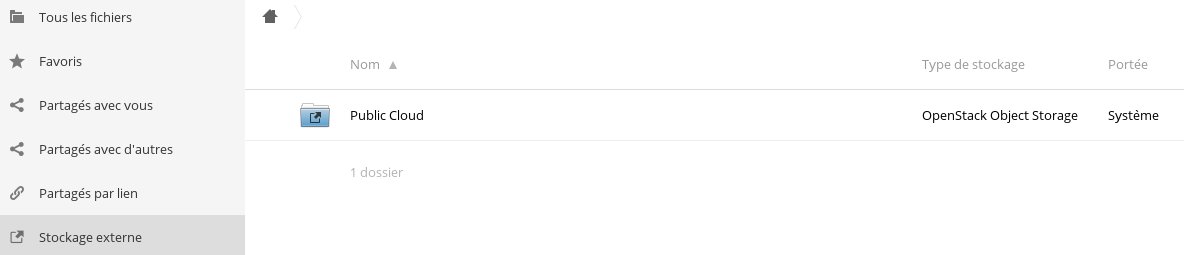
Once you've entered all the information and checked that it is correct, the red box in front of your folder name will turn green and will be available in the External storage section of your homepage:
Go further
If you need training or technical assistance to implement our solutions, contact your sales representative or click on this link to get a quote and ask our Professional Services experts for assisting you on your specific use case of your project.
Join our community of users.


 Object Storage Swift - Using Object Storage with Rclone
 800
800