

Update a subnet properties (EN)
192 visualizaciones
 22.01.2024
  Cloud / Network Gateway for Public Cloud
Objective
This page explains how to update the properties of an existing subnet. This can be needed if you want to comply with the pre requisites to be able to use the Public Cloud Gateway : have a gateway IP defined in your subnet.
For this example, we will use a private network and a subnet with the following properties:
- CIDR 10.1.0.0/16
- DHCP enabled with allocation pool on the global range
- No gateway IP
We will see how to update it to have a gateway IP set to 10.1.0.1 and remove that IP from the allocation pool.
Requirements
You must have created a private network and a subnet as explained in this guide.
Instructions
Using the OVHcloud Control Panel
It is currently not possible to update a subnet through this interface but you can use our Horizon interface instead (see the instructions below).
Using Horizon
Connect to Horizon & choose the region where the subnet is defined as explained in this guide.
Click on Project > Network > Networks. The page will display the list of networks available which contain an OVHcloud managed network for public connectivity (Ext-Net) as well as your network.
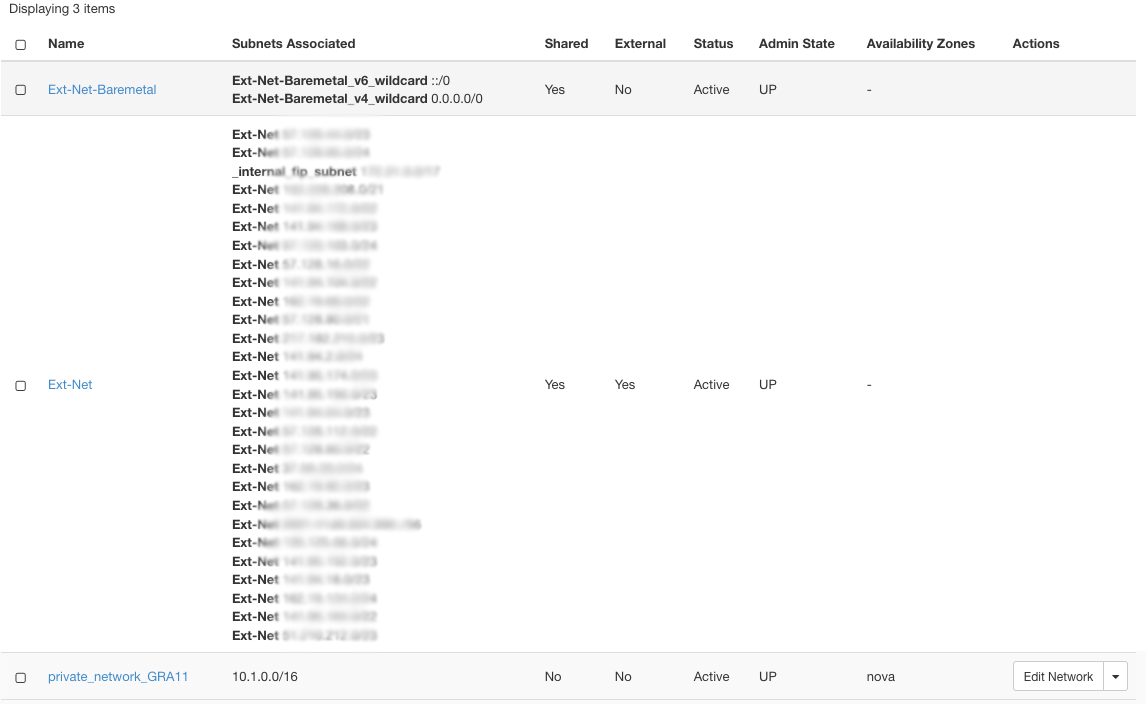
In that list, click on your network name ("private_network_GRA11" in this example). The network detail page is then displayed.
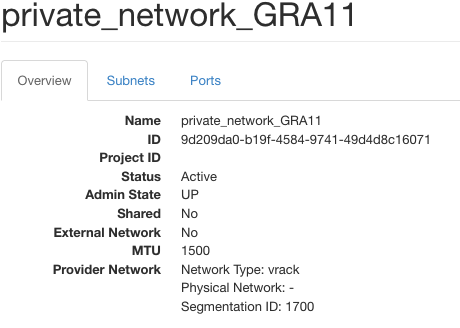
Click the Subnets tab: the subnets from the private network are listed.
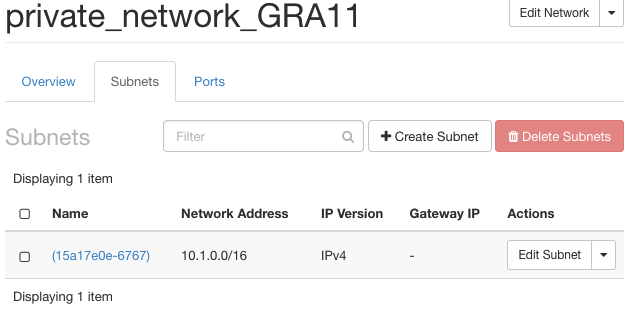
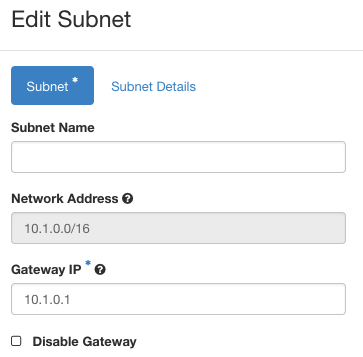
Click on your Edit Subnet. For this guide, our target is to add a gateway IP:
- Click untick the
Disable Gateway. The fieldGateway IPwill appear. Fill it in with an IP within your CIDR (usually the first IP of the range is used). In our case,10.1.0.1.
- Click on
Subnet Details. Update theAllocation Poolsto remove the gateway IP that you entered in the previous step. In our case, we need to update from10.1.0.1,10.1.255.254to10.1.0.2,10.1.255.254
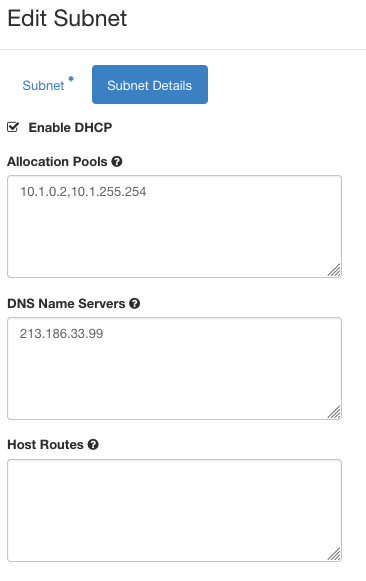
Click on Save and your subnet is updated with a gateway IP !
Using the OpenStack Command Line Interface
You need to have your CLI environment set up and your variables defined.
Run the following command (replace private_network_GRA11 by the name of your private network):
In this output, the subnets line provides the UID of your subnet.
You can check your subnet detail by running the following command (update the UID according to your value !):
Now let's update the gateway_ip and the allocation_pool:
You can check that the subnet has been updated:
Go further
If you need training or technical assistance to implement our solutions, contact your sales representative or click on this link to get a quote and ask our Professional Services experts for assisting you on your specific use case of your project.
Join our community of users.


 Changing the MTU size for existing networks using OpenStack CLI/API (EN)
 299
299