

Set up logs forwarding for Public Cloud Databases
170 visualizaciones
 28.10.2024
  Cloud / Logs Data Platform
Objective
Public Cloud managed databases allow you to send logs of your service to your own Logs Data Platform (LDP) data stream.
This guide explains how to forward service logs to your own LDP stream with the OVHcloud API.
Requirements
- A Public Cloud database service up and running
- Access to the OVHcloud API
- A Logs Data Platform account within this OVHcloud account with at least one destination stream configured
- If you are not familiar with all the LDP Stream configuration possibilities, simply create a new one with the default options (indexing & websocket enabled, long-term storage disabled) for the purpose of this guide.
- A running database service
OVHcloud Control Panel Access
- Direct link: Public Cloud Projects
- Navigation path:
Public Cloud> Select your project
Instructions
Create your subscription
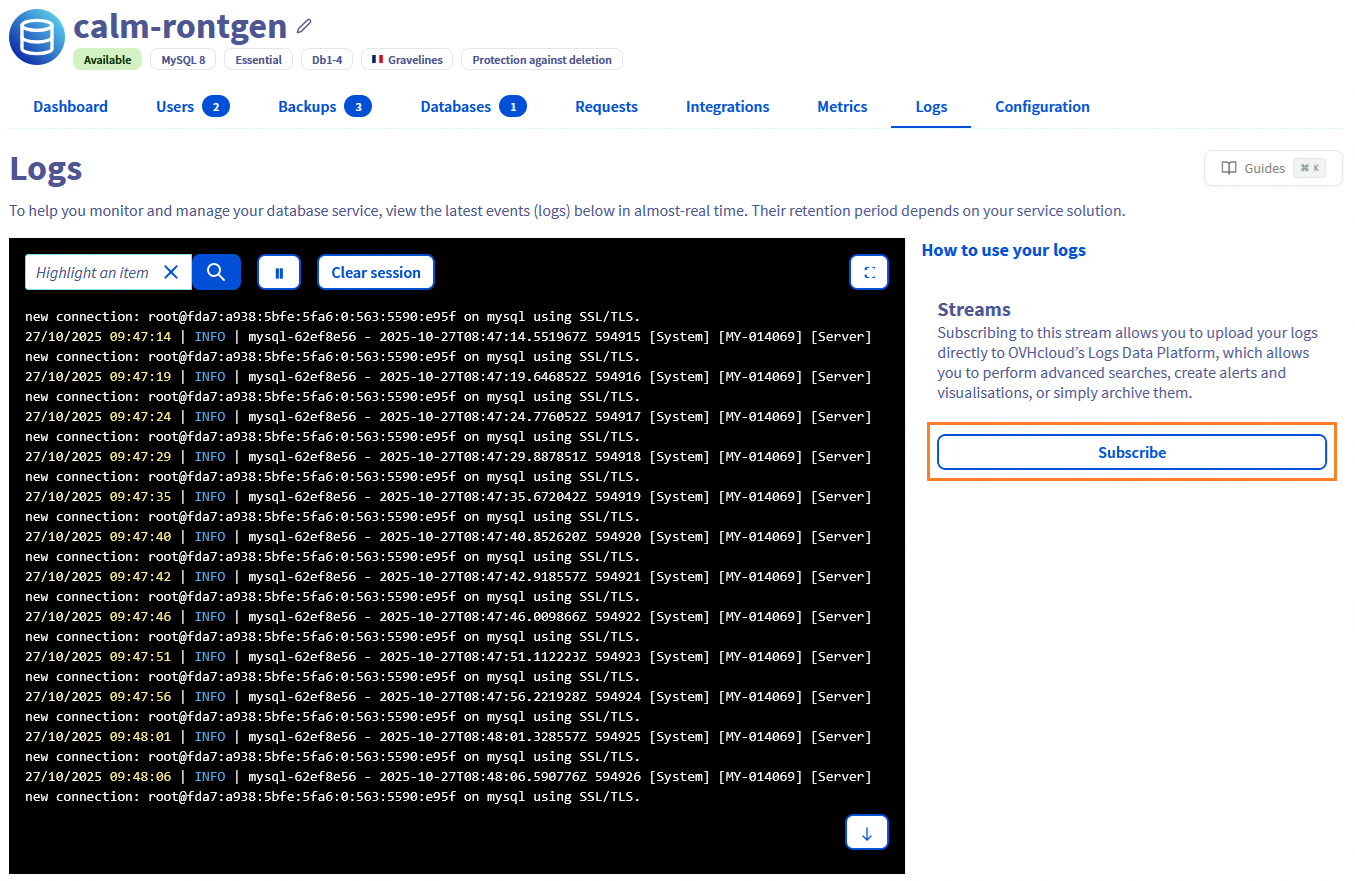
On the database instance page, go to the Logs section and click the Subscribe button.
Select the relevant LDP account by clicking the Subscribe button.
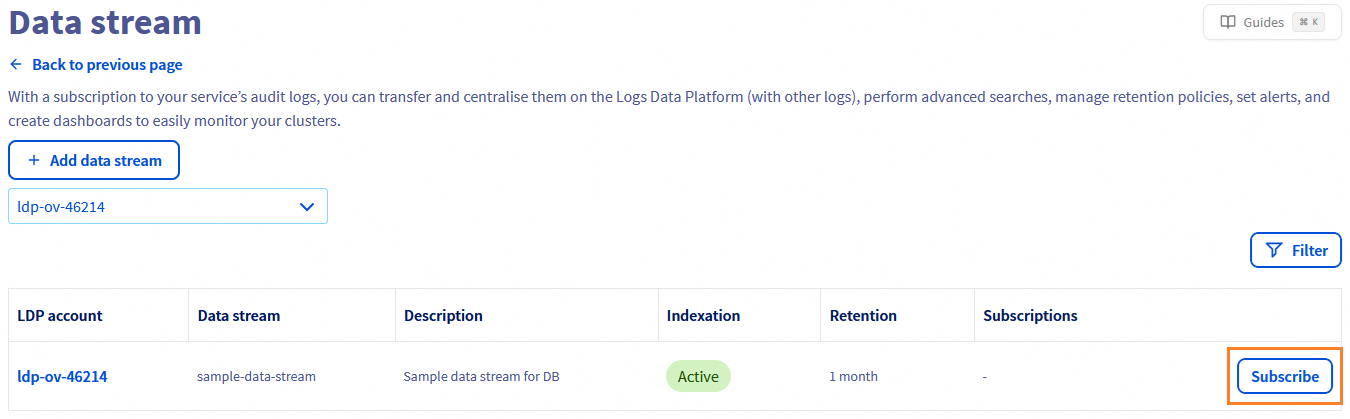
The logs will then start to be forwarded to your LDP stream.
1. Retrieve the required information
Retrieve your LDP destination streamId:
Log in to the OVHcloud Control Panel, go to the Identity, Security & Operations section. In the left-hand menu, select Logs Data Platform then click on the relevant LDP instance.
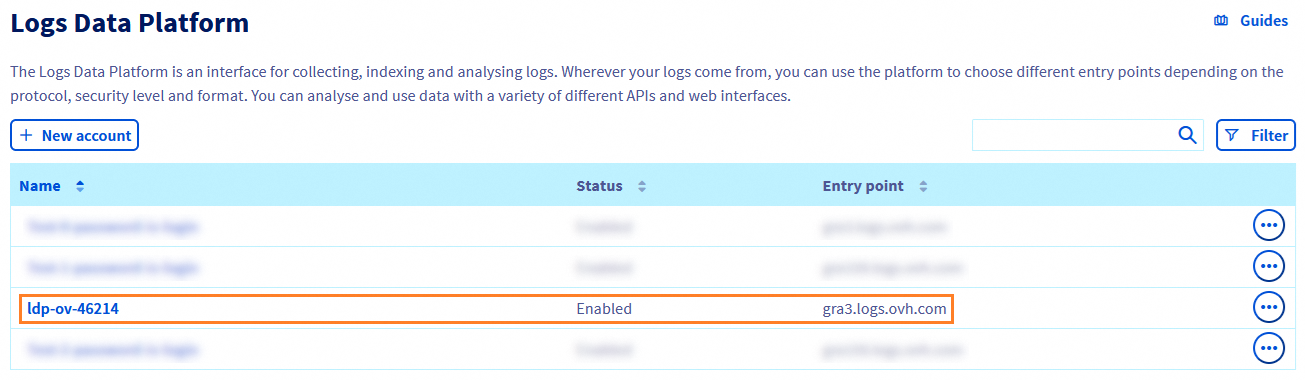
Go to the Data stream tab.
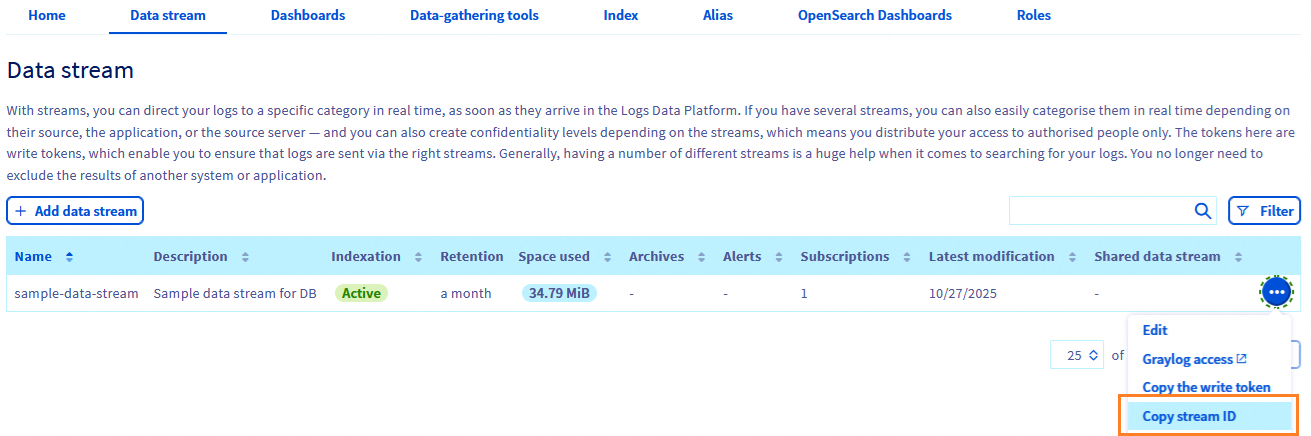
Choose your target stream and click on Copy stream ID.
Retrieve your LDP destination serviceName:
- This refers to your Public Cloud project ID. You can retrieve it in the Public Cloud section of your project.
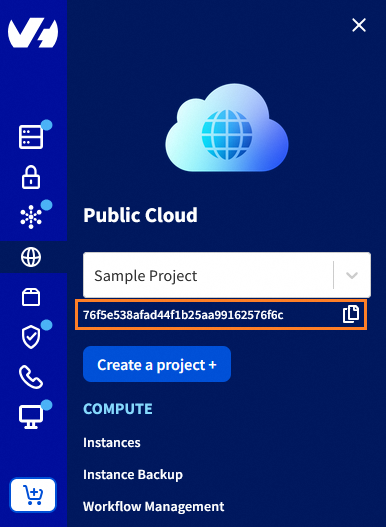
Retrieve your clusterId:
In the left-hand menu, click on Databases, then choose the database instance you want to manage.
In the cluster details, you can find the Service ID field, which corresponds to the cluster ID.
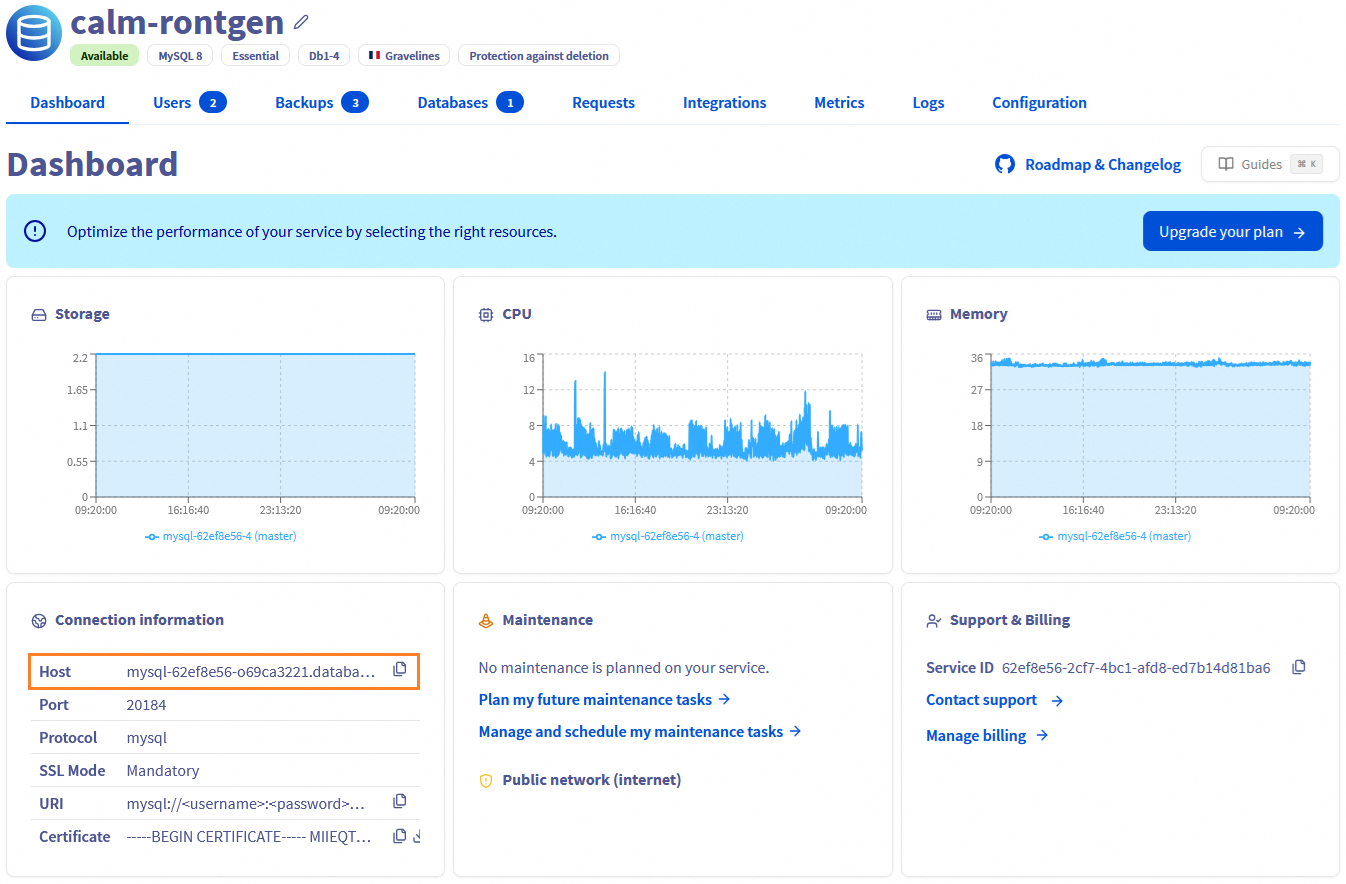
2. Start by retrieving the types of logs available for your database cluster with the following API call:
This will return the list of valid kind values you can use when subscribing to logs.
3. Once you know the valid kind, use it to subscribe to a log stream with this API call:
The logs will then start to be forwarded to your LDP stream.
Find logs in Graylog
On the LDP page, click the sample-data-stream button (the last data stream modified when you previously subscribed to it), or click the Graylog button.
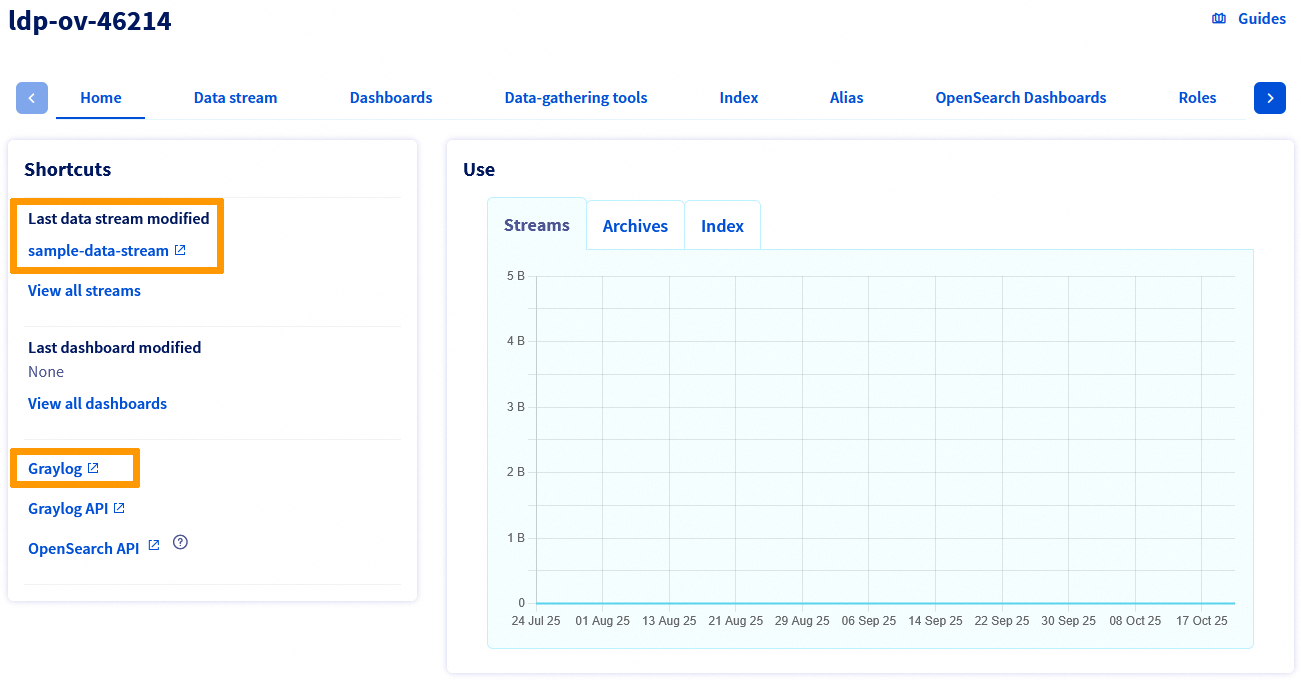
You need to log in using your Graylog credentials. You can retrieve them from the LDP details page, in the Configuration section. The login corresponds to the value shown on the Logs Data Platform service line, and the password is displayed under Password.
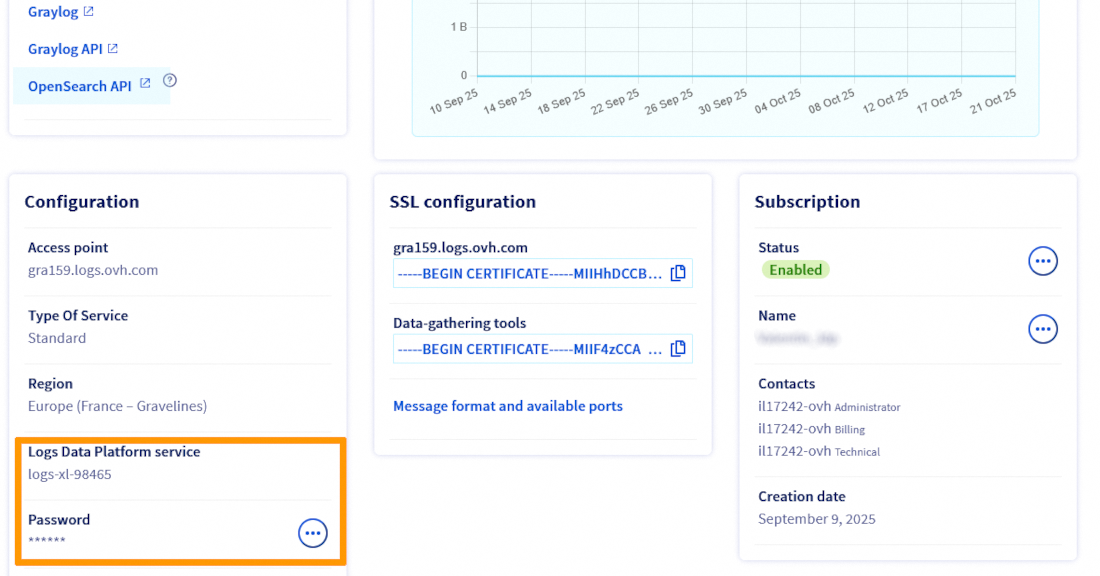
Once connected, you can view your service logs in your Graylog stream.
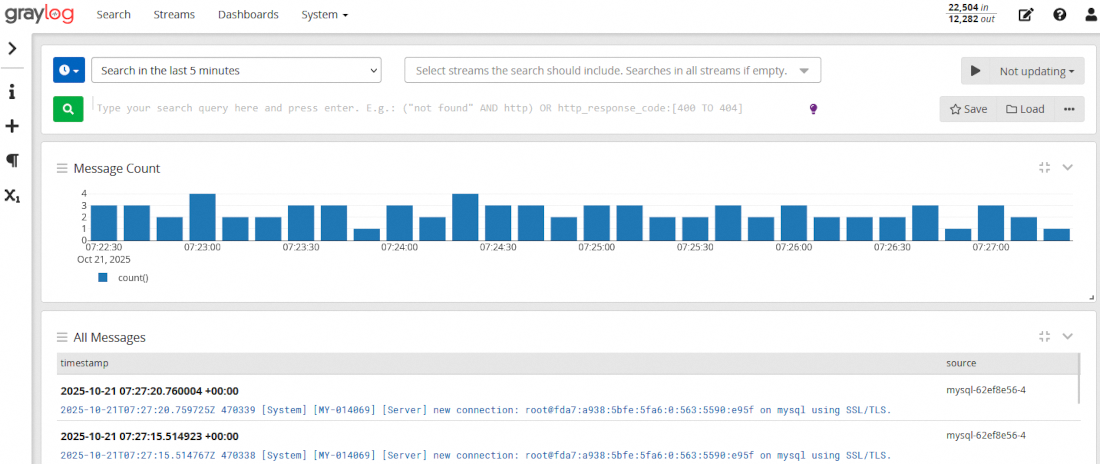
You can also use the following Graylog queries for more granular filtering:
MongoDB
Query: cluster: "<HostID>"
You can find this HostID in your OVHcloud Control Panel:
- In
Login informationswitchServicetomongodb - Now you can see the
Hostfield with the format<HostID>.database.cloud.ovh.net
Other Engines
Query: clusterID: "<Engine>-<HostID>"
You can find this HostID in your OVHcloud Control Panel:
- Find the Cluster ID formatted as a UUID (AAAAAAAA-BBBB-CCCC-DDDDDDDDDDDD)
HostIDis the first part of the UUID (AAAAAAAA)
Delete subscription
You have 2 methods to delete a subscription:
In the subscription page of the database instance, click the Unsubscribe button.
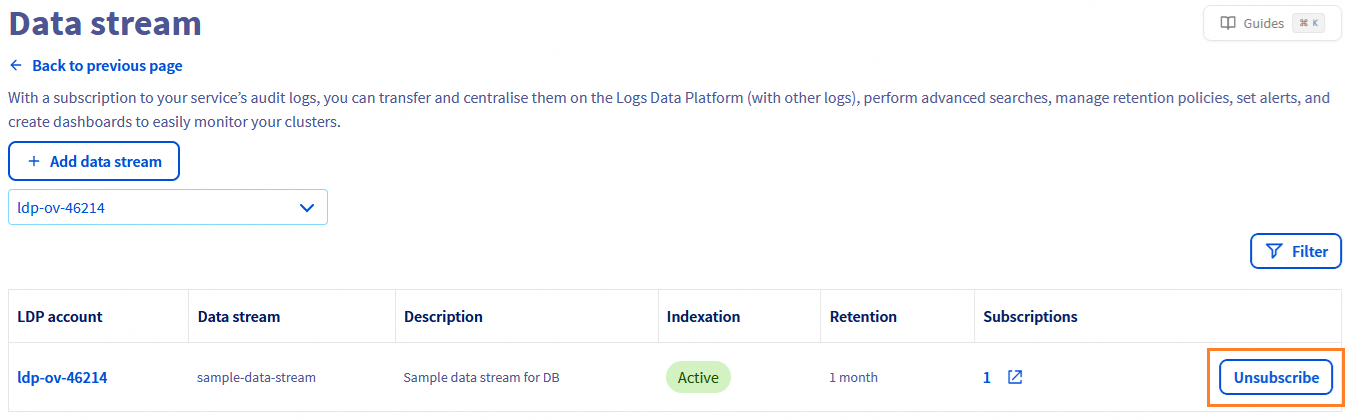
- You can delete subscriptions using the
subscriptionIdconcerned in this API call:
- If you delete your database service, all subscriptions of this service are deleted automatically.
We want your feedback!
We would love to help answer questions and appreciate any feedback you may have.
If you need training or technical assistance to implement our solutions, contact your sales representative or click on this link to get a quote and ask our Professional Services experts for a custom analysis of your project.
Are you on Discord? Connect to our channel at https://discord.gg/ovhcloud and interact directly with the team that builds our databases service!


 Configure the advanced parameters for Public Cloud Databases
 405
405