

Transferring a .pl domain name to OVHcloud
71 visualizaciones
 10.02.2026
  Web / Dominio
Información sobre la traducción
Esta traducción ha sido generada de forma automática por nuestro partner SYSTRAN. En algunos casos puede contener términos imprecisos, como en las etiquetas de los botones o los detalles técnicos. En caso de duda, le recomendamos que consulte la versión inglesa o francesa de la guía. Si quiere ayudarnos a mejorar esta traducción, por favor, utilice el botón «Contribuir» de esta página.
Objective
Your .pl domain name is currently filed with a registrar, and you want to switch it to OVHcloud? You can do this by following a transfer procedure.
If, in addition to transferring your domain name, you would like to migrate the services associated with it (website, email, etc.), please read our guide on Migrating your website and associated services to OVHcloud, before continuing. This guide explains in detail how to migrate all your services without any service interruptions.
If you only transfer your domain name without moving your other services, please ensure that you retrieve the active DNS servers for your domain name from your current registrar, to enter them directly in step 3 of our guide on Transferring your domain name to OVHcloud This will prevent the separation of your domain name from your associated external services.
By transferring your domain name, you will change your registry. You can transfer your domain name to OVHcloud by creating an order. This process usually takes between one and ten days.
Find out how to transfer a generic domain name to OVHcloud.
If the domain name in question should stay registered at OVHcloud but modified in terms of its management or holder information, an outgoing domain transfer is not the appropriate procedure.
To transfer the domain name management to another OVHcloud customer account, a change of contacts must be made instead. The procedure is described in this guide.
If you also need to change the domain name holder, you should do so before you change the domain name contacts. To do this, use our instructions for changing the holder of a domain name.
Requirements
- The .pl domain name has been registered or transferred to another registrar for at least 5 days.
- The domain name’s status is ‘OK’ or ‘Transferrable’.
- The domain name has not expired and has an expiry date to complete the transfer process on time (recommended: more than 60 days).
- You must be able to unlock the domain name.
- the transfer code, or the ability to retrieve it
- the authority to request a transfer for the domain name
- the domain name holder and/or its administrators have been informed of the transfer request
OVHcloud Control Panel Access
- Direct link: Domain names
- Navigation path:
Web Cloud>Domain names> Select your domain name
Instructions
The transfer procedure has several steps, including contacting multiple entities, including your current registry, OVHcloud and other parties. The table below shows who is contacted and the estimated duration of each step.
| Steps | Description | Who is involved? | Where? | Time |
|---|---|---|---|---|
| 1 | Checking the information associated with the domain name | The domain administrator | With the current registrar | Depends on your actions |
| 2 | Unlocking the domain and retrieving the transfer code | The domain administrator, with the holder’s permission | With the current registrar | Depends on your actions |
| 3 | Domain name transfer request | Anyone with the transfer code, also with the holder’s permission | With the new registrar (e.g. OVHcloud) | Depends on your actions |
| 4 | Transfer confirmation | The domain name holder must validate the transfer at the registry operator’s request | By email | Five days maximum |
1 - Check the information associated with the domain name
To start with, it is essential to ensure that the information associated with the domain name is up-to-date. Since the implementation of the GDPR, the data visible in “Whois” has become very limited. We recommend that you check the information associated with your domain name via your current domain name registrar.
-
If the information is correct: go to the next step of this guide.
-
If the information is incorrect or invisible: contact your domain name registrar to check and/or modify it.
If you are not sure which registrar is responsible for your domain name, the Registrar lines, which will appear as part of the WHOIS tool search result, can provide you with information on its identity.
2 - Unlock your domain name and retrieve the transfer code
Once you have checked this information, you will need to unlock your domain name. You can only do this via your current domain name registrar. Contact them to find out more about their procedure.
Once you have unlocked your domain name, your domain name registrar must send you the transfer code for it. This code is sometimes referred to under different names, such as: transfer code, AuthCode, AuthInfo or EPP Code.
Please note that since OVHcloud is not your domain name’s registrar at the time you initiate the transfer procedure, we cannot unlock your domain name or provide you with the transfer code.
Once your domain name has been unlocked, you will have seven (7) days to transfer to OVHcloud. After this period, your domain name will be locked automatically if you do not submit a domain name registrar change request.
3 - Request a domain name transfer to OVHcloud
Once you have unlocked your domain name and obtained your code, you can order the transfer to OVHcloud from our website. Enter your domain name, then follow the order process.
When you are asked to provide your transfer code, enter it in the box next to your domain name. If you do not yet have the transfer code, you can tick the box labelled Enter transfer code at a later stage. However, we strongly advise ensuring that you have the code to hand before you continue. Remember that the transfer will not start until a valid code has been provided.
You can also complete your order with a web hosting plan and other OVHcloud solutions. This may be of interest to you, if you would also like to migrate your services to OVHcloud. Our guide to Migrating your website to OVHcloud provides instructions on how to do this.
Throughout the order process, we advise taking the following points into account:
-
details of the domain name holder Especially since the GDPR came into effect, it is essential to ensure that information about the domain name holder matches the information stored by your current domain name registrar. This will help you avoid being suspected of domain name theft.
-
entering DNS servers for your domain name. If you are currently using your domain name to keep a website or email service online, you will need to specify their DNS servers in order to avoid any service interruptions.
Holder management and DNS server details
-
By clicking
Modify configurationin this step, you can enter the names of the DNS servers that the domain name currently uses. This way, the domain name will already be associated with these DNS servers in the OVHcloud configuration. -
If you continue without performing this operation, the domain name will be provided with a new DNS zone on OVHcloud DNS servers. You may then need to modify the DNS zone manually.
-
In some cases, the transfer process may require additional information about the domain name holder. To add this information, click
Manage Contacts/Holder.
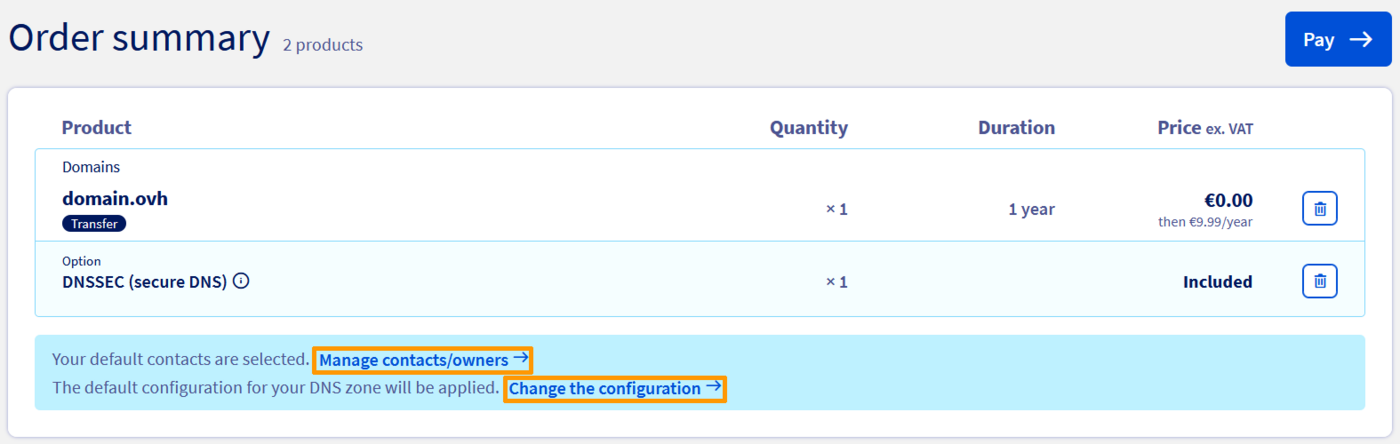
Once the order has been confirmed, you will receive a free purchase order. The transfer process will only start once you have confirmed this free purchase order. Once this is done, you can track the transfer progress via the Ongoing operations page.
4 - Transfer confirmation
The domain name transfer procedure requires email validation. This step can be performed as soon as the transfer begins, but may take up to five days.
- The domain name holder receives an email about the address that they have entered, which is listed in WHOIS (if it is not hidden).
- This email comes from the
.pldomain name registry, via the addressautomat@dns.pl. - Click on the validation link in this email to complete the transfer.
- Once the validation is complete, the domain will be accessible from your OVHcloud Control Panel within 24 hours.
Transfer validation via the link must be completed within 5 days of the request. After this, the transfer will be cancelled.
What if you did not receive the transfer confirmation email?
Check the domain name holder's email address with your current domain provider.
Also, check the “SPAM”/“junk email” folders in the email addresses concerned as a priority.
If the validation email cannot be found, please contact OVHcloud support by creating a support ticket. Our services can then cancel the transfer. Once the cancellation is complete, change the email address of the domain name holder to another email provider (such as, for example, Gmail, Yahoo, Onet, wp.pl, etc.).
Once you have modified your email address, order a new transfer request.
5 - Manage a domain name with OVHcloud
Once the transfer procedure is complete, you can manage your domain name from the Domain names page.
Go further
Migrating your website and emails to OVHcloud
For specialised services (SEO, development, etc.), contact OVHcloud partners.
If you would like assistance using and configuring your OVHcloud solutions, please refer to our support offers.
Join our community of users.


 Transferir un nombre de dominio a OVHcloud
 8859
8859