

Web Hosting - How to activate a free Let's Encrypt SSL certificate
12055 Ansichten
 16.12.2025
  Web / Webhosting
Objective
You can use Secure Socket Layer (SSL) certificates to encrypt any exchange of data on your website. This prevents unauthorized persons and malicious robots from viewing requests to or from your website.
OVHcloud offers several types of SSL certificates for OVHcloud web hosting solutions. They are set out in our guide on Managing an SSL certificate on a web hosting plan. SSL certificates are essential for the security of your website.
There are three types of SSL certificates:
- Domain Validation (DV)
- Organization Validation (OV)
- Extended Validation (EV)
SSL encryption levels are the same between these certificate types.
The main difference lies in the level of checks that will be carried out by the Certificate Authority (CA) that issues the SSL certificate and attests to its authenticity.
Let's Encrypt is a free, automated, open, non-profit certification authority. You can find more information on https://letsencrypt.org/about/.
Find out how to activate a free Let's Encrypt SSL certificate on your OVHcloud web hosting plan.
Requirements
- You plan to order or have an OVHcloud web hosting plan.
- You manage a domain name for which you have exclusive rights. The domain name must not already be linked to an SSL certificate.
As of 06/08/2025, the Let's Encrypt SSL certificate is automatically enabled by default for:
- All new domain names/subdomains linked to a web hosting plan.
- All new domain name subscriptions with a new web hosting plan.
The goal is to save you time configuring your services. You can always disable the Let's Encrypt SSL certificate from your OVHcloud Control Panel if you want to install another SSL certificate (Sectigo DV, Sectigo EV or a custom SSL certificate).
Find more information in our guide "How to configure an SSL certificate", part Disable an SSL certificate on a web hosting plan.
OVHcloud Control Panel Access
- Direct link: Hosting plans
- Navigation path:
Web Cloud>Hosting plans> Select your web hosting plan
Instructions
Before you continue, please ensure that each domain name and/or subdomain covered by a future Let's Encrypt SSL certificate:
- Points to the IP address of your web hosting plan.
- Is declared on one of the websites on your web hosting.
- Does not already have an active SSL certificate.
To check if this is the case, please refer to our guides below:
- Hosting multiple websites on your Web Hosting plan
- Web Hosting - List of IP addresses by cluster
- Editing an OVHcloud DNS zone
- Web Hosting - How to configure an SSL certificate, part Disable an SSL certificate on a web hosting plan
Activate the Let's Encrypt SSL certificate
Click on the tabs below to view each of the 3 steps.
Go to the Hosting plans page, then select the web hosting plan concerned.
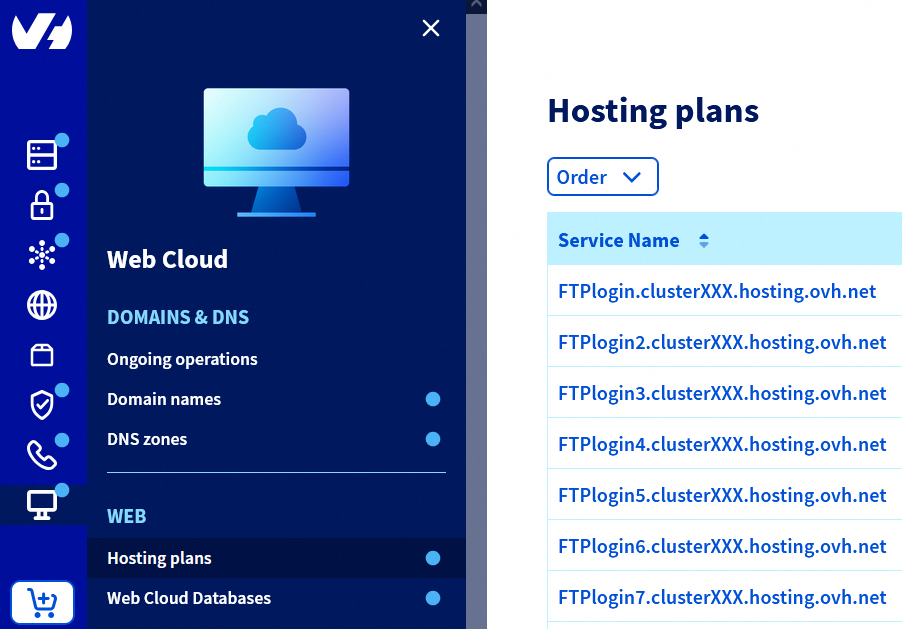
On the page that pops up, click on the SSL certificates tab.
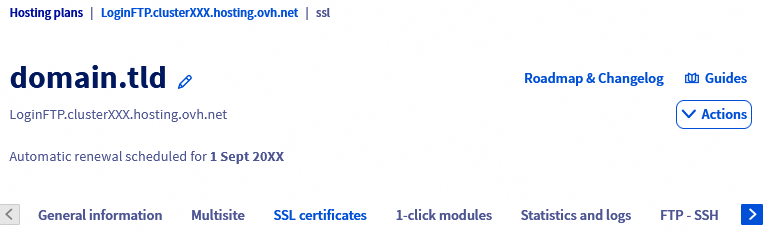
When the content of the tab appears, select the domain or subdomain for which you want to activate the free Let's Encrypt (DV) SSL certificate, under the mention Enable SSL certificate.

Then click the Enable Let's Encrypt SSL button.
It may take several hours to set up the Let's Encrypt SSL certificate.
Verify activation of the free Let's Encrypt (DV) SSL certificate
To verify that the installation is complete, click on the tabs below to view each of the 3 steps.
Go to the Hosting plans page, then select the web hosting plan concerned.
On the page that pops up, click on the SSL certificates tab.
When the contents of the tab appear, check that each domain and/or subdomain concerned is listed in the table with the SSL certificate type Let's Encrypt.
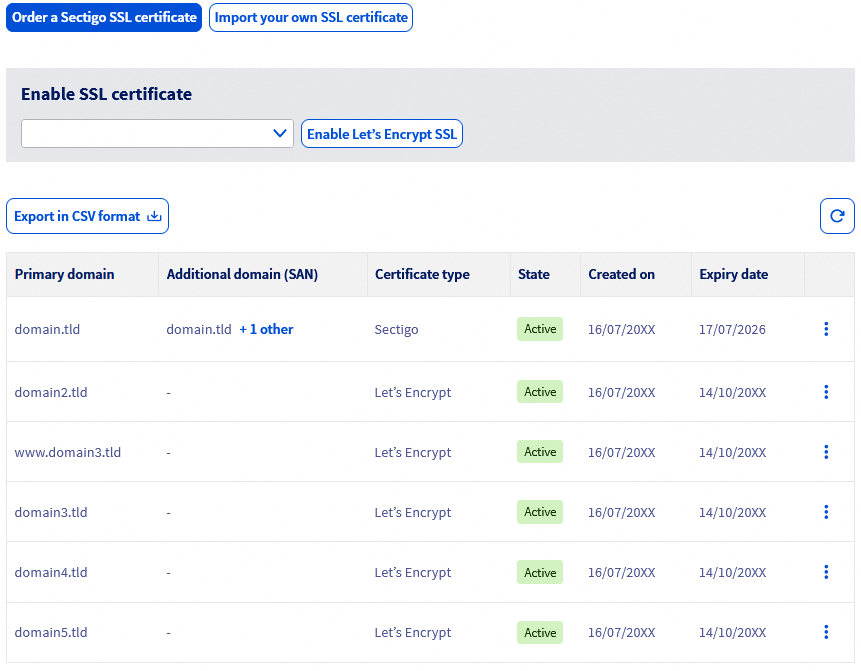
Your Let's Encrypt SSL certificate is now installed and active. You can now use it with your new website(s) by switching, for example, your new website(s) to HTTPS.
Go further
Web Hosting - Managing an SSL certificate
Web Hosting - Switch your website to HTTPS
Common errors related to securing your website with SSL
For specialized services (SEO, development, etc.), contact OVHcloud partners.
If you would like assistance using and configuring your OVHcloud solutions, please refer to our support offers.
Join our community of users.


 Webhosting - SSL-Zertifikat einrichten
 2656
2656