

What do I do if my website is down?
4495 Ansichten
 31.03.2026
  Web / Webhosting
Objective
Several error returns may appear on your browser if your website becomes inaccessible. The examples below show an incorrect configuration of your DNS servers, your DNS zone or a suspended domain (if your website does not display one of the error messages described here, see the Go further section):
| Browser | Error Message |
|---|---|
| Chrome: "This site can't be reached" | 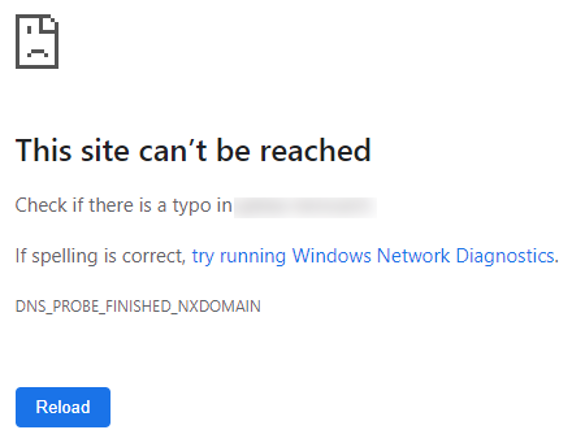 |
| Firefox: "Hmm. We're having trouble finding that site." | 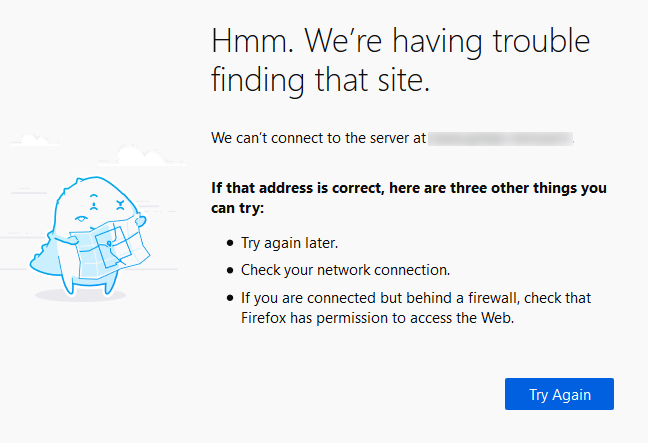 |
| Edge: "Hmmm... can't reach this page" | 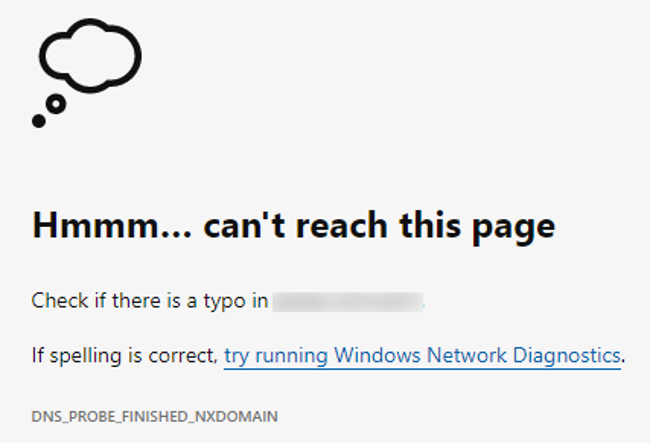 |
| Safari: "Safari Can't Find the Server" | 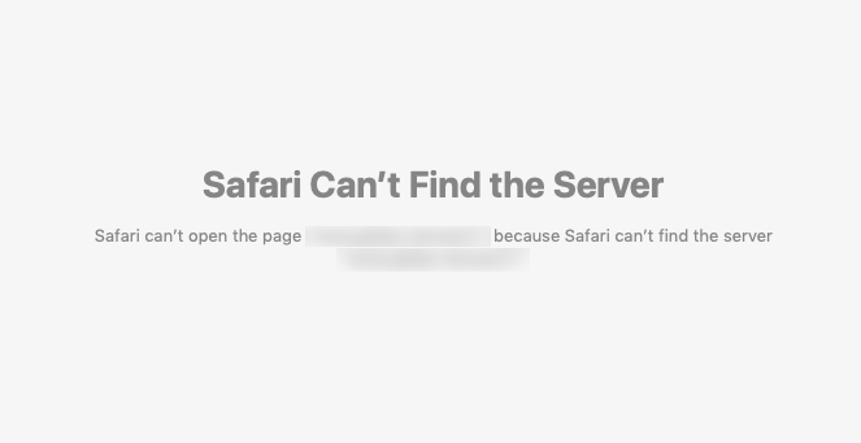 |
Find out how to resolve the "This site can't be reached" type errors
OVHcloud provides services which you are responsible for with regard to their configuration and management. You are therefore responsible for ensuring they function correctly.
We have provided you with this guide to help you with common tasks. Nevertheless, we recommend contacting a specialist provider and/or the service's software publisher if you encounter any difficulties. We will not be able to assist you ourselves. You can find more information in the Go further section of this guide.
Requirements
- Administrative access to your domain name in order to change the DNS servers and edit the DNS zone
- No outstanding payments and renewals of related services (domain name and web hosting plan)
OVHcloud Control Panel Access
- Direct link: Hosting plans
- Navigation path:
Web Cloud>Hosting plans> Select your web hosting plan
Instructions
1 - Check the validity of your domain name subscription
You are solely responsible for renewing your web services.
As a hosting provider, OVHcloud is required to permanently delete any web services (domains, hosting plans, e-mails, etc.) that have not been renewed in time, as well as all of the data they store.
As a result, we strongly recommend that you enable automatic renewal for all of your OVHcloud subscriptions.
To check that your domain name subscription is valid, click on the tabs below to view each of the 3 steps.
Go to the My offers and services page.
Renew your domain if necessary via the ... button, then Renew.
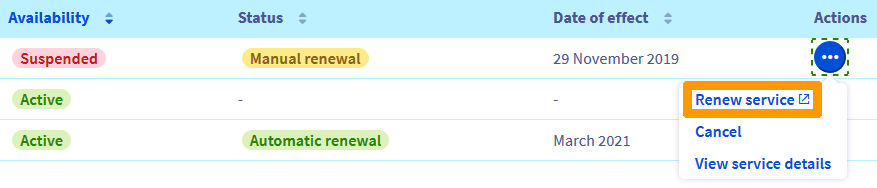
After this renewal, your website will be accessible again within 48 hours maximum.
2 - Check the DNS servers
To check the validity of your DNS servers, go to the Domain names page, then select the domain name concerned.
Click on the scenario that matches your situation to view the content.
Scenario 1 - No anomalies appear on the DNS servers
To check the DNS servers declared, click on the tabs below to view each of the 3 steps.
Go to the Domain names page, then select the domain name concerned.
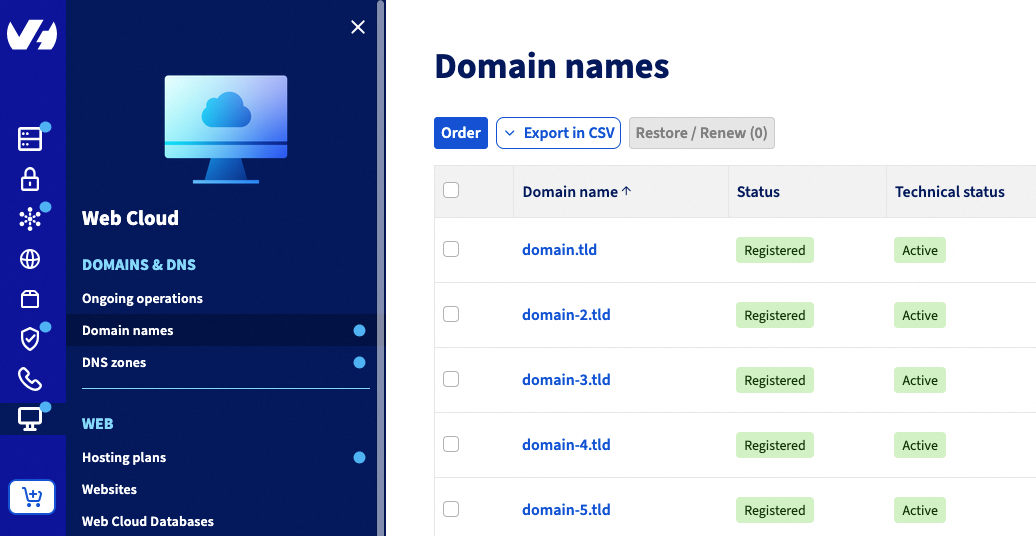
Check the servers listed in the DNS servers tab:
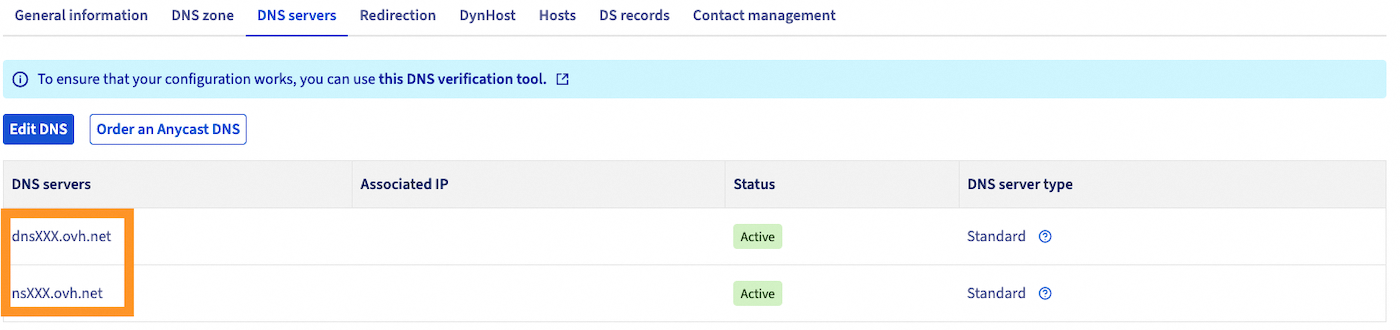
If they are identical to the targets of the NS type entries in the DNS zone, go to part 3:

Scenario 2 - A warning appears above the DNS zone
A warning in the DNS zone tab indicates that the DNS servers used by your domain name are not the ones indicated in your DNS zone. Two scenarios are possible:
- Under the sentence "You currently use the following DNS servers", the servers listed are "ns ? .ovh.net" and "dns ? .ovh.net" (replace the "?" by any number):
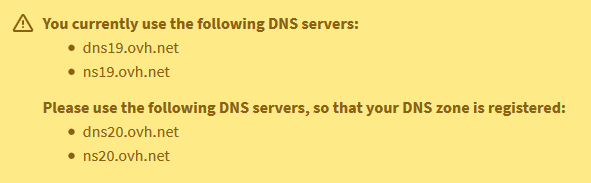
Modify the DNS servers as described in our guide "How to modify the DNS servers of an OVHcloud domain name", so that they are identical to the targets of the NS type records in your DNS zone.
Your website will then be available within a maximum of 48 hours.
- Under the sentence "You currently use the following DNS servers", the servers listed are not "ns ? .ovh.net" and "dns ? .ovh.net".
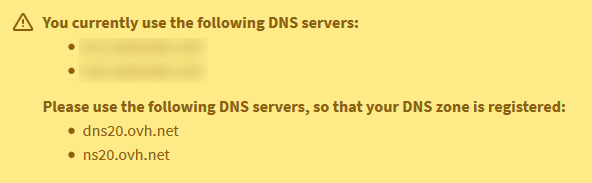
In this situation, please contact your DNS Zone provider, your webmaster or a OVHcloud partner before making any changes.
The DNS servers used by your domain name may be functional and the problem accessing your website be linked to a missing or incorrect entry in the active DNS zone. Changing the DNS servers in this situation might make your e-mail addresses or other online applications related to your domain name unavailable.
Scenario 3 - No NS-type entries appear in the DNS zone
Your domain's DNS zone does not contain any NS record:
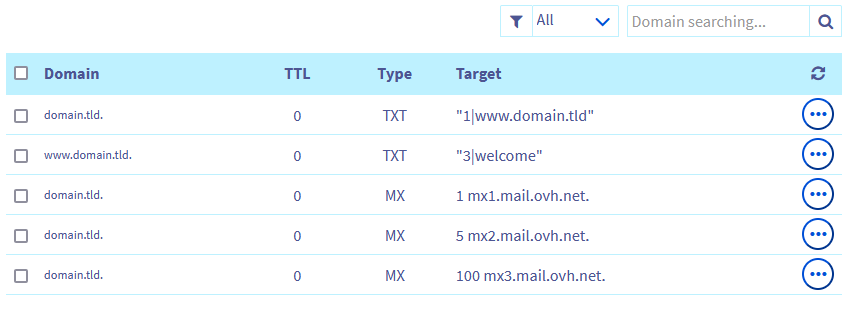
Click on the tabs below to view each of the 4 steps.
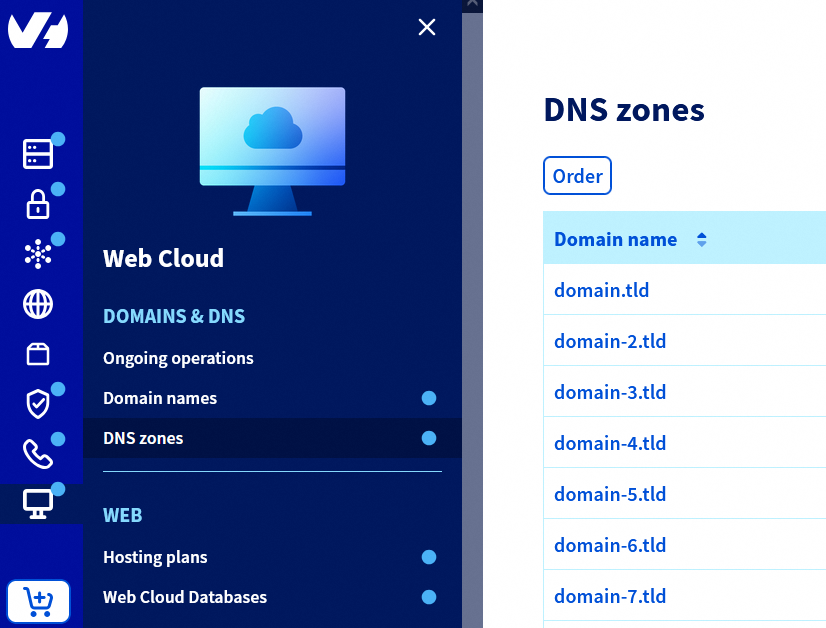
Go to the DNS zones page, then select the domain name concerned.
Back up the current zone by clicking on the Change in text format button:
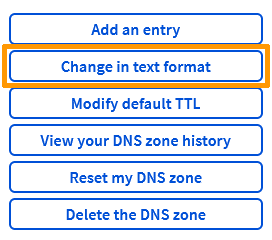
Copy and paste the content of your DNS zone into a text document on your computer.
Click on Reset my DNS zone and select No, but I want to reset my DNS zone..
Select your email and hosting servers, then click on Confirm.
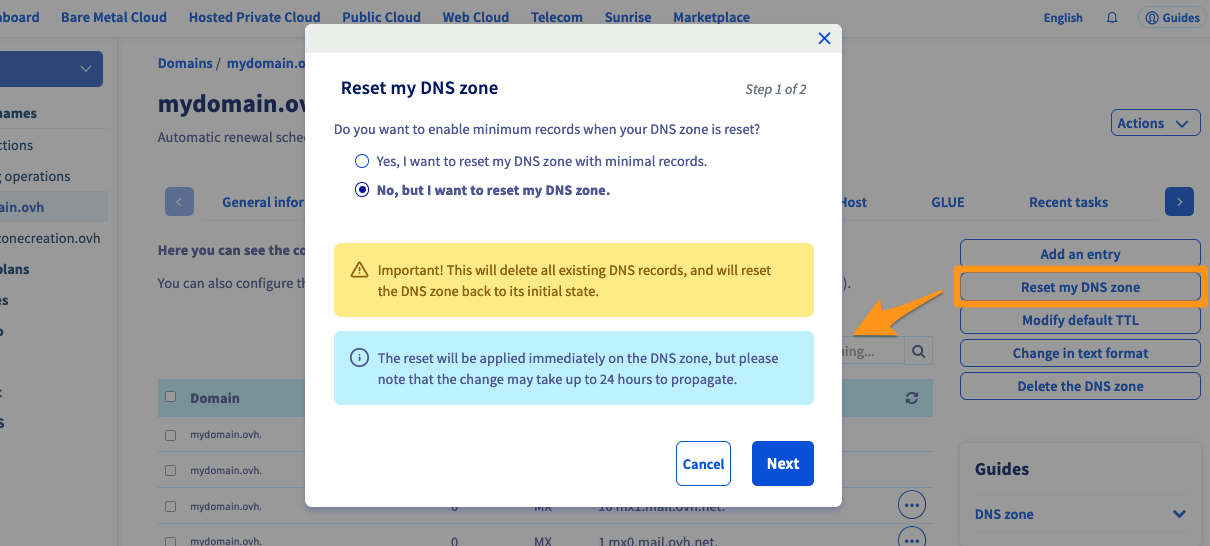
Your website will be accessible again within 24 hours maximum.
3 - Check the DNS zone
In this step, you will find your hosting plan's IP address, then add it to your DNS zone.
If your website is not hosted on the OVHcloud infrastructure or is managed by another provider, please contact the concerned support service.
If your website is hosted on one of our Web Hosting offers, click on the tabs below to view each of the 2 steps.
Go to the Hosting plans page, then select the web hosting plan concerned.
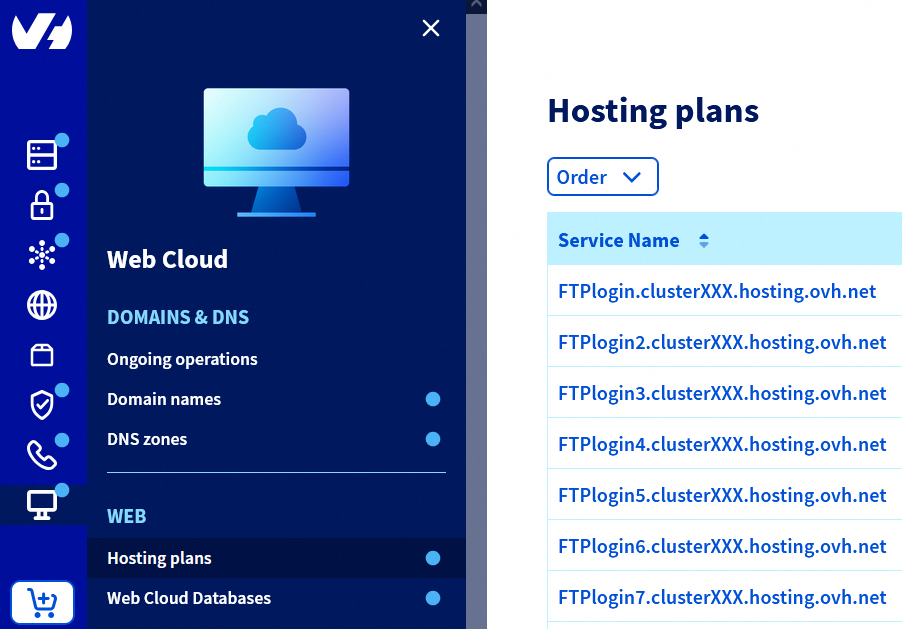
In the General information box, you will see the addresses under IPv4 and IPv6.
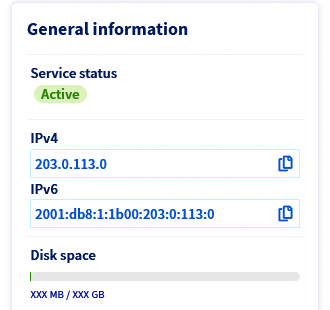
Copy the IPv4 and/or IPv6 address of your domain name.
Then refer to it in your domain's DNS zone, by modifying or creating one or more A entries.
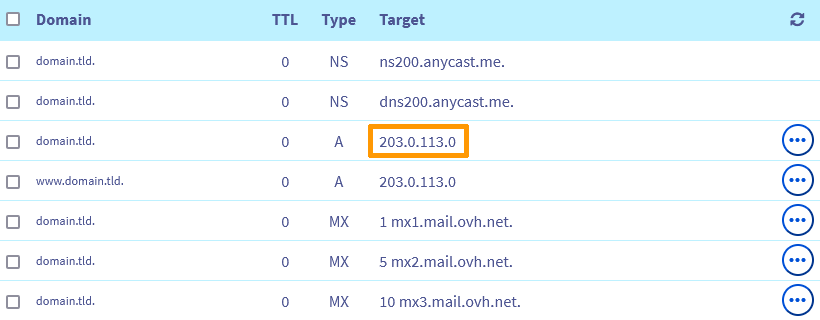
Your website will then be available within a maximum of 24 hours.
Go further
Resolving a "Site not installed" error
Fixing the 500 Internal Server Error
Resolving the most common 1-click module errors
For specialised services (SEO, development, etc.), contact the OVHcloud partners.
If you would like assistance using and configuring your OVHcloud solutions, please refer to our support offers.
Join our community of users.


 Fehler "Seite nicht installiert" beheben
 17833
17833