

Reregister VMs in a new PCC
1033 Views
 24.03.2021
  Cloud / Hosted Private Cloud
Objective
Following an incident, some virtual machines may no longer appear in your vSphere inventory, but all files are still present in the datastores.
This guide explains how to reregister VMs from a datastore in your vSphere inventory.
Requirements
- Being an administrative contact of your Hosted Private Cloud infrastructure to receive login credentials
- A user account with access to vSphere (created in the OVHcloud Control Panel)
Instructions
In your vSphere interface, go to the Storage view.
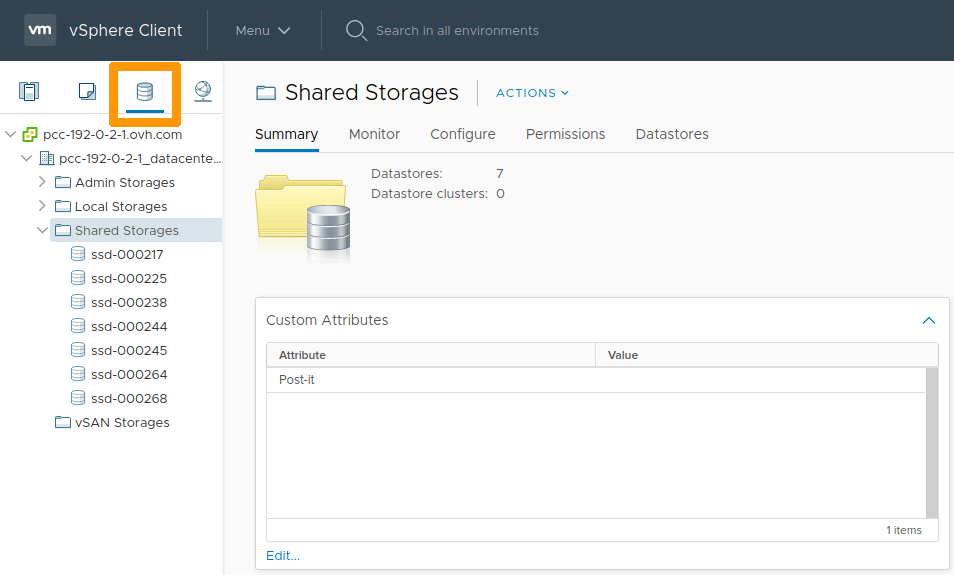
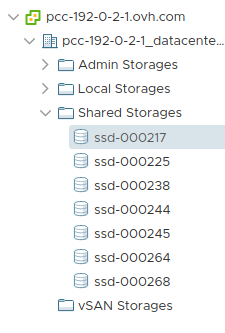
Select a datastore from the list.
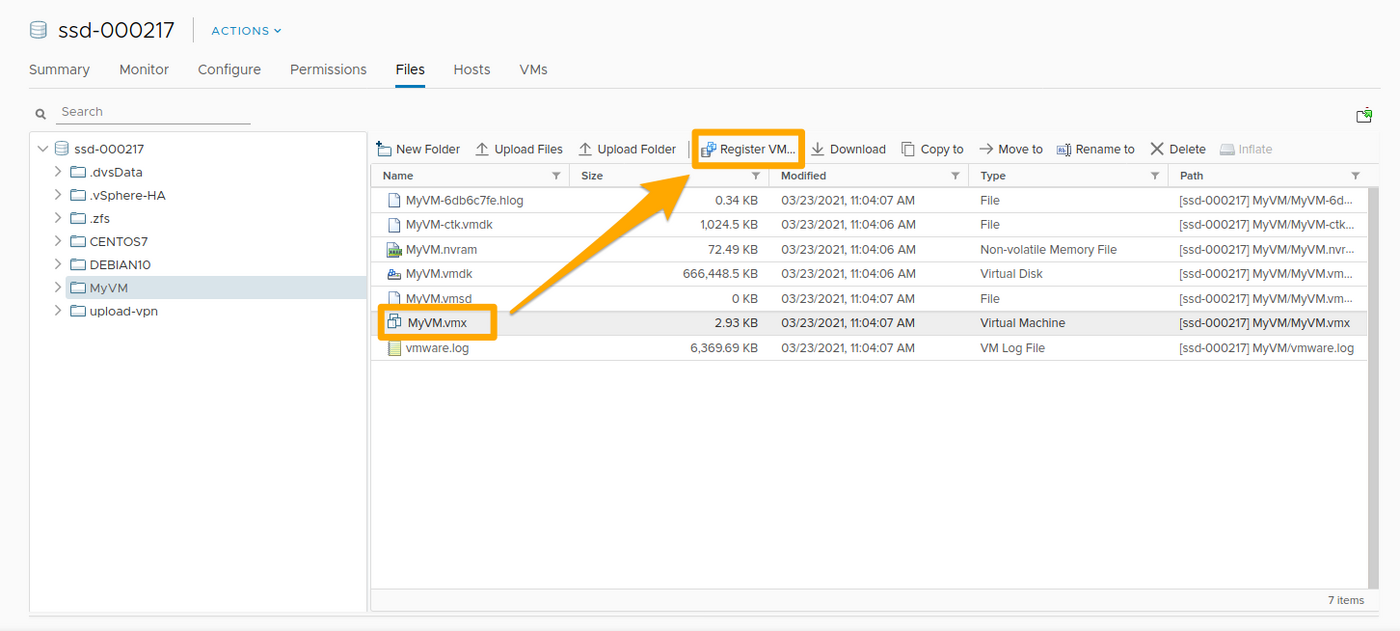
In the folders for this datastore, select the .vmx file and click Register VM.
Fill in the information required, then click Finish.
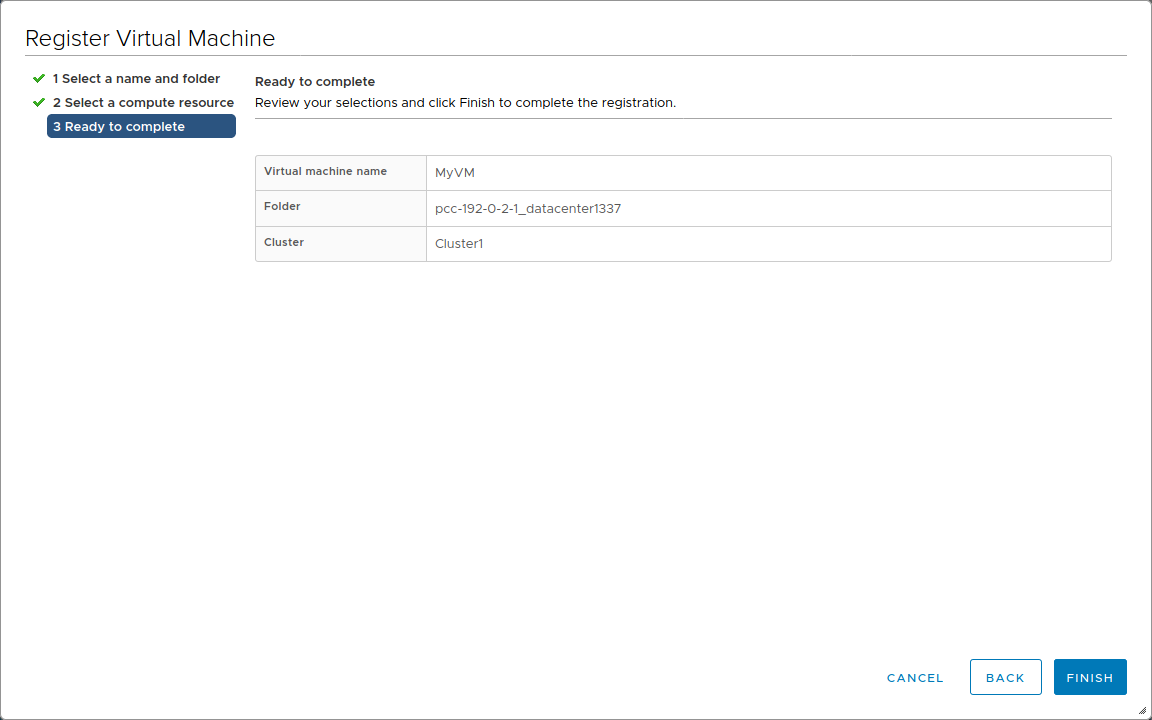
You will need to repeat these same operations for each datastore, and for each VM that needs to be reregistered.
Check the settings of your VMs (name, portgroup, etc...) by right-clicking on each one and then selecting Edit Settings.
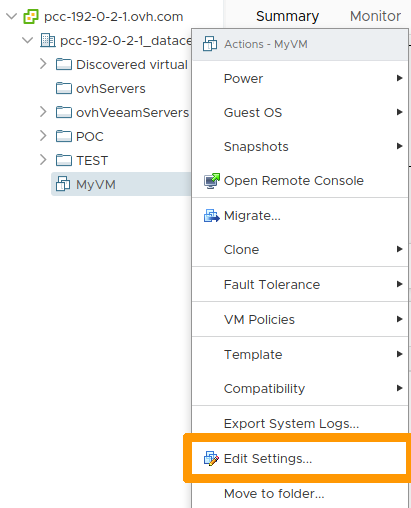
In the event of a configuration error, an error message will be displayed when you restart the VM.
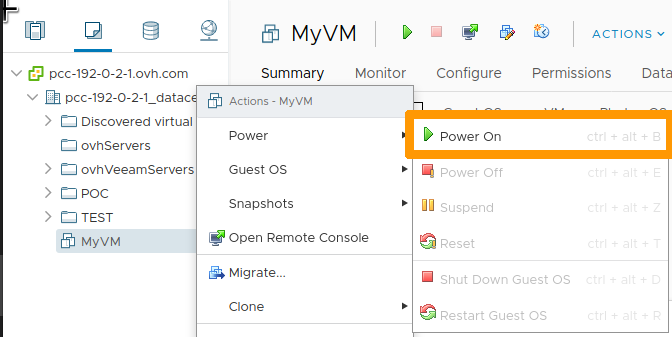
You can reactivate a VM by right-clicking on it, then clicking Power On.
Automation
In case you have more than a few VMs and/or datastores, it is possible to automate the process by using scripts to browse the datastores and register their VMs.
With PowerCLI
VMware provides PowerCLI for VMware administrators using PowerShell.
Refer to the VMware guide to install PowerCLI.
Once installed, you can use the following PS script, written by LucD:
After loading the script in your environment, you can use it as follows:
The code section above has been adapted to OVHcloud VMware environments. NFS datastores are enabled by default.
Go further
Join our community of users on https://community.ovh.com/en/.


 Taking a snapshot
 544
544