

Public VCF as-a-Service - Linking a public IP block with vRack
106 Views
 08.09.2025
  Cloud / Hosted Private Cloud
Objective
When you order a new Public VCF as-a-Service organization, a vRack and a block of public IP addresses are delivered to you.
This IP block is not directly linked to your vRack. You will need to link it manually.
Find out how to link the block of public IP addresses delivered with your Public VCF as-a-Service organization and its vRack.
Requirements
- A Public VCF as-a-Service on OVHcloud solution.
- Being the technical administrator of the managed VMware vSphere on OVHcloud infrastructure.
OVHcloud Control Panel Access
- Direct link: VMware Cloud Foundation
- Navigation path:
Hosted Private Cloud>Public VCF as-a-Service> Select your VCF service
Instructions
-
From the
General informationtab, the vRack attached to your organization will appear with an ID in the formpn-xxxxxxx.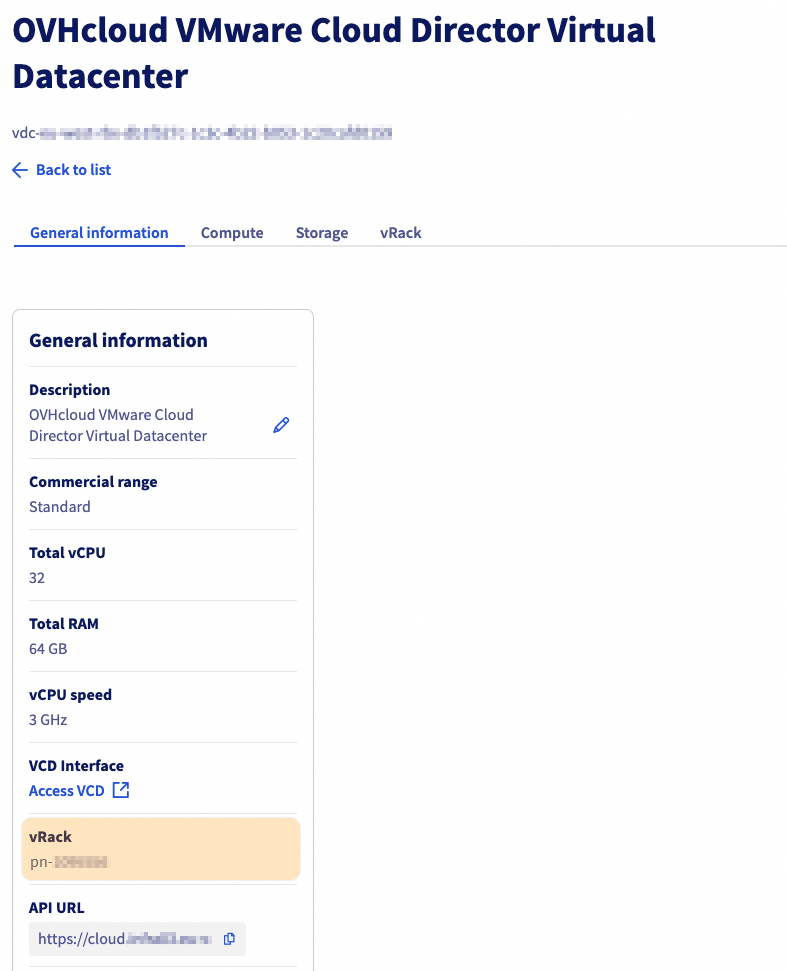
-
Expand the
Networkmenu in the left-hand column and select your vRackpn-xxxxxxx.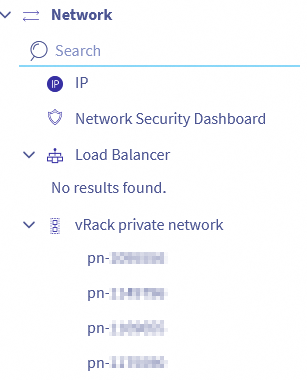
-
Select the IP block to link to your vRack/organization and click
Add.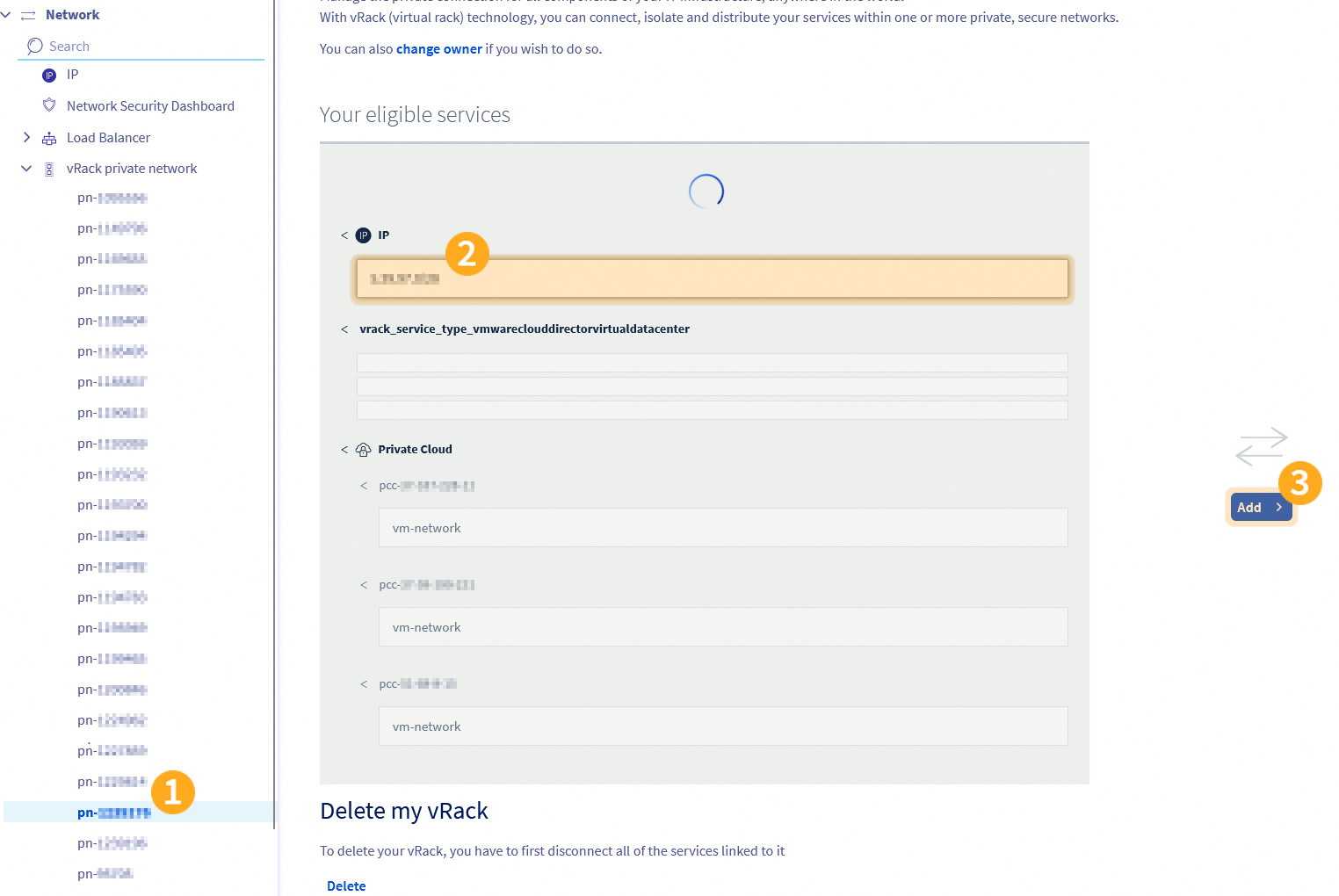
-
The public IP block is now linked to your vRack.
To make these addresses usable inside your Public VCF as-a-Service environment, you also need to declare the public gateway in VMware Cloud Director (VCD).
Follow the guide Public VCF as-a-Service - Declare the public IP gateway in VCD to complete this step.
Go further
If you need training or technical assistance to implement our solutions, please contact your Technical Account Manager or click on this link to get a quote and ask our Professional Services experts for a custom analysis of your project.
Ask questions, give your feedback and interact directly with the team building our Hosted Private Cloud services on the dedicated Discord channel.
Join our community of users.


 Configure an IP address on a virtual machine
 1522
1522