

Understanding vScope
710 Views
 01.10.2025
  Cloud / Hosted Private Cloud
Objective
OVHcloud provides you with a supervision and monitoring tool for your virtual machines and infrastructure: vScope.
This web interface gathers all the essential information about your resources.
This guide explains how to read and use the vScope interface.
Requirements
- You must be an administrator contact of the Hosted Private Cloud infrastructure, in order to receive login credentials.
- An active user ID (created in the OVHcloud Control Panel).
OVHcloud Control Panel Access
- Direct link: VMware vSphere
- Navigation path:
Hosted Private Cloud>Managed VMware vSphere> Select your vSphere service
Instructions
Accessing vScope
In the General information tab, scroll down and click the vScope link.
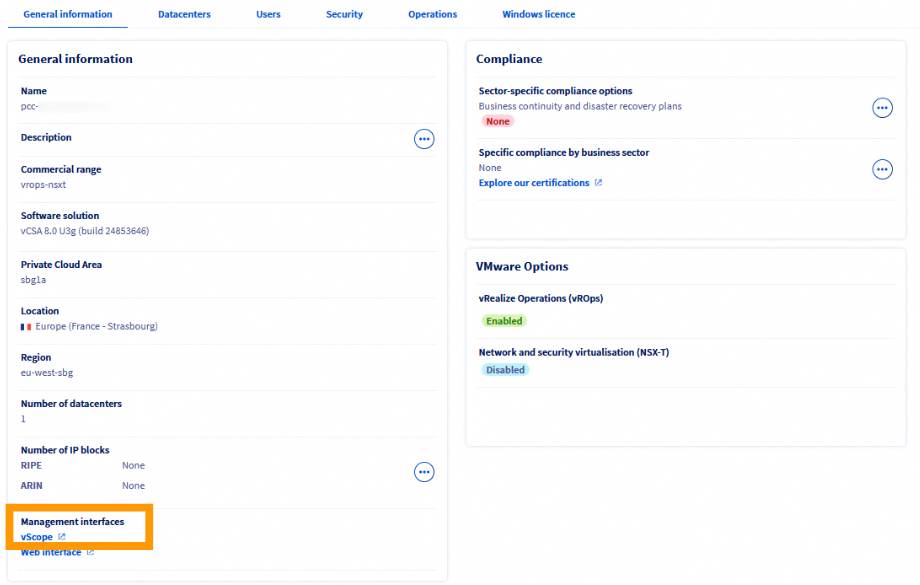
The interface opens in a new tab in your browser.

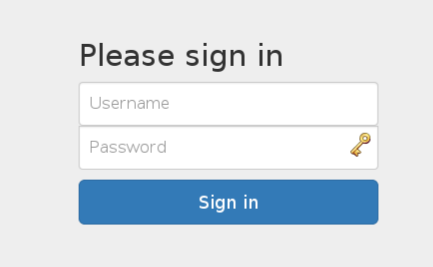
Log in with your user and password - the same credentials you use to connect to the vSphere client.
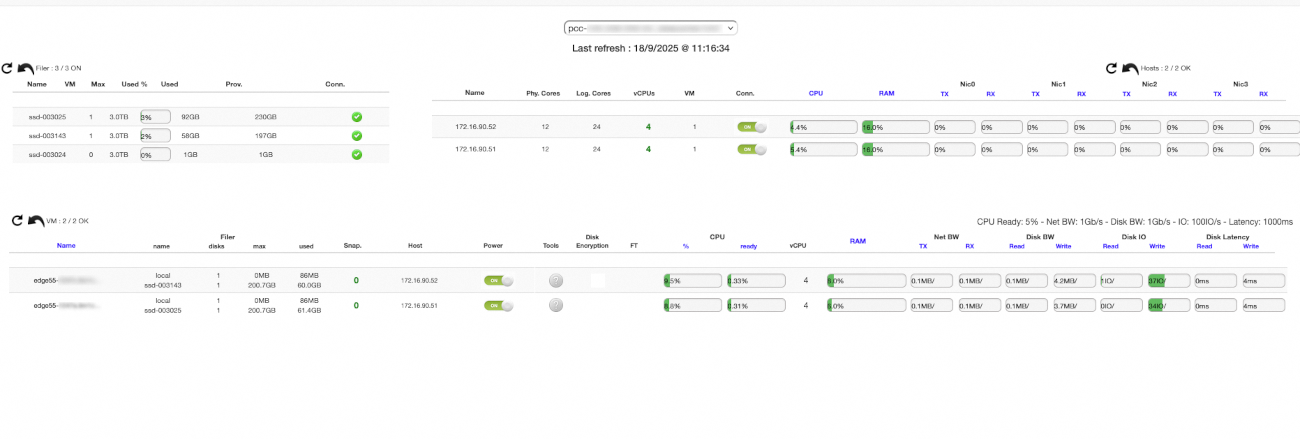
You are now connected to vScope. This page centralises the key information about your resources.
For example, for each host, you can immediately view:
- The number of cores and VMs
- CPU and RAM usage
- Network traffic
Browsing vScope
Selecting the datacenter
If your Hosted Private Cloud contains several datacenters, select the one you want to display from the drop-down menu.
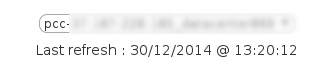
The Last refresh field corresponds to the last refresh of the web page, not of vScope data. vScope data is automatically updated every 2 to 5 minutes.
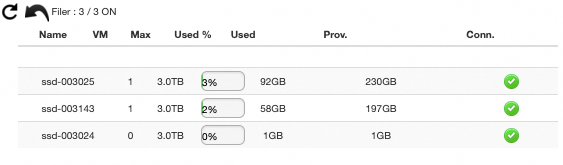
Filer menu
The Filer menu shows the usage of your datastores: number of virtual machines and consumed storage space.
Use this view to anticipate extension needs or monitor load balancing.
Hosts menu
The Hosts menu details the characteristics of each host in your datacenter:
- Number of cores, vCPUs and VMs
- CPU and RAM usage percentages
- Network connectivity
- Number of physical network cards (VMNic)

Virtual machines menu
This section provides a detailed view of each virtual machine:
- Status of VMware Tools
- Network traffic
- VM size
- FT (Fault Tolerance) activation
- CPU Ready Time
- Disk IO
- Disk latency

Go further
If you need training or technical assistance to implement our solutions, contact your sales representative or click on this link to get a quote and ask our Professional Services experts for a custom analysis of your project.
Join our community of users.


 VMware Storage vMotion
 731
731