

Pricing and Management of OVHcloud NSX Edges
535 Ansichten
 02.05.2025
  Cloud / VMware
Objective
This documentation aims to explain the configuration options for NSX Edges and the steps to manage them within a VMware on OVHcloud environment. It also outlines technical limitations and provides guidance on how to adapt these configurations to specific needs.
Requirements
- Access to the OVHcloud Control Panel to manage your NSX Edges.
- Use of VMware NSX 4.1.1 to access customization options.
- Get a basic understanding of VMware concepts and NSX Edge features.
General Overview
Default Configuration
When creating a VMware environment, OVHcloud automatically provides:
- 2 Medium NSX Edges:
- 4 vCPU.
- 8 GB RAM.
This default configuration meets most standard requirements for connectivity and network security.
Customization
You can adapt your infrastructure to meet your specific needs:
- NSX Edge Sizes:
- Medium: 4 vCPU, 8 GB RAM.
- Large: 8 vCPU, 32 GB RAM.
- XL: 16 vCPU, 64 GB RAM.
- Number of NSX Edges:
- Minimum: 2 (default configuration).
- Maximum: Up to 10 NSX Edges per cluster.
Limitations
- 1 NSX Edge cluster per vDC.
- 10 NSX Edges maximum per cluster (Broadcom/VMware limitation).
- NSX version 4.0.1 does not support:
- Ordering new vDCs under NSX 4.1.1.
- Modifying or adding NSX Edges.
Instructions
Steps to customize NSX Edges
Log in to the OVHcloud Control Panel.
From the Datacenters dashboard, access your datacenter then click on the NSX Edge Nodes tab.
-
Order new NSX Edges:
Click on
Add an Edge.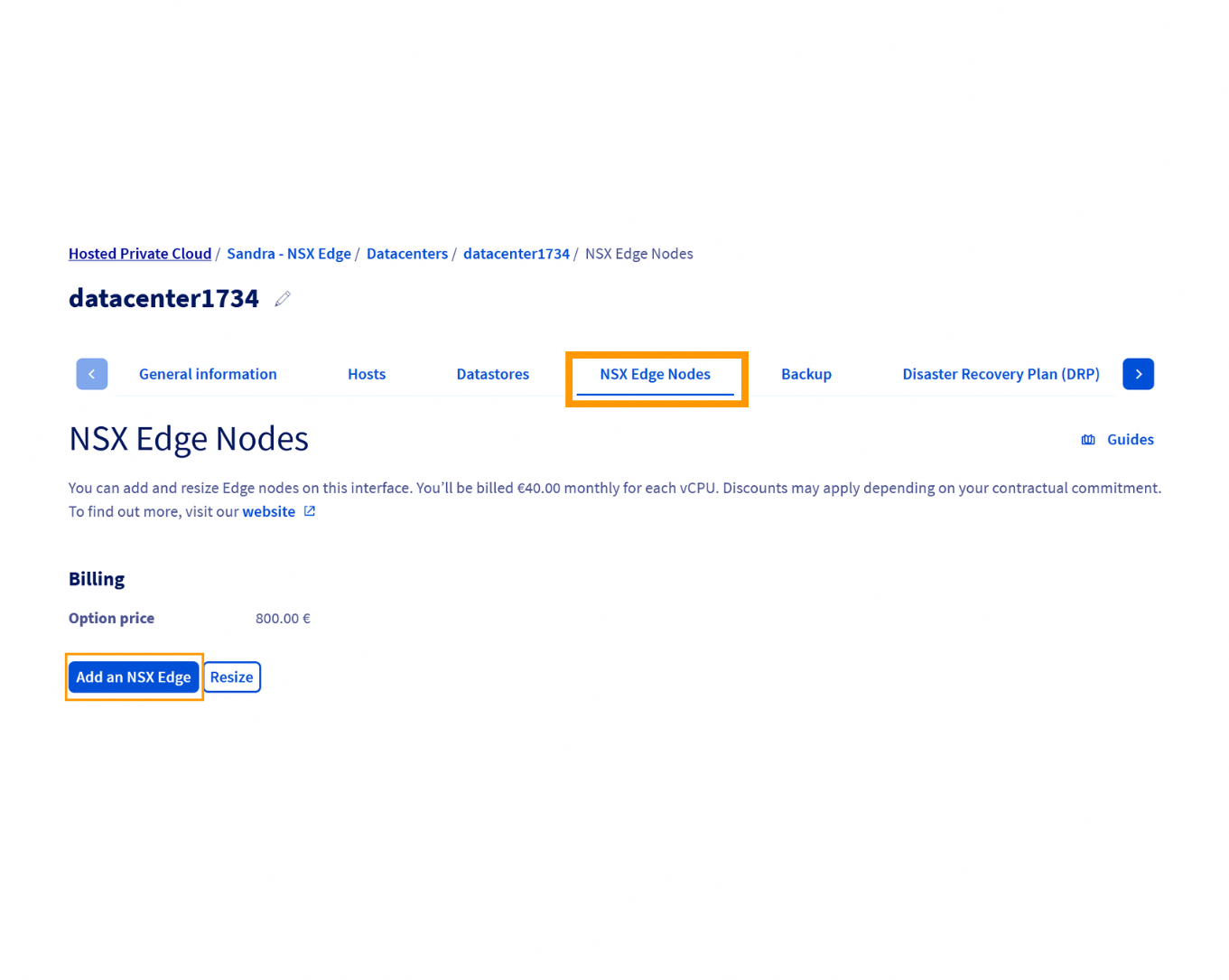
Then, select the desired size and click on
Order.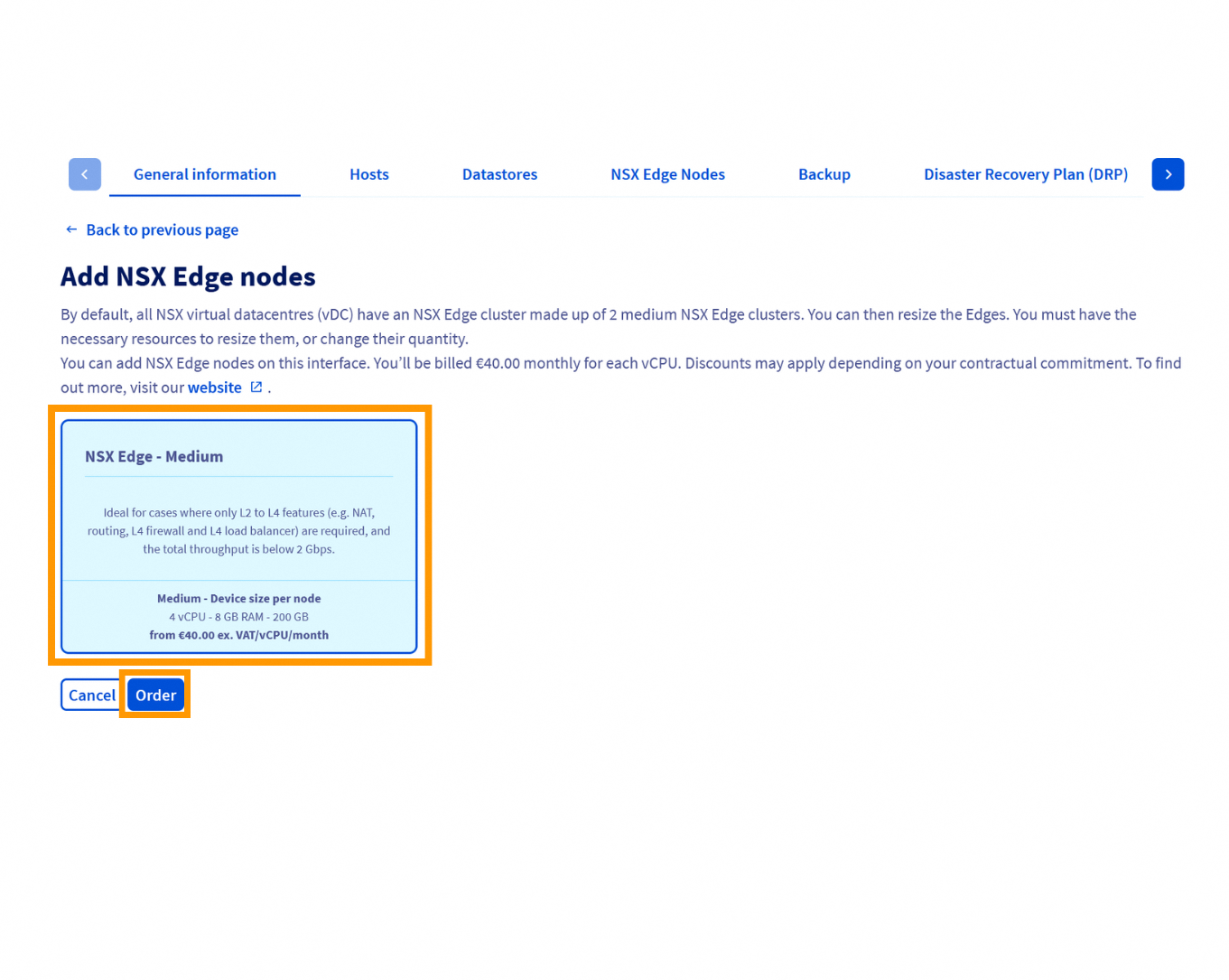
All Edges must be the same size: when adding a new Edge, it will automatically match the size of existing Edges.
-
Modify the size of existing NSX Edges:
Click on
Resize.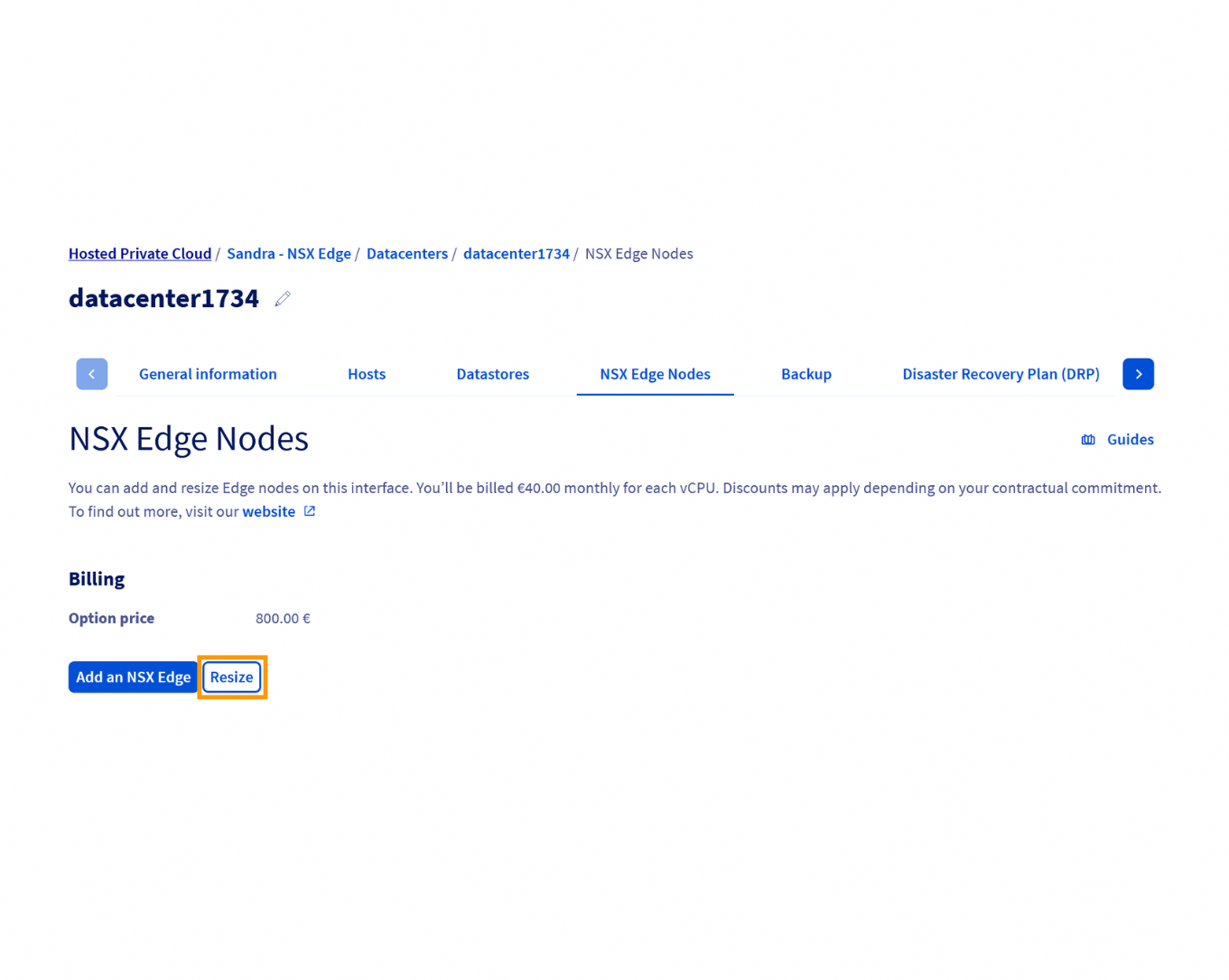
Select the Edge you want to modify.
Choose a new size (Medium, Large, or XL) and apply the changes by clicking on
Confirm.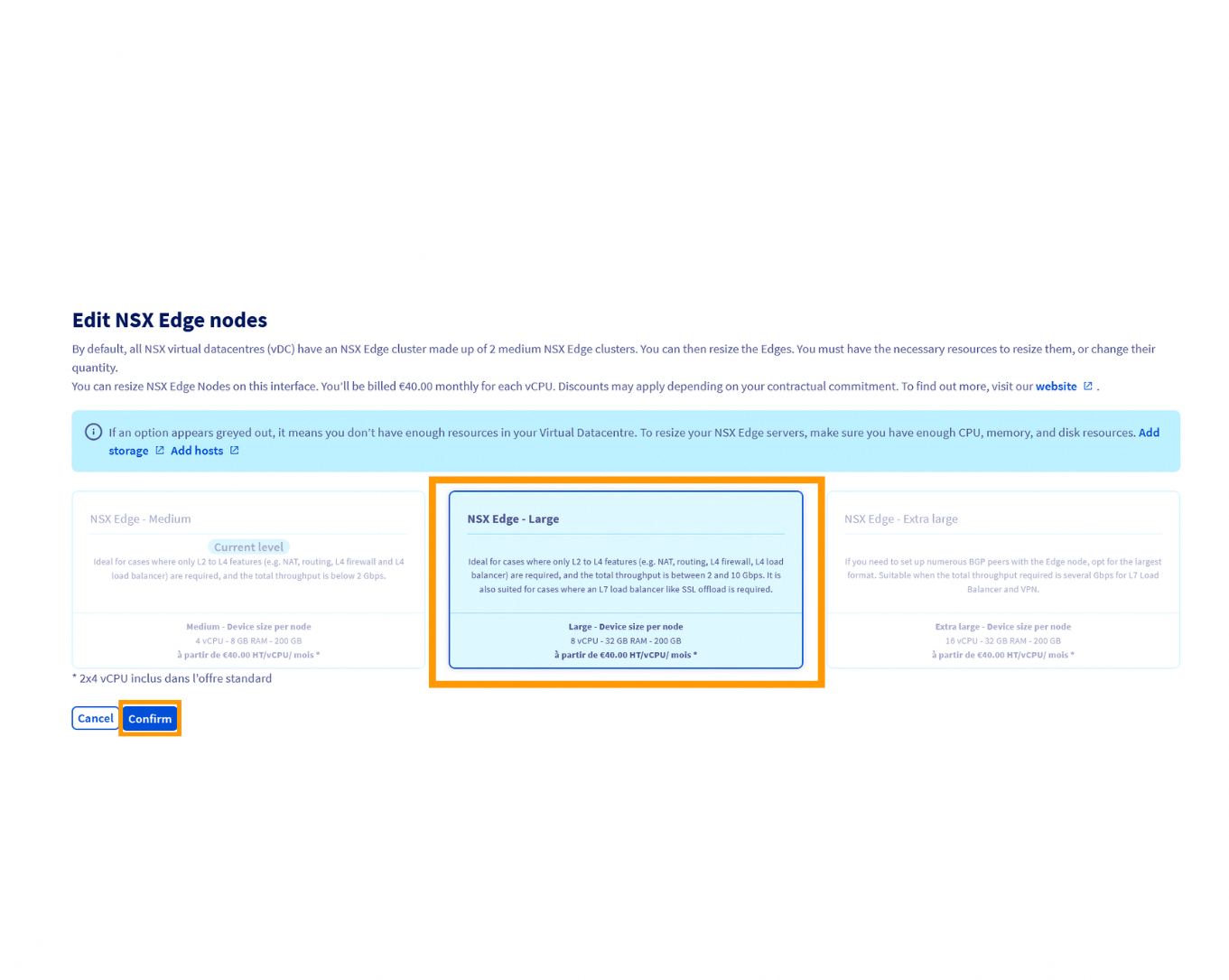
-
Remove unused NSX Edges:
Identify the Edge to be removed in the OVHcloud Control Panel.
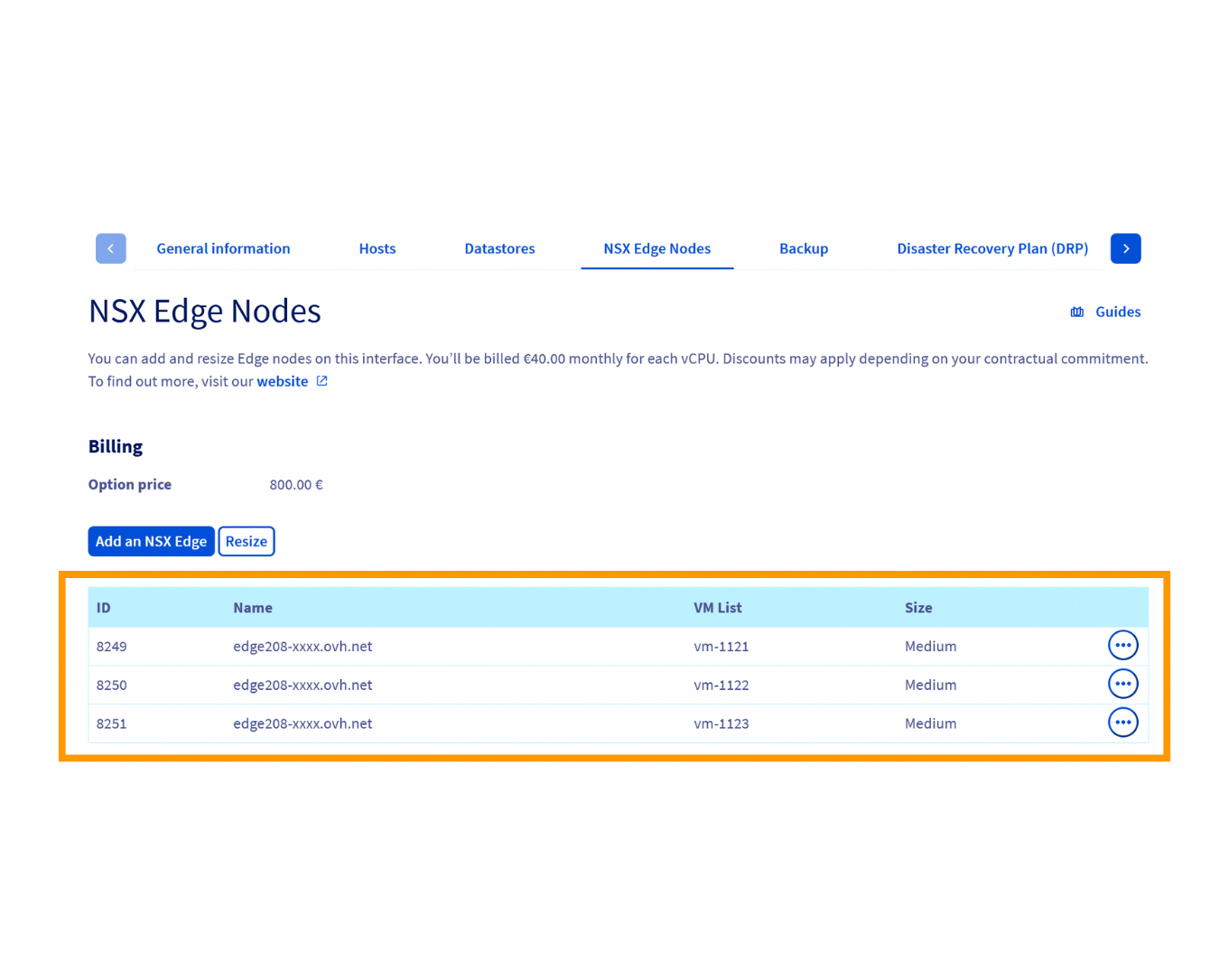
Click on
Deleteand confirm the action.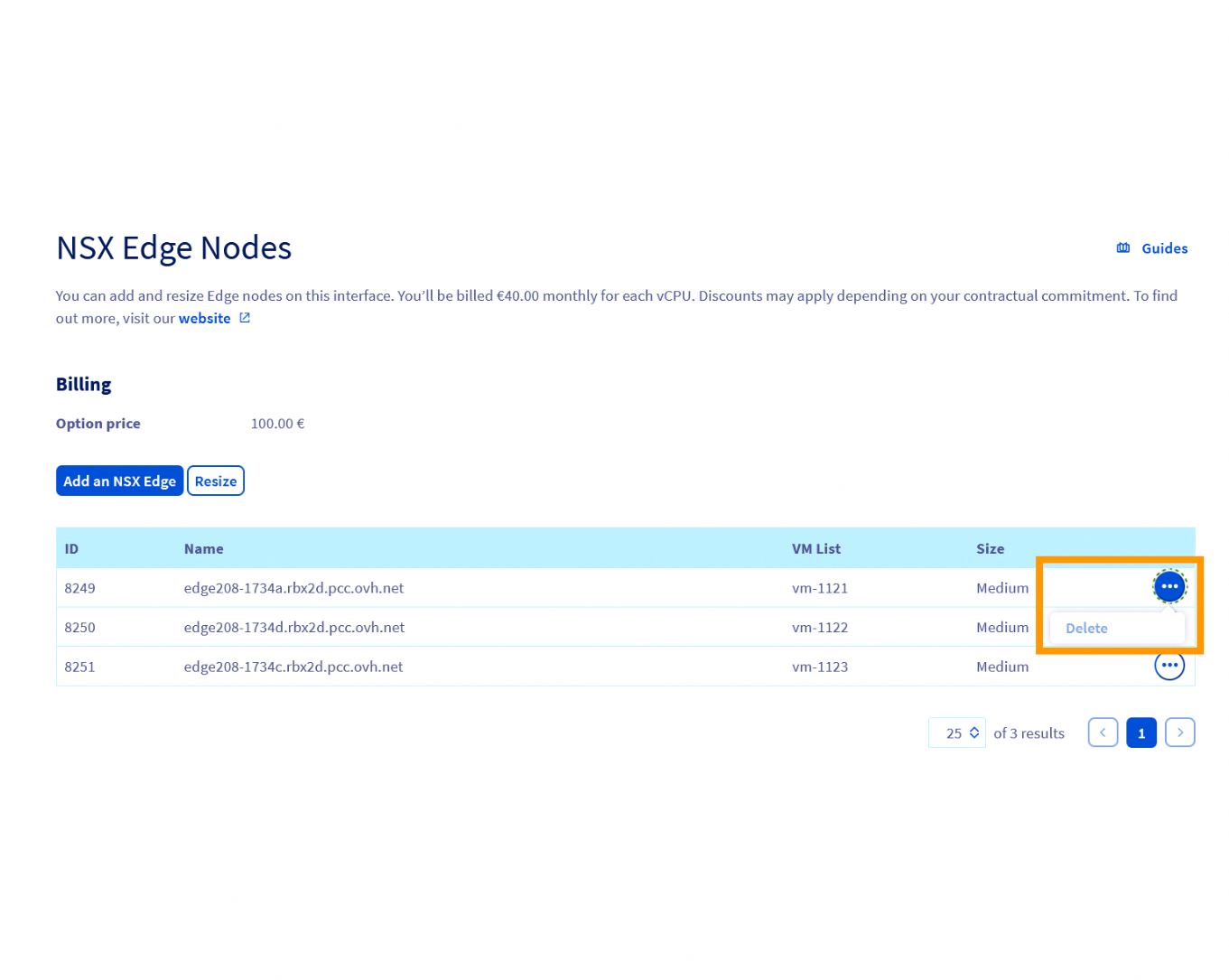
The Edge must be in resilience mode before deletion to ensure no ongoing traffic is affected.
Go further
For detailed information on NSX Edge features, consult the VMware NSX technical documentation.
Pricing details for NSX Edges are not included in this documentation. To access up-to-date pricing or request a quote, visit the OVHcloud website or contact support via the Help Center.
If you need training or technical assistance to implement our solutions, contact your sales representative or click on this link to get a quote and ask our Professional Services experts for a custom analysis of your project.
Join our community of users.


 NSX - FAQ (EN)
 240
240