

Cluster creation and EVC activation
749 Ansichten
 24.04.2026
  Cloud / VMware
Objective
You can set up multiple clusters in your environment to segment your activities.
Learn how to create them and configure their features (DRS, HA & EVC).
This guide provides a step-by-step example for creating a cluster and configuring its features.
Requirements
- Being an administrative contact of your Hosted Private Cloud infrastructure to receive login credentials
- A user account with access to vSphere (created in the OVHcloud Control Panel)
Instructions
Cluster creation
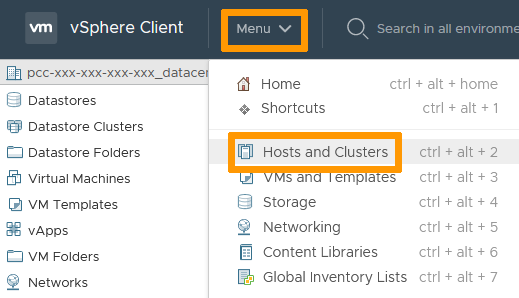
In the vSphere interface menu, go to the Hosts and Clusters dashboard.
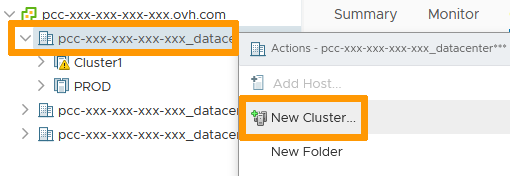
Right-click your Datacenter.
Select New Cluster.
In the pop-up window, name your cluster and select the relevant options you want set.
Click OK when done.
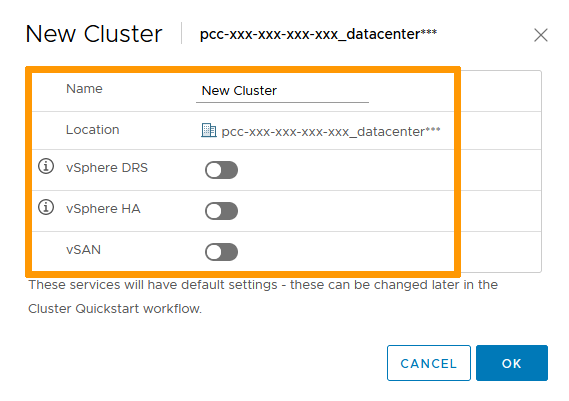
vSAN requires vSAN compatible hosts. Find more details in the Hosted Private Cloud Control Panel guide on how to order them if needed.
DRS
DRS spreads the compute load across your hosts.
If you activated the option, it is set on Fully Automated by default.
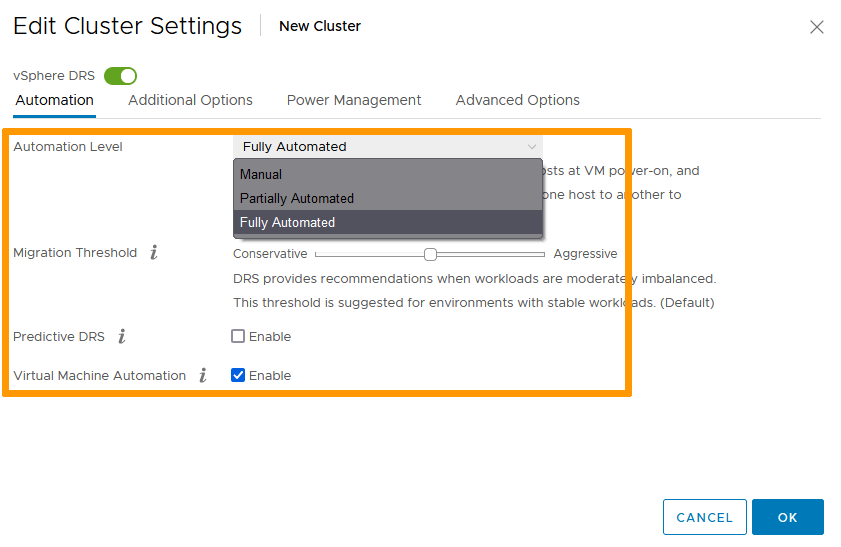
Select your cluster. In the Configure tab, select vSphere DRS and click Edit.
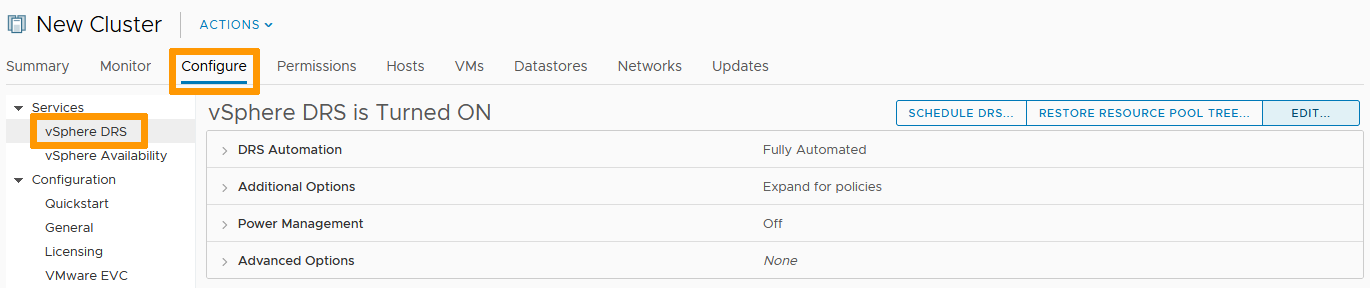
Three options are available to you:
- Manual Mode. DRS generates both power-on placement recommendations, and migration recommendations for virtual machines. Recommendations need to be manually applied or ignored.
- Partially Automated. DRS automatically places virtual machines onto hosts at VM power-on. Migration recommendations need to be manually applied or ignored.
- Fully Automated. DRS automatically places virtual machines onto hosts at VM power-on, and virtual machines are automatically migrated from one host to another to optimize resource utilization.
Automated modes also allow you to set the sensitivity of the service, from the most conservative to the most aggressive threshold.
Click OK when done.
HA
High Availability provides redundancy: a failing host does not impact services running on your VMs.
If you activated the option, it uses its default settings.
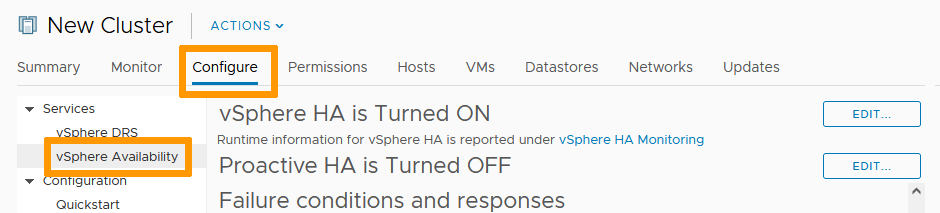
To modify them, select your cluster. In the Configure tab, select vSphere HA and click Edit.
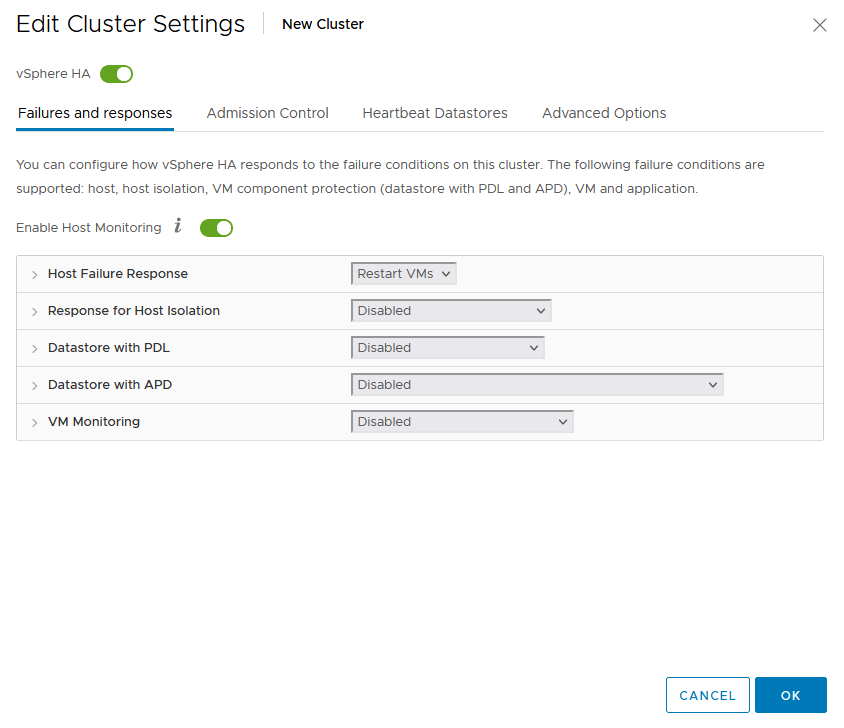
The response types for the different host failures can be customized to your needs.
Click OK when done.
EVC
EVC (Enhanced vMotion Compatibility) allows migration of live VMs between hosts.
Best practices for mixed hardware clusters
This section covers:
- Apply VMware by Broadcom best practices
- Ensure cluster stability and workload availability
- Fully leverage new hardware PREMIER2026 Generation (based on Intel Emerald Rapids)
- Avoid common misconfigurations impacting vMotion and High Availability (HA)
PREMIER2026 increases performance per host, extends cluster lifetime, and enables scaling with new-generation hardware without rebuilding from scratch.
However, mixing CPU generations in a cluster introduces compatibility challenges, especially for vMotion (live migration) and HA restart mechanisms. This is where EVC becomes mandatory.
Supported use cases:
- Heterogeneous cluster (progressive growth)
- Migration to PREMIER2026 (homogeneous target)
Use Case 1: Heterogeneous cluster (progressive growth)
You want to keep existing hosts (Essential / SDDC / Premier) and add PREMIER2026 hosts progressively to scale your cluster over time.
Recommended approach:
- Enable EVC on the cluster
- Select an EVC mode compatible with the oldest CPU generation
- Add PREMIER2026 hosts
- Continue scaling progressively
Implications: all hosts operate under a common CPU baseline; you preserve compatibility but may not fully leverage the newest CPU features (slight performance limitation due to CPU masking).
Use Case 2: Migration to PREMIER2026 (homogeneous target)
You want to migrate all workloads to PREMIER2026 before decommissioning older hardware.
Recommended approach:
- Enable EVC on the cluster (temporary baseline for migration, may require a power off/on of your VM)
- Add PREMIER2026 hosts
- Use vMotion to migrate all workloads
- Remove old hosts from the cluster
- (Optional) Reconfigure or disable EVC to unlock full CPU capabilities (may require a power off/on of your VMs)
Implications: Short-term compatibility is ensured; long-term performance is maximized, but a structured migration phase is required.
Alternative approach with a new cluster
- Create a new cluster (no EVC configuration required)
- Add PREMIER2026 hosts in this new cluster
- Use vMotion to migrate all workloads from the old cluster to the new one (rollback is possible but requires a power off/on of your VMs as EVC is not enabled in the new cluster)
- Remove old hosts from the old cluster
- Remove old cluster
Implications: Short-term performance maximized but requires a structured cross-cluster migration phase. No VMs power off/on required.
How to enable EVC
Before enabling EVC, check your host summary pages to determine their CPU types.
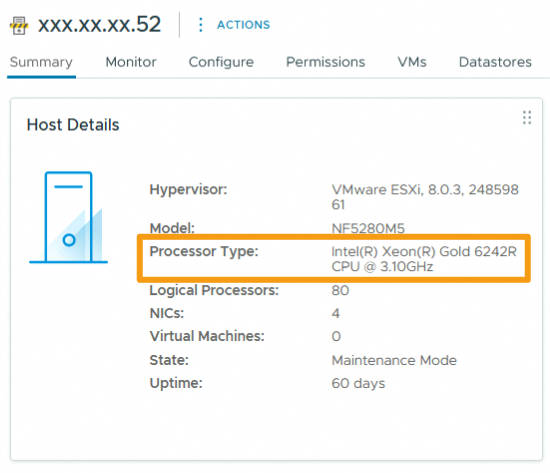
Select your cluster. In the Configure tab, select VMware EVC and click Edit.
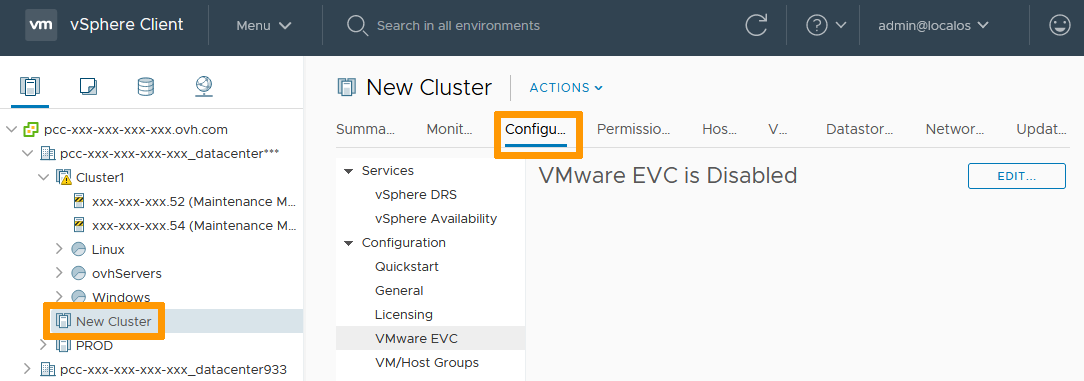
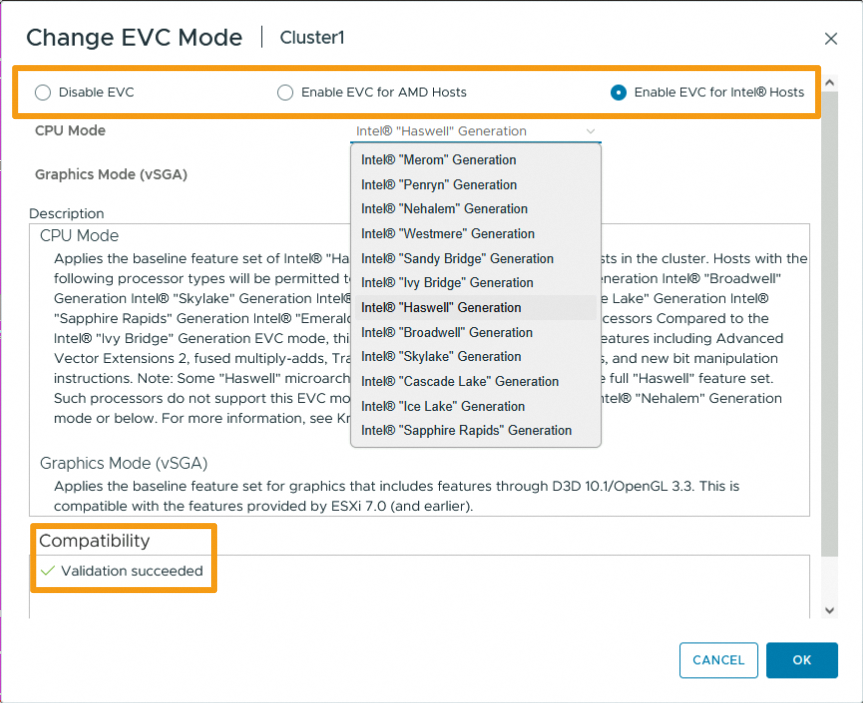
Enable EVC for the CPU types your hosts use.
Downward compatibility is assured. A compatibility validation appears at the bottom of the window to confirm your settings.
Click OK when done.
EVC activation can only happen on a cluster with no active VM running. Make sure to turn off or evacuate all VMs before doing it; it may also require a power off/on of your VMs.
Go further
Join our community of users.


 vSphere SDK verwenden
 618
618