

Duplicating the contents of one database to another
218 Views
 31.03.2026
  Web / Web Hosting
Objective
Your database is a central part of building your dynamic website. During the life cycle of your website, for practical or technical reasons, you may copy the content of one database to a Start SQL or Web Cloud Databases.
This guide explains how to duplicate the content of an OVHcloud database into another OVHcloud database.
With this feature, databases are not moved but copied. This is because the original database is not deleted automatically, as is the case with a migration process. Only the contents of the source database are duplicated for copying to the destination database.
Requirements
- You are using a Start SQL and/or Web Cloud Databases solution. The two databases concerned must be created beforehand in order to use the replication tool.
- You have sufficient rights to all database services concerned. You can find more information in our guide Managing contacts for your services.
OVHcloud Control Panel Access
- Direct link: Hosting plans
- Navigation path:
Web Cloud>Hosting plans> Select your web hosting plan
Instructions
Before you begin, make sure that:
- Your Database Management System (MySQL, PostgreSQL, etc.) is the same for your two databases (source and destination).
- The version of your DBMS is the same for both your databases (source and destination). Although the duplication may work with different versions, it is recommended that you use the same versions.
- The contents of the source database must not exceed the size of the destination database.
Copy the contents of a database
This feature is available for copying:
- A Start SQL database (included in some of our web hostings or ordered separately).
- A database hosted on a Web Cloud Databases server (included with our Performance web hosting or ordered separately).
Depending on your situation, the path to your source database is different.
Click on your situation to view the content.
From a Start SQL database
Click on the tabs below to view each of the 6 steps.
Go to the Hosting plans page, then select the web hosting plan concerned.
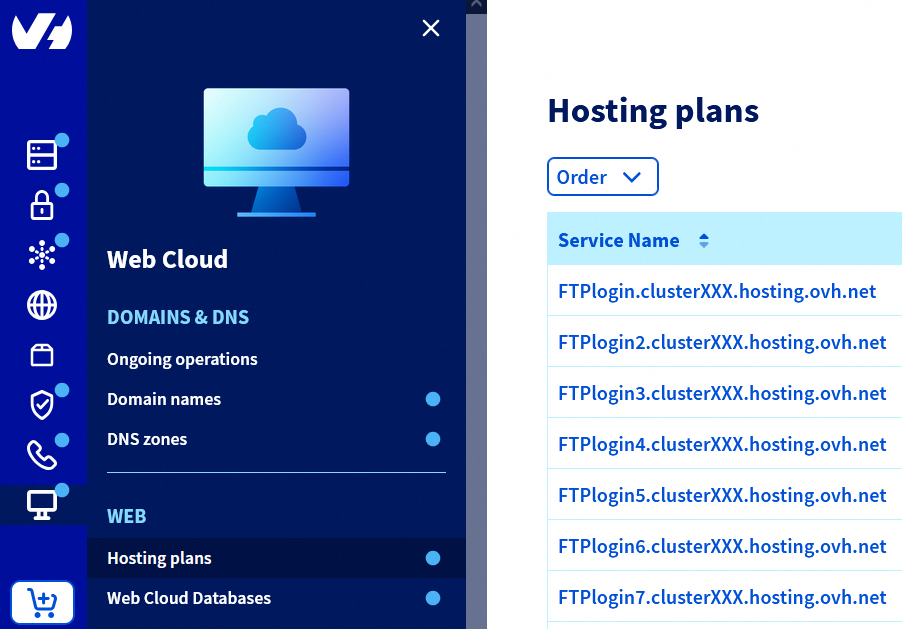
Click on the Databases tab. The table lists the databases created on your web hosting plan.
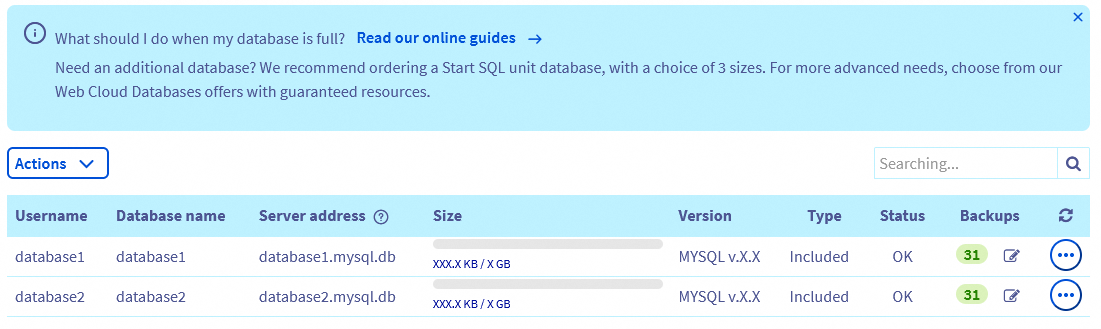
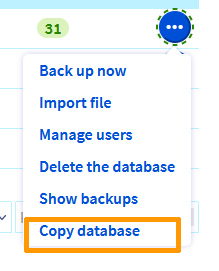
Click the ... button to the right of the row of the database you want to copy, then select Copy database.
A window will prompt you to choose your destination database.
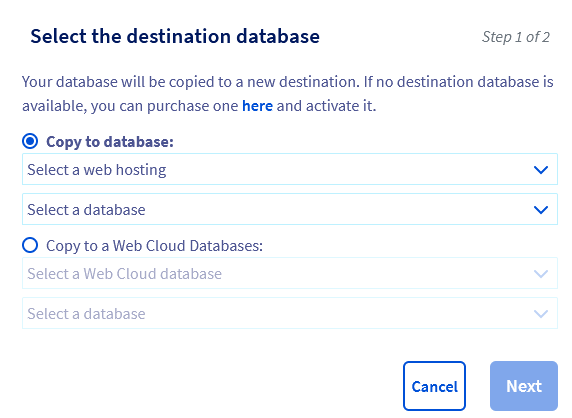
If you do not have a destination database, click the link in the window to purchase one. Remember to activate it:
- For a Shared SQL database: follow our guide Creating a database on your web hosting plan.
- For a database on a Web Cloud Databases server: follow our guide Creating a database on a Web Cloud Databases server.
- Choice 1 - Copy to a Start SQL database: select
Copy to database, then choose the destination database from the drop-down list. - Choice 2 - Copy to a Web Cloud Databases server: select
Copy to a Web Cloud Database. Two drop-down lists appear. Click the first one to select the Web Cloud Databases solution, then click the second one to choose the destination database.
Click Next. The following confirmation message is displayed:
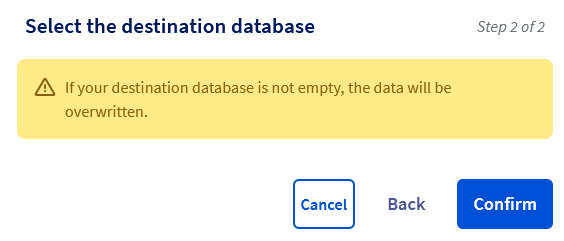
If you do not want to overwrite the destination database, click Back to change your choice, or Cancel to cancel everything. Otherwise, click Confirm to confirm the duplication.
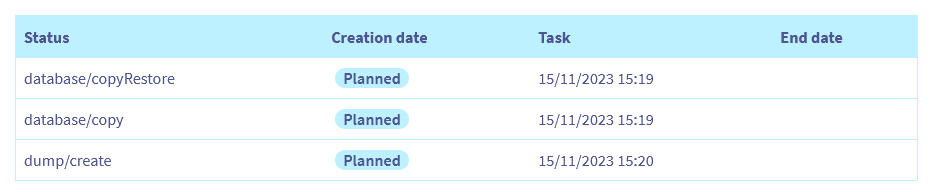
The copy may take several minutes. In the Ongoing tasks tab, a new row for your copy will appear with a "scheduled" status. Once the operation is complete, the row disappears.
From a Web Cloud Databases server
Click on the tabs below to view each of the 6 steps.
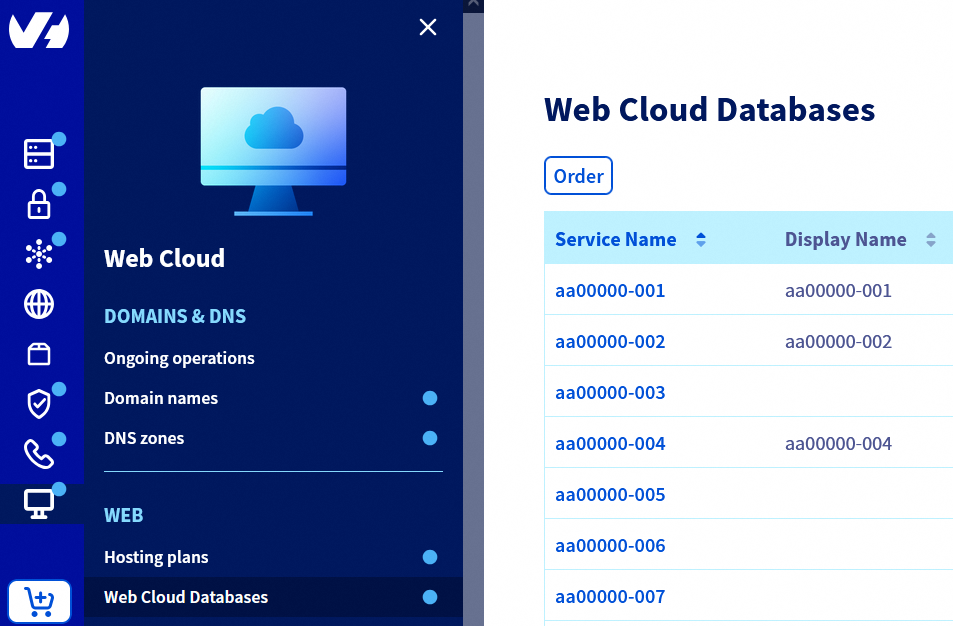
Go to the Web Cloud Databases page, then select the solution concerned.
Click on the Databases tab. The list of databases on your Web Cloud Databases server is displayed.
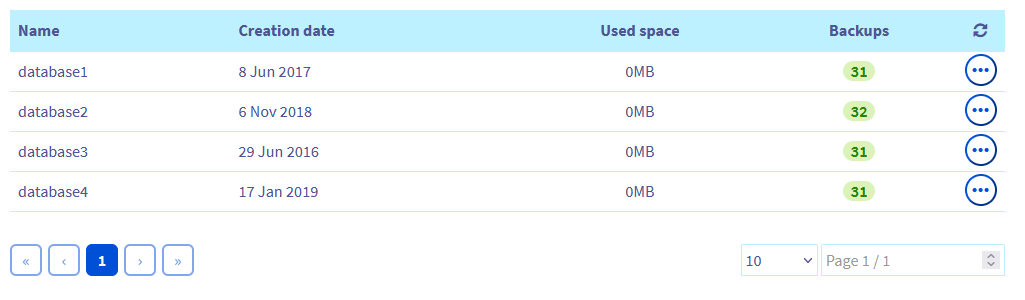
Click the ... button to the right of the row of the database you want to copy, then select Copy database.
A window will prompt you to choose your destination database.
If you do not have a destination database, click the link in the window to purchase one. Remember to activate it:
- For a Shared SQL database: follow our guide Creating a database on your web hosting plan.
- For a database on a Web Cloud Databases server: follow our guide Creating a database on a Web Cloud Databases server.
- Choice 1 - Copy to a Start SQL database: select
Copy to database, then choose the destination database from the drop-down list. - Choice 2 - Copy to a Web Cloud Databases server: select
Copy to a Web Cloud Database. Two drop-down lists appear. Click the first one to select the Web Cloud Databases solution, then click the second one to choose the destination database.
Click Next. The following confirmation message is displayed:
If you do not want to overwrite the destination database, click Back to change your choice, or Cancel to cancel everything. Otherwise, click Confirm to confirm the duplication.
The copy may take several minutes. In the Ongoing tasks tab, a new row for your copy will appear with a "scheduled" status. Once the operation is complete, the row disappears.
Configuring your website with a new database
Once you have made a copy of your source database, you will need to take a final action if you want to use your new database.
In the Ongoing tasks tab, ensure that the duplication is complete (the line corresponding to your copy has disappeared).
To connect the new database to your website, edit the configuration file for your Content Management System (CMS) and enter the connection information for the new database.
It is recommended that you make a copy of your website's configuration file before editing it. This ensures that you can replace the new version of the file with the old one if your configuration fails.
For example, if you use WordPress, you will need to modify the wp-config.php configuration file in the root folder of your WordPress application, in your hosting plan's storage space (FTP), then update the following fields:
- DB_NAME
- DB_USER
- DB_PASSWORD
- DB_HOST
For more details, or if you are using another CMS, please refer to our guide on Changing the password for a web hosting plan database.
Copying your database is not a migration. Your source database still exists until you delete it. This way, you can still reconfigure your website with its old database if necessary.
Troubleshooting
During the process of copying the contents of the database, you may encounter difficulties.
Click on your situation to view the content.
No databases are displayed in the list
This means that you only have one active database. To copy your source database, you also need an active destination database. To do this, you can:
- Configure a new database available on your web hosting plan.
- Configure a new database on your Web Cloud Databases server.
- Order a Start SQL solution or a Web Cloud Databases database server.
You already have an action in progress
This message means that a task is already in progress on your database. Go to the Ongoing tasks tab to check this. If so, wait for the task to finish, then restart the duplication process of your database.
The destination database does not contain enough space
Your destination database is not of a sufficient size. There are two ways to resolve this:
- Order a new Start SQL database with more space.
- If you have a Web Cloud Databases server, switch to a Web Cloud Databases solution with more storage space.
The source and destination databases are incompatible
This notification means that the Database Management System (DBMS) in your source database is not the same as the DBMS in your destination database.
For example, this error can occur when you use MySQL for your source database, and PostgreSQL for your destination database.
Go further
Log in to the OVHcloud Control Panel
Back up and export a database on your database server
Restore and import a database on your database server
Retrieve the backup of a web hosting plan's database
Import a backup into a web hosting database
For specialised services (SEO, development, etc.), contact OVHcloud partners.
If you would like assistance using and configuring your OVHcloud solutions, please refer to our support offers.
Join our community of users.


 Retrieving the backup of a Web Hosting plan’s database
 382
382