

Web Cloud Databases - How to manage logs
195 Views
 24.03.2026
  Cloud / Logs Data Platform
Objective
A log is an event recorded on a computer system (server, computer, application, website, database, network, etc.). For example, a log can record and contain one or more of the following elements:
- The timestamp (date, hour, minute, second, etc.) of the event.
- The nature of the event (connection, disconnection, error, download, upload, alert, etc.).
- Additional information about the event (page or file accessed, application launched, remote server called, name of a file uploaded or downloaded, etc.).
- The origin of the event (user ID, source IP address, source program, etc.).
- The state of the system where the event occurs (available resources, remaining memory, CPU usage, etc.).
Most of the time, logs are generated directly by the computer systems where the events take place. They are stored and recorded in text files also known as log files.
As a result, log files allow you to:
- Analyse the behaviour of the computer system generating the logs.
- Identify errors that have occurred on the system.
- Resolve errors encountered on the system.
- Optimise and improve the system's performance.
Your Web Cloud Databases solution generates its own logs.
In certain situations, you may need to view or retrieve the logs:
- From your Web Cloud Databases server.
- For one of the databases hosted on your Web Cloud Databases server.
Find out how to view and manage the logs of your Web Cloud Databases solution.
Requirements
OVHcloud Control Panel Access
- Direct link: Web Cloud Databases
- Navigation path:
Web Cloud>Web Cloud Databases> Select your database service
Instructions
We provide this tutorial to help you with common tasks. However, we recommend contacting a specialist provider if you experience any difficulties. We will not be able to assist you with interpreting the logs available with your Web Cloud Databases solution. More information in the Go further section of this tutorial.
Viewing real-time logs for your Web Cloud Databases
Click on the tabs below to view each of the 2 steps.
Go to the Web Cloud Databases page, then select the solution concerned.
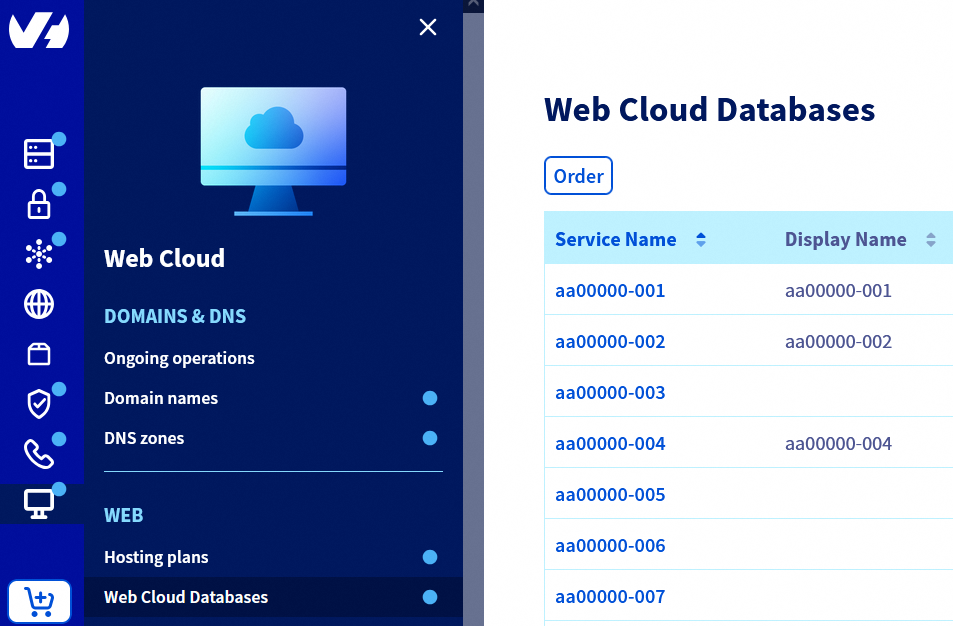
Click on the Logs tab.
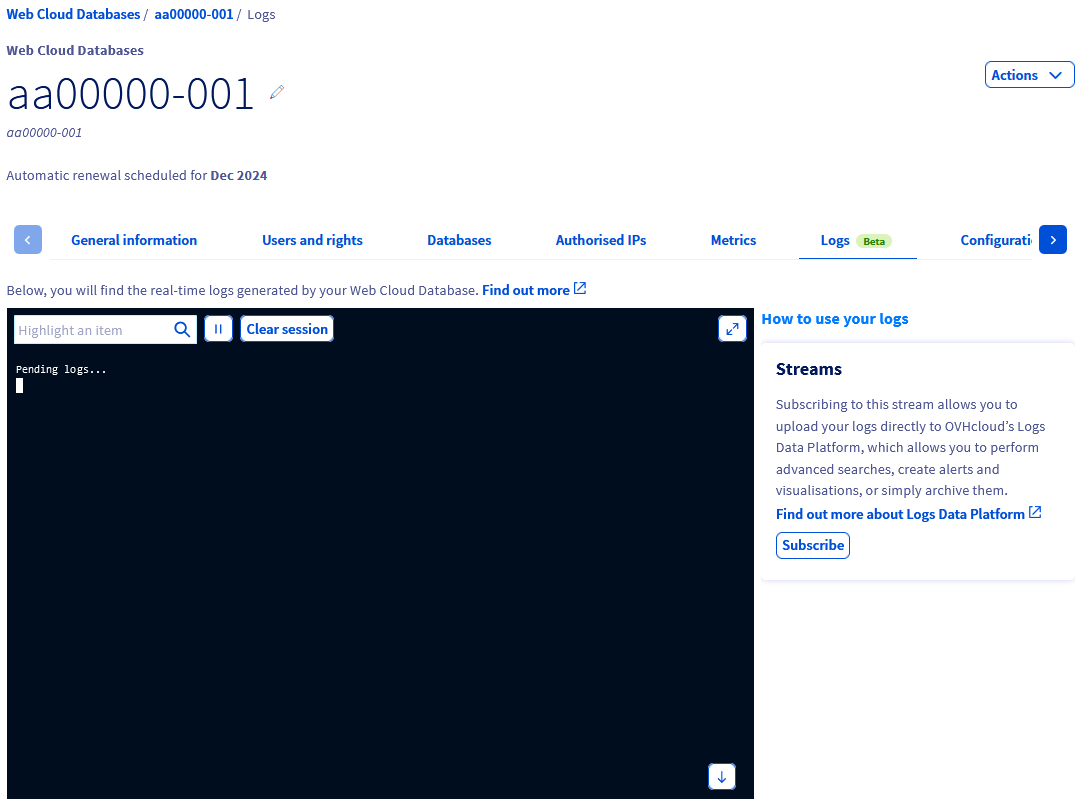
This built-in console displays the logs for your Web Cloud Databases solution in real time.
Logs are only available here in real time. They will only appear if they are generated while you are on the Logs tab.
If you leave the Logs tab and return to it later, the previously displayed history will have disappeared.
Retrieving the log history for your Web Cloud Databases solution
To retrieve the log history for your Web Cloud Databases solution, you need to connect to it via SFTP.
Before connecting, check that the public IP address of the device you are using is authorised on your Web Cloud Databases server, with the SFTP option ticked.
To check this, retrieve the public IP address of your internet access point, then refer to the Authorise an IP address section of this guide.
To find the SFTP connection details for your Web Cloud Databases solution, click on the tabs below to view each of the 2 steps.
Go to the Web Cloud Databases page, then select the solution concerned.
In the General information tab, find the Connection information section. Below the SFTP label, you will find the details needed to connect via SFTP.
If you do not know the Server password, click the ... button to the right to change it.
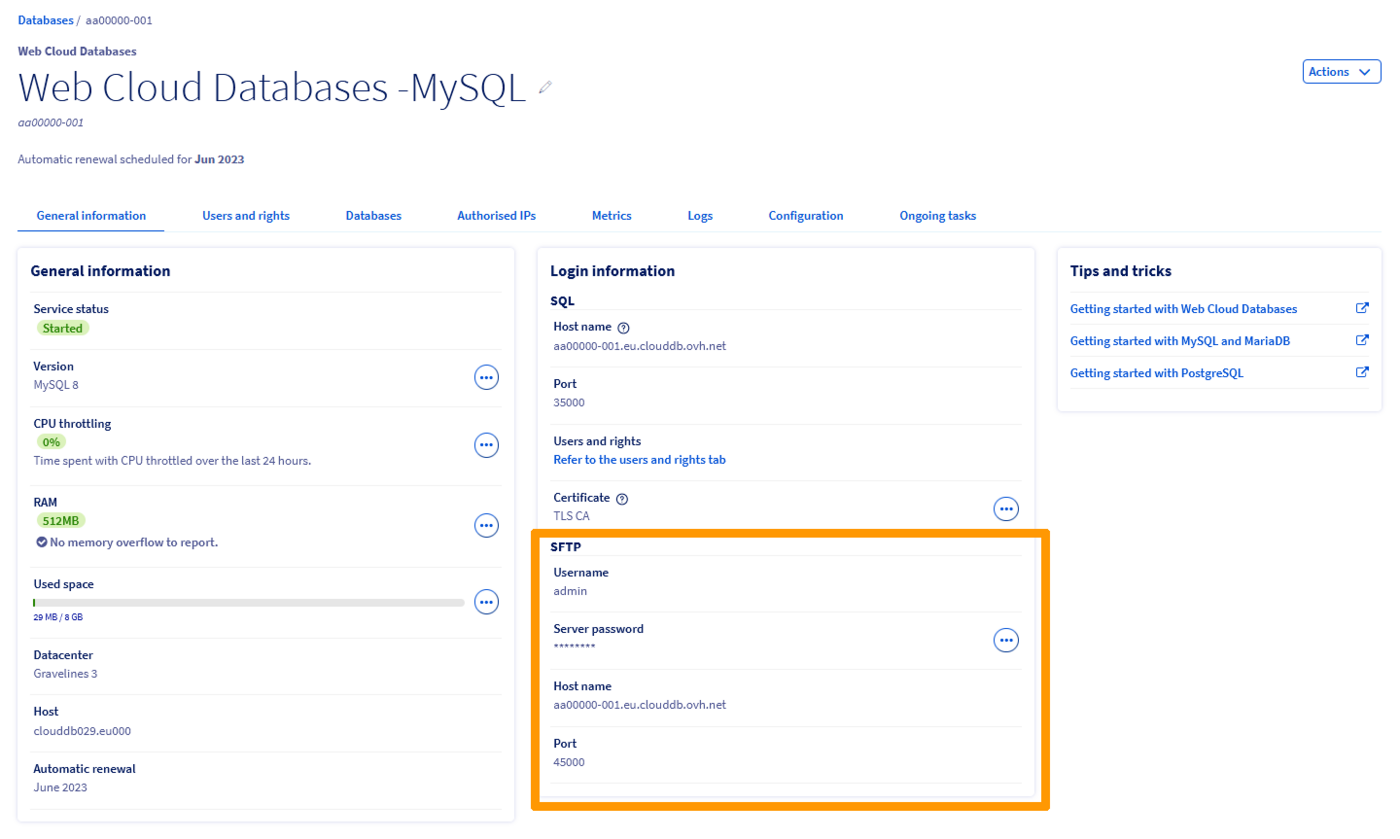
Once you have the SFTP login details, connect using an FTP client (FileZilla, Cyberduck, WinSCP, etc.).
For FileZilla, go to the top left menu File, then click Site Manager.
Click New Site and enter the details noted previously.
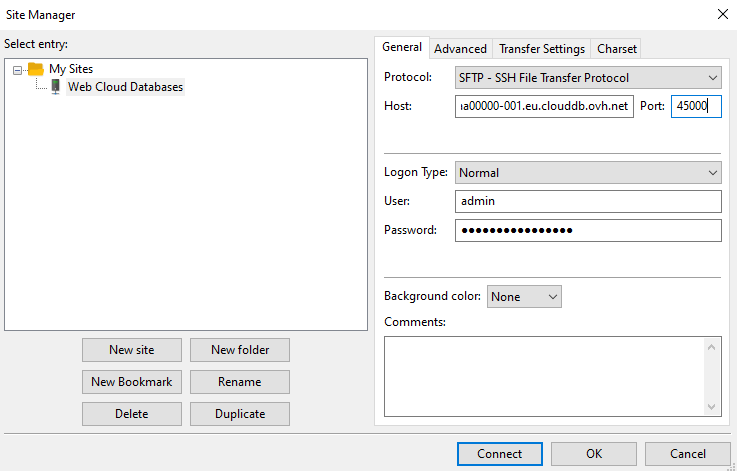
The log file, named stdout.log, is located at the root.
Download it to your device to view it.
An additional log file named slow-query.log may appear at the SFTP root of your Web Cloud Databases server.
This file contains the history of slow queries that were executed on your Web Cloud Databases server.
By default, the value is set to 1 second on Web Cloud Databases solutions in the long_query_time variable.
Using this file, you can optimise your scripts and database content to improve the performance of your associated services.
Subscribing your Web Cloud Databases logs to Logs Data Platform
Logs Data Platform is a platform for managing your logs. It facilitates log aggregation and management, particularly for infrastructures generating a high volume of logs.
It works by retrieving logs generated by your infrastructure, websites, or applications, for example to:
- Store them.
- Display them in real-time dashboards.
- Allow users to perform complex queries.
- Filter them by date, application, type, or content.
For more details on Logs Data Platform, refer to our guide on Introduction to Logs Data Platform (EN).
Since Web Cloud Databases solutions can be used with many services (shared hosting, VPS, dedicated servers, etc.), they can, in addition to the real-time logs already available, be subscribed to Logs Data Platform via data streams.
To subscribe your Web Cloud Databases solution to a data stream on Logs Data Platform, 2 scenarios may apply.
Click on each case to view the content.
Case 1 - Subscribe to an existing data stream on your Logs Data Platform solution
Click on the tabs below to view each of the 4 steps.
Go to the Web Cloud Databases page, then select the solution concerned.
Click on the Logs tab, then on the Subscribe button to the right of the real-time logs area.
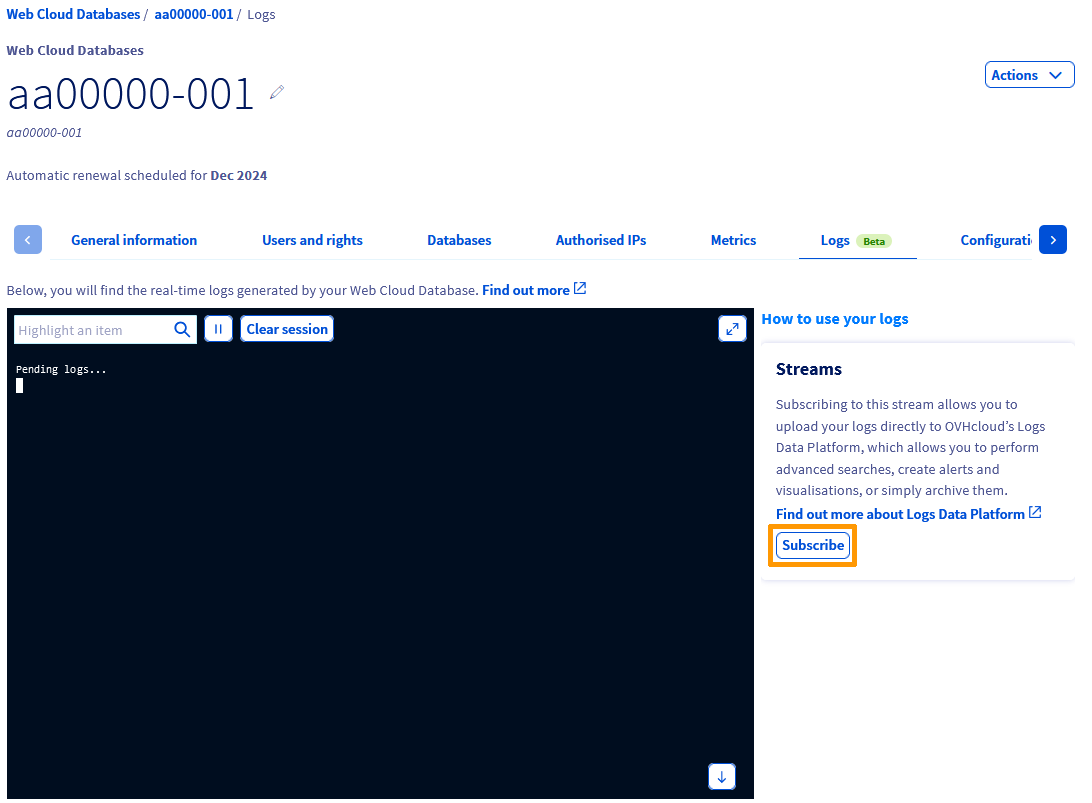
If you have several Logs Data Platform solutions, select the desired reference from the dropdown list below the Add a data stream button.
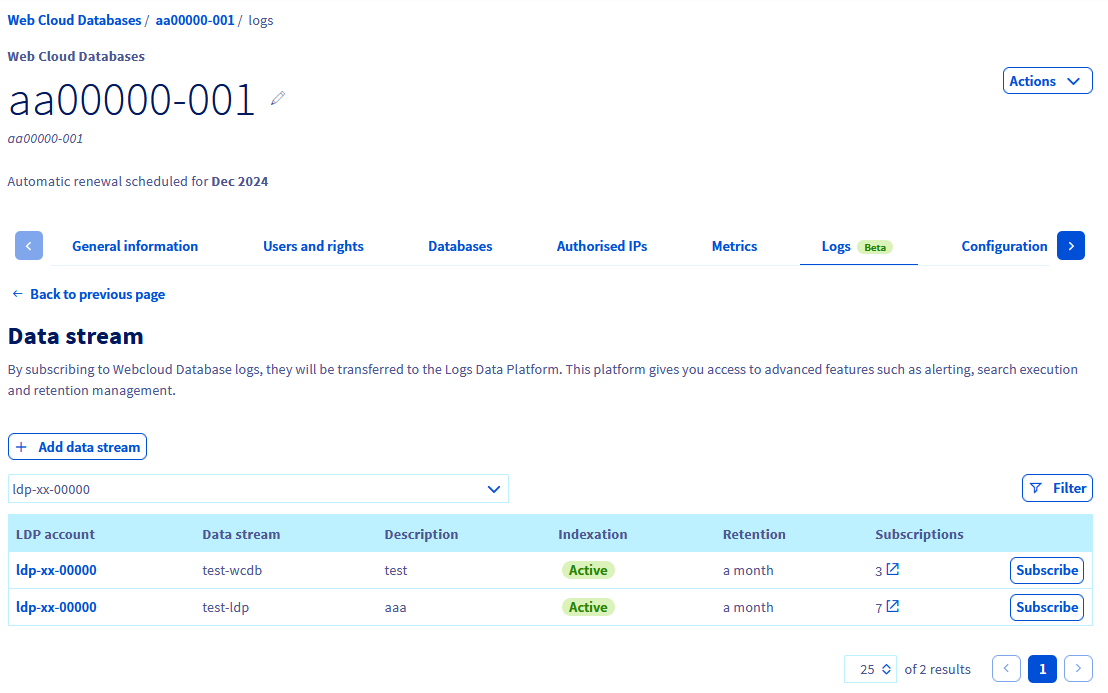
The existing data stream appears in the table at the bottom of the page. Click the Subscribe button to the right of the corresponding line.
After a few seconds, a message confirms that the subscription was successfully created.
Case 2 - Subscribe to a new data stream on your Logs Data Platform solution
Click on the tabs below to view each of the 5 steps.
Go to the Web Cloud Databases page, then select the solution concerned.
Click on the Logs tab, then on the Subscribe button to the right of the real-time logs area.
If you have several Logs Data Platform solutions, select the desired reference from the dropdown list below the Add a data stream button.
Since the data stream does not exist yet, click the Add a data stream button. You will be redirected to a page where you can create a new data stream on your Logs Data Platform solution.
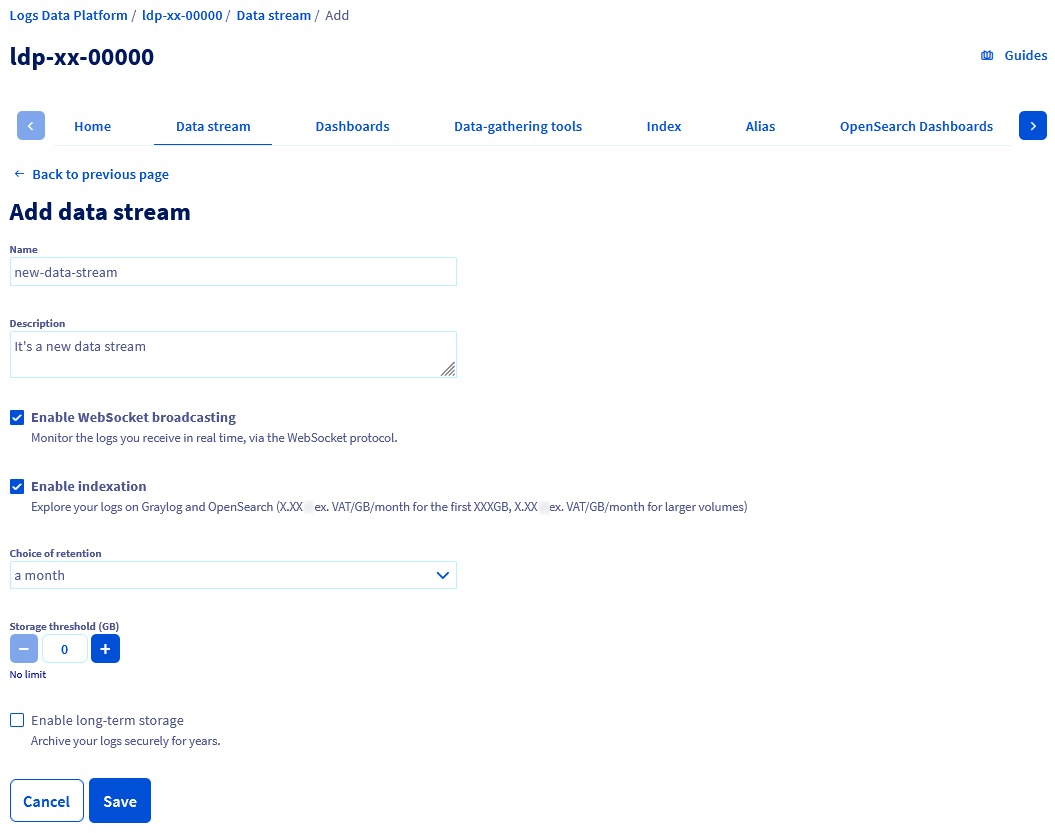
If needed, refer to our guides on Introduction to Logs Data Platform (EN) and Quick start with Logs Data Platform (EN).
Once the forms are completed, click Save. You will be redirected to the Data streams tab of your Logs Data Platform solution.
To subscribe your Web Cloud Databases solution to this new data stream, go back to the Logs tab of your Web Cloud Databases solution, then follow Case 1 described above.
Go further
Getting started with your Web Cloud Databases
Introduction to Logs Data Platform (EN)
Quick start with Logs Data Platform (EN)
For specialised services (SEO, development, etc.), contact OVHcloud partners.
Join our community of users.


 Creating databases and users on your database server
 381
381