

Managing a legacy VPS
274 Views
 22.01.2024
  Cloud / Virtual private servers
Objective
You can identify an old-range VPS by the reference name displayed in your OVHcloud Control Panel: If this internal identifier has the format vpsXXXX.ovh.net (in which X stands for a number) and you have not migrated the corresponding VPS to our current product line, this is a legacy VPS. There are a few differences to consider when managing such a service.
The reference name of a current VPS looks like this: vps-XXXXXXX.vps.ovh.net (where X can be a number or a letter).
This guide explains the Control Panel functions of a legacy VPS.
Requirements
- A legacy Virtual Private Server in your OVHcloud account
- Access to the OVHcloud Control Panel
Instructions
Log in to the OVHcloud Control Panel, open Bare Metal Cloud and select your server from Virtual Private Servers. On the Home tab you can access the main VPS operations from the section Shortcuts.
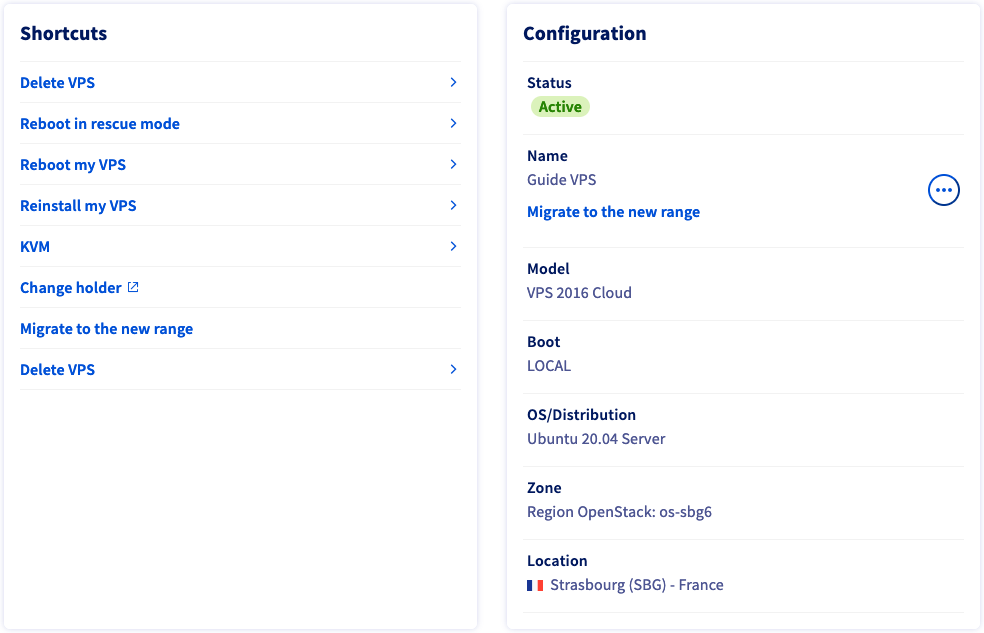
Delete VPS
This will open a popup window to initiate the process of cancelling your service.
Reboot in rescue mode
Click on this option to restart the VPS into rescue mode. Find all the details in our guide.
On legacy VPS ranges, your partitions will be automatically mounted in rescue mode. You can use the following command to verify this and identify where your partition is mounted:
Reboot my VPS
This Control Panel option will carry out a "hard reboot" of your VPS if you click on Confirm in the popup window.
A restart might become necessary in order to apply updated configurations or to fix an issue. Whenever feasible, perform a "soft reboot" via the command line:
Reinstall my VPS
Click on this option to install a new operating system. In the popup window, you will be asked to choose:
- An operating system from the drop-down list
- The language
- An SSH key (optional)
Note that the selection of operating systems might be limited on your service.
Some proprietary operating systems or platforms such as Plesk or cPanel require licences which generate additional fees. Licences can be managed from the OVHcloud Control Panel: Go to the Bare Metal Cloud section, then open Licences.
You will receive an email once the installation is complete. This process may take up to 30 minutes.
Connecting to your VPS after reinstallation
When you reinstall your VPS, you will be sent an email containing your root password for connecting to your VPS via SSH, unless you have selected an SSH key to be preinstalled.
Disabling server access for the root user
The user "root" is created by default on GNU/Linux systems. Root access means having the highest level of permissions on an operating system. It can be dangerous to leave your VPS accessible via the root user login and password, as this account can perform irreversibly damaging operations.
You can disable root user logins via the SSH protocol. Remember to create another user before following the steps below.
Use a text editor such as vim or nano to edit this configuration file:
Locate the following line:
Replace yes with no after PermitRootLogin. Save and exit the editor.
For this modification to be taken into account, you need to restart the SSH service with one of the following commands:
This should be sufficient to apply the changes. Alternatively, reboot the VPS (~$ sudo reboot).
Afterwards, connections to your server via root user (ssh root@IPv4_VPS) will be rejected.
KVM
Use this option to connect to your VPS via KVM. Find all the details in our guide.
Change holder
This link directs you to the form to fill out in case the owner of the VPS has to be changed. Contact our support teams by creating a ticket in the OVHcloud Control Panel if you need assistance with this procedure.
Migrate to the new range
Your VPS can be migrated to the current range automatically. Find out the benefits of this offer on our VPS migration FAQ page.
Go further
Join our community of users.


 Getting started with a VPS
 3931
3931