

How to use IAM policies with vSphere
191 Views
 25.10.2023
  Cloud / Hosted Private Cloud
Objective
This guide will show you how to connect your vSphere with OVHcloud IAM.
This will allow you to:
- Log in to your vSphere using an OVHcloud account.
- Manage your users' rights levels through IAM policies.
Requirements
- You have an OVHcloud account.
- You know how to manage account users.
- You know how to configure policies for IAM.
Instructions
Enabling OVHcloud IAM does not deactivate your existing Hosted Private Cloud users. You can still use them to connect directly to the different elements of your Hosted Private Cloud, without going through IAM.
OVHcloud IAM is not available on environments with advanced security and certification options (PCI-DSS, HDS, HIPAA, SNC).
Enable IAM on your server
Via the Control Panel
In the user management menu of your Hosted Private Cloud environment, click on Enable OVHcloud IAM.
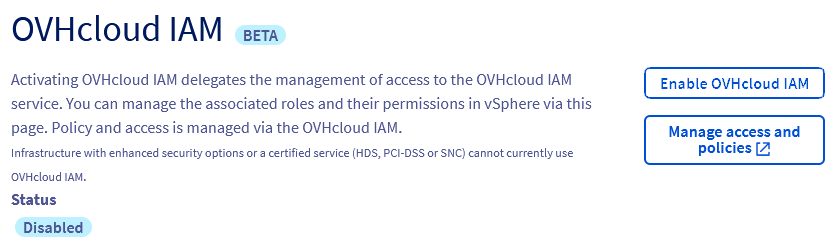
This operation may take up to 30 minutes.
Via the API
You can enable the IAM option on your Hosted Private Cloud from the OVHcloud API. Execute the following call:
This operation may take up to 30 minutes.
Create IAM roles
Once the option is activated, IAM roles are created by default and can be used in OVHcloud IAM access policies.
vSphere permissions for each IAM role are managed the same way as for any other Hosted Private Cloud user, via the API or in the OVHcloud Control Panel.
Via the Control Panel
On the user management menu, click Create IAM role.

IAM roles are prefixed with "iam-".
Via the API
You can create new roles by executing the following call:
Using IAM policies
You can create IAM policies from the OVHcloud IAM menu.
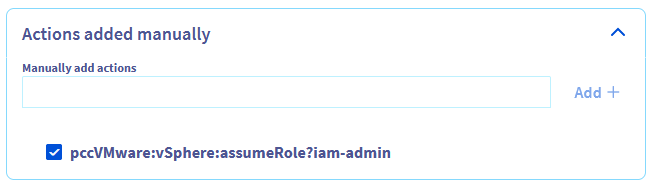
Each IAM role in your Hosted Private Cloud corresponds to an IAM action in the form "pccVMware:vSphere:assumeRole?role name".
For example, for the iam-admin role, the action is "pccVMware:vSphere:assumeRole?iam-admin".
This action must be specified in the "Actions added manually" section of the policy creation.
Disable IAM on your server
You can disable OVHcloud IAM on your Hosted Private Cloud.
Via the Control Panel
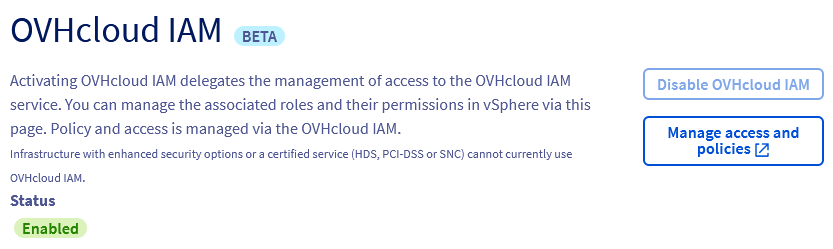
In the user management menu of your Hosted Private Cloud environment, click on Disable OVHcloud IAM.
Via the API
Execute the following call to disable the connection with the OVHcloud IAM:
Go further
Join our community of users on https://community.ovh.com/en/.


 Changing the User Password
 338
338