

IAM for VMware on OVHcloud - How to associate a vSphere role with an IAM policy
170 Views
 23.05.2024
  Cloud / Hosted Private Cloud
IAM is currently in beta phase. This guide can be updated in the future with the advances of our teams in charge of this product.
Objective
This guide details how to create or modify a global IAM policy and add a vSphere role.
Requirements
- An OVHcloud account.
- One or more Hosted Private Cloud products - VMware on OVHcloud linked to this account (Hosted Private Cloud powered by VMware, VMware Service Pack).
- IAM enabled for your Hosted Private Cloud service - VMware on OVHcloud. Follow the steps in the guide IAM for VMware on OVHcloud - How to enable IAM.
Instructions
Creating or editing a policy
Log in to your OVHcloud Control Panel. Click on your name in the top right-hand corner of the OVHcloud Control Panel, then click on your initials to go to the My account section.
Under My account, click Identity and Access Management (IAM){.action].
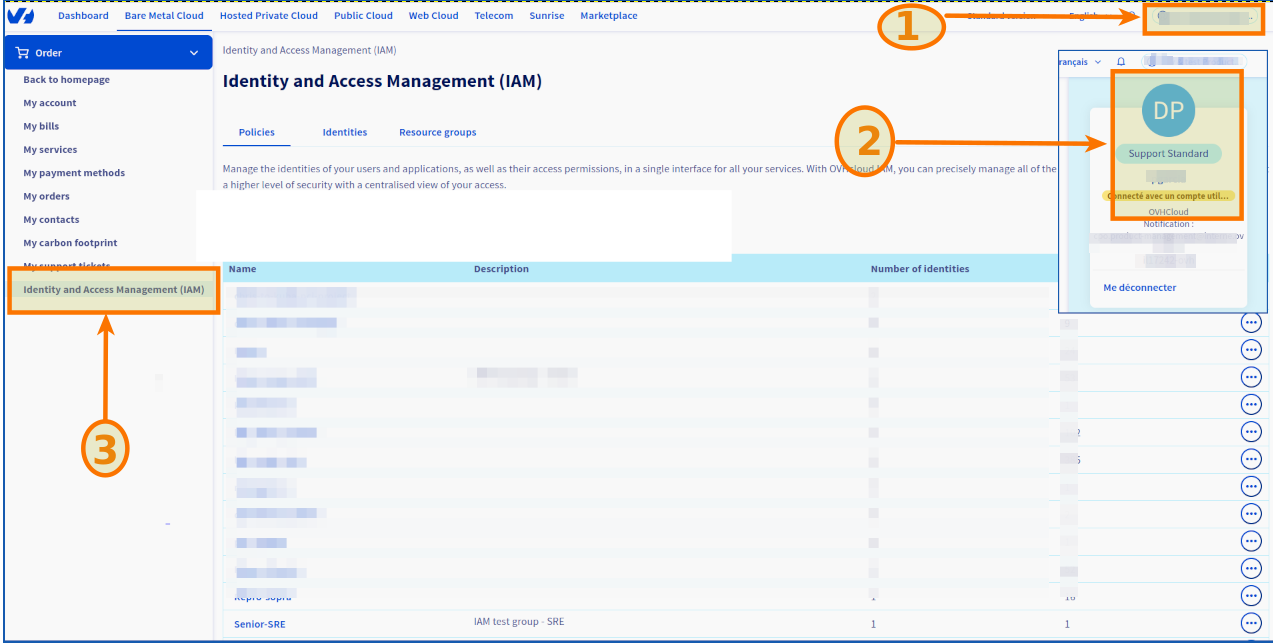
Click Create a Policy.
To modify a policy, click the ... button to the right of the policy concerned, then Modify policy.
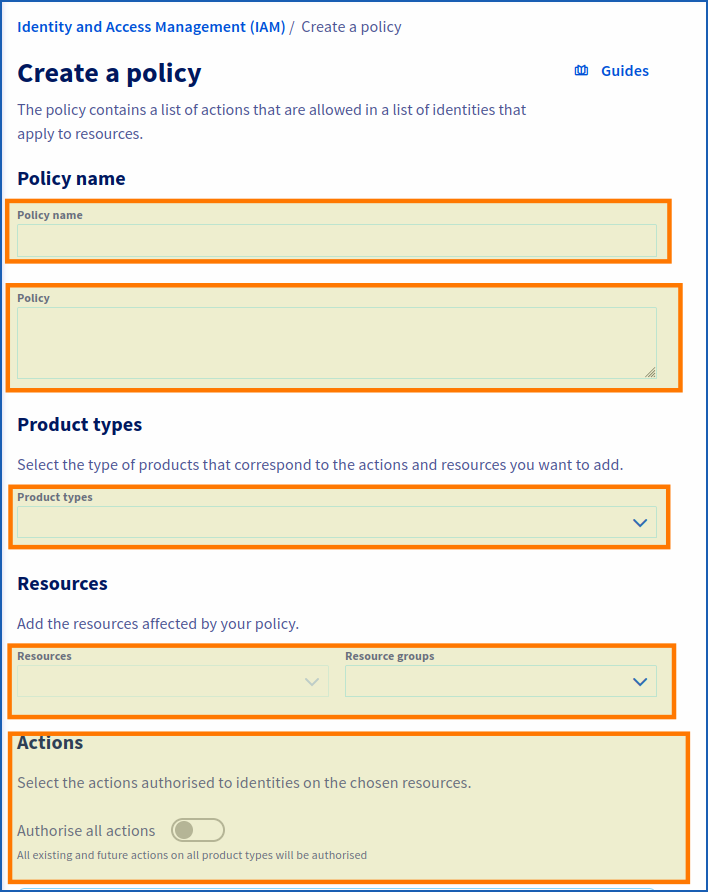
Enter the requested settings:
- Policy name: Choose a name.
- Description: Enter a description for your policy.
- Product types: Hosted private cloud powered by VMware / VMware Service Pack.
- Resources: Add the resources concerned by your policy (pcc-XX-XX-XX-XX/servicepack, pcc-XX-XX-XX-XX, etc.)
- Actions: This is where you add your role (see below).
Adding an IAM role to a global policy
When enabling IAM in vSphere, two roles are added by default (iam-admin, iam-auditor).
Copy the roles from the code section below, paste them into the field labeled "Actions added manually" under the “Actions” section, then click the Add + button.
If you have created an additional IAM role (after following the steps in the guide “IAM for VMware on OVHcloud - How to create an IAM vSphere role”), you can also add it by copying the code below and adapting it to your role:
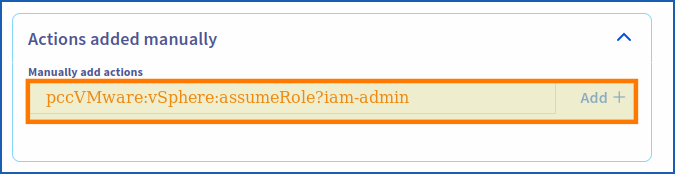
Be sure to click the Add + button to add the action.
Finally, click Create policy (or Modify policy if applicable).
Go further
You can now follow the steps in the guide IAM for VMware on OVHcloud - How to associate a user with a global IAM policy.
IAM for VMware on OVHcloud - Guide index:
- Guide 1: IAM for VMware on OVHcloud - Overview and FAQ
- Guide 2: IAM for VMware on OVHcloud - How to enable IAM
- Guide 3: IAM for VMware on OVHcloud - How to create an IAM vSphere role
- Guide 4: IAM for VMware on OVHcloud - How to associate a vSphere role with an IAM policy
- Guide 5: IAM for VMware on OVHcloud - How to associate a user with a global IAM policy
If you need training or technical assistance to implement our solutions, contact your sales representative or click on this link to get a quote and ask our Professional Services experts for a custom analysis of your project.
Join our community of users.


 Changing the User Password
 338
338