

End-Of-Life management for LV1 and LV2 storage
71 Views
 02.03.2023
  Cloud / Hosted Private Cloud
OVHcloud provides services for which you are responsible, with regard to their configuration and management. It is therefore your responsibility to ensure that they work properly.
This guide is designed to assist you as much as possible with common tasks. However, we recommend contacting a specialist provider if you experience any difficulties or doubts when it comes to managing, using or setting up a service on a server.
Objective
Some storages will no longer be available at the end of March 2023 as they will no longer be maintained, as described in this guide: Life cycle of VMware on OVHcloud.
We will go through all the steps to migrate your data to more recent storage and disable your obsolete storage.
Requirements
- Being an administrative contact of your Hosted Private Cloud infrastructure to receive login credentials.
- A user account with access to the OVHcloud Control Panel.
- A user account with access to vSphere.
Instructions
Adding storage
Using the new storage ranges will provide you with full-SSD (vs SSD-accelerated) disks, 2x2x25Gbps network cards (vs 2x10Gbps), higher availability and resilience. Click this link for more information: NFS Datastore.
Use this guide to add more storage if you have not yet subscribed to a more recent solution: How do I add storage space?
Migrating your virtual machines
Go to your vCenter interface and check the virtual machines that are on each of your outdated datastores.
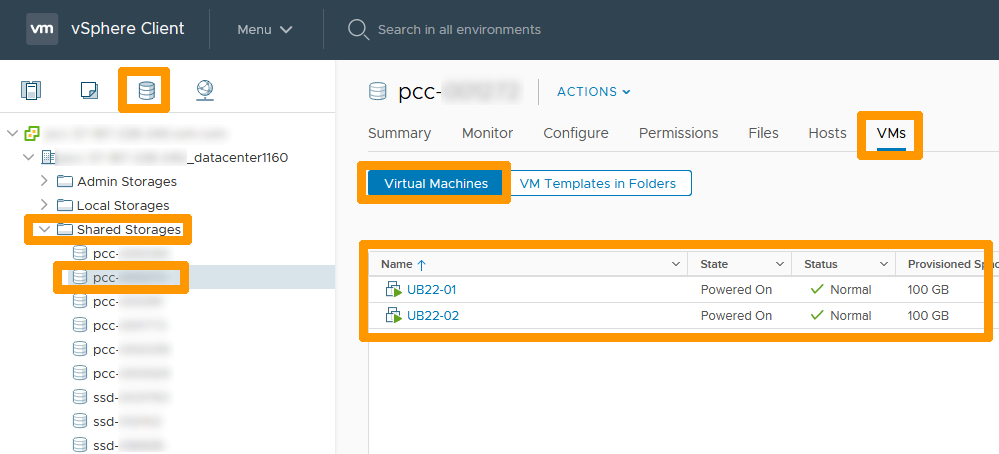
Click on the storage icon, select your Datastore in Shared Storage to the left. Click on the VM tab and stay on Virtual Machines to display the virtual machines on this obsolete storage.
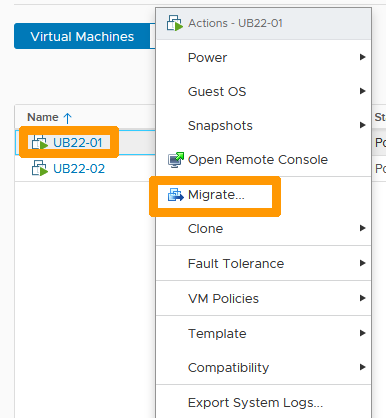
Right-click each of the virtual machines that are on this datastore, choose Migrate and use the VMware Storage vMotion guide to migrate to a more recent datastore.
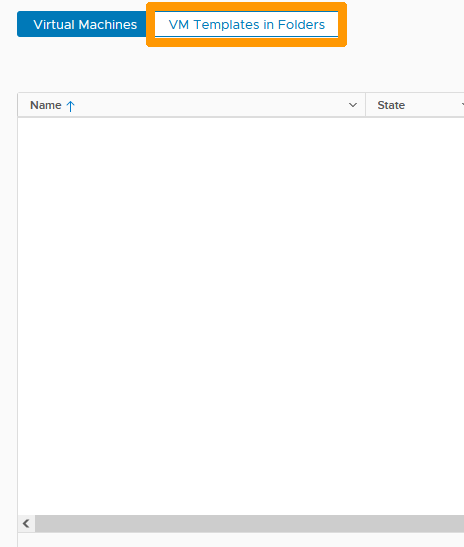
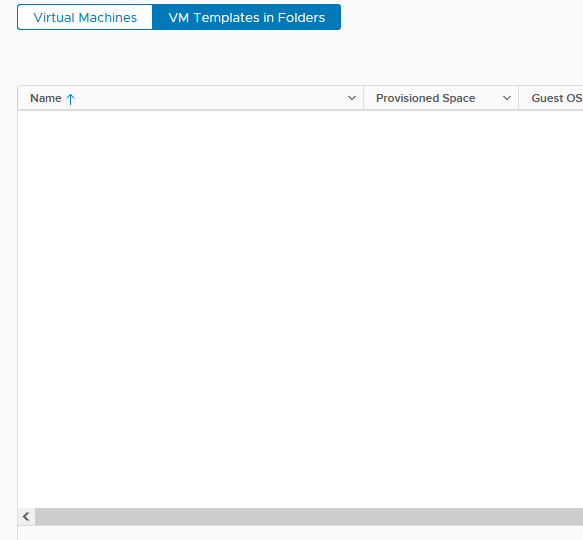
When the tab no longer contains virtual machines, go to VM template in folders to view the saved templates on your datastore.
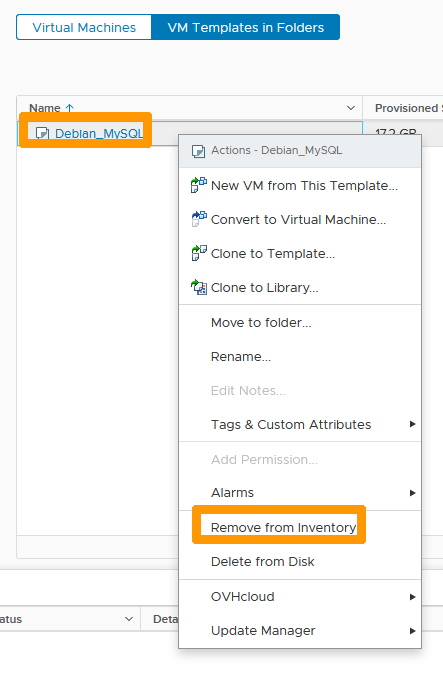
Right-click each of the templates saved in your datastore and click Remove from Inventory.
The template is deleted from the inventory but is still in the datastore. You can retrieve it and move it to another datastore or delete it if you no longer need it.
The templates list is empty, you can keep moving your templates to another datastore.
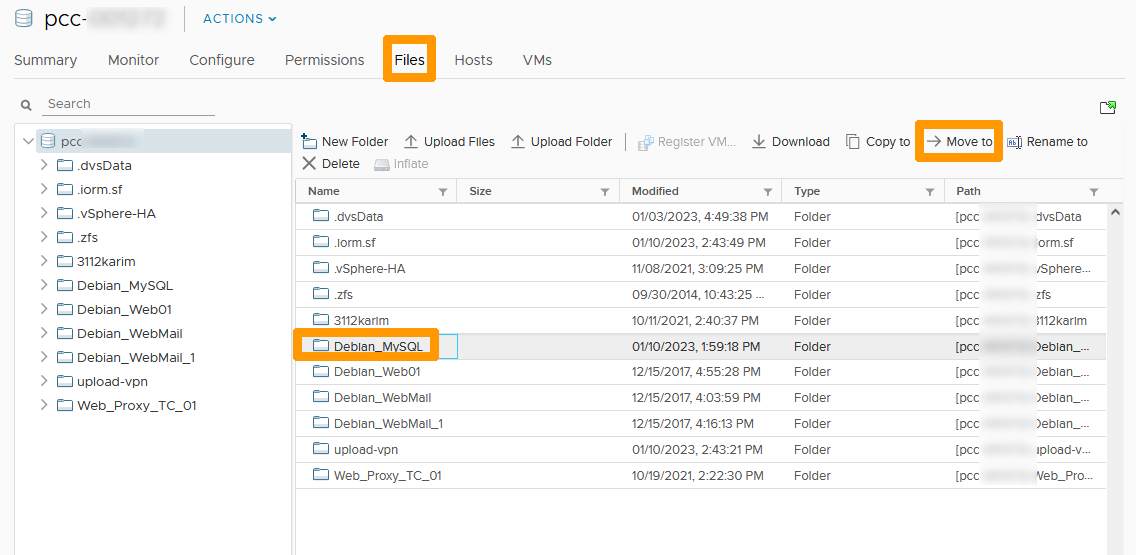
Go to the Files tab, go to a folder in a template and click Move to.
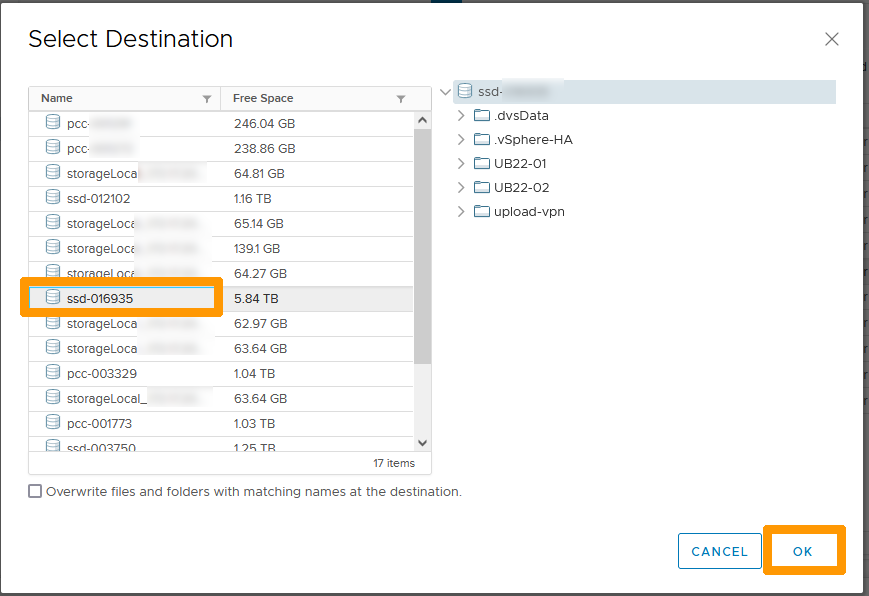
Choose a Datastore and click OK.
Wait for the task to complete.

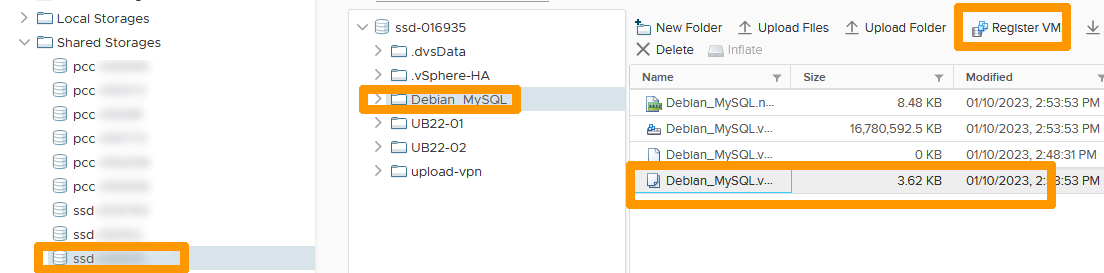
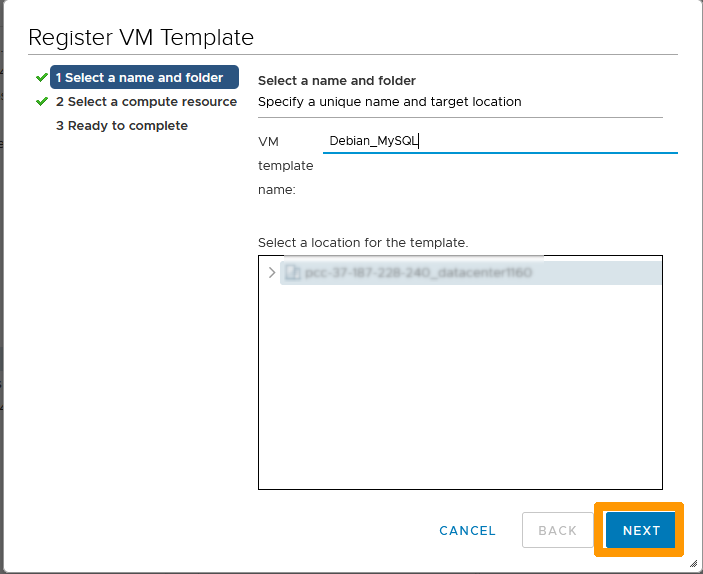
Select the destination datastore for the template on the left, go to the Template folder, select the template file and click Save VM.
Click NEXT.
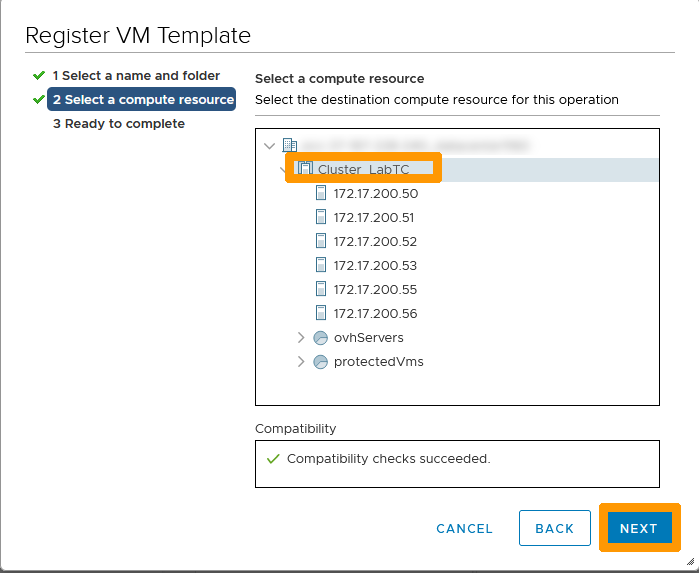
Click NEXT again.
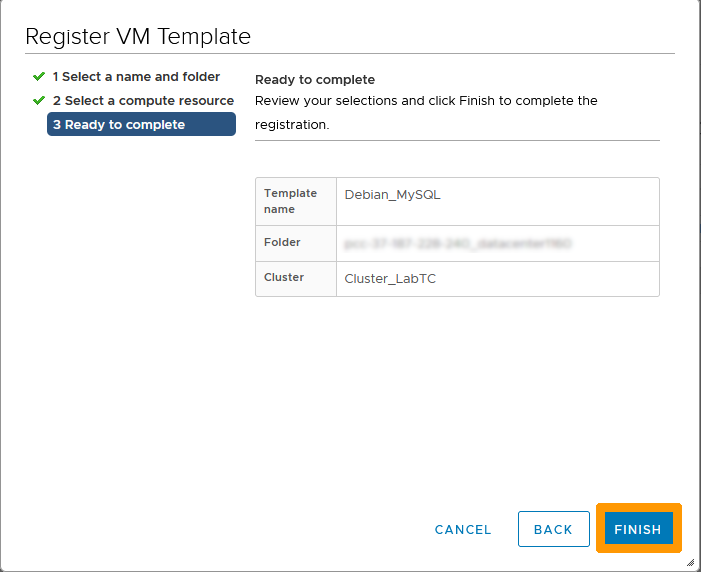
Click FINISH.
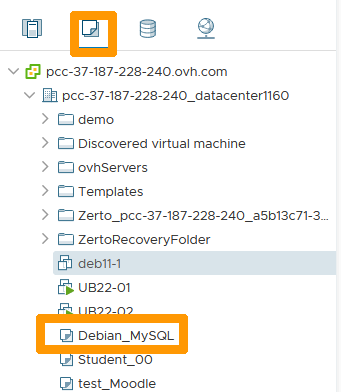
Go to the VM & templates tab to make your model appear.
Deleting storage for your VMware cluster
Use this guide to delete your obsolete storage: Delete a datastore
After deleting your Datastore, log in to your OVHcloud Control Panel to stop subscribing to this service.
Go further
Join our community of users on https://community.ovh.com/en/.


 Public VCF as-a-Service - Migrate from VMware vSphere on OVHcloud
 206
206