

Adding an IP block
337 Views
 06.04.2022
  Cloud / Hosted Private Cloud
Objective
IP blocks can be used to make your services accessible online.
This guide will explain how to order, add and migrate an IP block linked to your Hosted Private Cloud.
Requirements
- Being an administrative contact of your Hosted Private Cloud infrastructure to receive login credentials
- A user account with access to vSphere (created in the OVHcloud Control Panel)
OVHcloud Control Panel Access
- Direct link: VMware vSphere
- Navigation path:
Hosted Private Cloud>Managed VMware vSphere> Select your vSphere service
Instructions
Order an IP block
To order an IP block for your Hosted Private Cloud, click this link to access the VMware vSphere section, then click on the IP section in the left-hand column and click Order additional IP addresses. Select your Hosted Private Cloud in the dropdown menu before moving on to the next step.
You will need to fill in several fields in order to create your IP block.
- Size of IP block (from /28 to /24)
As a reminder, here is a table listing the number of IPs present in a block, and the number of usable IPs.
| Block size | IPs in the block | IPs usable with OVHcloud |
|---|---|---|
| 28 | 16 | 11 |
| 27 | 32 | 27 |
| 26 | 64 | 59 |
| 25 | 128 | 123 |
| 24 | 256 | 251 |
Please feel free to refer to our guide on the OVHcloud Network plugin to find out which IPs are reserved for your block, as well as how they are used.
- The country an IP block is hosted in is important in some cases, for your services' SEO ranking (a website based in France will have a higher SEO ranking in France if the IP address is French, too).
- Network name (information visible in the WHOIS profile for the IP block).
- Estimated number of customers (how many end-users or customers will be hosted on these IPs).
- Network description (information visible in the WHOIS profile for the IP block).
- Usage (information on the usage (web, SSL, cloud, etc.)).
There is a one time setup fee for an IP block that will be due before delivery.
Once you have confirmed the final step, you will receive the purchase order for your IP block. If everything looks correct in the purchase order, you will simply need to pay the total using one of the payment methods listed at the bottom of the page, and your order will then be delivered.
Migrate an IP block between two Hosted Private Cloud solutions
To migrate an IP block, you will need to move the blocks manually via the OVHcloud APIv6.
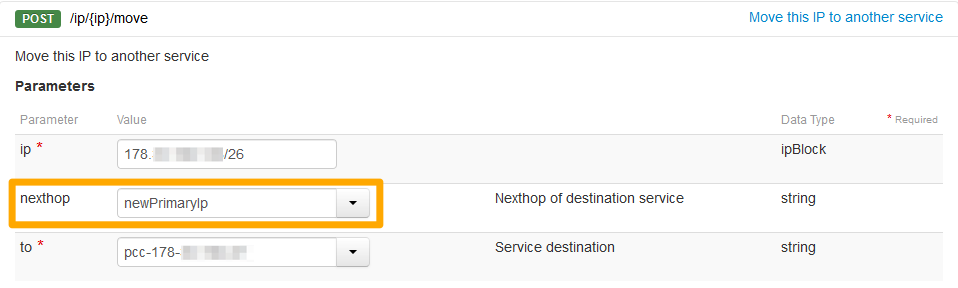
Use the following API call:
You will need to fill in the fields as follows:
- ip: IP block with the /mask
- nexthop "newPrimaryIp" (case-sensitive)
- to: Target Hosted Private Cloud in the following form: pcc-XXX-XXX-XXX-XXX
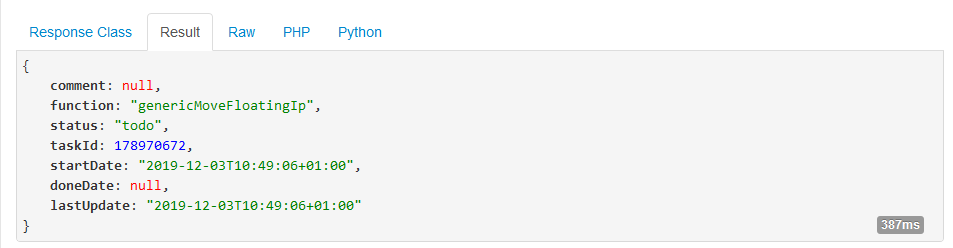
The result should look like this:
If you need to detach the IP block, you can use the following API call to move the IP into the "IP parking" section:
This call cuts the network on the VMs that use the IPs concerned.
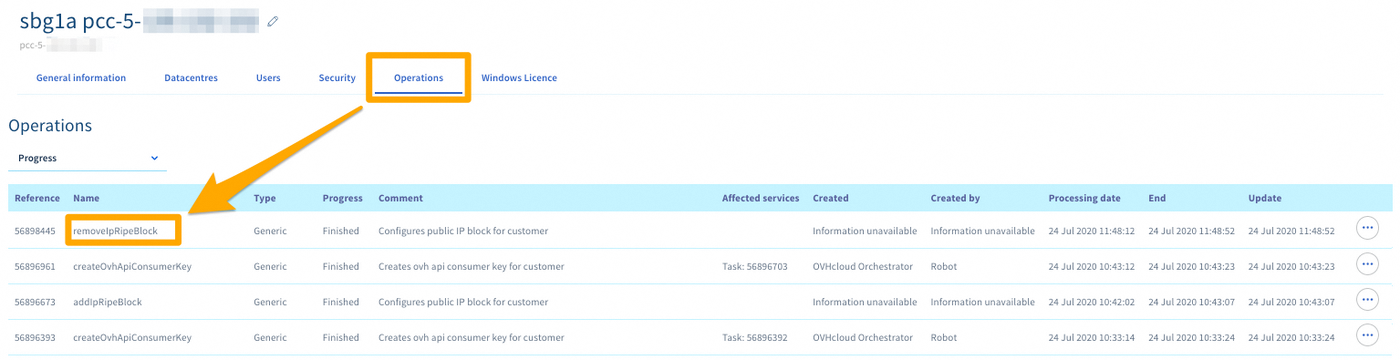
You can track the movement of your IP block by clicking this link to access the VMware vSphere section, then clicking on your Hosted Private Cloud service and on the Operations tab.
The operation reference is "removeIpRipeBlock".
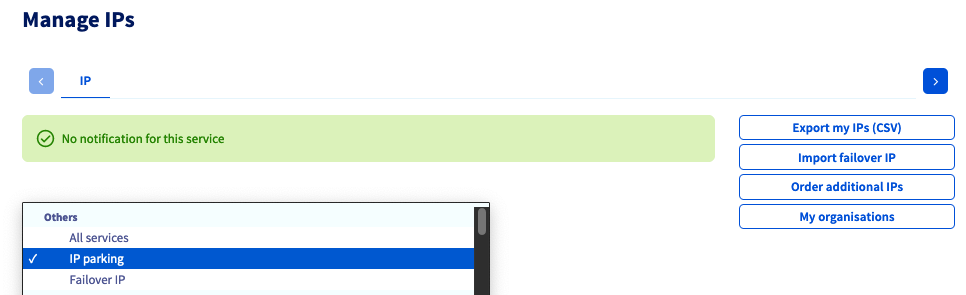
The IP will then appear in the IP parking.
Go further
Join our community of users on https://community.ovh.com/en/.


 Adding a public IP address to a new VM
 80
80