

Handling roles and permissions when IAM is not enabled
320 Views
 16.10.2025
  Cloud / Logs Data Platform
Overview
Log policies are often decisions made by an entire team, not individuals. Collaboration remains of utmost priority for Logs Data Platform; following this strategy, it enables everyone to share data easily and securely. Log policies also affect several teams regarding access rights; for instance, product managers can access some data but are denied access to security logs.
Logs Data Platform fully supports Access management through IAM. The feature presented in this documentation is for "legacy users" and not for IAM‑enabled services. We strongly advise using IAM and not using the content of this guide for new Logs Data Platform services.
We maintain the Role Based access control to allow users to configure access rights if they cannot yet enable IAM. This document will show you how to use this system to configure access rights. However, as stated above, this feature will not be upgraded and will be fully replaced by IAM access management.
Creating a Role
Head to the Roles page in the manager and create a role with its name and description.
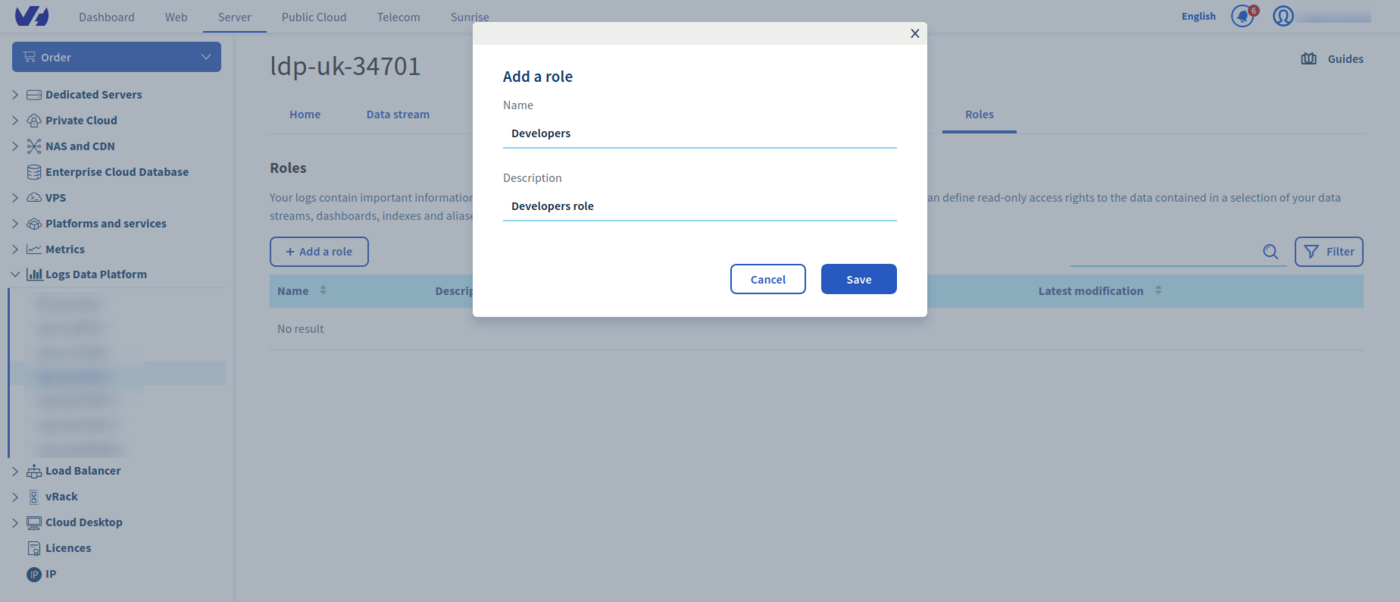
Once created, you will be able to configure the role details: its permissions and its members.
Managing Permissions
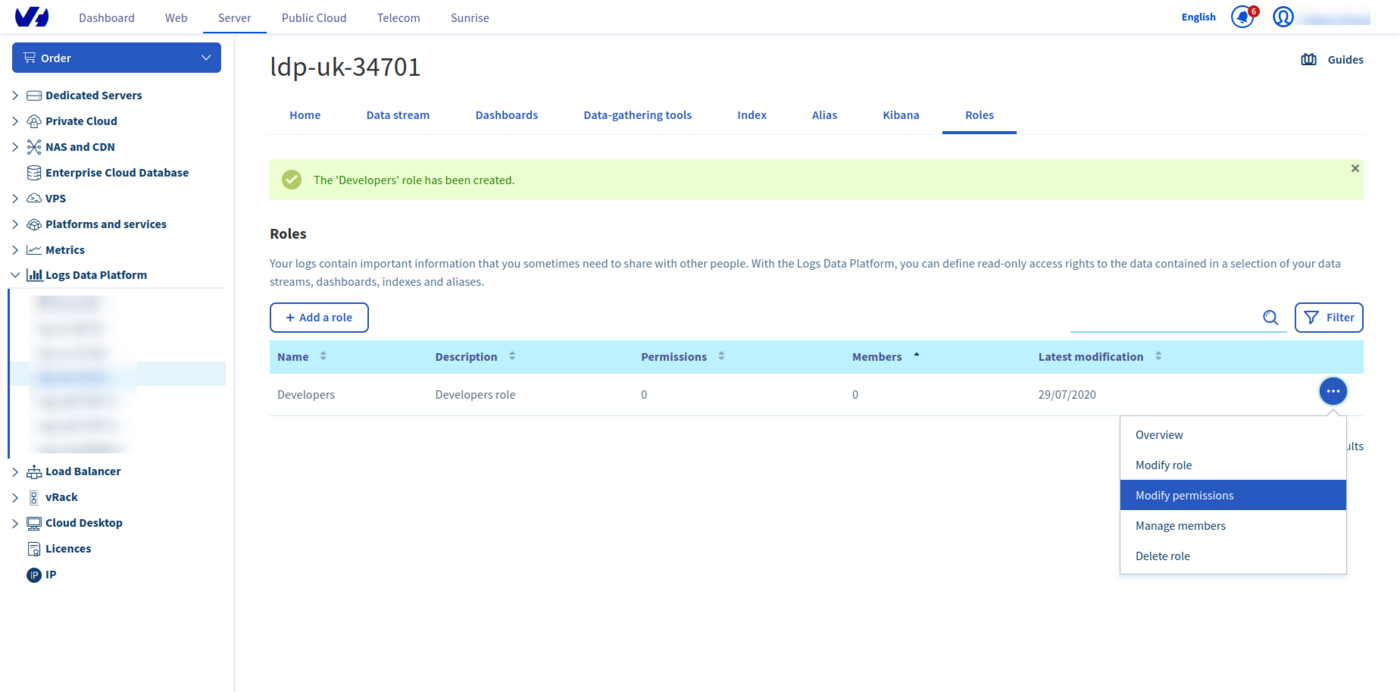
Click on the ... button on the right to display the menu and navigate to Modify Permissions.
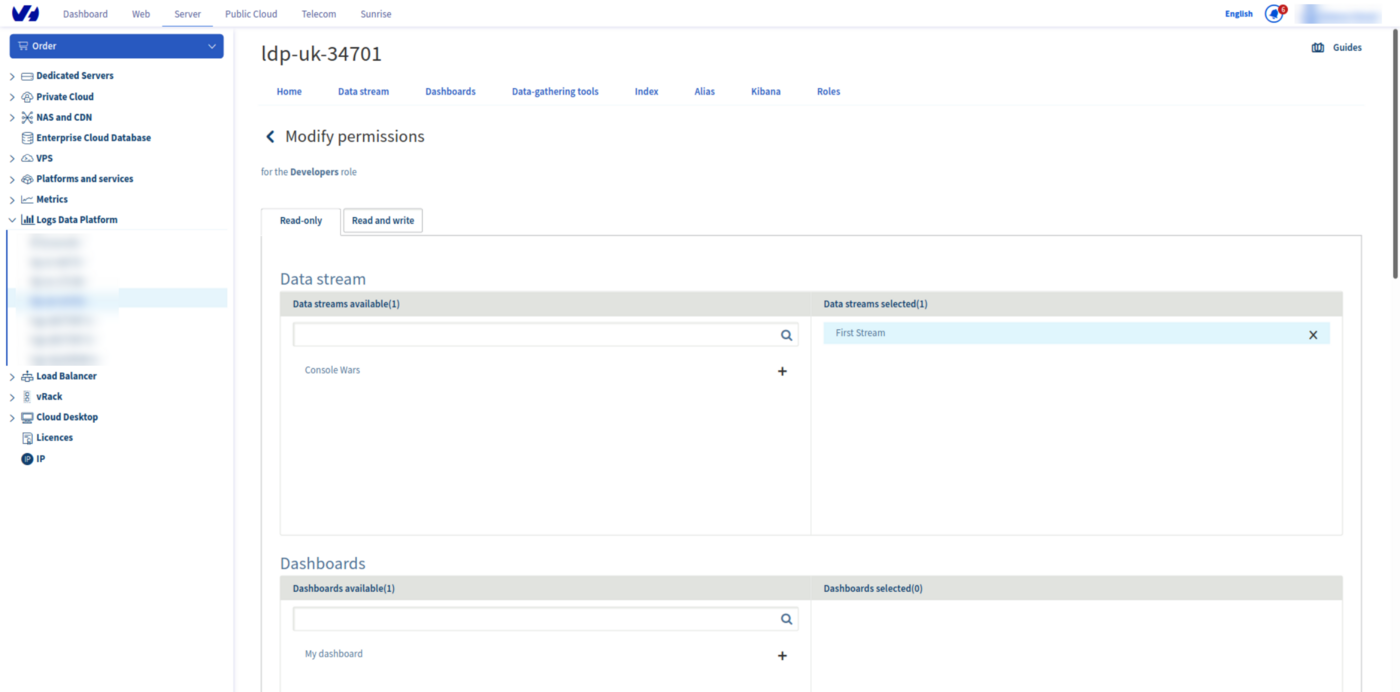
On the permission page, you will see two tabs Read-Only and Read-Write.
Some items can be shared read‑only, whereas others can be shared with a write (or modification) right.
| Items | Read-Only | Read-Write |
|---|---|---|
| Stream | Yes | No |
| Dashboard | Yes | Yes |
| Index | Yes | Yes |
| Alias | Yes | No |
| OpenSearch Dashboards | Yes | Yes |
- Data Stream: Graylog Data Streams can only be shared read-only since logs are fully immutable.
- Dashboards: Graylog Dashboards can be shared read-only or read-write. With the read‑write access, the users in the role can add, modify, and remove widgets of a dashboard.
- Index: OpenSearch indices can be shared read-only or read-write. With the read-write access, users in the role can add, modify and delete documents in the index. They can also alter the mapping.
- Aliases: OpenSearch Aliases are read-only. They can only be used to read the data attached to them.
- OpenSearch Dashboards: OpenSearch Dashboards can be shared read-only or read-write. If OpenSearch Dashboards is read‑only, users have access but cannot modify it. If read‑write, they can modify the dashboards, visualizations, or any other OpenSearch Dashboards feature or setting.
Note that to give access to data (index or aliases) explored through OpenSearch Dashboards to a user, you need to give at least read rights to both the instance and to the data explored.
Select the items you want to share in the role and they will switch from the available column to the selected column. Go back to the roles page to manage the users in the defined role.
Managing members
To manage the members of a role, use the same ... menu to navigate to the Manage members page. Click on Add a member to add a new member for this role.
In the username box you must add a Logs Data Platform username. The LDP username can be found in the Home panel of your OVHcloud Control Panel, in the General section. Any Logs Data Platform user can be added to the role even if their assigned cluster is different from yours.
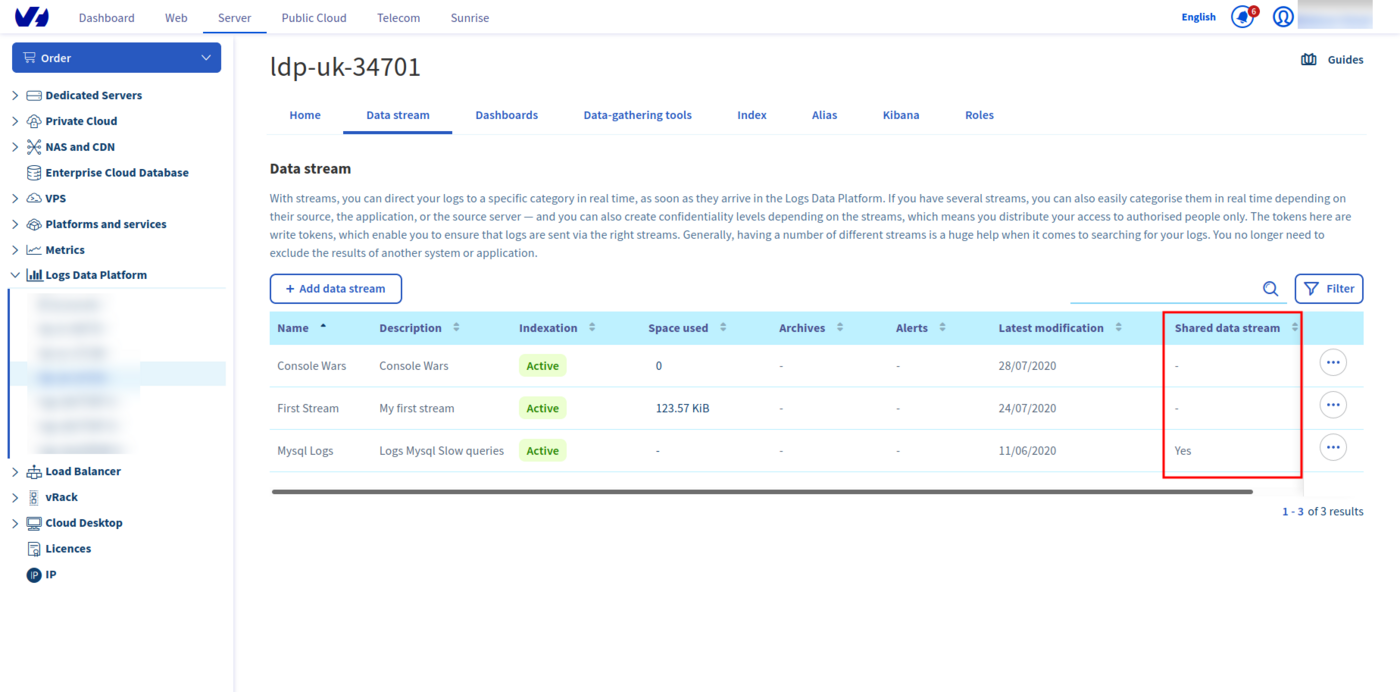
Once a member has been added, this member will see (on the relevant pages of the Control Panel) the items that have been shared to them with an indication present on the Shared column. Their available actions will also be displayed when clicking the ... button menu.
A user can use their usual Logs Data Platform account credentials on a different cluster to access a shared item if it is not on their assigned cluster. If a user has access to items on another cluster, they can create tokens for this new cluster access. As a reminder, creating a service on Logs Data Platform is free; any OVHcloud account can create one or several accounts and they do not have to pay for data that has been shared with them.
Using API
Role management can be automated by using the OVHcloud API.
Here are a few examples of the role API calls you can use:
Listing available services
Returning the list of roles associated with the service
Parameters:
serviceName: The internal ID of your Logs Data Platform service (string)
Returning the specified role
Parameters:
serviceName: The internal ID of your Logs Data Platform service (string)roleId: UUID of your role (string)
Granting a given LDP user
Parameters:
serviceName: The internal ID of your Logs Data Platform service (string)roleId: UUID of your role (string)RoleMemberCreation: A JSON object containing the field {username} (string), the username of the member and a {note}, the description of this member
Allowing access on a given alias
Parameters:
serviceName: The internal ID of your Logs Data Platform service (string)roleId: UUID of your role (string)
RequestBody:
RolePermissionAliasCreation: A JSON object containing the field {aliasId} (string), the UUID of the alias you want to share.
Don't hesitate to explore the API, and try it with the provided console.
Go further
- Getting Started: Quick Start
- Documentation: Guides
- Community hub: https://community.ovh.com
- Create an account: Try it!


 Pushing logs from a Kubernetes cluster to Logs Data Platform using Fluent Bit
 1090
1090